Addons
Create and manage Product Addons here.
Summary
Addons are used to sell additional services which are not linked to stock. Set unique SKUs for reporting, control pricing centrally, and optionally choose to raise purchase orders. Perfect for gift wrap, removal and assembly services, extended warranties or third party insurance policies.
The may be assigned to Products.
Key to icons
 = edit
 = delete
 = view attribute values
Setup
Addon Group
To create new Addons, you must first set up a new Addon Group. These act as a title for your Addon.
| Field | Purpose |
| Name | This is the name of the group, and is displayed to the customer |
| Description | This is intended to be a short description, which is displayed to the customer; this should be generic to all Addons within this Group |
Item Addons
These are assigned on a 1:1 basis against products. Examples include gift wrap, disposal services and other similar services.
Click here for more information.
Group Addons
These are assigned per Product, but the price of the Addon is determined by the contents of the basket.
Click here for more information.
FAQs
Is it possible to disable an Addon without deleting it?
Yes - this is done via individual Addons, and can not be done at the Addon Group level.
Item Addons
These are assigned on a 1:1 basis against products. Examples include gift wrap, disposal services and other similar services.
Item Addons can be given prices, SKU codes and other important information.
Setup
Details
| Field | Purpose |
| Type | Choose from 'Item Addon' or 'Basket Addon' |
| Code | Enter the unique SKU code of your Addon (Item Addons only) |
| Name | Enter the Name of your Addon - this will be displayed to the customer as a choice when completing a purchase |
| Description | This is intended to be a short description, which is displayed to the customer; this should be specific to this Addon |
|
Retail Price (inc VAT) |
Enter the price of the Addon |
| Trade Price (ex VAT) | Enter the trade price of the Addon |
| Cost Price (ex VAT) |
Enter the cost price of the Addon
This is solely used for margin reporting, as it is not possible to order an Addo n from a Supplier using the Purchase Order module |
| VAT |
Select the VAT status of an Addon - choose from:
VAT rates for Standard and Reduced are controlled via Countries |
| Send to Staingard |
See Staingard for more information |
| Live? | Toggles whether the Addon is Live or not |
| Allow Returns | Select to allow returns (refunds/cancellations) of the Addon |
| Allow Customer Note | Select to allow the customer to enter a personalised message at checkout (ideal for gift labels) |
| Customer Note Prompt | The prompt that will show to the customer instructing them what to enter as the Customer Note |
Assignment
Use the Assignment Rules to assign this Addon in bulk, or altatively manage this via individual Products or in bulk via CSV import/export.
How it displays
eCommerce
When assigned to a product, the customer will be prompted to opt in. If there are multiple Addons from the same group (e.g. pink or blue giftwrap), a drop down will be shown. Otherwise, it will be a simple tickbox.
This will display near the add to basket button on the Product Detail Page.
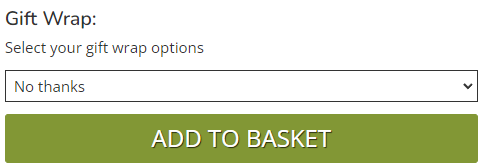
It will also display as an option at checkout.
POS
It will also display as a pop up within the POS.
Basket Addons
These are assigned on a 1:1 basis against products. Examples include gift wrap, disposal services and other similar services.
Basket Addons can be given prices, SKU codes and other important information.
Setup
Details
| Field | Purpose |
| Type | Choose from 'Item Addon' or Basket Addon |
| Name | Enter the Name of your Addon - this will be displayed to the customer as a choice when completing a purchase |
| Description | This is intended to be a short description, which is displayed to the customer; this should be specific to this Addon |
|
Surcharge Price (inc VAT) |
Enter the price of the surcharge (optional) |
| Surcharge Cost Price (ex VAT) |
Enter the cost price of the surcharge (optional)
This is solely used for margin reporting, as it is not possible to order an Addon from a Supplier using the Purchase Order module |
| Surcharge Label |
Enter a label for the surcharge (optional)
The surcharge will display as a separate order line with this label |
| VAT |
Select the VAT status of the surcharge - choose from:
VAT rates for Standard and Reduced are controlled via Countries |
| Send to Staingard |
See Staingard for more information |
| Live? | Toggles whether the Addon is Live or not |
| Allow Returns | Select to allow returns (refunds/cancellations) of the Addon |
| Allow Customer Note | Select to allow the customer to enter a personalised message at checkout (ideal for gift labels) |
| Customer Note Prompt | The prompt that will show to the customer instructing them what to enter as the Customer Note |
Pricing Tiers
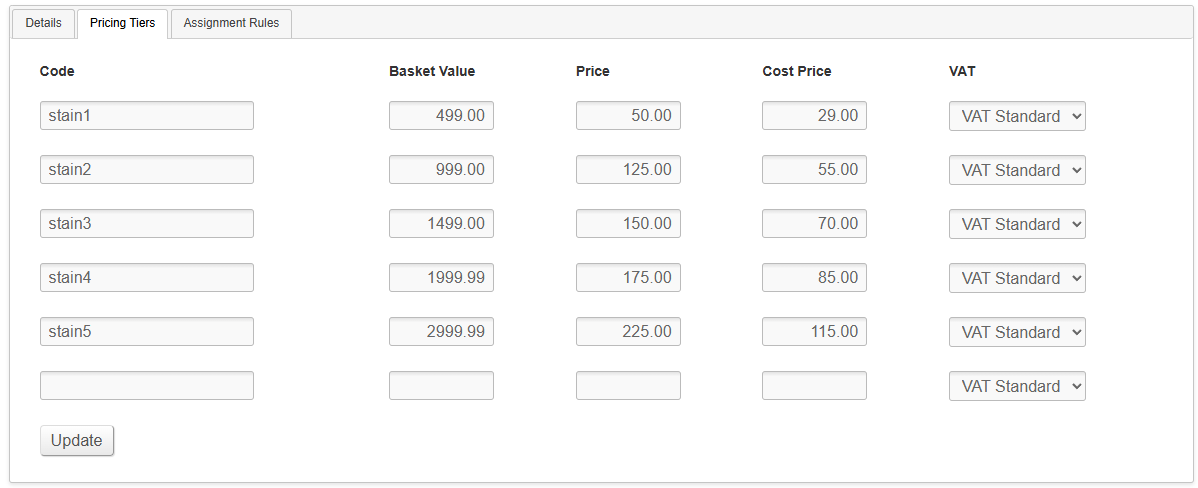
Pricing for the Group Addons are managed via tiers. The price of the Addon is based on the total value of items in the basket where the Customer has opted into the Addon.
Example
A customer has three items in their basket priced at £500, £250, and £125 respectively.
Each item offers the ‘Insurance’ Addon as an optional extra.
The customer chooses to apply the Insurance Addon to Item 1 (£500) and Item 3 (£125), but not to Item 2.
Therefore, the total value of goods used to calculate the Addon price is:
£500 + £125 = £625
Setup
| Field | Purpose |
| Code |
The SKU code of that tier (each tier must have a unique code)
There may be limitations on the data in this field if an integration is required, e.g. Staingard. |
| Basket Value | The maximum basket value for that tier |
| Price | The price charged to the Customer for that tier |
| Cost Price | The cost price for that tier |
| VAT |
Select the VAT status of the surcharge - choose from:
VAT rates for Standard and Reduced are controlled via Countries |
An example setup is below:
Assignment
Use the Assignment Rules to assign this Addon in bulk, or altatively manage this via individual Products or in bulk via CSV import/export.
How it displays
eCommerce
When assigned to a product, the customer will be prompted to opt in. If there are multiple Addons from the same group (e.g. pink or blue giftwrap), a drop down will be shown. Otherwise, it will be a simple tickbox.
This will display near the add to basket button on the Product Detail Page.
The price will adapt based on previous selections, e.g. if a customer has already opted into the Addon for an item already in the basket, this will adjust the price on the current product, up to and including offering the Addon for free.
It will also display as an option at checkout. Pricing will dynamically change on all Products based on selection.
POS
It will also display as a pop up within the POS.
The price will adapt based on previous selections, e.g. if a customer has already opted into the Addon for an item already in the order, this will adjust the price on the current product, up to and including offering the Addon for free.
Assignment Rules
These rules can be used to automatically attach Addons to Products; it is also possible to assign these manually to individual products on the Addons tab when when editing a Product.
How Assignment Rules Work
The user sets up several rules, by which the website can check whether any product qualifies for Addons.
Through this method, when products become eligible, those Addons will apply immediately.
When a product ceases to be eligible, those Addons will immediately be removed.
Setting Up New Rules
Overlay Rules are managed in the second tab of the Edit Addon screen.
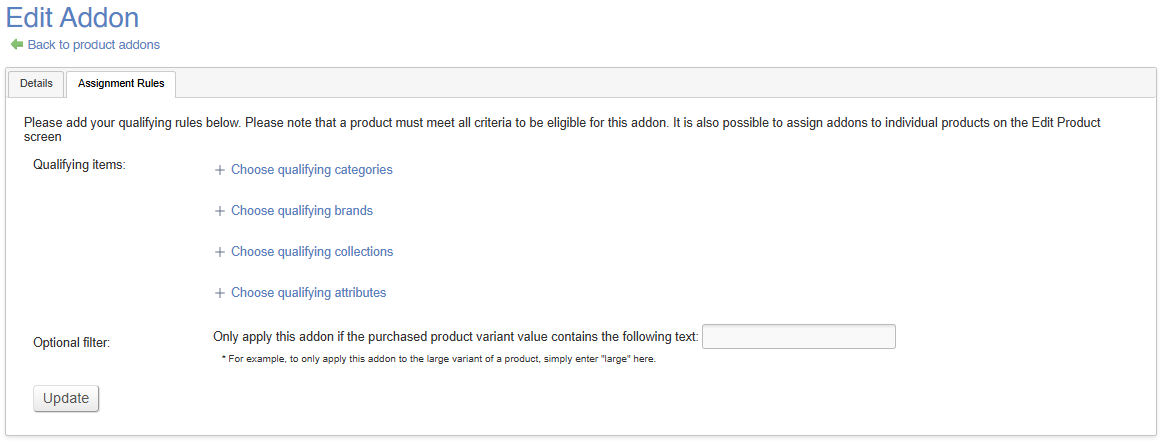
Simply select the criteria that you wish to apply to your Rule.
Assignment Rules work on an AND basis. That means that in order for a rule to be applied, all criteria must be met.
E.g. Products in the 'Sofa' category that also have the 'Leather' attribute
Once added, this will be automatically active, and all live Products will display the relevant cross-selling selections.
If you want your rule to apply to only certain Variants, use the Optional Filter; simply enter the string that should be present
For example to upsell a 'Single Mattress' to all Products in the 'Bedframes' category, simply enter 'Single' in the optional filter, and it will only apply to Variants with 'Single' entered as the optional value
To further restrict this, tick 'exact match only', which will ensure a precise match, e.g. differentiating between 'Large Single' and 'Small Single'
Workflows
Assigning Addons to a Product
How to assign Addons to a Product from the edit addon screen.


