# Workflows - Categories


# Dynamic Categories


# How to resequence Products within Categories

Products can be re-sequenced manually from within the CMS by following these simple steps.

##### 1. Navigate to your CMS.

##### 2. Click "Categories" under Catalogue.

![](https://ajeuwbhvhr.cloudimg.io/colony-recorder.s3.amazonaws.com/files/2024-12-03/52ca6646-27db-4f78-b637-fde4d9eee541/ascreenshot.jpeg?tl_px=0,0&br_px=1075,600&force_format=jpeg&q=100&wat_scale=95&wat=1&wat_opacity=1&wat_gravity=northwest&wat_url=https://colony-recorder.s3.amazonaws.com/images/watermarks/4c83c3_standard.png&wat_pad=457,95)

##### 3. Find the appropriate category. In this instance we are using "Living Room".

![](https://ajeuwbhvhr.cloudimg.io/colony-recorder.s3.amazonaws.com/files/2024-12-03/08a952ea-aa4d-408c-8a22-1b1506d02476/ascreenshot.jpeg?tl_px=0,45&br_px=1075,646&force_format=jpeg&q=100&wat_scale=95&wat=1&wat_opacity=1&wat_gravity=northwest&wat_url=https://colony-recorder.s3.amazonaws.com/images/watermarks/4c83c3_standard.png&wat_pad=291,265)

##### 4. Select the appropriate sub-category(s). In this instance we are using "2 Seater Sofas".

![](https://ajeuwbhvhr.cloudimg.io/colony-recorder.s3.amazonaws.com/files/2024-12-03/7c4f41ac-d311-4d83-b6f4-12f9eeb03204/ascreenshot.jpeg?tl_px=0,34&br_px=1075,635&force_format=jpeg&q=100&wat_scale=95&wat=1&wat_opacity=1&wat_gravity=northwest&wat_url=https://colony-recorder.s3.amazonaws.com/images/watermarks/4c83c3_standard.png&wat_pad=295,265)

##### 5. When the products are listed, click "Show All".

![](https://ajeuwbhvhr.cloudimg.io/colony-recorder.s3.amazonaws.com/files/2024-12-03/270f3005-7760-4eec-b227-c6576e8cb177/ascreenshot.jpeg?tl_px=932,0&br_px=2007,600&force_format=jpeg&q=100&wat_scale=95&wat=1&wat_opacity=1&wat_gravity=northwest&wat_url=https://colony-recorder.s3.amazonaws.com/images/watermarks/4c83c3_standard.png&wat_pad=502,146)

##### 6. After clicking "Show All", you will now be able to re-sequence the products by dragging and dropping to a new position. We will move "Harold Chaise Sofa" to the top.

![](https://ajeuwbhvhr.cloudimg.io/colony-recorder.s3.amazonaws.com/files/2024-12-03/d386b04e-607e-4cb3-9140-2edae4797723/ascreenshot.jpeg?tl_px=63,22&br_px=2087,1153&force_format=jpeg&q=100&width=1120.0&wat=1&wat_opacity=1&wat_gravity=northwest&wat_url=https://colony-recorder.s3.amazonaws.com/images/watermarks/4c83c3_standard.png&wat_pad=308,311)

##### 7. We will also move "Orla Kiely Mimosa Small Sofa".

![](https://ajeuwbhvhr.cloudimg.io/colony-recorder.s3.amazonaws.com/files/2024-12-03/321e07e7-618c-4176-9988-b3a544712c8b/ascreenshot.jpeg?tl_px=74,0&br_px=1638,873&force_format=jpeg&q=100&width=1120.0&wat=1&wat_opacity=1&wat_gravity=northwest&wat_url=https://colony-recorder.s3.amazonaws.com/images/watermarks/4c83c3_standard.png&wat_pad=458,438)

##### 8. Once you are happy with the new sequence, you can simply return to the parent category, which will save the order of products.

![](https://ajeuwbhvhr.cloudimg.io/colony-recorder.s3.amazonaws.com/files/2024-12-03/5fe87e12-9749-4311-aad6-78bbf45c484a/ascreenshot.jpeg?tl_px=0,0&br_px=1075,600&force_format=jpeg&q=100&wat_scale=95&wat=1&wat_opacity=1&wat_gravity=northwest&wat_url=https://colony-recorder.s3.amazonaws.com/images/watermarks/4c83c3_standard.png&wat_pad=200,108)

# Managing Products in Bulk


# Deleting a Product

<p class="callout danger">When deleting a product, this action will also delete all associated stock.</p>

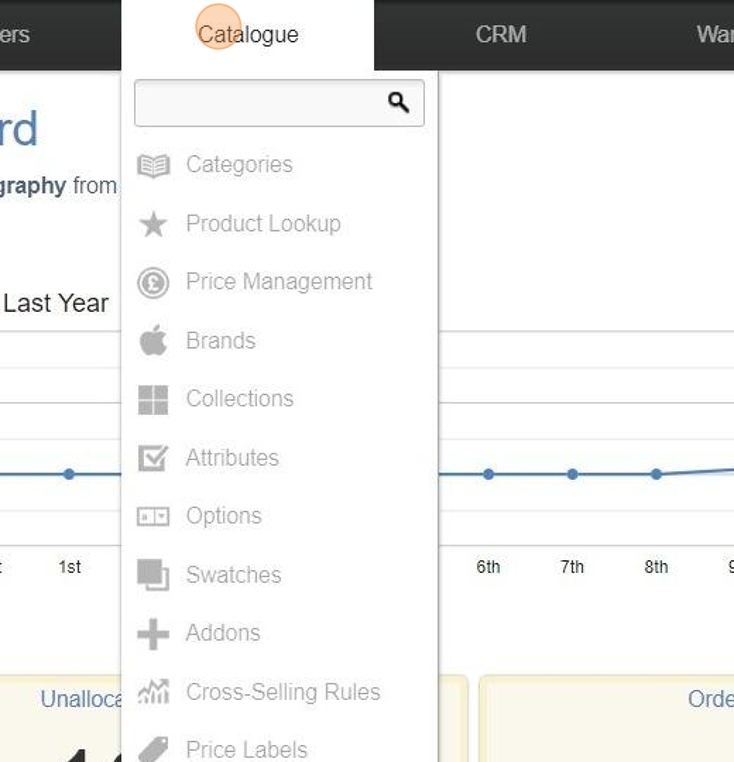
##### 1. Click "Catalogue"

##### ![](https://ajeuwbhvhr.cloudimg.io/colony-recorder.s3.amazonaws.com/files/2024-09-30/26cea443-26f7-4909-8c7c-0f131abc65b6/user_cropped_screenshot.jpeg?tl_px=0,0&br_px=800,351&force_format=jpeg&q=100&width=967&wat_scale=86&wat=1&wat_opacity=0.7&wat_gravity=northwest&wat_url=https://colony-recorder.s3.us-west-1.amazonaws.com/images/watermarks/FB923C_standard.png&wat_pad=265,-3)


##### 2. Click the "Product Search:" field.

##### ![](https://ajeuwbhvhr.cloudimg.io/colony-recorder.s3.amazonaws.com/files/2024-09-30/dcaaaff9-dd57-408c-9bfd-ba5edbbfe7d6/user_cropped_screenshot.jpeg?tl_px=0,0&br_px=967,540&force_format=jpeg&q=100&width=967&wat_scale=86&wat=1&wat_opacity=0.7&wat_gravity=northwest&wat_url=https://colony-recorder.s3.us-west-1.amazonaws.com/images/watermarks/FB923C_standard.png&wat_pad=125,105)
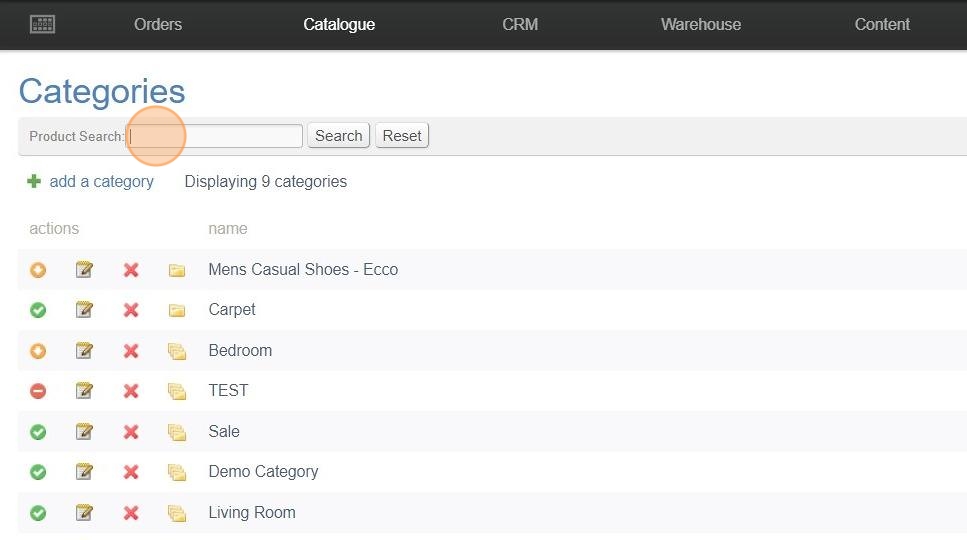

##### 3. Type the product you are looking for in to the search field. In this example we've used "strawberry".


##### 4. Click 'Search'

##### ![](https://ajeuwbhvhr.cloudimg.io/colony-recorder.s3.amazonaws.com/files/2024-09-30/5cf192d8-dedd-4938-a8cf-9212c0659a3a/user_cropped_screenshot.jpeg?tl_px=0,0&br_px=967,540&force_format=jpeg&q=100&width=967&wat_scale=86&wat=1&wat_opacity=0.7&wat_gravity=northwest&wat_url=https://colony-recorder.s3.us-west-1.amazonaws.com/images/watermarks/FB923C_standard.png&wat_pad=302,104)


##### 5. Click the 'Edit' icon

##### ![](https://ajeuwbhvhr.cloudimg.io/colony-recorder.s3.amazonaws.com/files/2024-09-30/98435cc9-2c0d-412f-8352-e42c97d9e827/user_cropped_screenshot.jpeg?tl_px=0,228&br_px=967,769&force_format=jpeg&q=100&width=967&wat_scale=86&wat=1&wat_opacity=0.7&wat_gravity=northwest&wat_url=https://colony-recorder.s3.us-west-1.amazonaws.com/images/watermarks/FB923C_standard.png&wat_pad=52,239)


##### 6. Scroll to the bottom of the page and click "delete product"

##### ![](https://ajeuwbhvhr.cloudimg.io/colony-recorder.s3.amazonaws.com/files/2024-09-30/93c285a6-13ad-4824-8ae8-9a059e250384/ascreenshot.jpeg?tl_px=1119,698&br_px=2087,1239&force_format=jpeg&q=100&width=967&wat_scale=86&wat=1&wat_opacity=0.7&wat_gravity=northwest&wat_url=https://colony-recorder.s3.us-west-1.amazonaws.com/images/watermarks/FB923C_standard.png&wat_pad=801,384)


##### 7. A popup will open asking if you are sure you want to delete this product - if you are happy, click 'OK'

##### ![](https://ajeuwbhvhr.cloudimg.io/colony-recorder.s3.amazonaws.com/files/2024-09-30/0b146061-900c-495f-8b65-4c892cf9a1e4/screenshot.jpeg?tl_px=0,0&br_px=579,206&force_format=jpeg&q=100)


##### 8. You will receive a confirmation message in the top right of the browser advising 'Product was deleted'

##### ![](https://ajeuwbhvhr.cloudimg.io/colony-recorder.s3.amazonaws.com/files/2024-09-30/761474cb-0ad7-4fbc-89a6-789bf473f823/screenshot.jpeg?tl_px=0,0&br_px=552,220&force_format=jpeg&q=100)

# Copying a Product

##### 1. Click "Catalogue"

##### ![](https://ajeuwbhvhr.cloudimg.io/colony-recorder.s3.amazonaws.com/files/2024-09-30/048b1fb0-7314-4011-a38b-472ad81146af/user_cropped_screenshot.jpeg?tl_px=0,0&br_px=520,540&force_format=jpeg&q=100&width=734&wat_scale=65&wat=1&wat_opacity=0.7&wat_gravity=northwest&wat_url=https://colony-recorder.s3.us-west-1.amazonaws.com/images/watermarks/FB923C_standard.png&wat_pad=195,3)

#####  

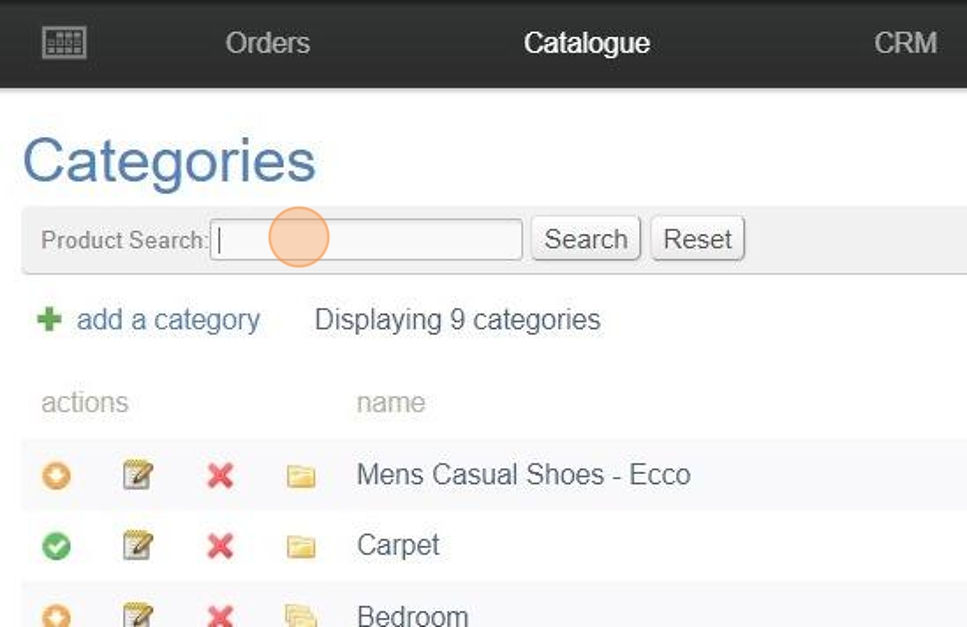
##### 2. Click the "Product Search:" field.

##### ![](https://ajeuwbhvhr.cloudimg.io/colony-recorder.s3.amazonaws.com/files/2024-09-30/5177c398-2a3b-450c-8e2e-26b11775cd53/user_cropped_screenshot.jpeg?tl_px=0,0&br_px=549,356&force_format=jpeg&q=100&width=967&wat_scale=86&wat=1&wat_opacity=0.7&wat_gravity=northwest&wat_url=https://colony-recorder.s3.us-west-1.amazonaws.com/images/watermarks/FB923C_standard.png&wat_pad=268,206)

#####  

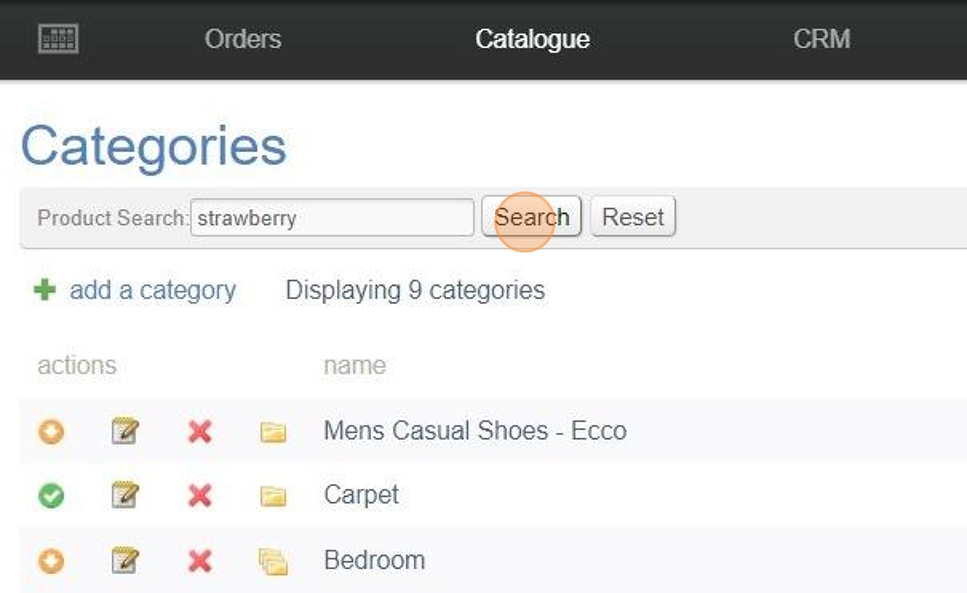
##### 3. Type the product you are looking for in to the search field. In this example we've used "strawberry".


#####  

##### 4. Click 'Search'.

##### ![](https://ajeuwbhvhr.cloudimg.io/colony-recorder.s3.amazonaws.com/files/2024-09-30/7b64a0e0-f310-42e6-a597-2fc8e2eae85e/user_cropped_screenshot.jpeg?tl_px=0,0&br_px=605,371&force_format=jpeg&q=100&width=967&wat_scale=86&wat=1&wat_opacity=0.7&wat_gravity=northwest&wat_url=https://colony-recorder.s3.us-west-1.amazonaws.com/images/watermarks/FB923C_standard.png&wat_pad=494,191)

#####  

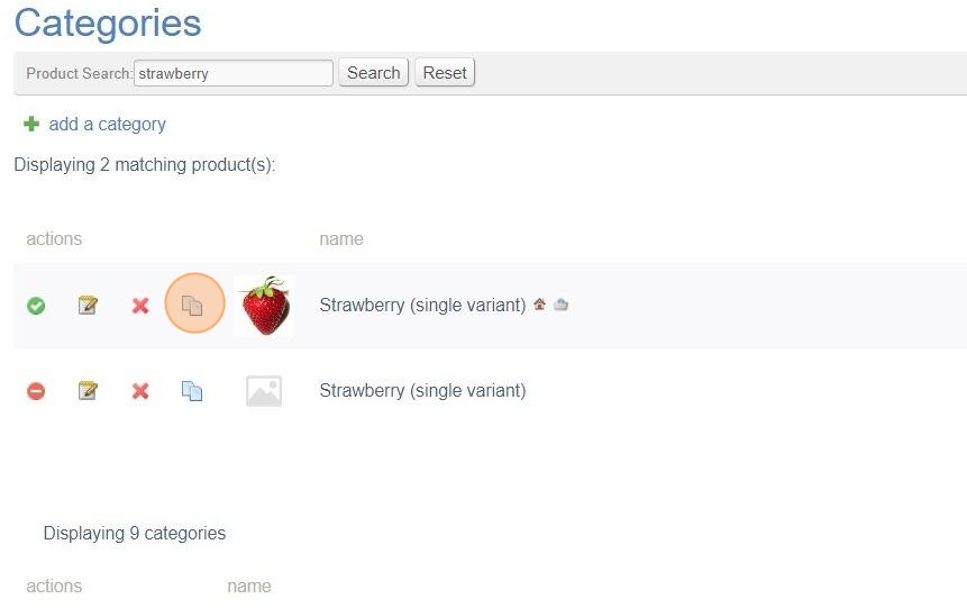
##### 5. Once you've found the product you wish to copy, click the blue copy icon.

##### ![](https://ajeuwbhvhr.cloudimg.io/colony-recorder.s3.amazonaws.com/files/2024-09-30/e3d1838c-9867-4892-8480-56cebbf4ec58/user_cropped_screenshot.jpeg?tl_px=0,71&br_px=861,612&force_format=jpeg&q=100&width=967&wat_scale=86&wat=1&wat_opacity=0.7&wat_gravity=northwest&wat_url=https://colony-recorder.s3.us-west-1.amazonaws.com/images/watermarks/FB923C_standard.png&wat_pad=164,272)

#####  

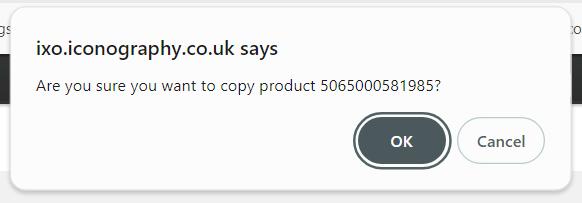
##### 6. You will receive a popup asking if you are sure you want to make a copy. If you are happy, click 'OK' to continue.

##### ![](https://ajeuwbhvhr.cloudimg.io/colony-recorder.s3.amazonaws.com/files/2024-09-30/1482c2e8-1e92-4ec5-be86-9ec2e69b02c9/screenshot.jpeg?tl_px=0,0&br_px=582,203&force_format=jpeg&q=100)

#####  

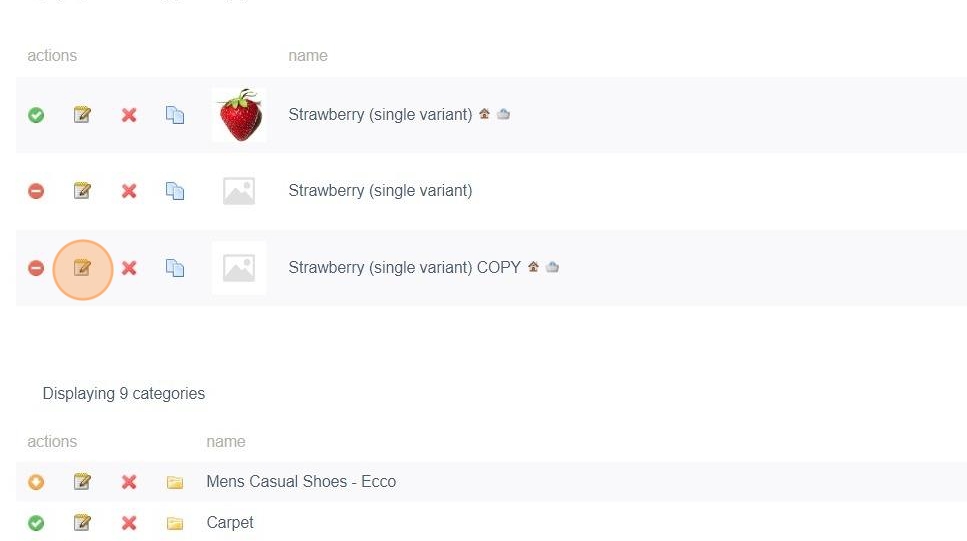
##### 7. A copy of the product will now be created. It will have the same name with a 'COPY' suffix.

##### ![](https://ajeuwbhvhr.cloudimg.io/colony-recorder.s3.amazonaws.com/files/2024-09-30/da447b22-3d99-462f-a72f-0d8639a53638/user_cropped_screenshot.jpeg?tl_px=0,0&br_px=1318,768&force_format=jpeg&q=100&width=1120.0)

# How to make bulk changes to Products from the Category screen in the CMS

tick boxes