You can also use the search in the top right of the CMS to locate a Customer record
You can also use it to register a new customer.New Customers may also be registered by Customers online, or in the POS
#### Key to Icons [](https://bookstack.iconography.co.uk/uploads/images/gallery/2025-12/edit.gif) = edit [](https://bookstack.iconography.co.uk/uploads/images/gallery/2025-12/live.gif) = registered customer [](https://bookstack.iconography.co.uk/uploads/images/gallery/2025-12/guest.gif) = customer pending registration [](https://bookstack.iconography.co.uk/uploads/images/gallery/2025-12/notlive.gif) = inactive customer ### Adding a New Customer To add a new Customer, click the 'Register' button in the top right. This will take you to a screen where you can add [customer information](https://bookstack.iconography.co.uk/books/customers/page/managing-customer-information). ### Managing Customer Accounts (in bulk) It is possible to download/email account statement for Customers on this screen, either in bulk, or individually. [](https://bookstack.iconography.co.uk/uploads/images/gallery/2026-07/SVzimage.png) ##### Download This will download a PDF account statement for all selected customers, compressed into a single .zip file. ##### Email If 'email' is clicked, each selected customer will be sent an email with a PDF account statement as below. ##### Sample Account Statement [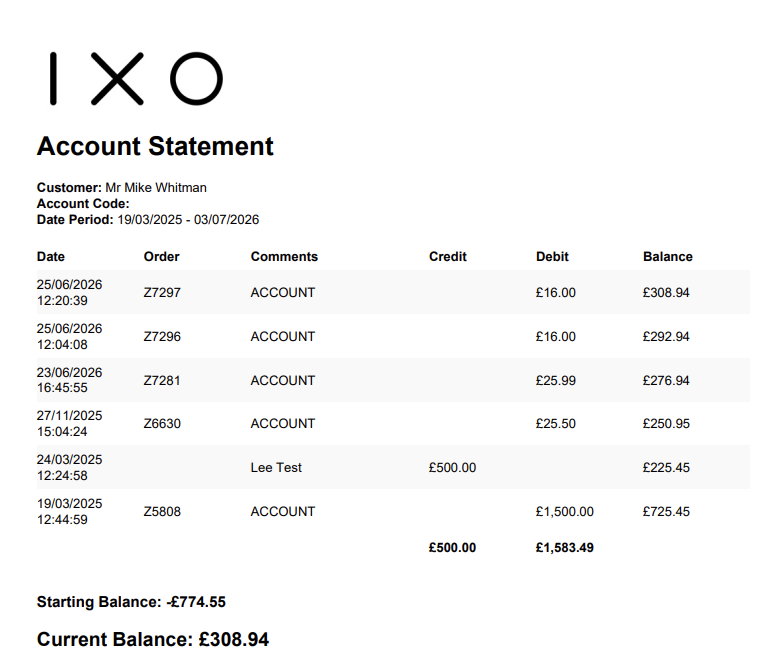](https://bookstack.iconography.co.uk/uploads/images/gallery/2026-07/yL9image.png) ### FAQs #### How do I find Customers with an outstanding balance? This can be done on the Customer list screen. Use the filters to choose an account type, and then toggle the button for 'with balance'. #### Can I reset a Customer Password? Yes - this is done on the Customer Details tab when [Managing Customer Information](https://bookstack.iconography.co.uk/books/customers/page/managing-customer-information). Customers may also reset their password via your website. # Managing Customer Information When editing a Customer, you will be able to update personal details, view Loyalty scheme information, payments on account, delivery addresses and their order history, as well as adding and review Notes, merging customers or deleting their records completely. ### Customer Details| Field | Purpose |
| Title | *Enter the Customer's Title* |
| First name | *Enter the Customer's First name* |
| Surname | *Enter the Customer's Surname* |
| Address 1 | *Enter the Customer's Address* |
| Address 2 | *Enter the Customer's Address* |
| Town | *Enter the Customer's Town* |
| County | *Enter the Customer's County* |
| Postcode | *Enter the Customer's Postcode* |
| Country | *Enter the Customer's Country* |
| Email address | *Enter the Customer's Email address* *Mandatory* |
| Telephone | *Enter the Customer's Telephone* |
| Alternate Phone | *Enter the Customer's Alternate Phone* |
| How did you find us? | *Choose from a drop down list; this is populated in [Site Settings](https://bookstack.iconography.co.uk/books/site-settings "Site Settings")* |
This is a potential GDPR risk, and should only be done if you have verified the Customer's identity and that they have access to that Email Address
### Mailing Preferences Use this section to update a Customer's contact preferences. This will show a complete list of all Customer Groups which are set up in the CMS. Simply update the tick boxes as required.The Customer will be prompted to confirm this subscription prior to their email address being sent to a third party marketing service
#### Unsubscribing a Customer If you need to unsubscribe a Customer, click the button to 'unsubscribe from all and opt out'. ### Loyalty This tab will show a summary of the Customer's Loyalty Points; these are based on the [Loyalty Scheme](https://bookstack.iconography.co.uk/books/general/page/loyalty-scheme) as defined in [Site Settings](https://bookstack.iconography.co.uk/books/site-settings "Site Settings"). The Customer's total Loyalty balance will be displayed at the top of the screen: [](https://bookstack.iconography.co.uk/uploads/images/gallery/2025-12/tYaimage.png) #### Loyalty Account Code The Customer's Loyalty Account Code is displayed here. If you are using physical gift cards, this can be edited to match the number on a card. Best practice would be to have blank cards with barcodes, and when a Customer registers, select this field and scan the barcode. This will update the number, which can then be saved. When searching for a Customer in the POS, it is possible to then scan that barcode into the Customer search field. #### Add Loyalty Points If you need to add Loyalty Points, this can be done manually from the Customer account screen on this tab. When adding points, the user will be prompted to add a comment. #### Loyalty Points History This table shows a complete history of current Loyalty Points, where they have been earned or manually added, and whether they have been spent.Loyalty Points expire after one year, and so older records will be removed
### Account Use this tab to control Account setup.| Field | Purpose |
| Account Type | *Choose between [Trade](https://bookstack.iconography.co.uk/books/customers/page/trade-customers) and [Retail](https://bookstack.iconography.co.uk/books/customers/page/retail-customers)* |
| Account Code | *Enter an Account Code*
*This is typically used to link to a third party system, e.g. an Accounting Package* |
| Price List | *Select a [Price List](https://bookstack.iconography.co.uk/books/price-lists "Price Lists") for this Customer to use* |
| Free Delivery | *If toggled to 'yes', this Customer will never pay for delivery* |
| Global Discount | *Set a global discount for this Customer, which will be applied to all Sales Orders* *This is set as a percentage* |
| Company | *Enter a Company Name for this Customer* |
| Company Number | *Enter a Company Number for this Customer* |
| VAT Number | *Enter a VAT Number for this Customer* |
| Active | *If set to 'no', this Customer will not be able to access their account*
*New Trade account registrations will automatically be set to inactive* |
This section is often used in conjunction with an Accounts integration; these third party systems often manage credit limits and balances, as well as ongoing payments
#### Account Summary The Customer's outstanding balance is shown at the top of this Tab.The balance is also output on the Customer summary screen
It is possible for a Customer to have either a negative or a positive balance
#### Setup Toggle the tick box to allow this Customer to make payments on account. If set to 'Yes', this Customer will be able to use this option online and in store.| Field | Purpose |
| Allow payment on account | Tick to enable 'pay on account' for a customer. This will be a payment option on all Sales Orders. |
| Credit Limit | Set a maximum Credit Limit; 'pay on account' will not be available on Sales Orders which would take the Customer beyond their Credit Limit |
When adding a payment, it is not possible to add a Payment Type. These payments are not considered linked to Sales Orders, and will not show up in End of Day. They must be manually entered in any Accounting software, and will not be included in a related integration.
#### Email/Download Statement It is possible to use the controls to access a recent statement of account. If 'email' is selected, it will be emailed direct to the Customer. [](https://bookstack.iconography.co.uk/uploads/images/gallery/2026-07/yL9image.png) ### Delivery Addresses Use this tab to view and update the Customer's delivery addresses. You can also change their primary address here. You can also delete addresses as required. ### Sales Order History Use this tab to view a complete history of the Customer's Sales Orders ### Notes Use this tab to view and add Customer Notes. This is part of the CRM, and to add a Note or Task, you can click [here](https://bookstack.iconography.co.uk/books/general/page/adding-notes-and-tasks) for more information. ### Duplicate Accounts Use this tab to manage Duplicate Accounts. Your system will flag potential duplicate accounts, and give you the option to merge them.All merged accounts will be merged into the current record, so ensure that you are on the primary Customer before merging
When merging accounts, recommendations will be made if multiple accounts have matching Surnames and Postcodes, or if they have matching Email Addresses. ### Delete For GDPR compliance, your customer has the "right to be forgotten". It will remove any mention of the customer from your website and is irreversible, so please use it with care. If you don't have a valid reason to retain this data, you can remove personal information using the button below.It will remove all references to name, all billing and delivery addresses, their email address, telephone number and company (if applicable). In addition, it will anonymise all orders, reviews, stock notification requests, loyalty information, search history and other activity. They will also be removed from all groups and their wish lists will be deleted.
It is not possible to remove Customer data until all Sales Orders have been fulfilled. # Account Types # Trade Customers To be a Trade Customer, this must be enabled on the Account tab by an User when editing a Customer. ### Registration A Trade Customer may be manually registered, but a User must confirm their status before the Customer Account can be used. If enabled, a Customer may register as a Trade Customer on the website. This will generate an email enquiry that will prompt a User to authorise the Trade application. ### Purpose Trade Customers will gain the following benefits: - Trade specific Products - Trade specific Pricing (Trade Price and Trade Special Offer Price)Note that Price Lists and Pay on Account are not restricted to Trade Accounts and that all Customers may benefit from them
# Retail Customers This is the default Customer Type. ### Registration A Retail Customer may be manually registered in the POS or CMS. A Customer may create an account on the website. A retail account will always be available for immediate use.Note that Price Lists and Pay on Account are not restricted to Trade Accounts and that all Customers may use them
# Summary of Account StatusesAny Customer may be marked as a [Retail](https://bookstack.iconography.co.uk/books/customers/page/retail-customers) or [Trade](https://bookstack.iconography.co.uk/books/customers/page/trade-customers) Customer
There are four primary Customer Statuses: - Registered - Guest - In-Store - Pending Approval ### Registered A Registered Customer is one who has fully registered their account through the website. This will either be: - directly through the website, where they have registered an account, entered their personal details and set up a password (this may, or may not have been as part of an eCommerce purchase) - by following up on an In-Store transaction to fully register their account (see below) ### Guest This is the default for an eCommerce customer who has not set up a password.All eCommerce Customers are prompted to set up a password once they have completed their transaction.
### In-Store Unless previously registered, all In-Store customers will be recorded as an In-Store Customer. This will allow Sales People to access their account, and to place additional orders against that account.Customers will not be able to access their Order History unless they fully register their account.
All new In-Store Customers will be sent an email inviting them to register their account, e.g. set up a password, which will allow them to access their Sales Order history, account balance, amend personal details, etc. If they do so, additional Sales Orders placed online will be linked to the same account.If an In-Store Customer later places an eCommerce Order and registers properly, all In-Store Sales Orders will be linked to their Customer Account.
### Pending Approval All Trade Account registrations will come through as Pending Approval. These Customers will not be able to place Sales Orders online until they have been manually approved.