Device Setup
Manage your Hardware.
- Summary
- STAR Printers
- Choosing your hardware
- Setting up your label printer (manual process)
- Setting up your receipt printer (manual process)
- Setting up a Star Printer (via the app)
- Label Types
Summary
Use this screen to set up your hardware integration.
Star Printers
Star Printers may be used to product Product Labels and Sales Order receipts. They may also be linked to heads up displays, cash drawers and dedicated barcode scanners.
You can use this screen to clear the print queue and print test receipts/labels.
Setup
To use this screen, you must have first selected and set up your hardware.
| Field | Purpose |
| Unique ID | A unique ID for your printer (label only) |
| Printer Name |
Enter a label for your printer
It is recommended that you attach a physical version of this to the printer itself |
| Barcode Reader | Used if you are using a Star Barcode Reader (label only) |
| Customer Display | Used if you are using a Customer Display (label only) |
| Last Printer Poll | The last time the printer was active |
| Type |
Choose from:
This will be the default output for items of that type when using your device |
| Print Width |
Choose from:
|
| Roll Type |
Choose from:
|
| Float Value (£) |
Enter a Float Value (Receipt Printers only)
This defines the amount of cash (float) in the till at the start of each day, and affects End of Day and Till Discrepancy reporting |
| Active | Toggle yes/no |
Card Readers
To use this screen, you must have first selected and set up your hardware.
| Field | Purpose |
| Unique ID | A unique ID for your terminal (label only) |
| Device Type | Autofilled (label only) |
| Reader Label | A hardcoded label (label only) |
| Serial Number | Autofilled (label only) |
| Status | Shows the current status of the connection to the terminal (label only) |
| Active | Use this to toggle which payment terminalis linked to your device |
STAR Printers
Choosing your hardware
Point of Sale
When purchasing hardware, please see our provider page here
Monitors and Touchscreen Devices
Our software is compatible with a wide variety of devices. It is optimised to run on touchscreen or via a tradition mouse and keyboard setup.
At your till point, you will need a device that can connect to the internet via a browser.
If you want to use a barcode scanner at point of sale, you will need a device with suitable connectivity, e.g. Bluetooth or USB.
Barcode Scanners
IXO Commerce is compatible with any keyboard wedge or HID barcode scanner. Typically, we recommend either Bluetooth or USB (wired) connections.
Keyboard wedge/HID (Human Interface Device) mode behave like a keyboard and are plug and play
Receipt Printers
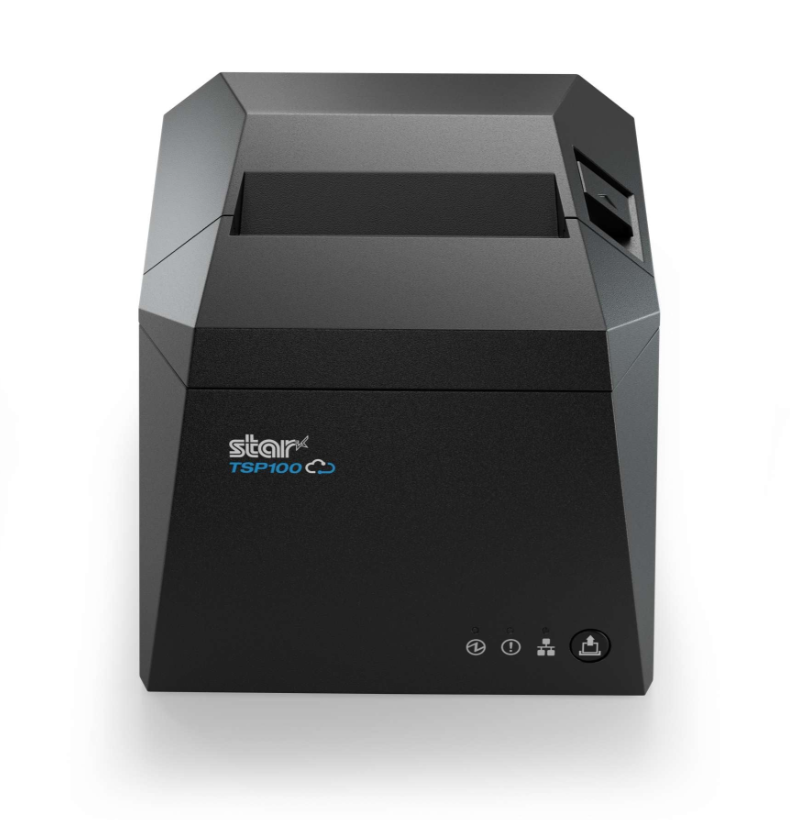
Iconography recommend the Star Micronics TSP143IV printer for receipt printing.
These connect you your system via the cloud, and not directly to your device; see setup for more information
Important: When purchasing this printer, please ensure it has the CloudPRNT interface.
This printer can be purchased here.
Cash Drawers
Iconography recommend the Star CB2002 cash drawer. This cash drawer connects to the back of the Star TSP654II receipt printer. Available in black or white.
This cash drawer can be purchased here.

Customer Display
Iconography recommend the Star SCD222U customer display. This optional display connects to the back of the Star TSP654II receipt printer and is used to shows totals to the customer at the point of sale. Available in black or white.
This customer display can be purchased here.

Payments
We recommend Elavon for integrated instore payments. For more information, please contact our team.
Warehouse
Label Printers
Price and Warehouse Labels
A visual explanation of label types is available here.
Iconography recommend the Star TSP743II printer for label printing, for both Price and Warehouse labels.
These connect you your system via the cloud, and not directly to your device; see setup for more information
Important: When purchasing this printer, please ensure it has the CloudPRNT interface and an ethernet port included.
This printer can be purchased here.

Barcode Labels
A visual explanation of label types is available here.
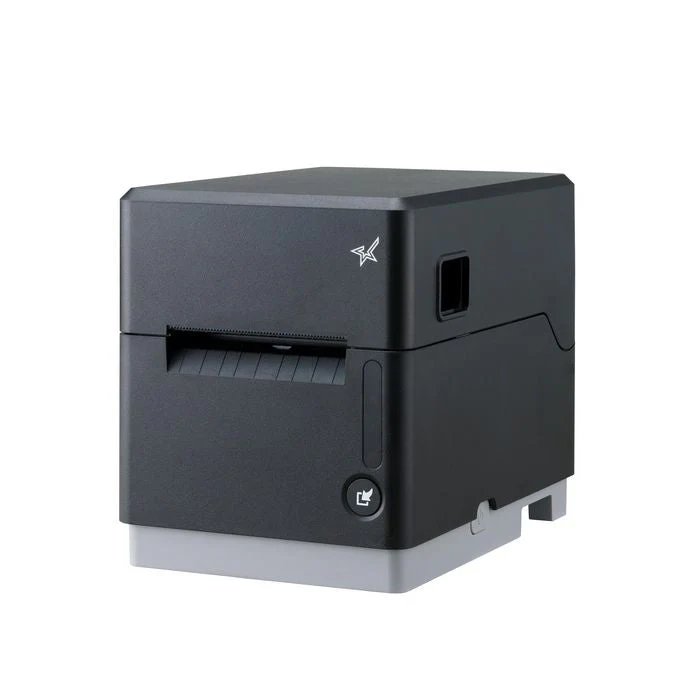
Iconography recommend the Star MC-Label2 printer for label printing, for barcode labels.
These connect you your system via the cloud, and not directly to your device; see setup for more information
Important: When purchasing this printer, please ensure it has the CloudPRNT interface.
Scanners
Barcode Scanners
IXO Commerce is compatible with any keyboard wedge or HID barcode scanner. Typically, we recommend either Bluetooth or USB (wired) connections.
Keyboard wedge/HID (Human Interface Device) mode behave like a keyboard and are plug and play
Fixed Label Sizes
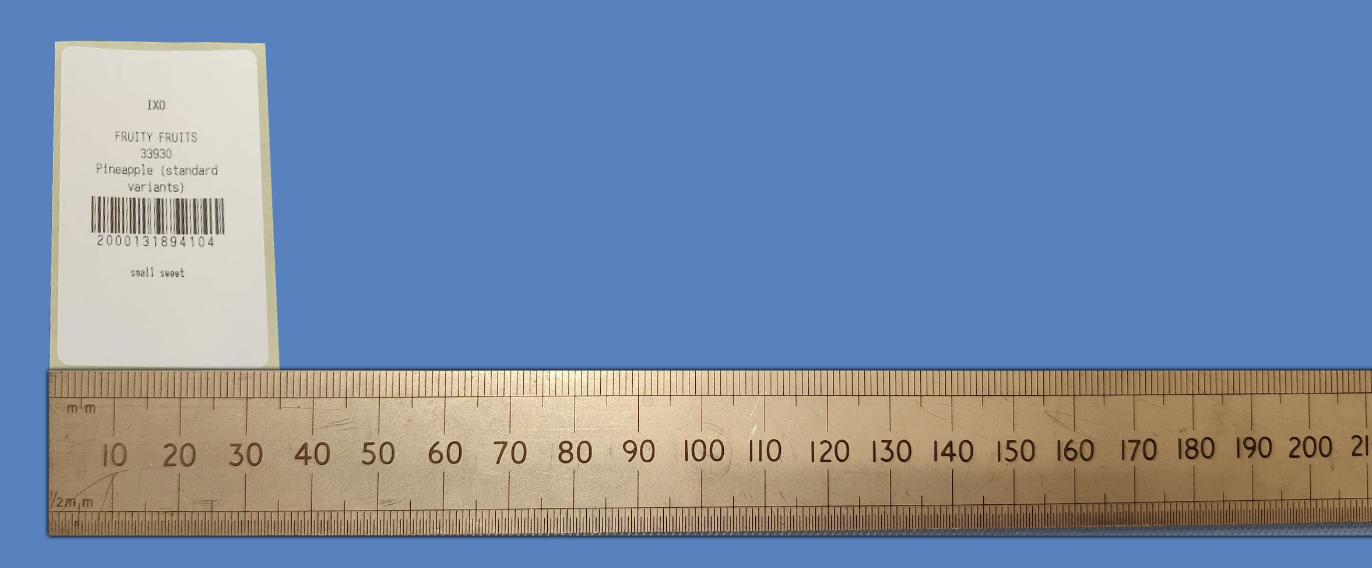
If using the Star label printer, you will need labels. Labels can be one of two sizes. Either 76mm x 38mm or 55mm x 30mm.
Warehouse Labels
For Warehouse labels we recommend a ‘continuous roll’.
Setting up your label printer (manual process)
Step 1 - Connect your hardware
Ensure your Star printer is connected to the mains electricity and a working internet connection is connected via the Ethernet port.
Step 2 - Finding the printer's IP address
Turn off the Star printer.
Press and hold the feed button.
Turn the printer back on.
Continue to hold the feed button until the configuration report prints out and then let go. Then, wait a little longer for the Network report to print.
Confirm the printer IP address (at the bottom). An example IP address would be: 192.168.1.73
Step 3 - Access the printer’s setup screen
Enter that IP into a web browser's address bar to access the configuration screen.
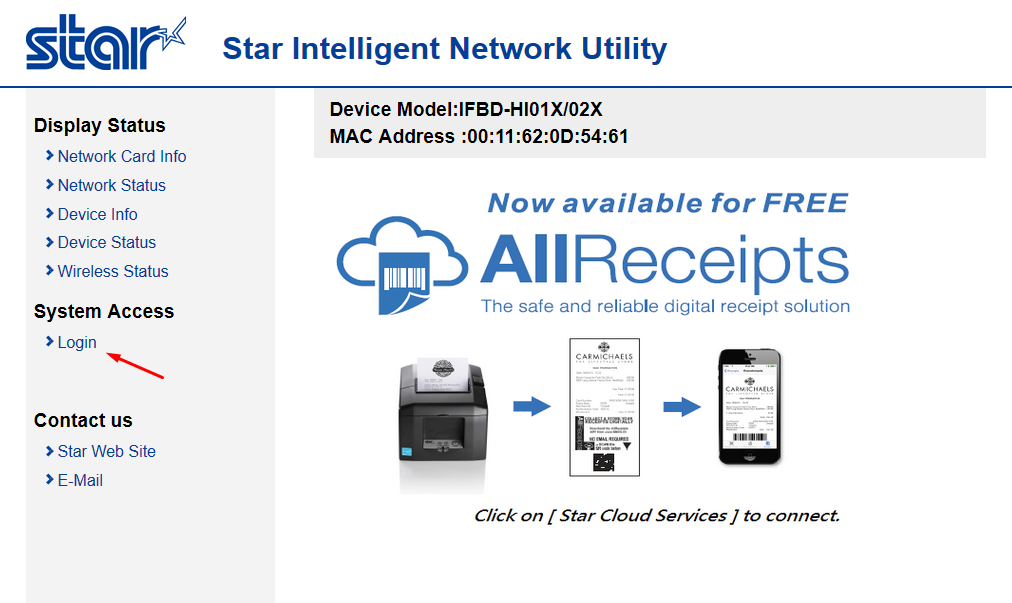
Step 4 - Login
The default login for Star CloudPRNT printers is “root”. Use the password “public”
You can set your own password later if you wish.
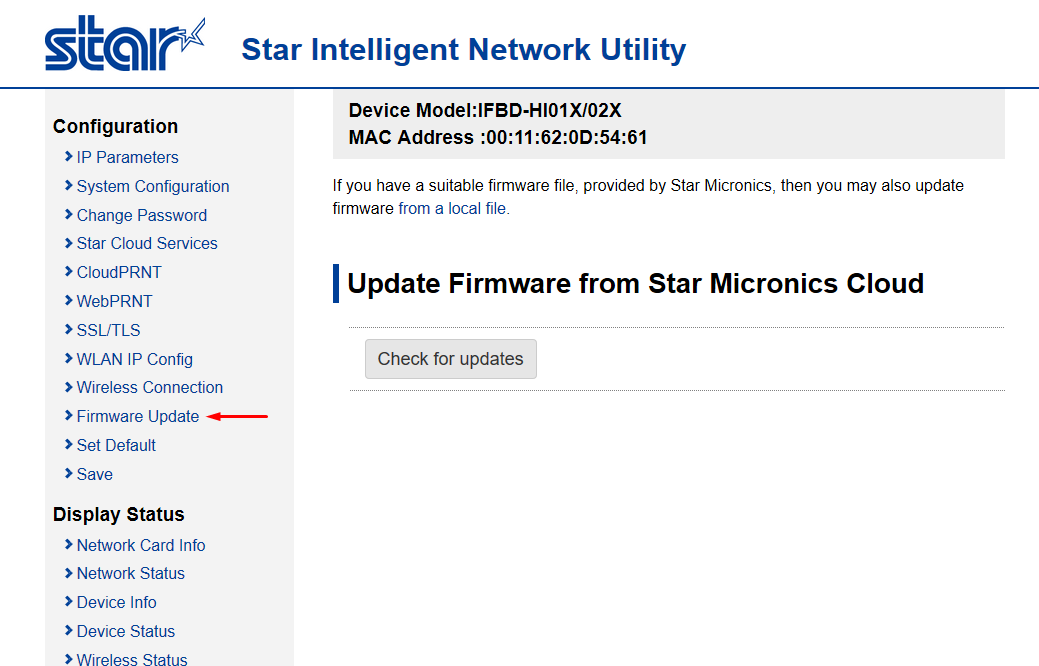
Step 5 - Ensure your Star printer is up-to-date
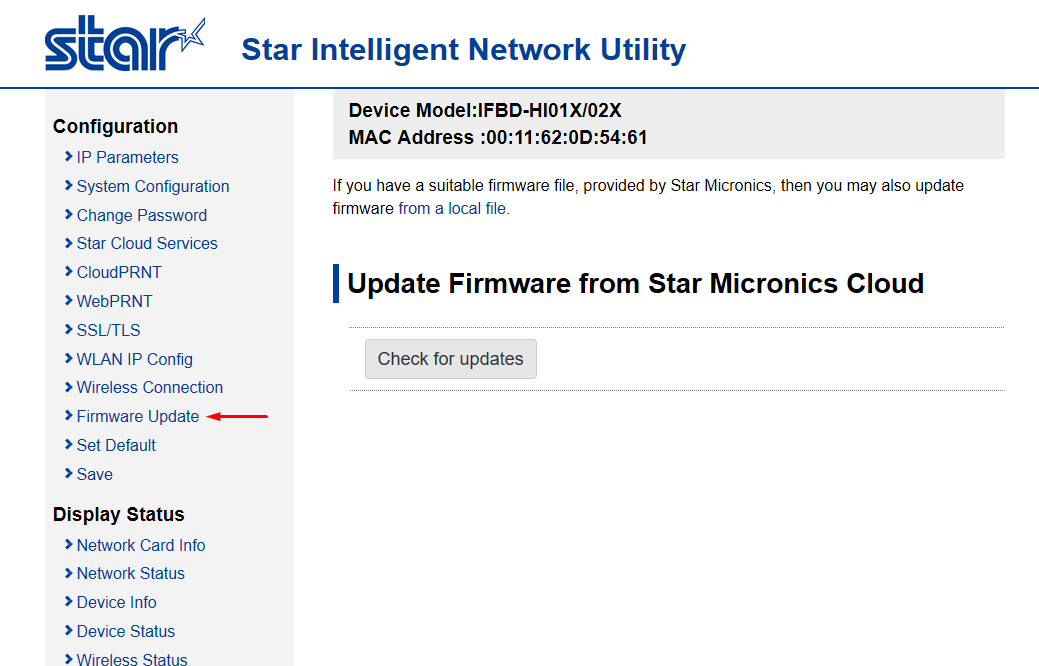
After logging into your Star printer for the first time, check that it’s firmware is up to date. Simply click “Check for updates” and wait for the download to finish (if applicable).
Step 6 - Enable CloudPRNT
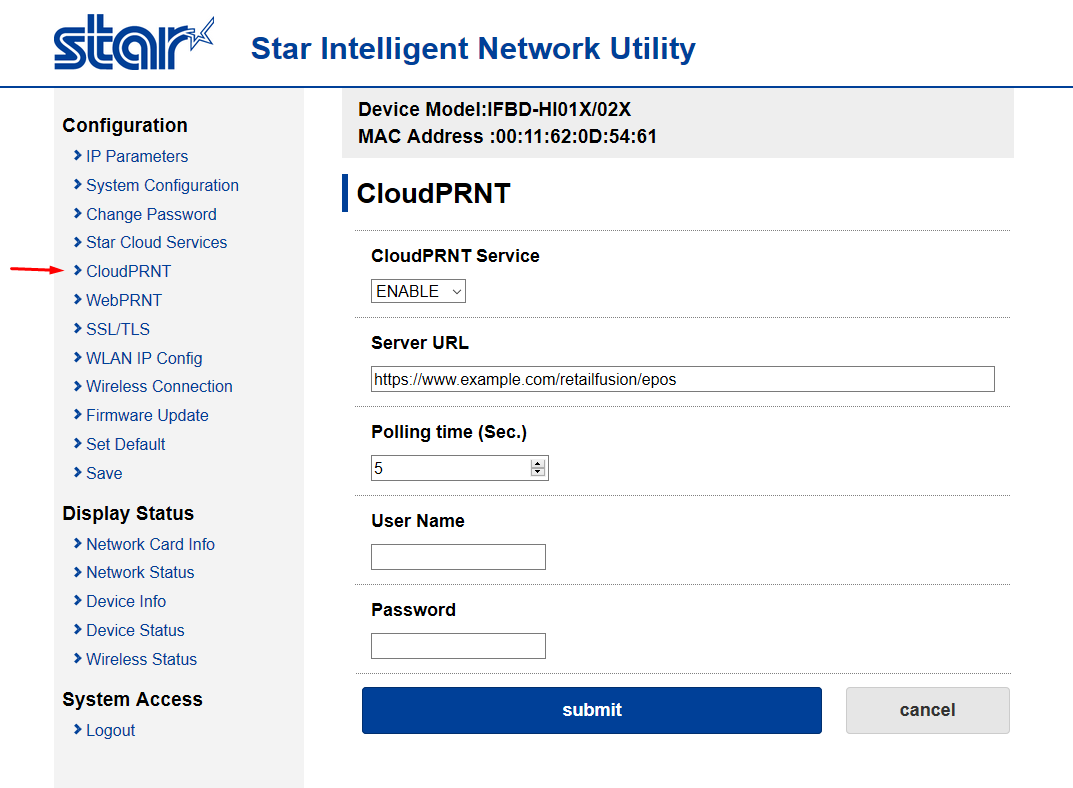
Click on “CloudPRNT” in the left menu. Enable the service and enter the server URL as provided by Iconography.
Leave the poll time set to 5 seconds (the default).
Enter a username and password if Iconography has provided one, otherwise leave blank.
Step 7 - Save Changes
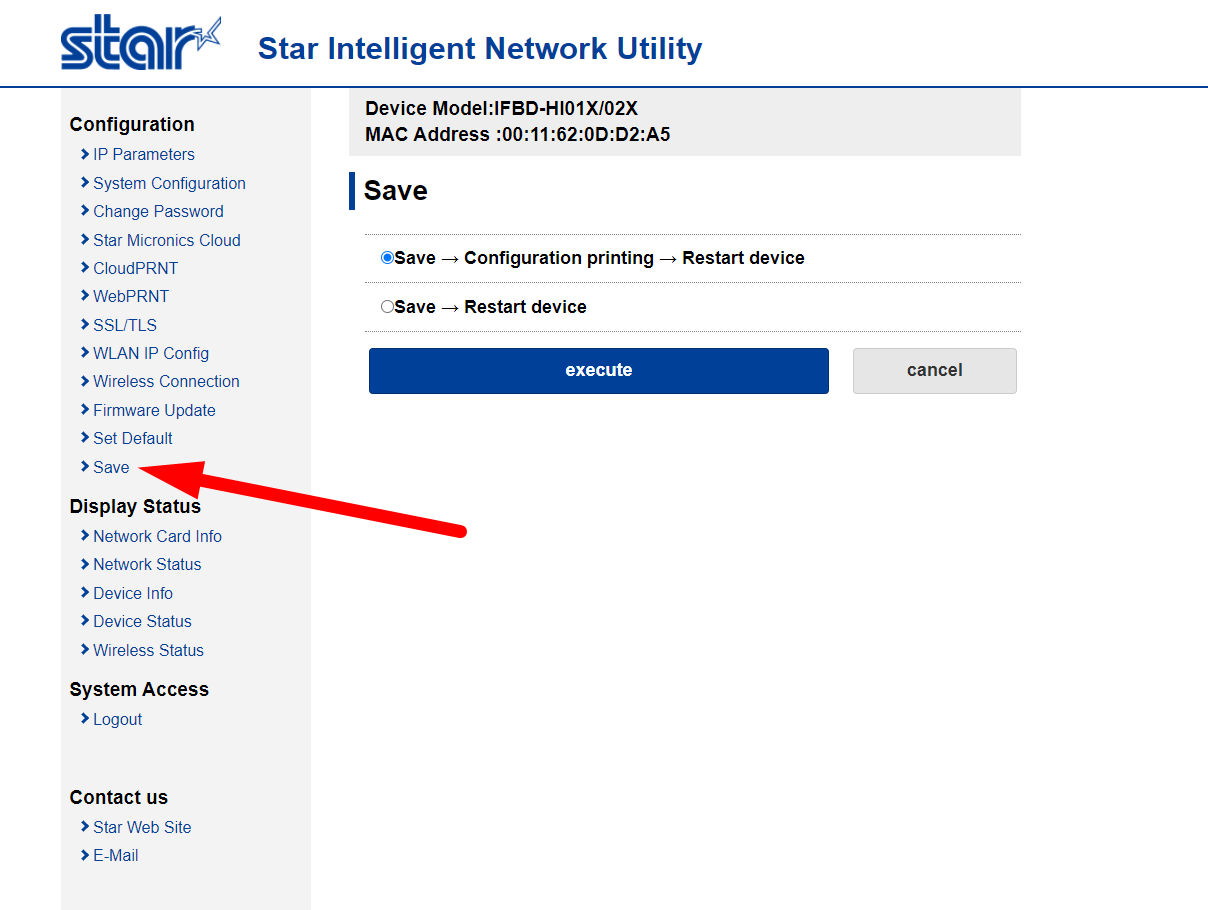
Save your changes and restart your device.
Step 8 - Download and Install 'Star Micronics Printer Software'
Open the link below and download the software.
Select 'StarPRNT Intelligence' from the first drop down, and then download the first option presented to you.
Get Software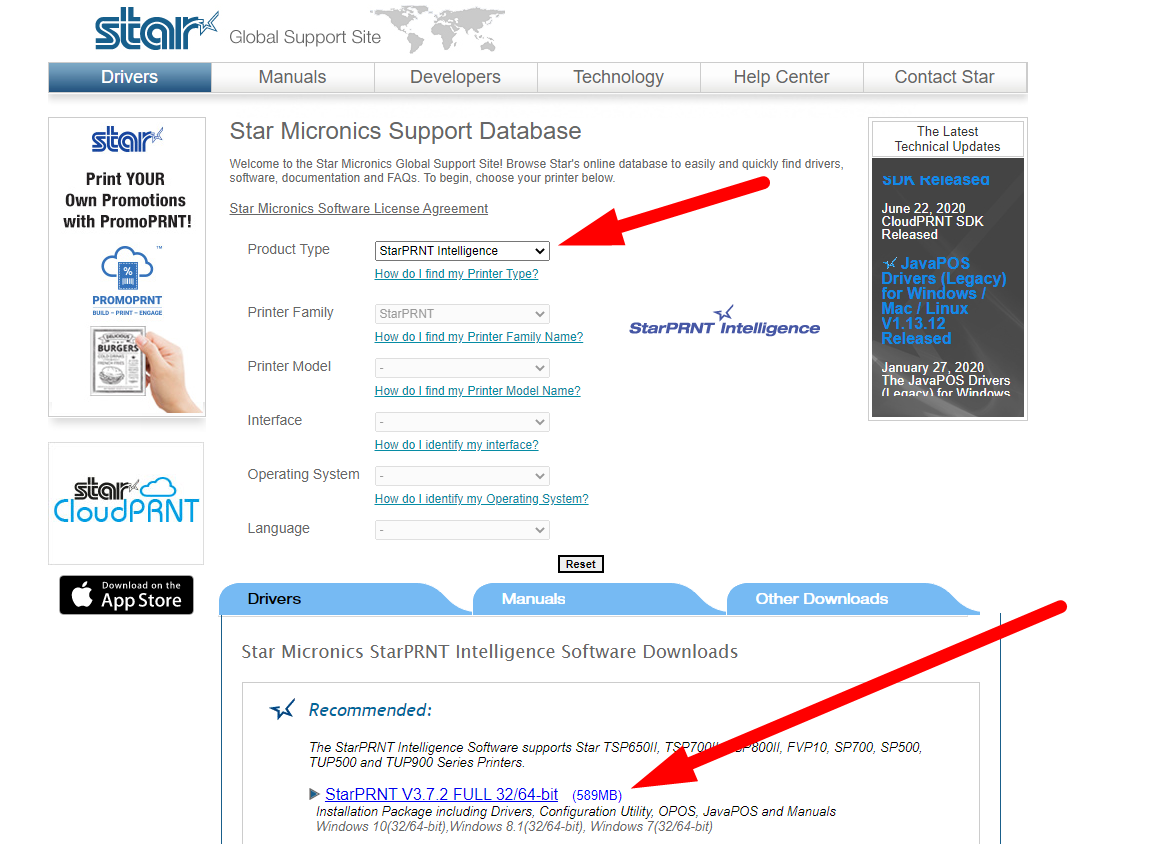
Step 9 - Connect to your Printer
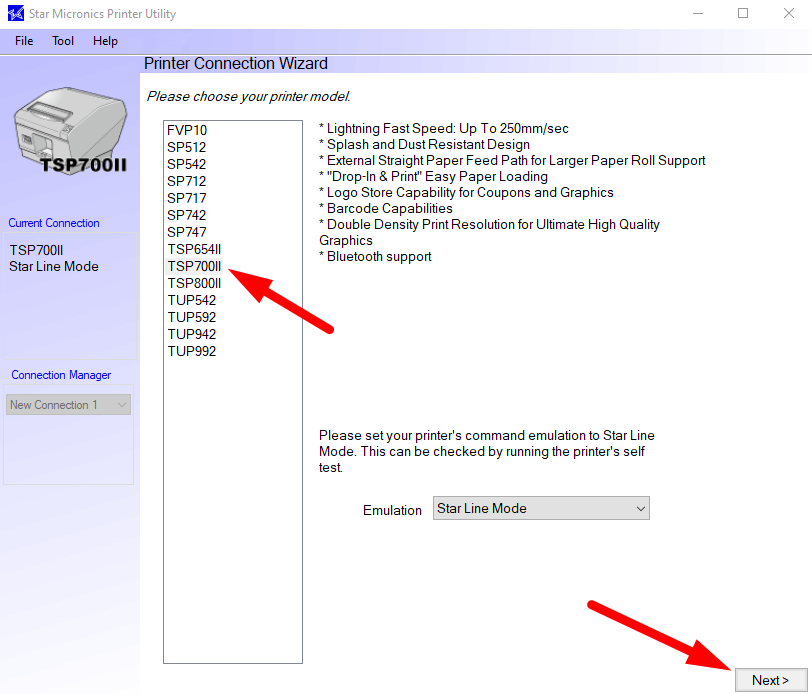
Open your newly installed software and connect to the printer. You will need to know the printer's model, and it must be turned on and connected to the internet.
On the next screen, select 'Ethernet' and instruct the software to 'Search Network', and it will automatically find your printer.
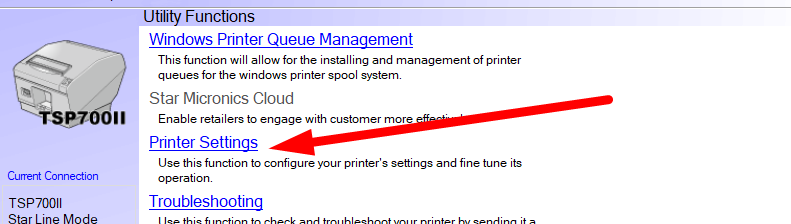
Step 10 - Adjust Pinter Settings
Once connected, you will be given a link to adjust printer settings.
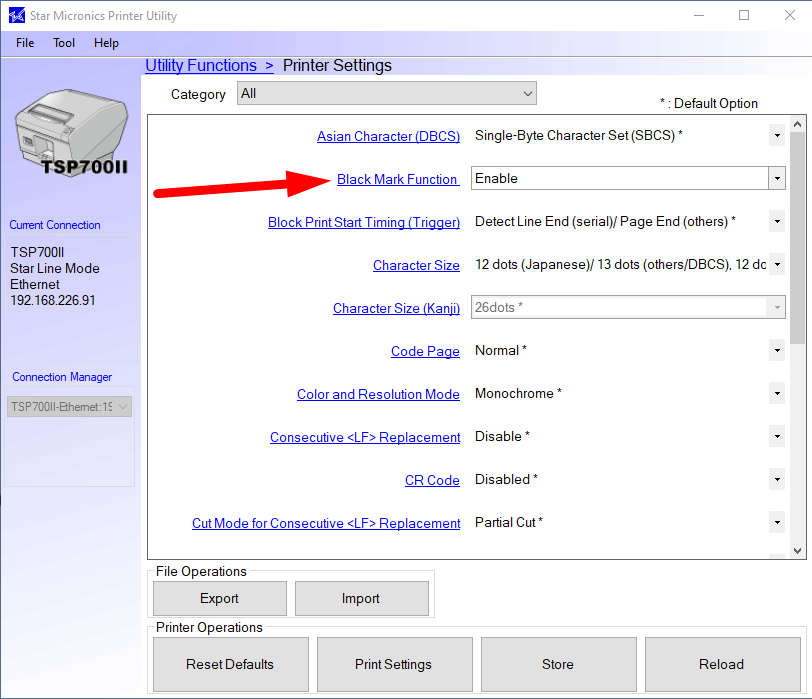
Once the settings screen has loaded, simply set 'Black Mark Function' to 'Enabled'.
You have now set up your label printer.
Setting up your receipt printer (manual process)
Step 1 - Connect your hardware
Ensure your Star printer is connected to the mains electricity and a working internet connection is connected via the Ethernet port.
Connect your barcode scanner in one of the USB ports.
Connect your customer display (optional) to the other USB port.
Connect the cash drawer to the interface at the back of the printer also.
Step 2 - Finding the printer's IP address
Turn off the Star printer.
Press and hold the feed button.
Turn the printer back on.
Continue to hold the feed button until the configuration report prints out and then let go. Then, wait a little longer for the Network report to print.
Confirm the printer IP address (at the bottom). An example IP address would be: 192.168.1.73
Step 3 - Access the printer’s setup screen
Enter that IP into a web browser's address bar to access the configuration screen.
Step 4 - Login
The default login for Star CloudPRNT printers is “root”. Use the password “public”
You can set your own password later if you wish.
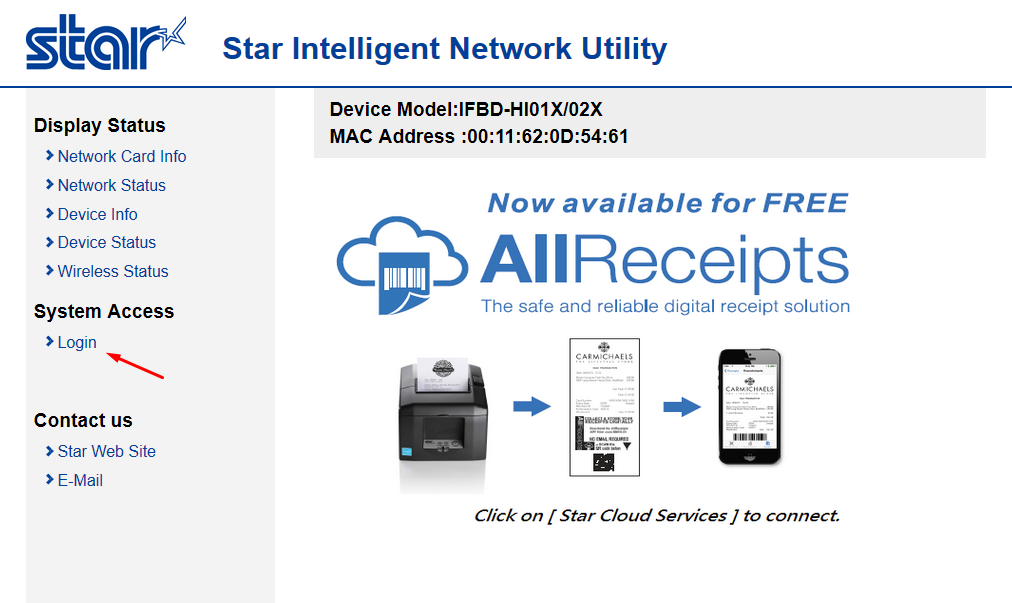
Step 5 - Ensure your Star printer is up-to-date
After logging into your Star printer for the first time, check that it’s firmware is up to date. Simply click “Check for updates” and wait for the download to finish (if applicable).
Step 6 - Enable CloudPRNT
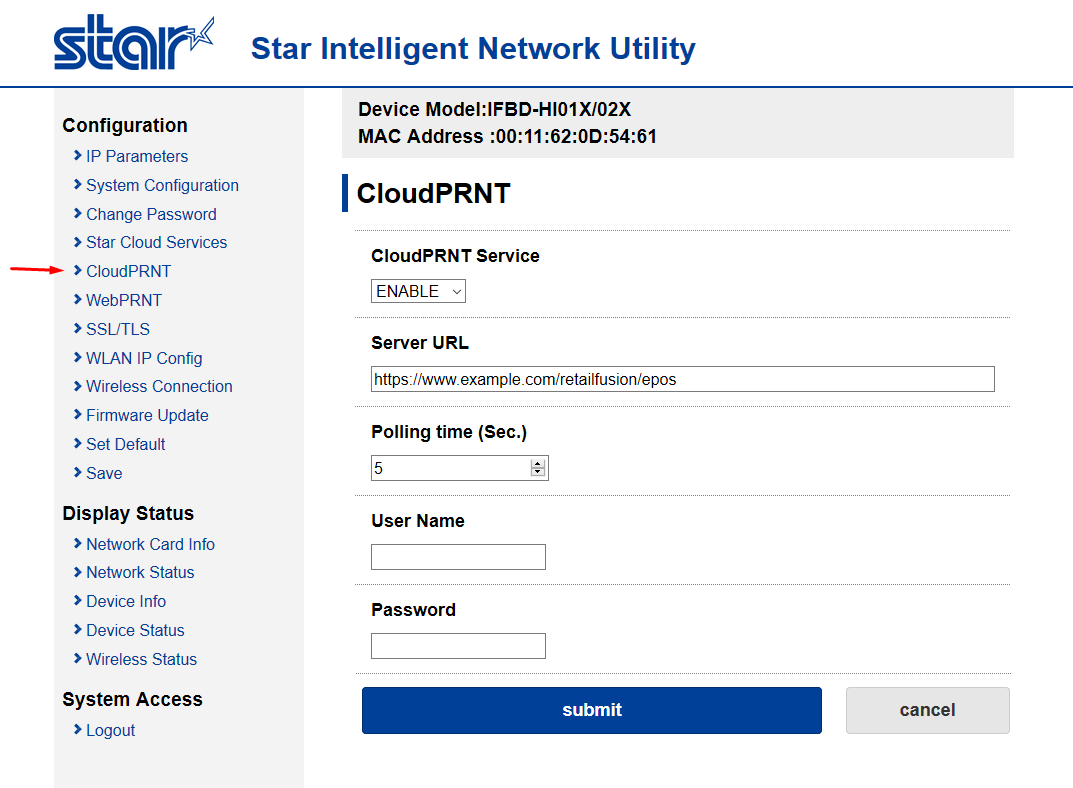
Click on “CloudPRNT” in the left menu. Enable the service and enter the server URL as provided by Iconography.
Leave the poll time set to 5 seconds (the default).
Enter a username and password if Iconography has provided one, otherwise leave blank.
Step 7 - Set up your barcode scanner
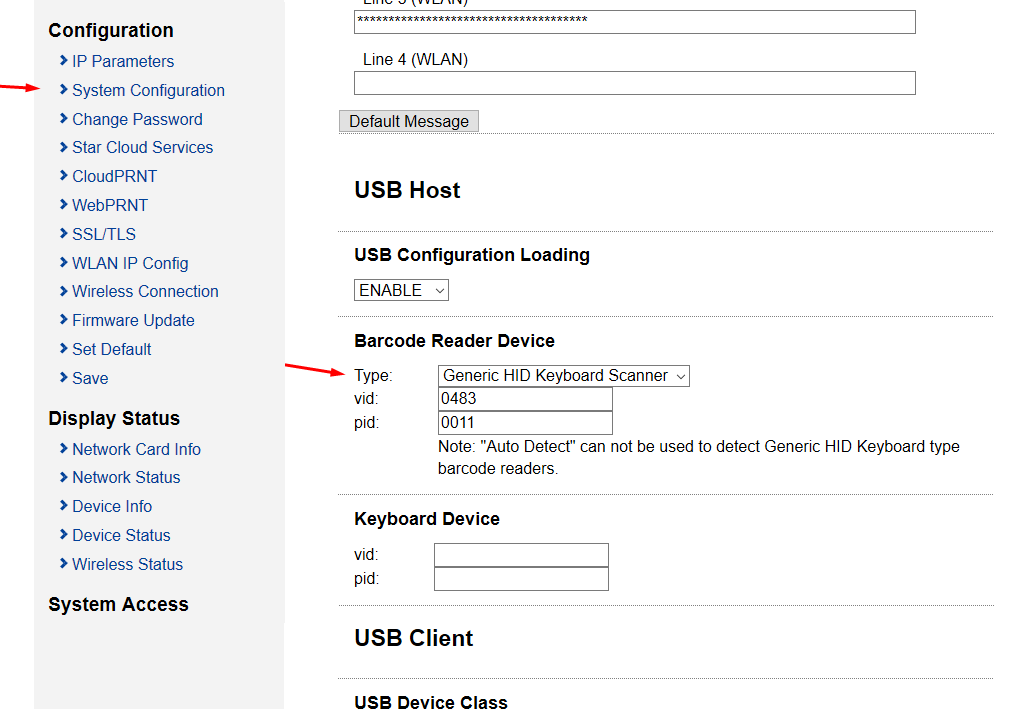
Finally, select which barcode scanner you are using. Click on System Configuration and scroll down to the “Barcode Reader Device” section.
If you are using Star’s mPOP scanner, simply select this from the dropdown list.
Otherwise, select Generic HID Keyboard Scanner.
If you are using a Generic HID Keyboard Scanner, you’ll need to know the VID and HID values for your device. Enter those here. These values can also be found by connecting your device to a Windows PC and viewing the hardware properties tab.
Your EPOS hardware is now ready to use.
Setting up a Star Printer (via the app)
Step 1 - Install the app and install
Your printer will have come with a quick start guide - follow those steps to install the app and connect to your printer.
Ensure that it has access to the internet, either via a wired or wireless connection.
Wired connections are always more stable than wireless ones
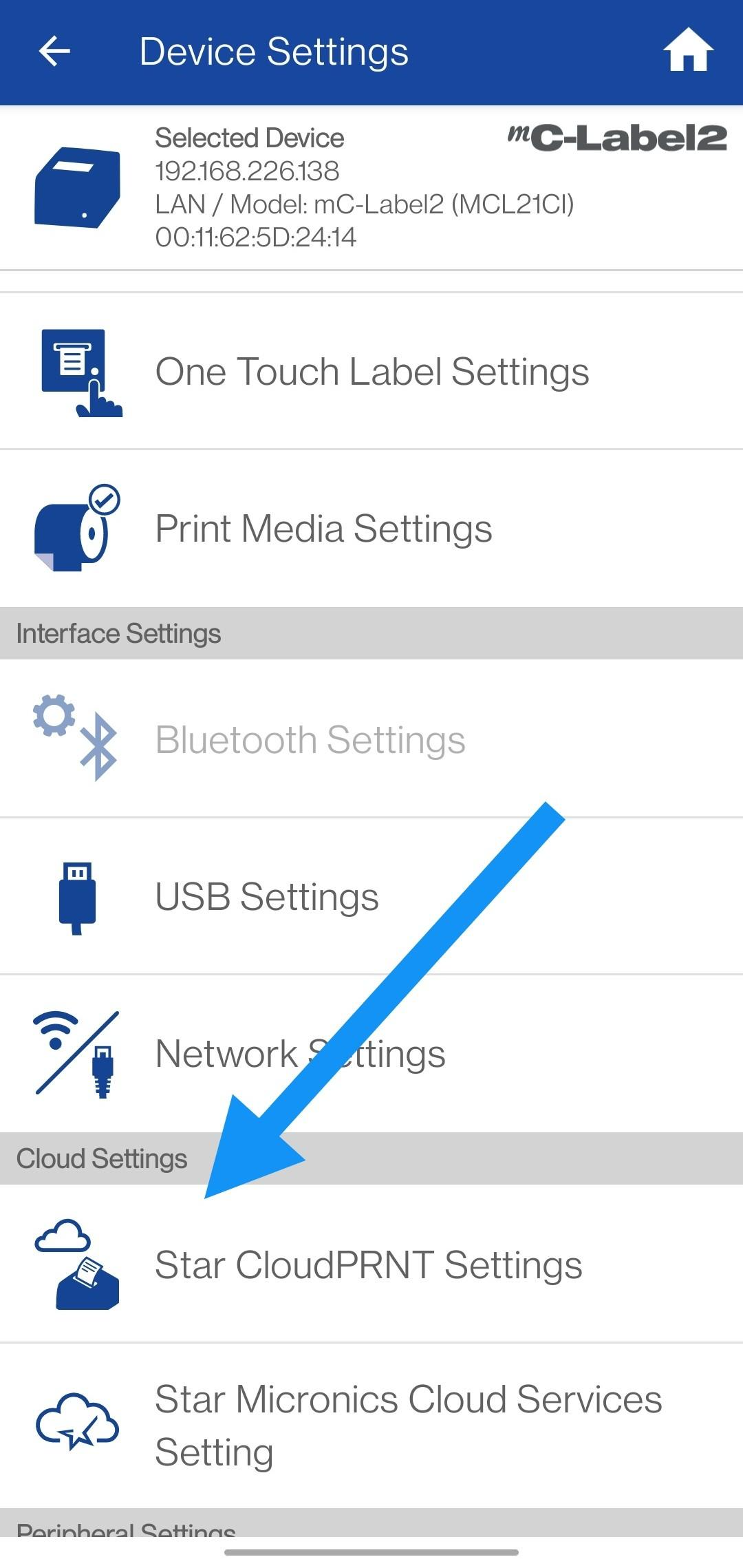
Step 2 - Open ClourPRNT Settings
Open Device Settings:
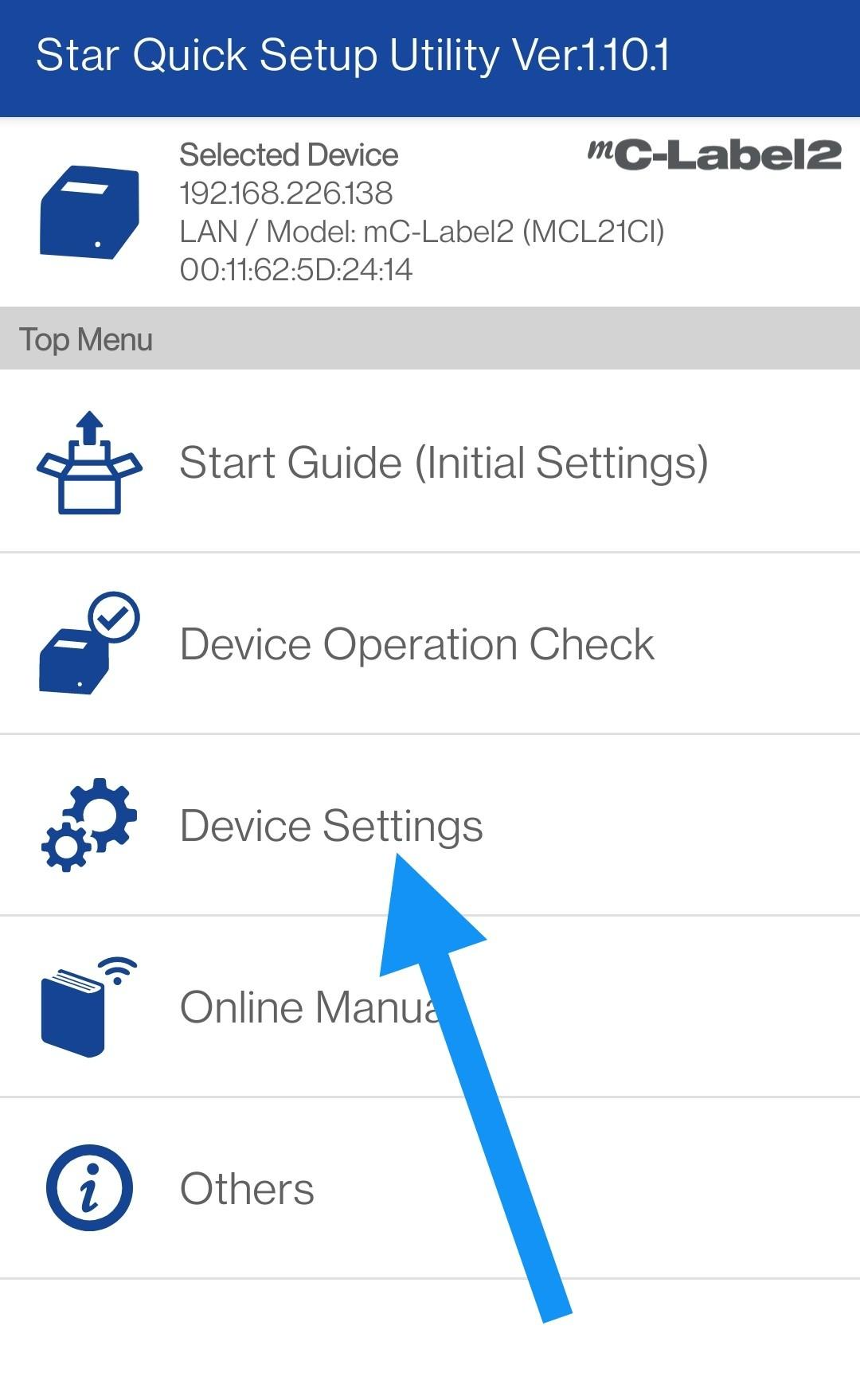
Navigate to this section:
Step 3 - Enable CLOUDprnt
Toggle CLOUDprnt to enabled at the top of the screen.
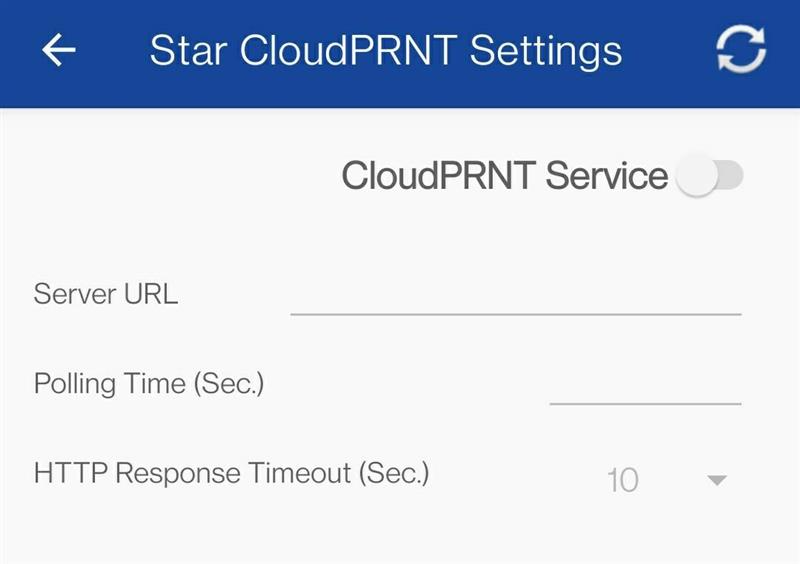
Then, enter the URL as prompted from your Device Setup screen. it will be in this format:
https://demo.iconography.co.uk/retailfusion/epos
If your site has not gone live, you will need to include the development password in that url. In that instance, use this format: https://demo.iconography.co.uk/retailfusion/epos?iconography=DEVPASSWORD
Set polling time to 2.Step 4 - Connect your printer to a device
Login to the CMS on your chosen device, then apply the appropriate settings in Device Setup.
It is recommended that you give each printer a unique label; also add a physical label with this identifier to your printer
To connect to a printer, simply tick the box and press 'update tills'.
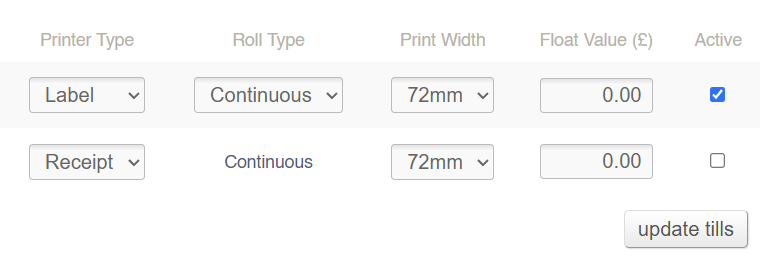
Each device can only connect to a single receipt printer and a single label printer at a time
Label Types
Which labels you can print will be determined by your STAR printers. While each label type may be printed as a PDF, they are optimised to work with STAR devices.
Warehouse Labels
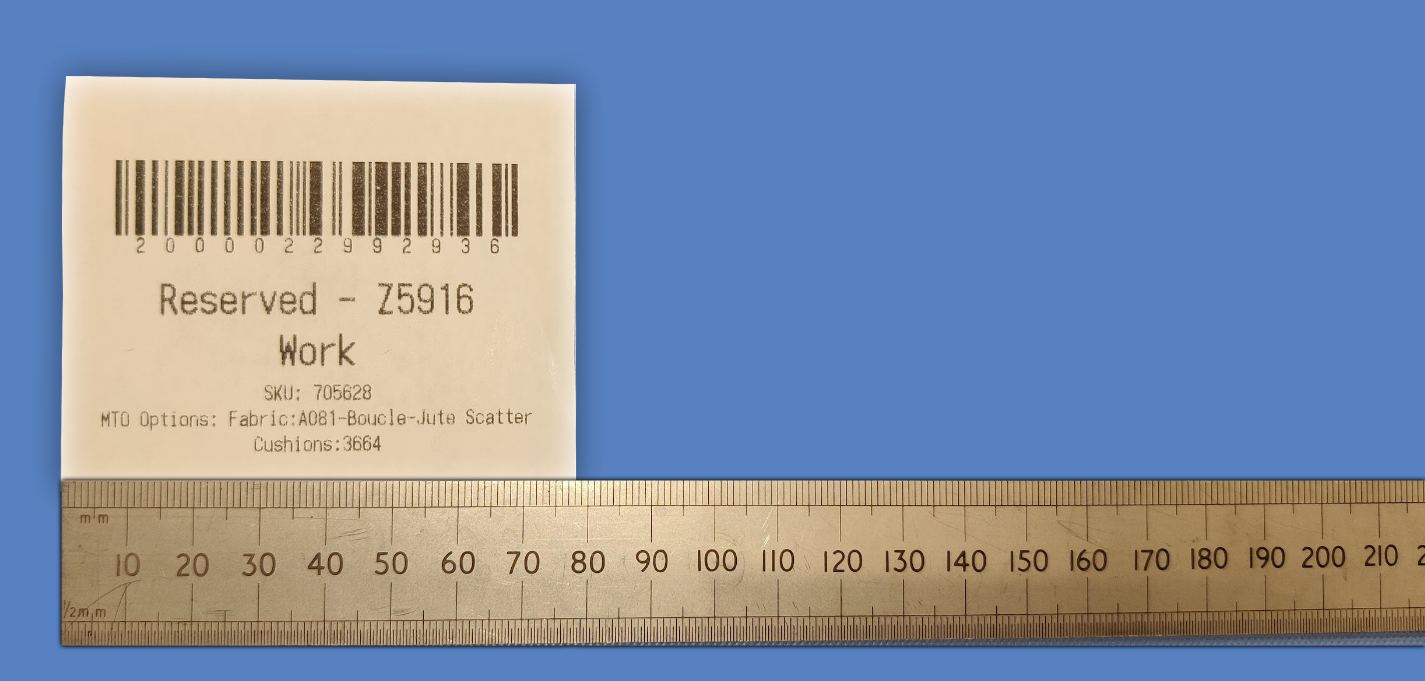
Reservation Labels
72mm
This will output with the Surname and Sales Order number to which the item is reserved.
52mm
This is also available on 52mm labels.
Free Stock Label
72mm
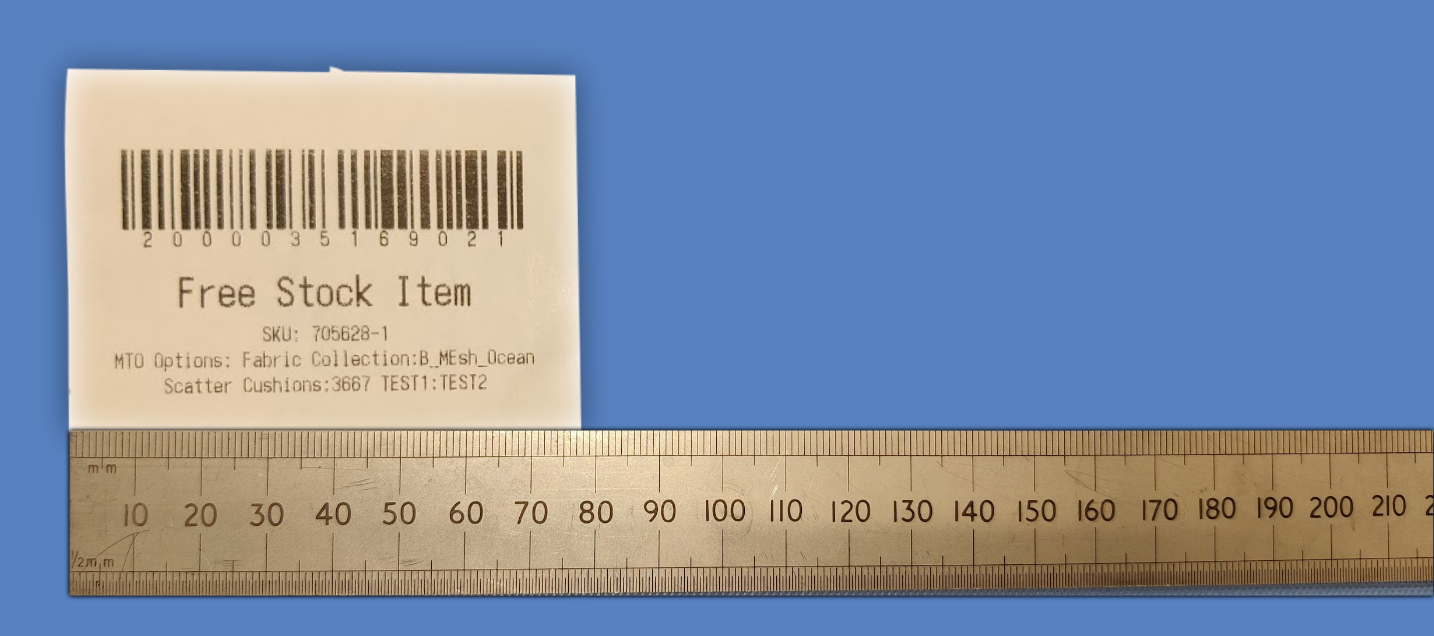
52mm
This is also available on 52mm labels.
Barcode
Without Price
72mm
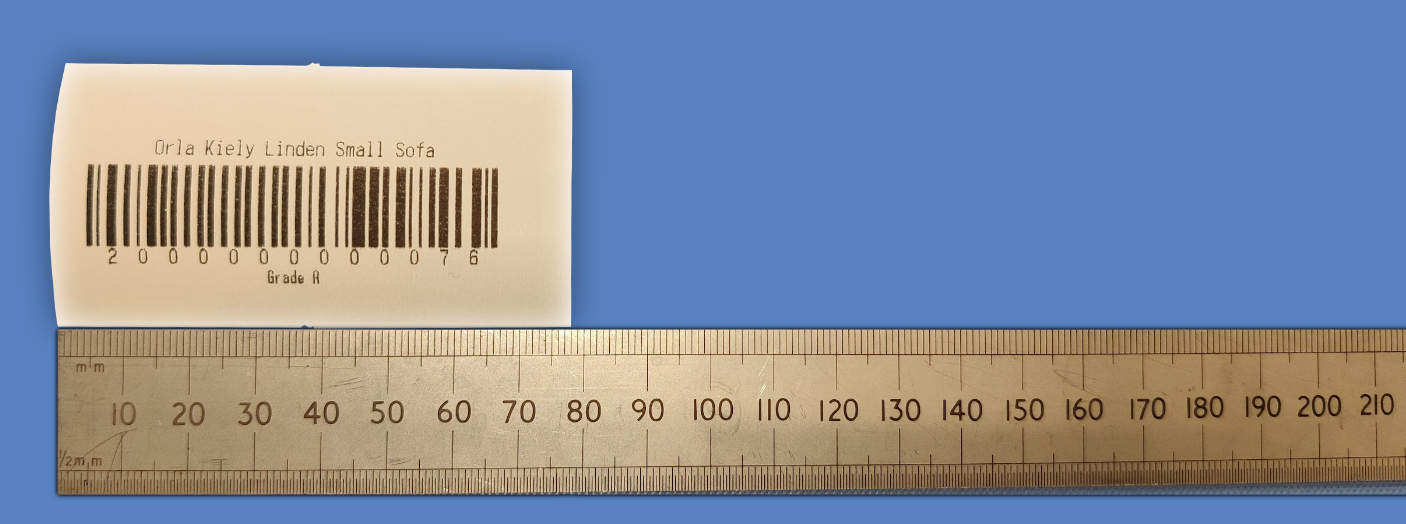
52mm
This is also available on 52mm labels.
With Price
72mm
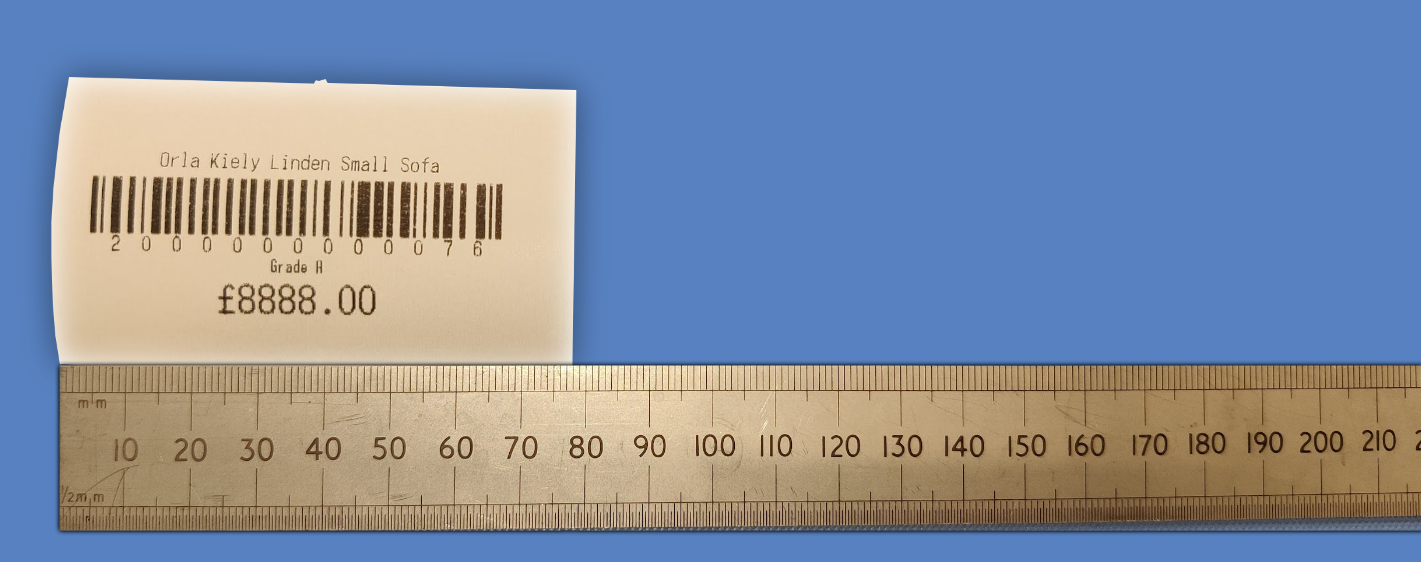
52mm
This is also available on 52mm labels.
Barcode
This label type is intended for smaller products, which do not have Customisations.
Without Price
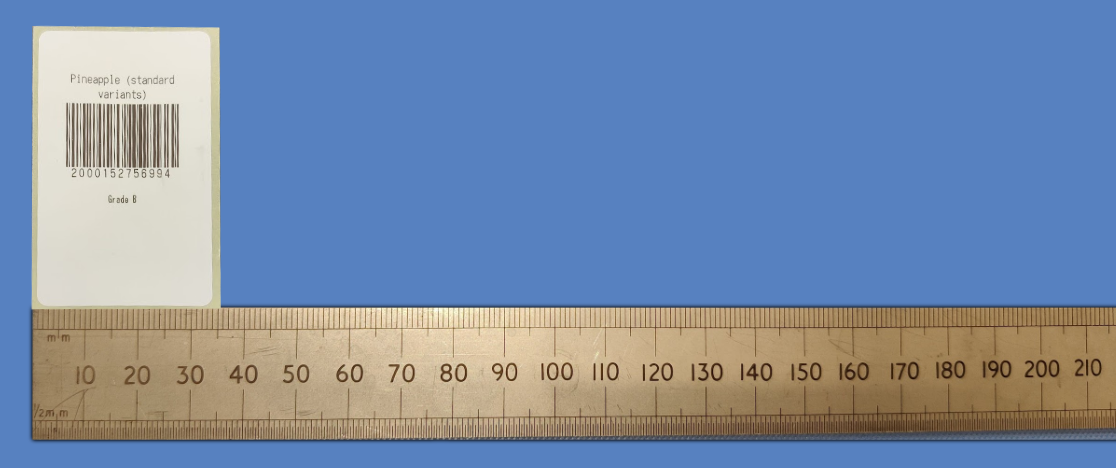
With Price
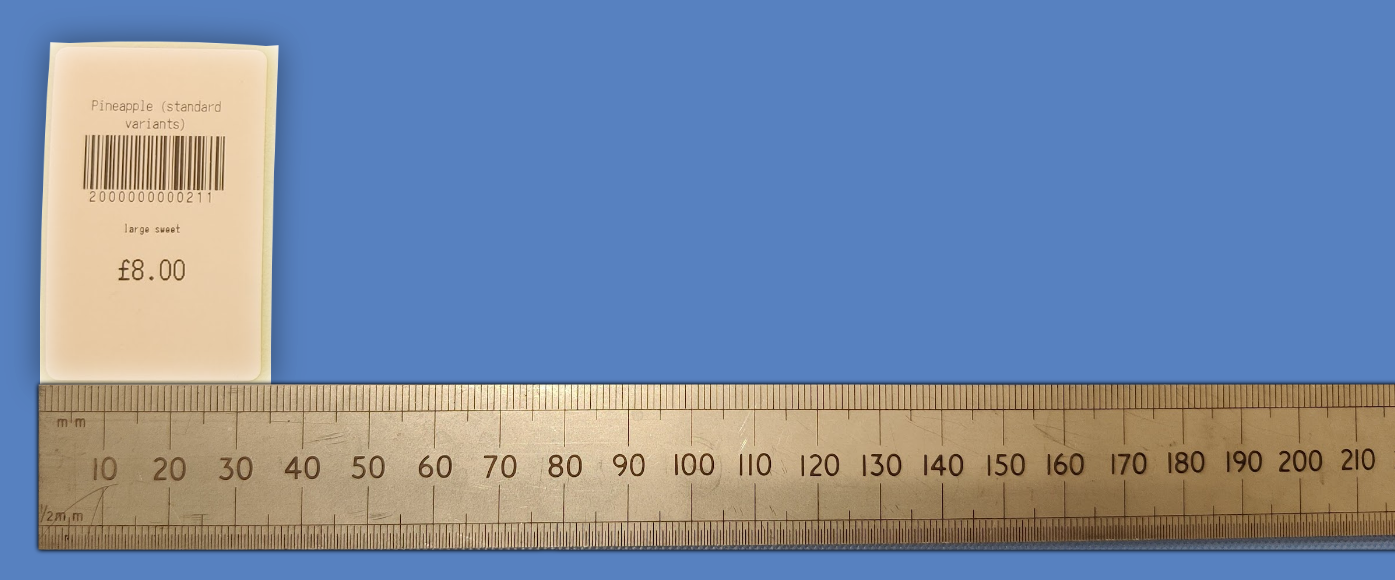
With Price and Extra Information
This option will include Company, Brand and SKU information as part of the label.