# Setting up your label printer (manual process)

<section class="pageblock pageblock_text col-sm-12 no-button" id="bkmrk-step-1---connect-you">## Step 1 - Connect your hardware

Ensure your Star printer is connected to the mains electricity and a working internet connection is connected via the Ethernet port.

</section>---

<section class="pageblock pageblock_text col-sm-12 no-button" id="bkmrk-step-2---finding-the">## Step 2 - Finding the printer's IP address

Turn off the Star printer.

Press and hold the feed button.

Turn the printer back on.

Continue to hold the feed button until the configuration report prints out and then let go. Then, wait a little longer for the Network report to print.

Confirm the printer IP address (at the bottom). An example IP address would be: 192.168.1.73

</section>---

<section class="pageblock pageblock_text col-sm-12 no-button" id="bkmrk-step-3---access-the-">### Step 3 - Access the printer’s setup screen

Enter that IP into a web browser's address bar to access the configuration screen.

</section>---

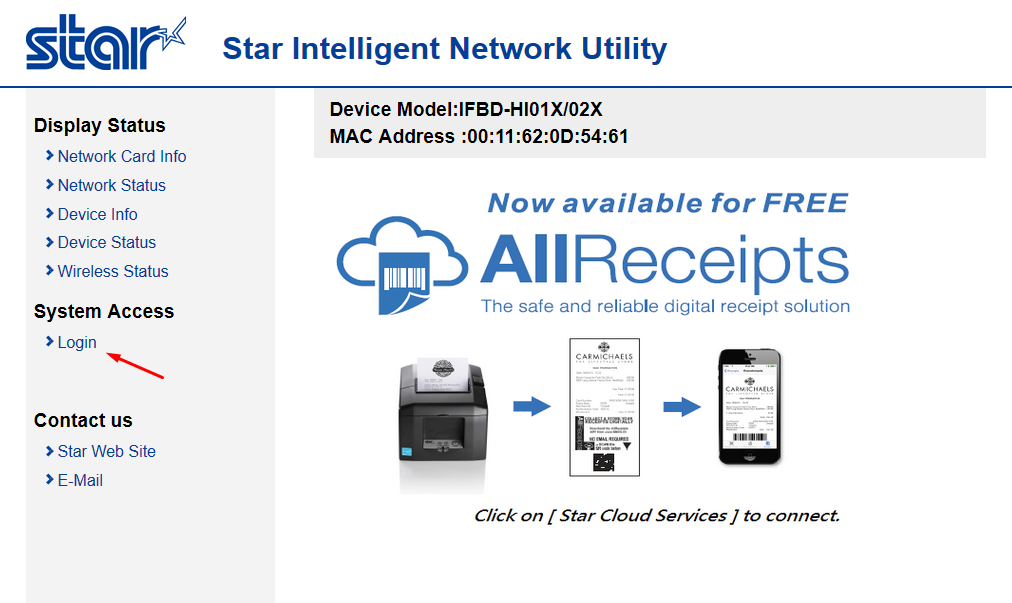
<section class="pageblock pageblock_text col-sm-12 no-button" id="bkmrk-step-4---login-the-d">#### Step 4 - Login

The default login for Star CloudPRNT printers is “root”. Use the password “public”  
You can set your own password later if you wish.

</section>---

<section class="pageblock pageblock_image col-sm-12 no-button" id="bkmrk--4">![](https://www.iconography.co.uk/images/pages/3138-804-step%204.png)</section>---

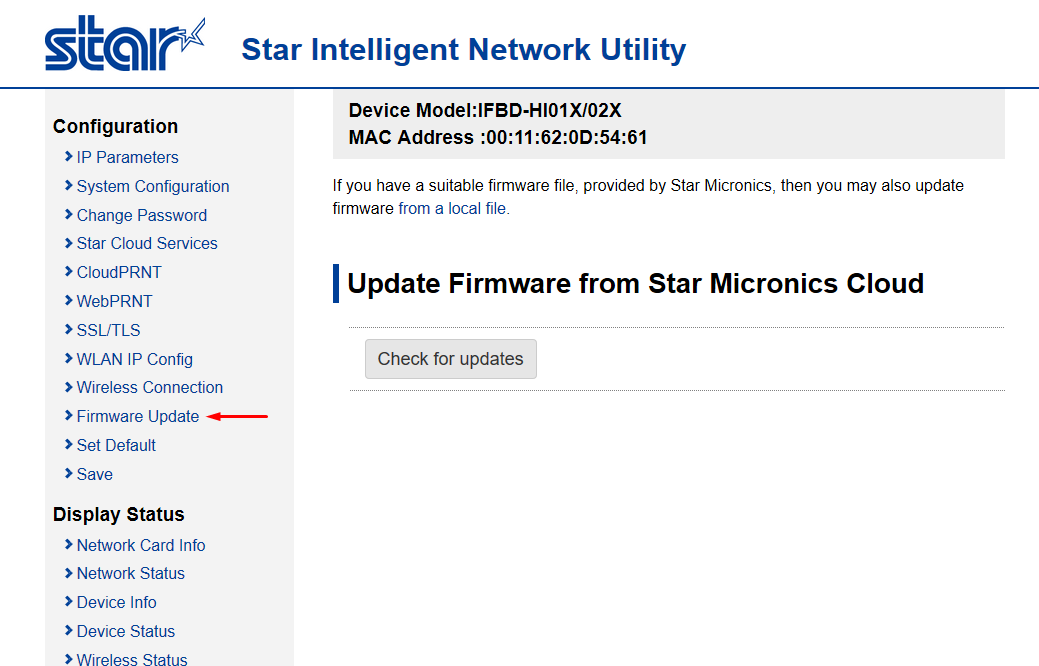
<section class="pageblock pageblock_text col-sm-12 no-button" id="bkmrk-step-5---ensure-your">##### Step 5 - Ensure your Star printer is up-to-date

After logging into your Star printer for the first time, check that it’s firmware is up to date. Simply click “Check for updates” and wait for the download to finish (if applicable).

</section>---

<section class="pageblock pageblock_image col-sm-12 no-button" id="bkmrk--7">![](https://www.iconography.co.uk/images/pages/3140-805-step%205.png)</section>---

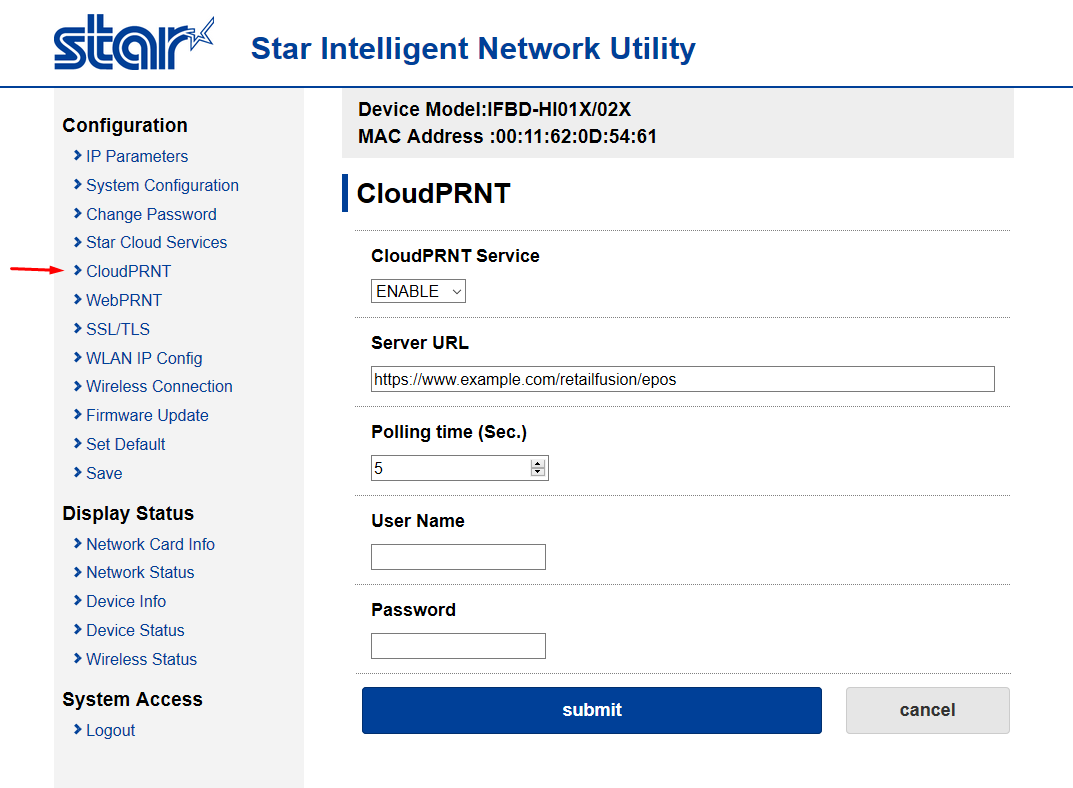
<section class="pageblock pageblock_text col-sm-12 no-button" id="bkmrk-step-6---enable-clou">##### Step 6 - Enable CloudPRNT

Click on “CloudPRNT” in the left menu. Enable the service and enter the server URL as provided by Iconography.

Leave the poll time set to 5 seconds (the default).

Enter a username and password if Iconography has provided one, otherwise leave blank.

</section>---

<section class="pageblock pageblock_image col-sm-12 no-button" id="bkmrk--10">![](https://www.iconography.co.uk/images/pages/3142-806-step%206.png)</section>---

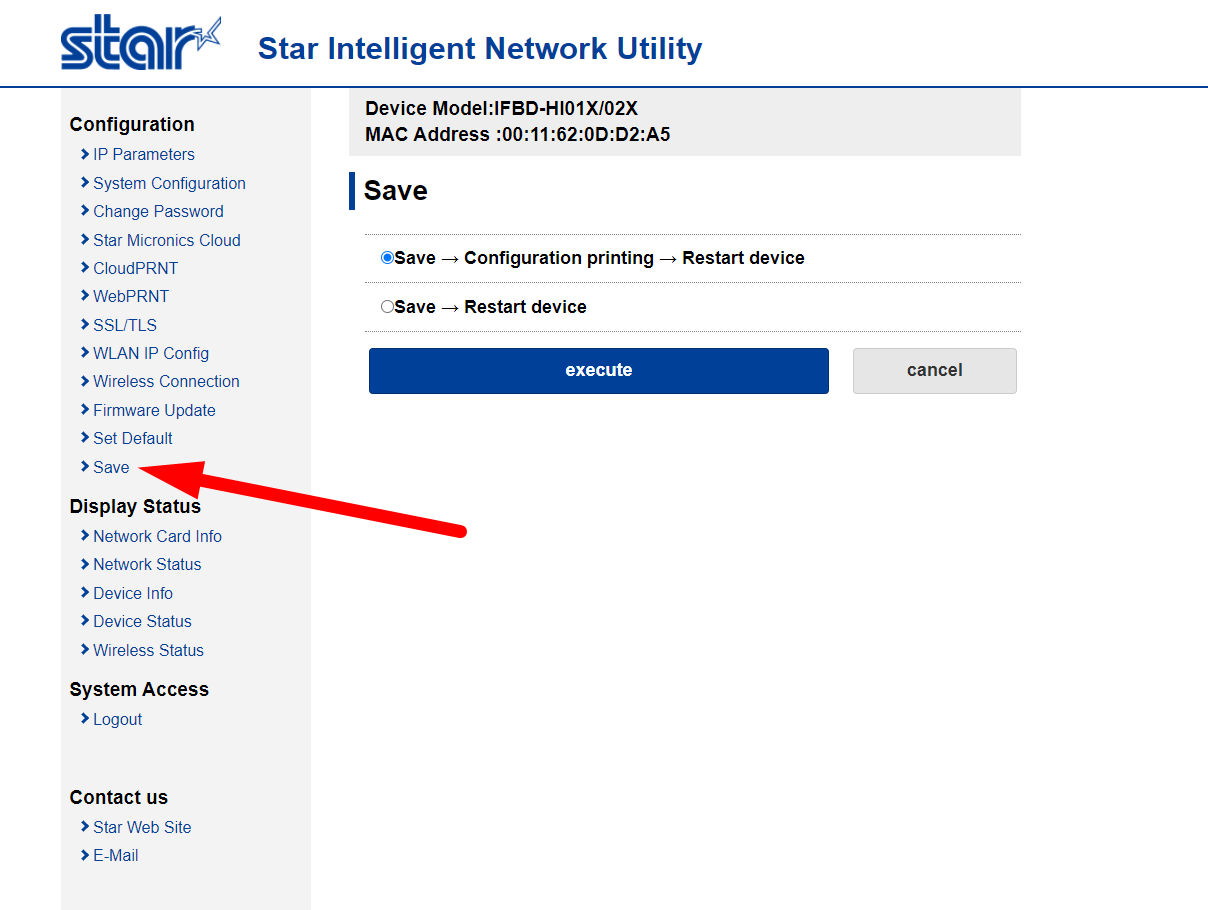
<section class="pageblock pageblock_text col-sm-12 no-button" id="bkmrk-step-7---save-change">##### Step 7 - Save Changes

Save your changes and restart your device.

</section>---

<section class="pageblock pageblock_image col-sm-12 no-button" id="bkmrk--13">![](https://www.iconography.co.uk/images/pages/3144-screenshot_8.png)</section>---

<section class="pageblock pageblock_text col-sm-12" id="bkmrk-step-8---download-an">##### Step 8 - Download and Install 'Star Micronics Printer Software'

Open the link below and download the software.

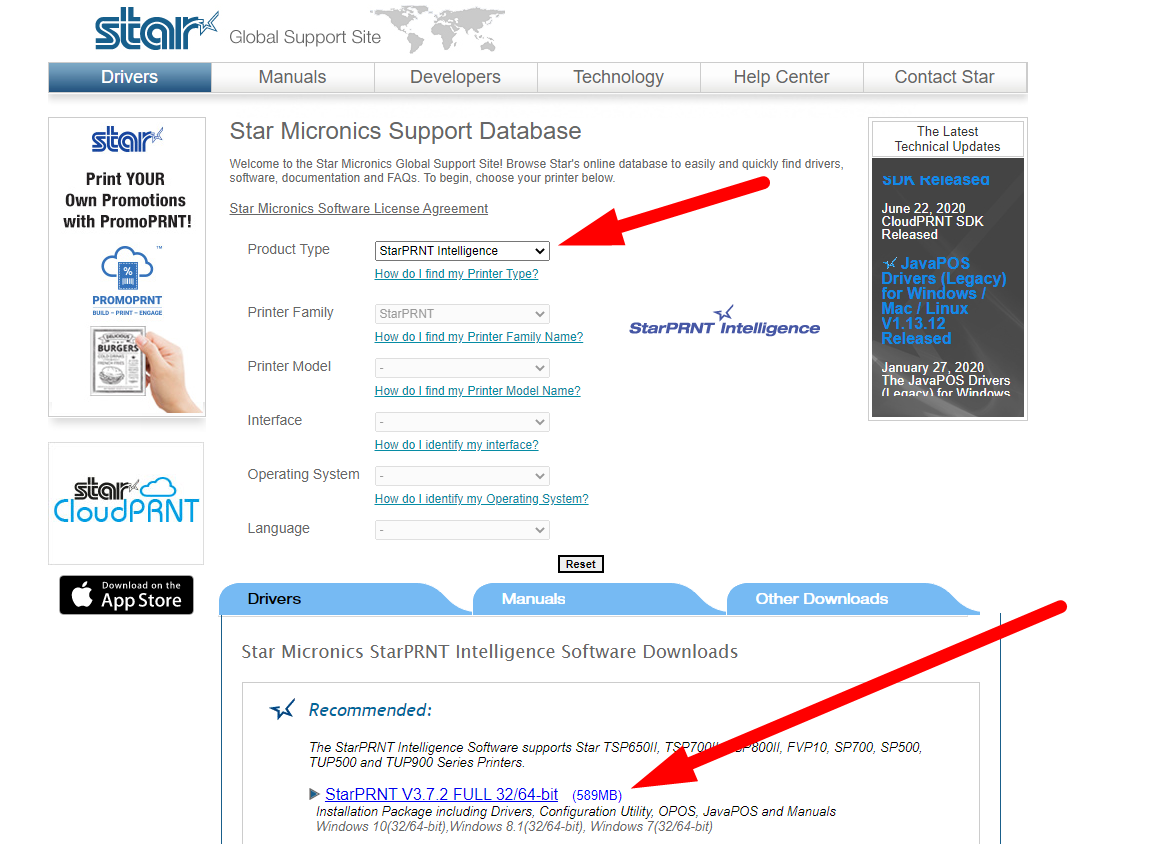
Select 'StarPRNT Intelligence' from the first drop down, and then download the first option presented to you.

[Get Software](https://www.starmicronics.com/support/)</section>---

<section class="pageblock pageblock_image col-sm-12 no-button" id="bkmrk--16">![](https://www.iconography.co.uk/images/pages/3146-screenshot_9.png)</section>---

<section class="pageblock pageblock_text col-sm-12 no-button" id="bkmrk-step-9---connect-to-">##### Step 9 - Connect to your Printer

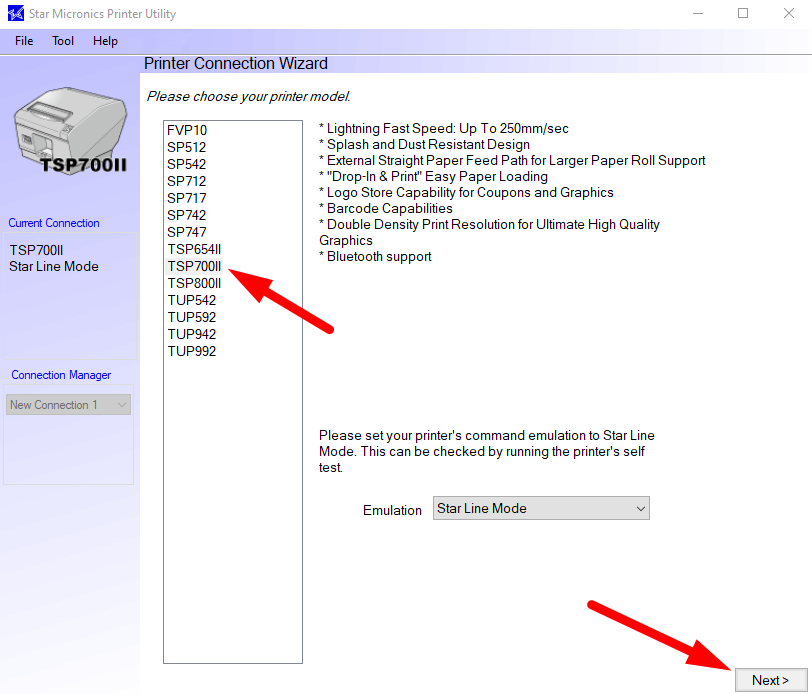
Open your newly installed software and connect to the printer. You will need to know the printer's model, and it must be turned on and connected to the internet.

On the next screen, select 'Ethernet' and instruct the software to 'Search Network', and it will automatically find your printer.

</section>---

<section class="pageblock pageblock_image col-sm-12 no-button" id="bkmrk--19">![](https://www.iconography.co.uk/images/pages/3148-screenshot_10.png)</section>---

<section class="pageblock pageblock_text col-sm-12 no-button" id="bkmrk-step-10---adjust-pin">##### Step 10 - Adjust Pinter Settings

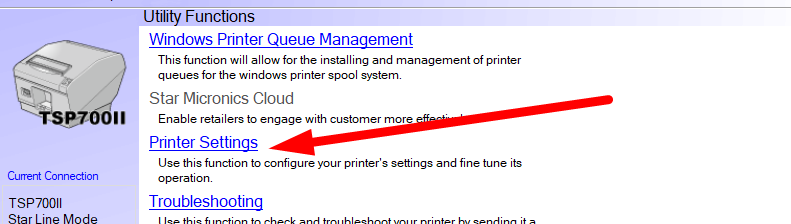
Once connected, you will be given a link to adjust printer settings.

</section>---

<section class="pageblock pageblock_image col-sm-12 no-button" id="bkmrk--22">![](https://www.iconography.co.uk/images/pages/3150-screenshot_11.png)</section>---

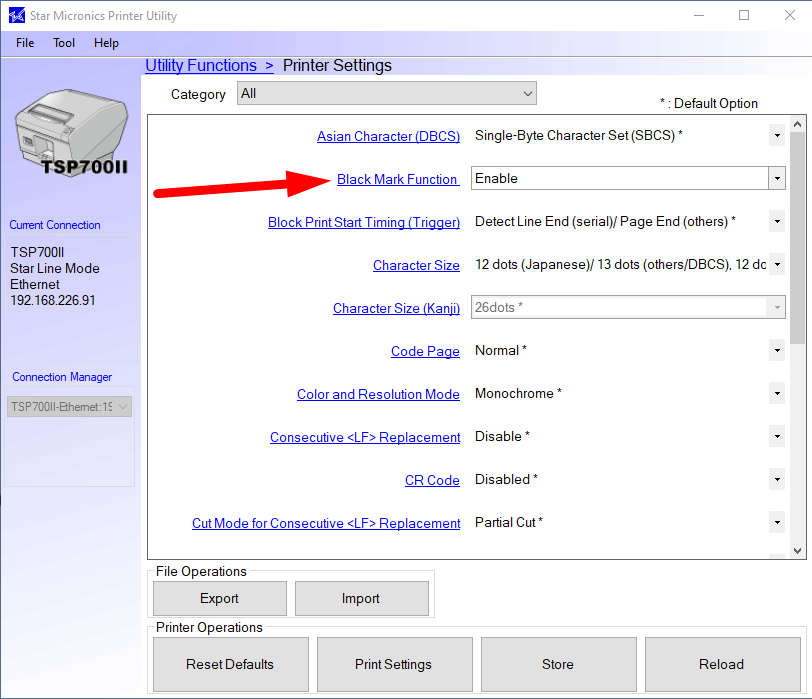
<section class="pageblock pageblock_text col-sm-12 no-button" id="bkmrk-once-the-settings-sc">Once the settings screen has loaded, simply set 'Black Mark Function' to 'Enabled'.

</section>---

<section class="pageblock pageblock_image col-sm-12 no-button" id="bkmrk--25">![](https://www.iconography.co.uk/images/pages/3152-screenshot_12.png)</section>---

<section class="pageblock pageblock_text col-sm-12 no-button" id="bkmrk-you-have-now-set-up-">You have now set up your label printer.

</section>