# Adding a New Sales Order in the EPoS


# Adding a Customer to a Sales Order in the EPoS

When raising an order in the EPoS, you can choose to add a new customer by entering their details manually, or you can search for an existing customer that is already registered with you.

### New Customer

You can enter new customer details to a new order in the EPoS by simply clicking "Add Customer". Once you have done this you will be able to add the following details;

- Title, first name and surname.
- Address, postcode and country.
- "Where did you hear about us?"
- Contact details including Email address, telephone number and alternate telephone number.

Contact preferences for the customer can be updated using the "Contact Preferences" button under the email address.

[![Contact Preferences.jpg](https://bookstack.iconography.co.uk/uploads/images/gallery/2025-05/scaled-1680-/contact-preferences.jpg)](https://bookstack.iconography.co.uk/uploads/images/gallery/2025-05/contact-preferences.jpg)

Within the contact preferences you can select which public and private mailing groups to add them to (these will be pulled from the [Manage Groups](https://bookstack.iconography.co.uk/books/groups) screen.

[![Contact Preferences Popup.jpg](https://bookstack.iconography.co.uk/uploads/images/gallery/2025-05/scaled-1680-/WjRcontact-preferences-popup.jpg)](https://bookstack.iconography.co.uk/uploads/images/gallery/2025-05/WjRcontact-preferences-popup.jpg)

Once you are happy that the details have been entered correctly, click "Update".

### Existing Customer

1\. Click "Create New Order"

![](https://ajeuwbhvhr.cloudimg.io/https://colony-recorder.s3.amazonaws.com/files/2025-05-13/ecf16d1e-bcd7-46e4-b5da-03f5ec2b47dd/user_cropped_screenshot.webp?tl_px=367,0&br_px=2087,590&force_format=jpeg&q=100&width=1120.0&wat=1&wat_opacity=1&wat_gravity=northwest&wat_url=https://colony-recorder.s3.amazonaws.com/images/watermarks/4c83c3_standard.png&wat_pad=788,3)

2\. Click "Add Customer"

![](https://ajeuwbhvhr.cloudimg.io/https://colony-recorder.s3.amazonaws.com/files/2025-05-13/1538bff5-55aa-471c-8ccd-23ceebffaef6/user_cropped_screenshot.webp?tl_px=367,0&br_px=2087,713&force_format=jpeg&q=100&width=1120.0&wat=1&wat_opacity=1&wat_gravity=northwest&wat_url=https://colony-recorder.s3.amazonaws.com/images/watermarks/4c83c3_standard.png&wat_pad=608,68)

3\. You can search for an existing customer using their surname, postcode, email or loyalty code.

![](https://ajeuwbhvhr.cloudimg.io/https://colony-recorder.s3.amazonaws.com/files/2025-05-13/70ce0ee5-cb00-49aa-b226-cfa805b6f76d/ascreenshot.jpeg?tl_px=367,0&br_px=2087,961&force_format=jpeg&q=100&width=1120.0&wat=1&wat_opacity=1&wat_gravity=northwest&wat_url=https://colony-recorder.s3.amazonaws.com/images/watermarks/4c83c3_standard.png&wat_pad=641,128)

4\. Click search to return matching results.

![](https://ajeuwbhvhr.cloudimg.io/https://colony-recorder.s3.amazonaws.com/files/2025-05-13/bdc6aa66-7b07-4ab6-8d3f-57c22bee3ad0/ascreenshot.jpeg?tl_px=367,0&br_px=2087,961&force_format=jpeg&q=100&width=1120.0&wat=1&wat_opacity=1&wat_gravity=northwest&wat_url=https://colony-recorder.s3.amazonaws.com/images/watermarks/4c83c3_standard.png&wat_pad=1041,112)

5\. Click "add" when you have found the appropriate customer.

![](https://ajeuwbhvhr.cloudimg.io/https://colony-recorder.s3.amazonaws.com/files/2025-05-13/eb26e652-7e9e-4e83-811b-328640cce769/ascreenshot.jpeg?tl_px=367,0&br_px=2087,961&force_format=jpeg&q=100&width=1120.0&wat=1&wat_opacity=1&wat_gravity=northwest&wat_url=https://colony-recorder.s3.amazonaws.com/images/watermarks/4c83c3_standard.png&wat_pad=1050,226)

6\. The customer, along with all of their contact details, has been added to the order successfully.

![](https://ajeuwbhvhr.cloudimg.io/https://colony-recorder.s3.amazonaws.com/files/2025-05-13/7e3c4d1c-ba2f-4481-b9b7-9fee988e8369/user_cropped_screenshot.webp?tl_px=367,0&br_px=2087,718&force_format=jpeg&q=100&width=1120.0&wat=1&wat_opacity=1&wat_gravity=northwest&wat_url=https://colony-recorder.s3.amazonaws.com/images/watermarks/4c83c3_standard.png&wat_pad=643,72)

7\. You can choose to amend or add missing details manually if required.

![](https://ajeuwbhvhr.cloudimg.io/https://colony-recorder.s3.amazonaws.com/files/2025-05-13/3bfca4f0-e3e2-4afa-9897-1ebc10c6fbfc/ascreenshot.jpeg?tl_px=367,277&br_px=2087,1239&force_format=jpeg&q=100&width=1120.0&wat=1&wat_opacity=1&wat_gravity=northwest&wat_url=https://colony-recorder.s3.amazonaws.com/images/watermarks/4c83c3_standard.png&wat_pad=624,340)

# Adding a Product to a Sales Order in the EPoS

There are three methods of searching for, and ultimately adding, products to an order in the EPoS;

1. Search field.
2. Browse Products.
3. Barcode scanners.

#### Search Field

You can easily search for a product by entering an appropriate term or SKU in to the "Search Products" field. This will return suggested results as you type, or you can hit return to see all of the results.

[![Product - Search Field.jpg](https://bookstack.iconography.co.uk/uploads/images/gallery/2025-05/scaled-1680-/eA1product-search-field.jpg)](https://bookstack.iconography.co.uk/uploads/images/gallery/2025-05/eA1product-search-field.jpg)

#### Browse Products

Under "Browse Products" you will be able to browse through your categories (listed in blue boxes), just as a customer would on the front end of your site. From here you can enter the appropriate categories and sub-categories to find the appropriate product that the customer wishes to purchase.

You can browse through categories by hovering over "Browse" in the EPoS navigation bar at the top. This is essentially the same as browsing using the blue category boxes.

#### Barcode Scanners

If you have barcode scanners, these will allow you to scan the product that the customer wishes to purchase, which will automatically add the product to the order, without having to search for it.

<p class="callout info">Scanning a product will add a new line if one doesn't exist, or change the quantity of a line if that product is already part of the Sales Order</p>

<p class="callout info">To add the same product on a new line, you will need to manually add it to the order via the 'add/order' button</p>

### Adding a Product

<p class="callout info">Adding a product manually (by clicking the button in the POS screen) will always add a new sales order line, even if that line already exists on the Sales Order. </p>

1\. Choose the category you wish to search in.

![](https://ajeuwbhvhr.cloudimg.io/https://colony-recorder.s3.amazonaws.com/files/2025-05-13/57a57347-7075-45b6-84fa-3a32ad75c9d9/ascreenshot.jpeg?tl_px=0,10&br_px=1719,971&force_format=jpeg&q=100&width=1120.0&wat=1&wat_opacity=1&wat_gravity=northwest&wat_url=https://colony-recorder.s3.amazonaws.com/images/watermarks/4c83c3_standard.png&wat_pad=83,277)

2\. Choose the sub-category you wish to search in.

![](https://ajeuwbhvhr.cloudimg.io/https://colony-recorder.s3.amazonaws.com/files/2025-05-13/e054d201-ba84-4bcb-9657-7e3b0079dbf0/user_cropped_screenshot.webp?tl_px=0,0&br_px=1719,414&force_format=jpeg&q=100&width=1120.0&wat=1&wat_opacity=1&wat_gravity=northwest&wat_url=https://colony-recorder.s3.amazonaws.com/images/watermarks/4c83c3_standard.png&wat_pad=361,125)

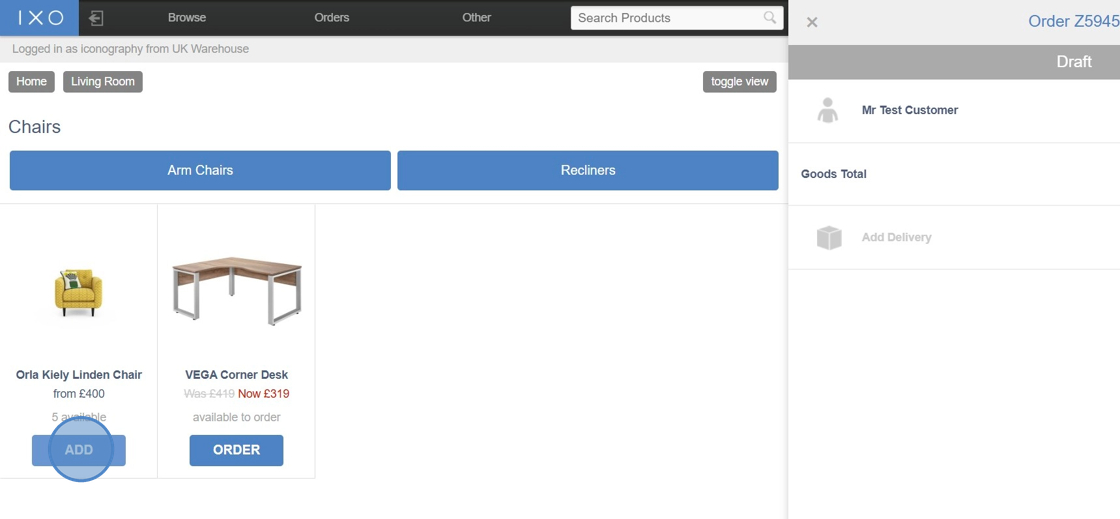
3\. You may wish to search within further sub-categories, or you can simply add click "ADD" on a product within the chosen category.
![](https://ajeuwbhvhr.cloudimg.io/https://colony-recorder.s3.amazonaws.com/files/2025-05-13/48e651e6-a834-4a70-a00c-d54bbc096d11/user_cropped_screenshot.webp?tl_px=0,0&br_px=1719,796&force_format=jpeg&q=100&width=1120.0&wat=1&wat_opacity=1&wat_gravity=northwest&wat_url=https://colony-recorder.s3.amazonaws.com/images/watermarks/4c83c3_standard.png&wat_pad=45,413)

4\. From here you will be able to select the from the available variants, as well as any Unique Stock Records (USR) that are currently available from stock.

![](https://ajeuwbhvhr.cloudimg.io/https://colony-recorder.s3.amazonaws.com/files/2025-05-13/1f78bd92-d3f9-41f7-be43-11abfcdb37b6/ascreenshot.jpeg?tl_px=0,0&br_px=1719,961&force_format=jpeg&q=100&width=1120.0&wat=1&wat_opacity=1&wat_gravity=northwest&wat_url=https://colony-recorder.s3.amazonaws.com/images/watermarks/4c83c3_standard.png&wat_pad=322,166)

5\. Selecting a variant will allow you to proceed to choose from the available options.

![](https://ajeuwbhvhr.cloudimg.io/https://colony-recorder.s3.amazonaws.com/files/2025-05-13/e86af6fb-76d7-408e-8f31-9c7f5ff0ac68/ascreenshot.jpeg?tl_px=0,0&br_px=1719,961&force_format=jpeg&q=100&width=1120.0&wat=1&wat_opacity=1&wat_gravity=northwest&wat_url=https://colony-recorder.s3.amazonaws.com/images/watermarks/4c83c3_standard.png&wat_pad=338,219)

6\. The final step will be to add any custom options. If no custom options are required, click "add".

![](https://ajeuwbhvhr.cloudimg.io/https://colony-recorder.s3.amazonaws.com/files/2025-05-13/d67de790-c83b-4a88-aaf3-8b14a74e7d3a/ascreenshot.jpeg?tl_px=0,0&br_px=1719,961&force_format=jpeg&q=100&width=1120.0&wat=1&wat_opacity=1&wat_gravity=northwest&wat_url=https://colony-recorder.s3.amazonaws.com/images/watermarks/4c83c3_standard.png&wat_pad=503,223)

7\. The product has now been successfully added to the order.

![](https://ajeuwbhvhr.cloudimg.io/https://colony-recorder.s3.amazonaws.com/files/2025-05-13/9709c345-95e7-4513-91d0-0d663a05701b/ascreenshot.jpeg?tl_px=0,0&br_px=1719,961&force_format=jpeg&q=100&width=1120.0&wat=1&wat_opacity=1&wat_gravity=northwest&wat_url=https://colony-recorder.s3.amazonaws.com/images/watermarks/4c83c3_standard.png&wat_pad=1,44)

Product availability is detailed within the EPoS. For a full explanation of this terminology, please click [here](https://bookstack.iconography.co.uk/books/general/page/stock-terminology "Terminology - Stock").

[![image.png](https://bookstack.iconography.co.uk/uploads/images/gallery/2025-05/scaled-1680-/image.png)](https://bookstack.iconography.co.uk/uploads/images/gallery/2025-05/image.png)

# Adding Add Ons to a Sales Order in the EPoS

If a product has addons assigned to it within the CMS, these can be selected as part of the ordering process within the EPOS.

1\. Click "ADD" on the appropriate product when in an order in the EPoS.

![](https://ajeuwbhvhr.cloudimg.io/https://colony-recorder.s3.amazonaws.com/files/2025-05-16/2eedac1c-edb8-4666-ab11-94848c257da9/user_cropped_screenshot.webp?tl_px=0,0&br_px=238,512&force_format=jpeg&q=100&width=520&wat_scale=46&wat=1&wat_opacity=1&wat_gravity=northwest&wat_url=https://colony-recorder.s3.amazonaws.com/images/watermarks/4c83c3_standard.png&wat_pad=321,881)

2\. If there are multiple variants available you will see a popup where you can select the appropriate variant.

![](https://ajeuwbhvhr.cloudimg.io/https://colony-recorder.s3.amazonaws.com/files/2025-05-16/125bb61a-01c3-45bf-9236-6076e4a93ce6/ascreenshot.jpeg?tl_px=0,79&br_px=1719,1040&force_format=jpeg&q=100&width=1120.0&wat=1&wat_opacity=1&wat_gravity=northwest&wat_url=https://colony-recorder.s3.amazonaws.com/images/watermarks/4c83c3_standard.png&wat_pad=402,277)

3\. If the product has addons set up, these will be listed as the next step in the popup.

![](https://ajeuwbhvhr.cloudimg.io/https://colony-recorder.s3.amazonaws.com/files/2025-05-16/bb63726d-1472-47db-a422-c7edf60bf8ba/ascreenshot.jpeg?tl_px=0,0&br_px=1719,961&force_format=jpeg&q=100&width=1120.0&wat=1&wat_opacity=1&wat_gravity=northwest&wat_url=https://colony-recorder.s3.amazonaws.com/images/watermarks/4c83c3_standard.png&wat_pad=517,128)

Tip: If ordering a standard product, addons are chosen in the next step. If ordering a made to order product, the addon will be one of the final steps after selecting made to order options.

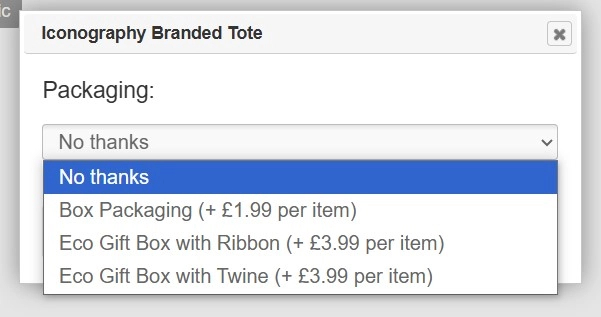
4\. Clicking the drop-down arrow will present all available addons, as they have been set up in the CMS.
![](https://ajeuwbhvhr.cloudimg.io/https://colony-recorder.s3.amazonaws.com/files/2025-05-16/0b0ae74d-d733-41c5-a802-781ebb75fc1f/screenshot.webp?tl_px=0,0&br_px=601,317&force_format=jpeg&q=100)

5\. After selecting the appropriate addon, you will be presented with the addon description, as set up in the CMS. Click "Continue" to add the product and addon to the order.

![](https://ajeuwbhvhr.cloudimg.io/https://colony-recorder.s3.amazonaws.com/files/2025-05-16/27f3c376-ef77-4650-9058-859b548c23bf/ascreenshot.jpeg?tl_px=0,0&br_px=1719,961&force_format=jpeg&q=100&width=1120.0&wat=1&wat_opacity=1&wat_gravity=northwest&wat_url=https://colony-recorder.s3.amazonaws.com/images/watermarks/4c83c3_standard.png&wat_pad=227,265)

6\. Both the product and addon have now been added to the order.

![](https://ajeuwbhvhr.cloudimg.io/https://colony-recorder.s3.amazonaws.com/files/2025-05-16/e73ace98-0f81-48b6-8a27-585124072b62/user_cropped_screenshot.webp?tl_px=0,0&br_px=876,961&force_format=jpeg&q=100&width=792&wat_scale=70&wat=1&wat_opacity=1&wat_gravity=northwest&wat_url=https://colony-recorder.s3.amazonaws.com/images/watermarks/4c83c3_standard.png&wat_pad=523,395)

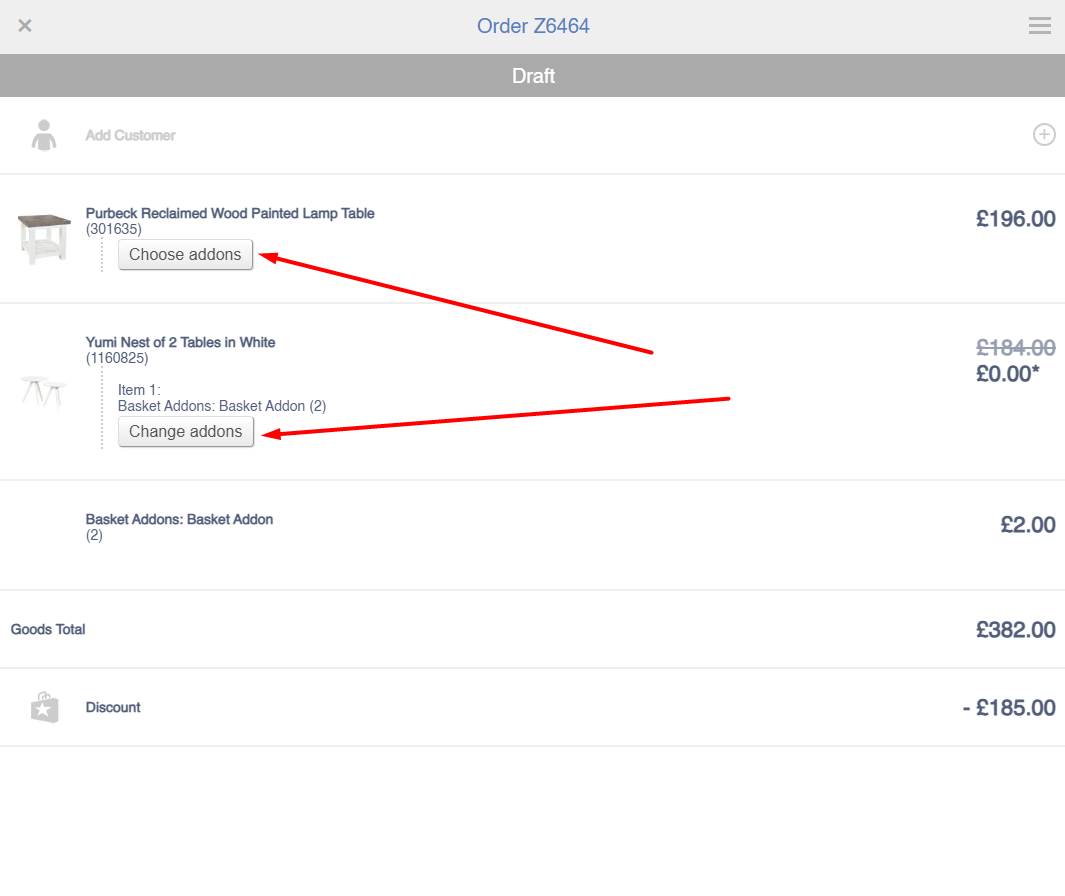
7\. The addon can be amended by using this button.

[![image.png](https://bookstack.iconography.co.uk/uploads/images/gallery/2025-10/scaled-1680-/llTimage.png)](https://bookstack.iconography.co.uk/uploads/images/gallery/2025-10/llTimage.png)
# Adding Upsells to a Sales Order in the EPoS

[![image.png](https://bookstack.iconography.co.uk/uploads/images/gallery/2025-05/scaled-1680-/m9Nimage.png)](https://bookstack.iconography.co.uk/uploads/images/gallery/2025-05/m9Nimage.png)

# Adding a Discount to a Sales Order in the EPoS

1\. Once a product has been added to an order, a discount can be added by clicking "Apply Discount".

![](https://ajeuwbhvhr.cloudimg.io/https://colony-recorder.s3.amazonaws.com/files/2025-05-13/91ecbf80-f3c1-4b1d-bfe6-c60f098cb3a3/ascreenshot.jpeg?tl_px=367,54&br_px=2087,1015&force_format=jpeg&q=100&width=1120.0&wat=1&wat_opacity=1&wat_gravity=northwest&wat_url=https://colony-recorder.s3.amazonaws.com/images/watermarks/4c83c3_standard.png&wat_pad=1060,277)

2\. There are two discount options available; promo code (if there is one available from your promotions) and custom discount.

![](https://ajeuwbhvhr.cloudimg.io/https://colony-recorder.s3.amazonaws.com/files/2025-05-13/80601b4c-50f4-4820-b6e1-1027c4756a0b/user_cropped_screenshot.webp?tl_px=0,166&br_px=876,1127&force_format=jpeg&q=100&width=792&wat_scale=70&wat=1&wat_opacity=1&wat_gravity=northwest&wat_url=https://colony-recorder.s3.amazonaws.com/images/watermarks/4c83c3_standard.png&wat_pad=314,409)

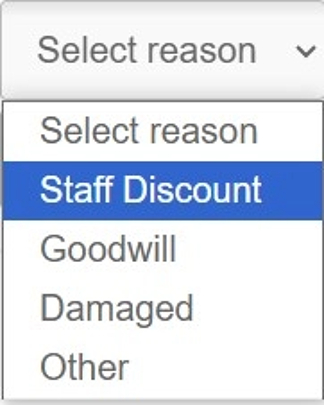
3\. If adding a custom discount, a reason must be entered. You can choose from Staff Discount, Goodwill, Damaged or Other.
![](https://ajeuwbhvhr.cloudimg.io/https://colony-recorder.s3.amazonaws.com/files/2025-05-13/29614a17-1b10-412d-8813-0c013b52e337/screenshot.webp?tl_px=0,0&br_px=181,226&force_format=jpeg&q=100&width=324)

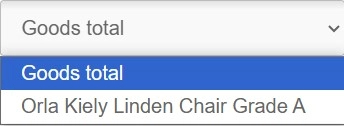
4\. You can also select if you would like to apply the discount from the overall goods total, or from a specific product on the order. In this instance, we're going to apply a discount to the whole order.
![](https://ajeuwbhvhr.cloudimg.io/https://colony-recorder.s3.amazonaws.com/files/2025-05-13/aaadb8f5-6c71-4d7c-97f4-00a9708770b1/screenshot.webp?tl_px=0,0&br_px=344,126&force_format=jpeg&q=100)

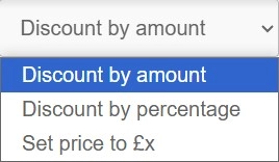
5\. The next step is to choose the method of discount. You can discount be a specific amount, by a percentage or set to a specific price.
![](https://ajeuwbhvhr.cloudimg.io/https://colony-recorder.s3.amazonaws.com/files/2025-05-13/2ba55625-7adb-4966-b9fb-fd21de287a13/screenshot.webp?tl_px=0,0&br_px=268,156&force_format=jpeg&q=100&width=279)

6\. Once you have selected the method of discount, you will need to enter the amount you wish to discount by, or the specific price you would like to set the product to. As we are discounting by a percentage in this example, I'm going to type "10" to apply a 10% discount.

![](https://ajeuwbhvhr.cloudimg.io/https://colony-recorder.s3.amazonaws.com/files/2025-05-13/be6ab287-f907-4308-9636-0c63c3f54784/user_cropped_screenshot.webp?tl_px=0,277&br_px=874,1239&force_format=jpeg&q=100&width=790&wat_scale=70&wat=1&wat_opacity=1&wat_gravity=northwest&wat_url=https://colony-recorder.s3.amazonaws.com/images/watermarks/4c83c3_standard.png&wat_pad=281,491)

7\. To apply the discount, an authorisation (Auth) pin will be required.

<p class="callout info">Note: this will not be required if the total amount discounted (including promotions) is less than the percentage defined in Site Settings under 'Maximum discount without authorisation limit per order (percentage)'</p>

![](https://ajeuwbhvhr.cloudimg.io/https://colony-recorder.s3.amazonaws.com/files/2025-05-13/6c55fce2-b624-419b-a62b-e472e4589de1/user_cropped_screenshot.webp?tl_px=0,277&br_px=875,1239&force_format=jpeg&q=100&width=790&wat_scale=70&wat=1&wat_opacity=1&wat_gravity=northwest&wat_url=https://colony-recorder.s3.amazonaws.com/images/watermarks/4c83c3_standard.png&wat_pad=500,489)

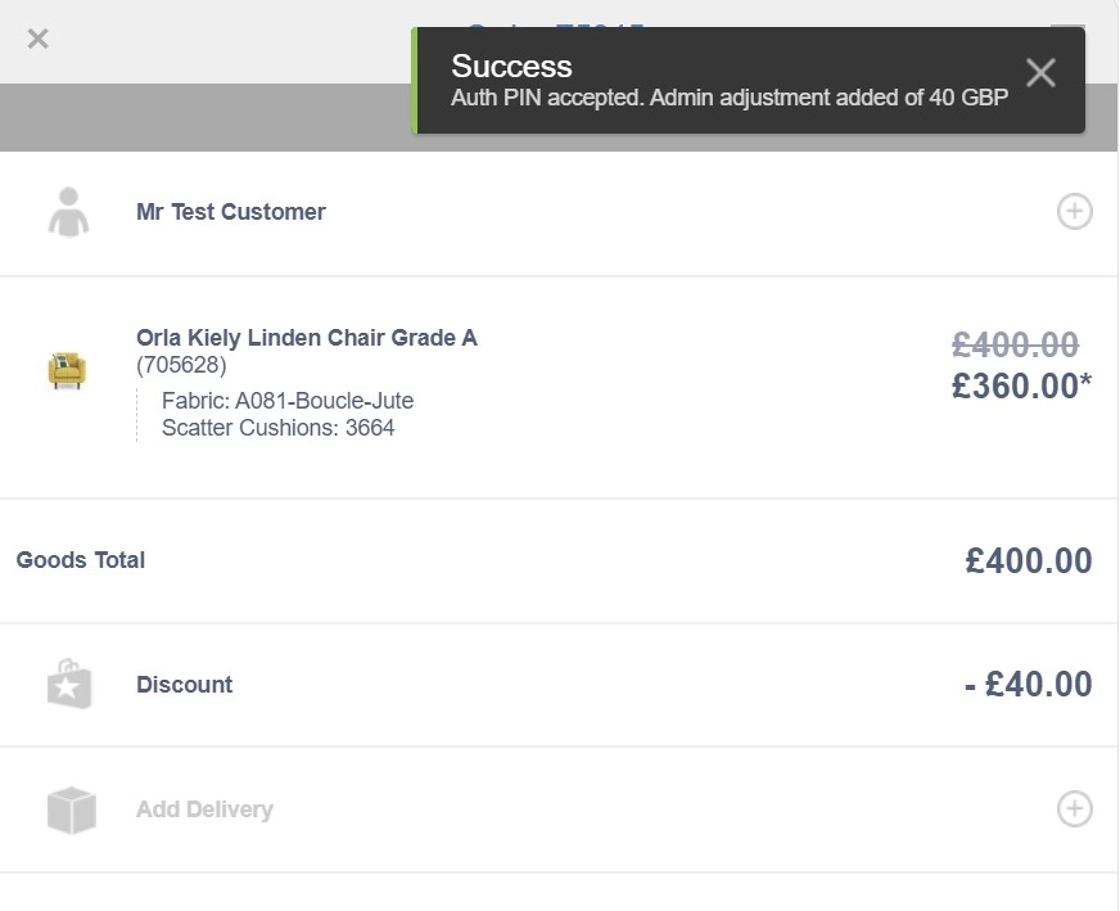
8\. If the Auth PIN was correct, the discount will be applied and you will receive a "Success" message.
![](https://ajeuwbhvhr.cloudimg.io/https://colony-recorder.s3.amazonaws.com/files/2025-05-13/c3898676-387b-4e48-b0d0-2f76a2293812/screenshot.webp?tl_px=0,0&br_px=872,709&force_format=jpeg&q=100&width=1120.0)

# Adding Delivery to a Sales Order in the EPoS

1\. Delivery can be added to an order by clicking "Add Delivery".

![](https://ajeuwbhvhr.cloudimg.io/https://colony-recorder.s3.amazonaws.com/files/2025-05-13/6327ecc4-3ea6-4019-a513-ae191bd6c107/ascreenshot.jpeg?tl_px=367,277&br_px=2087,1239&force_format=jpeg&q=100&width=1120.0&wat=1&wat_opacity=1&wat_gravity=northwest&wat_url=https://colony-recorder.s3.amazonaws.com/images/watermarks/4c83c3_standard.png&wat_pad=1061,479)

2\. From here you can select the appropriate delivery method. All available delivery methods (Postage Types) will be displayed.

![](https://ajeuwbhvhr.cloudimg.io/https://colony-recorder.s3.amazonaws.com/files/2025-05-13/46a03881-0974-4b72-b117-8abc7c695707/user_cropped_screenshot.webp?tl_px=0,277&br_px=875,1239&force_format=jpeg&q=100&width=790&wat_scale=70&wat=1&wat_opacity=1&wat_gravity=northwest&wat_url=https://colony-recorder.s3.amazonaws.com/images/watermarks/4c83c3_standard.png&wat_pad=262,367)

3\. If the customer is not walking away with the product(s), and the product does not need to be ordered in, you can book the delivery.

![](https://ajeuwbhvhr.cloudimg.io/https://colony-recorder.s3.amazonaws.com/files/2025-05-13/48b9c07f-4bc6-4c65-828f-566c65dd99c4/user_cropped_screenshot.webp?tl_px=0,236&br_px=875,1197&force_format=jpeg&q=100&width=790&wat_scale=70&wat=1&wat_opacity=1&wat_gravity=northwest&wat_url=https://colony-recorder.s3.amazonaws.com/images/watermarks/4c83c3_standard.png&wat_pad=101,408)

4\. Clicking "Book Delivery" will open up a scheduler popup. In here you can select the appropriate products that you wish to book the delivery for, as well as the date, lorry and timeslot.

<p class="callout info">For more detail, there is a separate page for [Scheduling a Sales Order](https://bookstack.iconography.co.uk/books/scheduling/page/how-to-schedule-a-sales-orderstock-transfer)</p>

![](https://ajeuwbhvhr.cloudimg.io/https://colony-recorder.s3.amazonaws.com/files/2025-05-13/72c6ce48-dc83-43fc-aeeb-0b73947c361c/user_cropped_screenshot.webp?tl_px=0,219&br_px=878,1180&force_format=jpeg&q=100&width=794&wat_scale=70&wat=1&wat_opacity=1&wat_gravity=northwest&wat_url=https://colony-recorder.s3.amazonaws.com/images/watermarks/4c83c3_standard.png&wat_pad=538,409)

5\. You can manually enter a delivery cost.

![](https://ajeuwbhvhr.cloudimg.io/https://colony-recorder.s3.amazonaws.com/files/2025-05-13/9cb8b056-f32f-44a6-8979-e70875446566/ascreenshot.jpeg?tl_px=367,277&br_px=2087,1239&force_format=jpeg&q=100&width=1120.0&wat=1&wat_opacity=1&wat_gravity=northwest&wat_url=https://colony-recorder.s3.amazonaws.com/images/watermarks/4c83c3_standard.png&wat_pad=569,306)

6\. However, you can also choose to "Auto-Recalculate" delivery, which will automatically calculate the delivery cost, depending on the delivery address and delivery method (postage type) chosen.

![](https://ajeuwbhvhr.cloudimg.io/https://colony-recorder.s3.amazonaws.com/files/2025-05-13/b22205c6-b3c0-480a-b6a5-673460ddda24/ascreenshot.jpeg?tl_px=339,180&br_px=2059,1142&force_format=jpeg&q=100&width=1120.0&wat=1&wat_opacity=1&wat_gravity=northwest&wat_url=https://colony-recorder.s3.amazonaws.com/images/watermarks/4c83c3_standard.png&wat_pad=700,548)

7\. You may wish to enter delivery instructions. For example, there may be tricky access which the delivery drivers need to know about.

![](https://ajeuwbhvhr.cloudimg.io/https://colony-recorder.s3.amazonaws.com/files/2025-05-13/ff07fb9d-8d4f-4508-abd4-aed62ea5c7dc/ascreenshot.jpeg?tl_px=367,277&br_px=2087,1239&force_format=jpeg&q=100&width=1120.0&wat=1&wat_opacity=1&wat_gravity=northwest&wat_url=https://colony-recorder.s3.amazonaws.com/images/watermarks/4c83c3_standard.png&wat_pad=631,360)

8\. Once you're happy that the delivery information has been entered correctly, hit "Update".

![](https://ajeuwbhvhr.cloudimg.io/https://colony-recorder.s3.amazonaws.com/files/2025-05-13/51b4f8ff-1568-4e1e-8848-fdd3bc4dd970/ascreenshot.jpeg?tl_px=367,277&br_px=2087,1239&force_format=jpeg&q=100&width=1120.0&wat=1&wat_opacity=1&wat_gravity=northwest&wat_url=https://colony-recorder.s3.amazonaws.com/images/watermarks/4c83c3_standard.png&wat_pad=558,474)

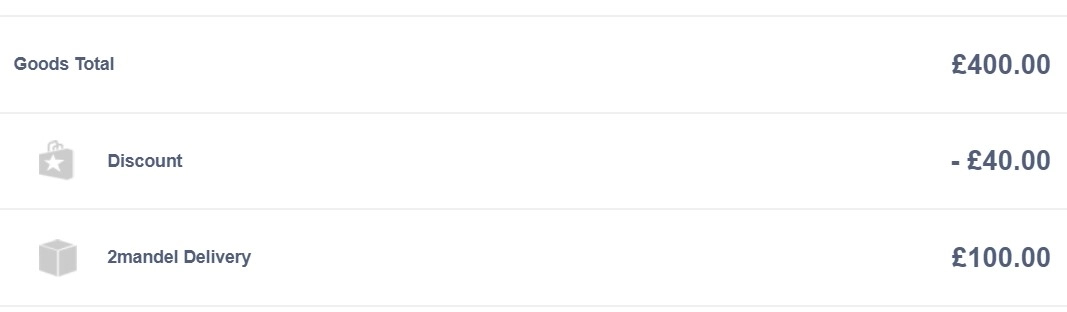
9\. Delivery has now been applied to the order.
![](https://ajeuwbhvhr.cloudimg.io/https://colony-recorder.s3.amazonaws.com/files/2025-05-13/24b0c656-6b92-457e-bb28-4dcc5e2e011e/screenshot.webp?tl_px=0,0&br_px=1067,312&force_format=jpeg&q=100)

# Adding a Payment to a Sales Order in the EPoS


# Removing VAT from a Sales Order Line in the POS

Click or tap on the line that you wish to edit, then choose to Remove VAT.

[![image.png](https://bookstack.iconography.co.uk/uploads/images/gallery/2025-09/scaled-1680-/dkQimage.png)](https://bookstack.iconography.co.uk/uploads/images/gallery/2025-09/dkQimage.png)
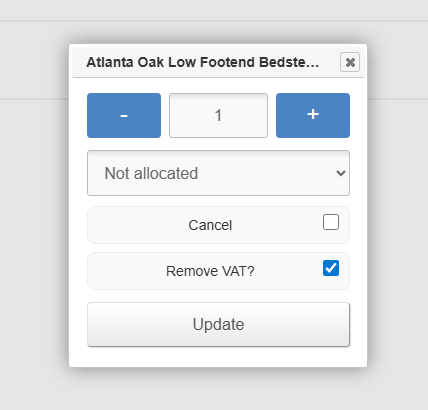
It will be possible to add a [VAT Exemption Form](https://bookstack.iconography.co.uk/books/general/page/vat-exemption-form) further down the page.

<p class="callout info">VAT Exemption reasons may be edited in [Site Settings](https://bookstack.iconography.co.uk/books/site-settings "Site Settings")</p>