How To Sell A Gift Voucher
Learn how to correctly navigate the IXO POS system to apply a gift voucher to a transaction. This guide also covers how to finalize the manual payment process and generate a receipt for your customer.
Add a Gift Voucher
To do this, you Gift Voucher must be set up as a 'Voucher' type Product.
It is good practice to add a Customer to your Sales Order, as this gives you a way of finding the Voucher again if the Customer loses it.
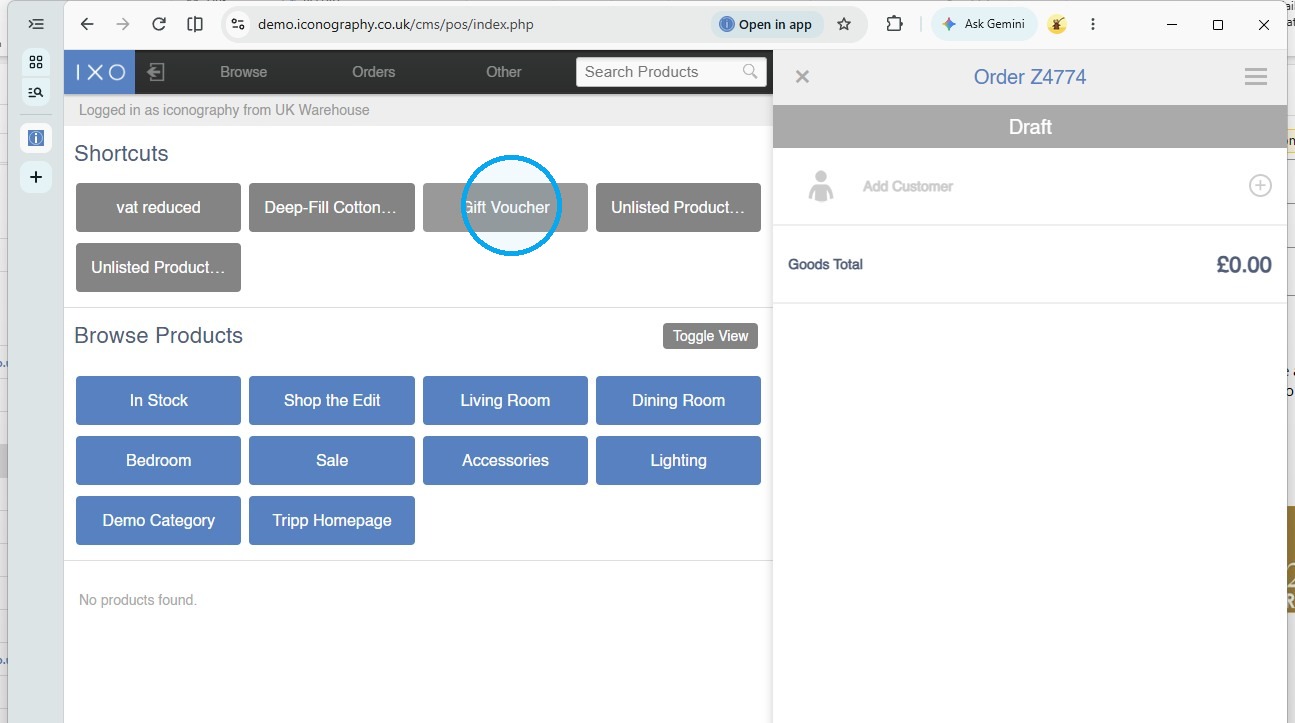
1. Click "Gift Voucher"
(the Product will need to be added to this section via POS Shortcuts)
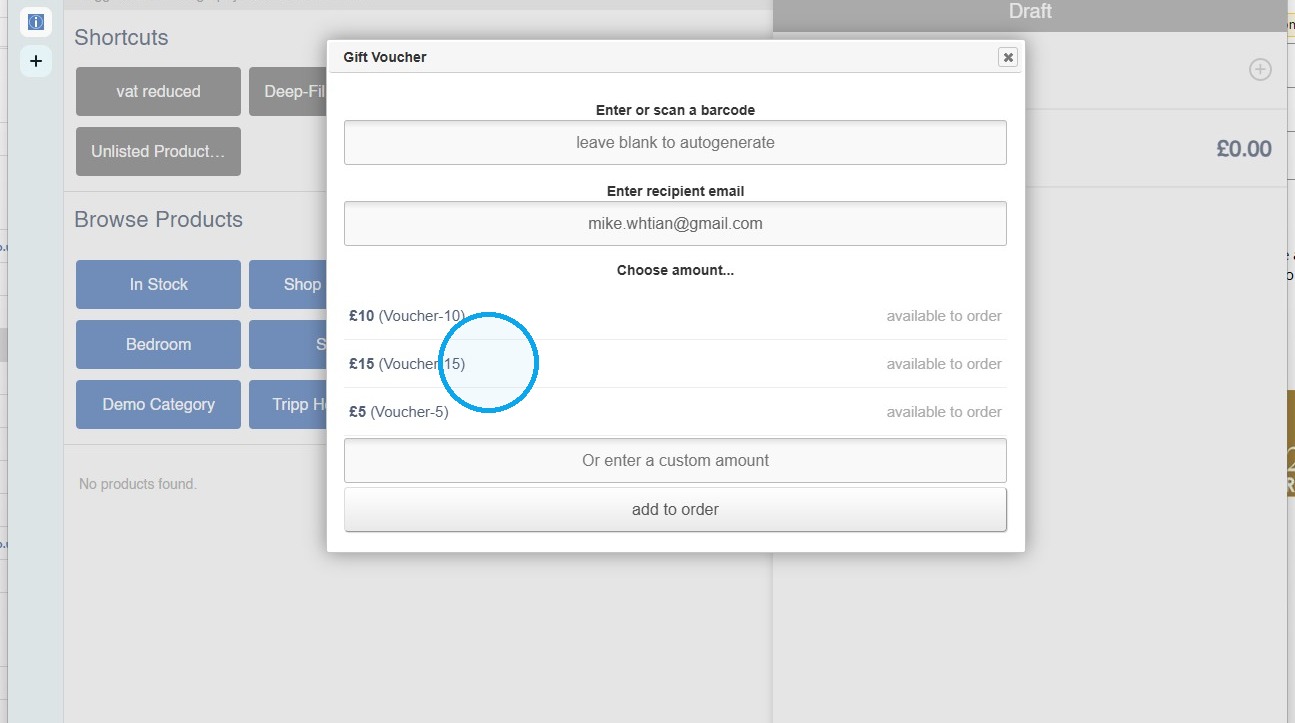
2. Enter a recipient email to auto email this to the Customer.
Select the voucher amount (this will be based on the Variants set up within that Voucher Product).
It is also possible to enter a custom amount.
Record Payment
3. Add a payment to the Sales Order
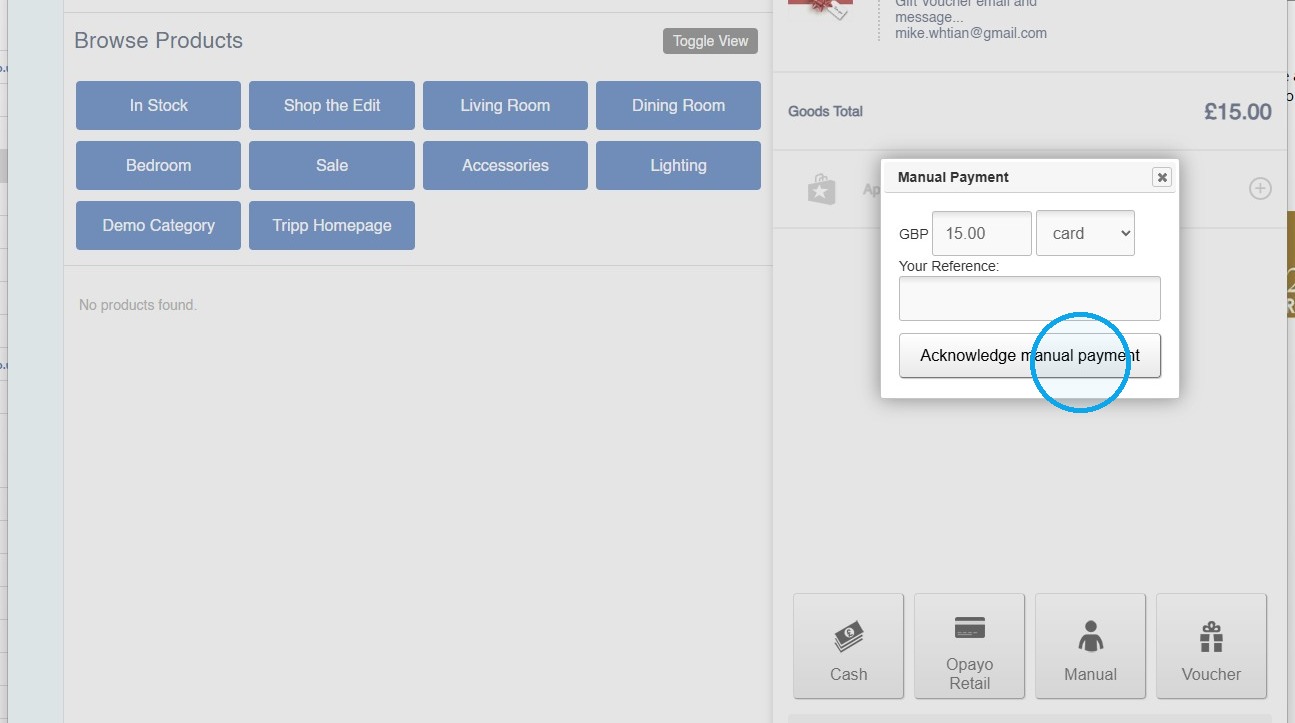
4. Confirm that the gift voucher payment is complete.
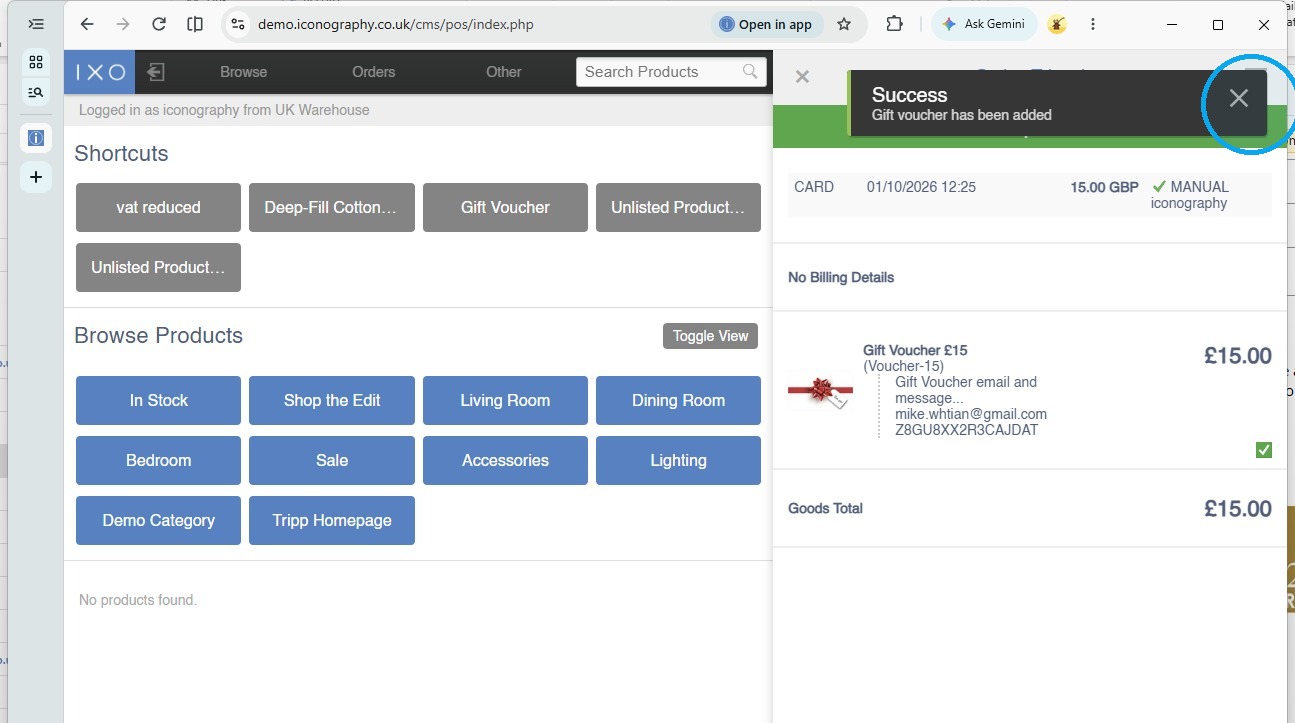
Print Voucher
This will only be possible if you are connected to a Receipt Printer.
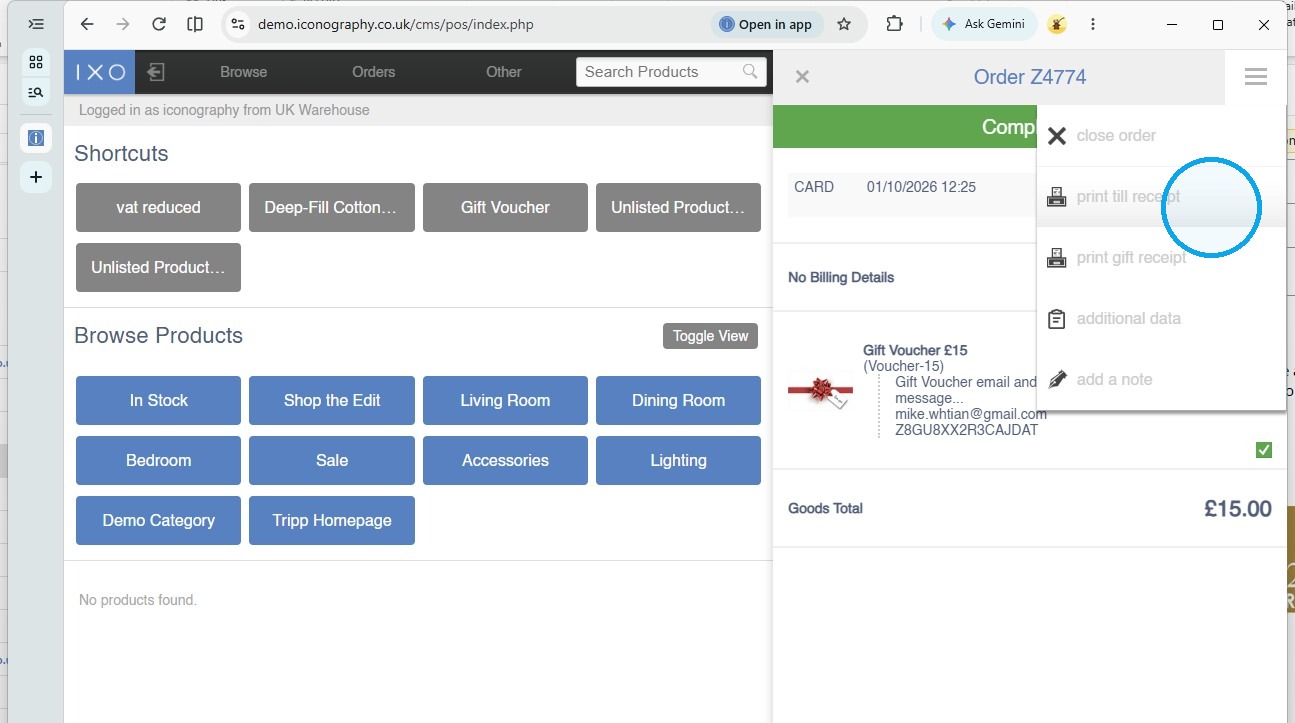
5. To print a physical copy of the Voucher, use the hamburger menu and select 'Print Till Receipt'
This will print a Voucher with a barcode that can be scanned with accepting payment on a future Sales Order