Upsell Visibility
How to select Upsells in the POS and CMS
This process works for both POS and CMS, with the Upsell journey being identical in both. Note that the eCommerce journey follows the same rules.
For more information, please click here
Product Selection
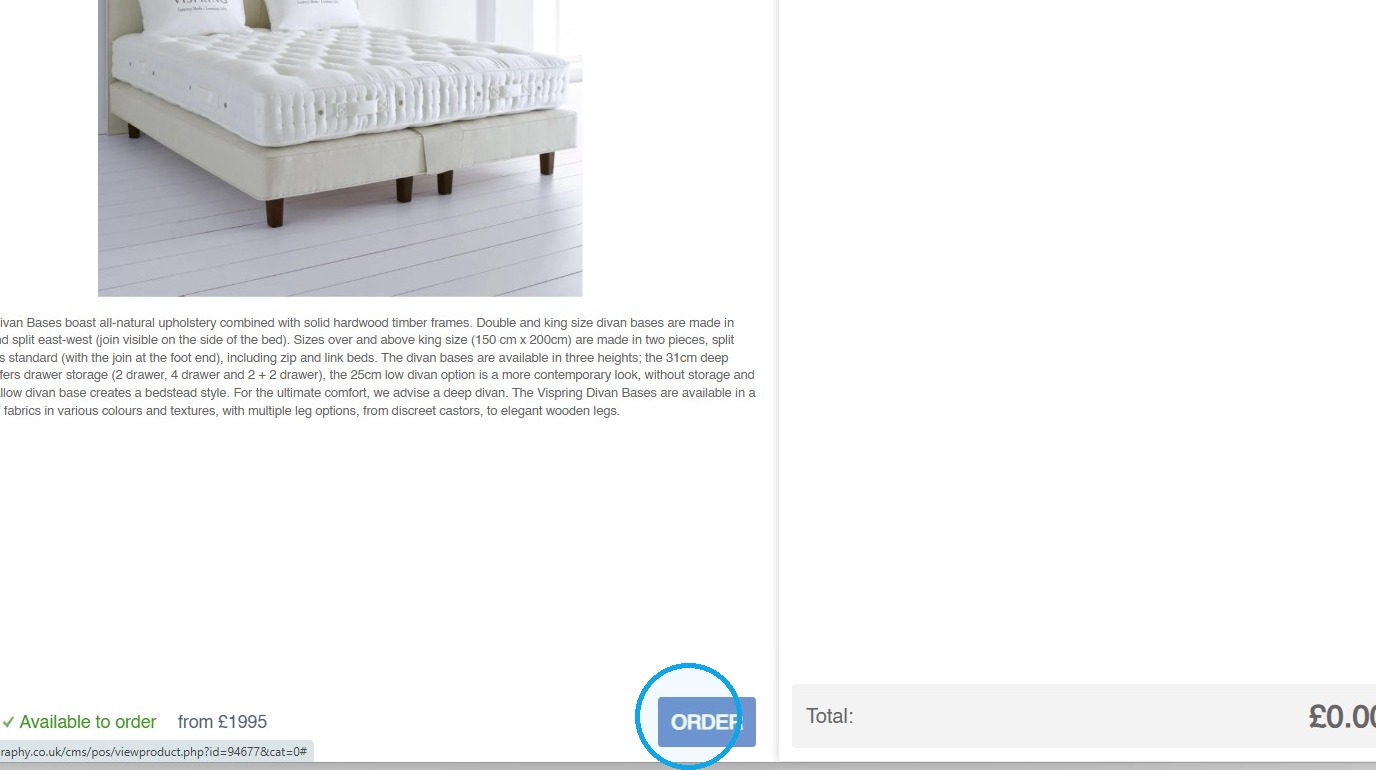
1. Click "ORDER" to add your base Product
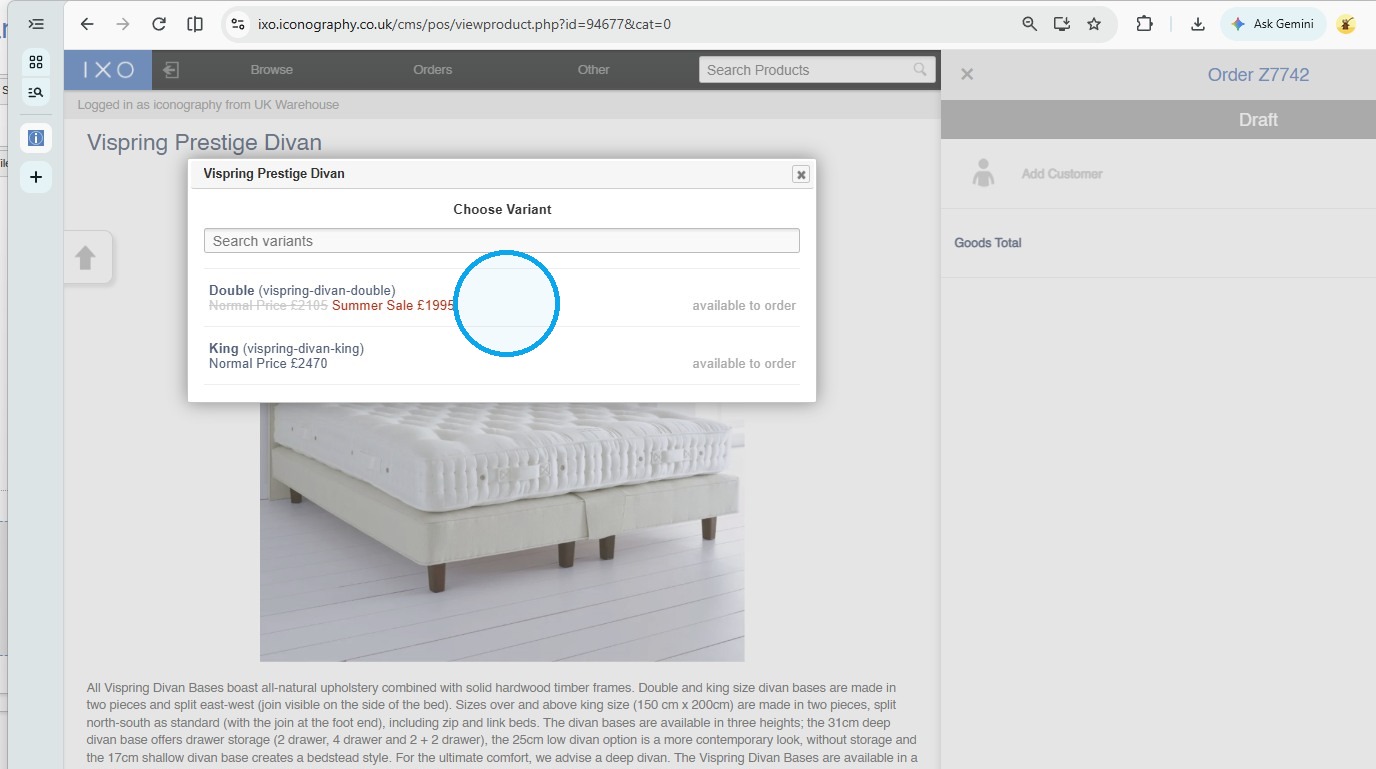
2. Select the Variant as normal
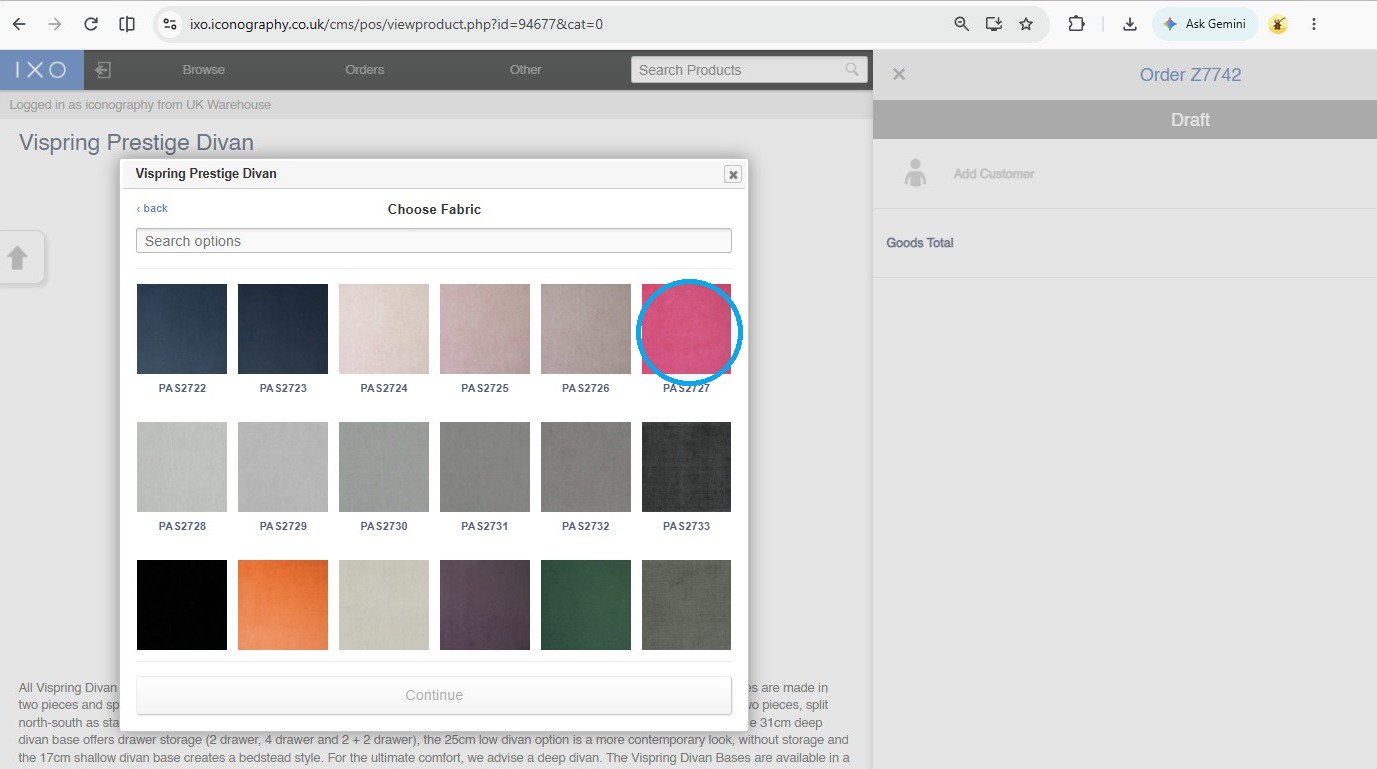
3. Configure options as necessary
Tip: Addons will also be configured at this stage, if enabled
Product Upsells
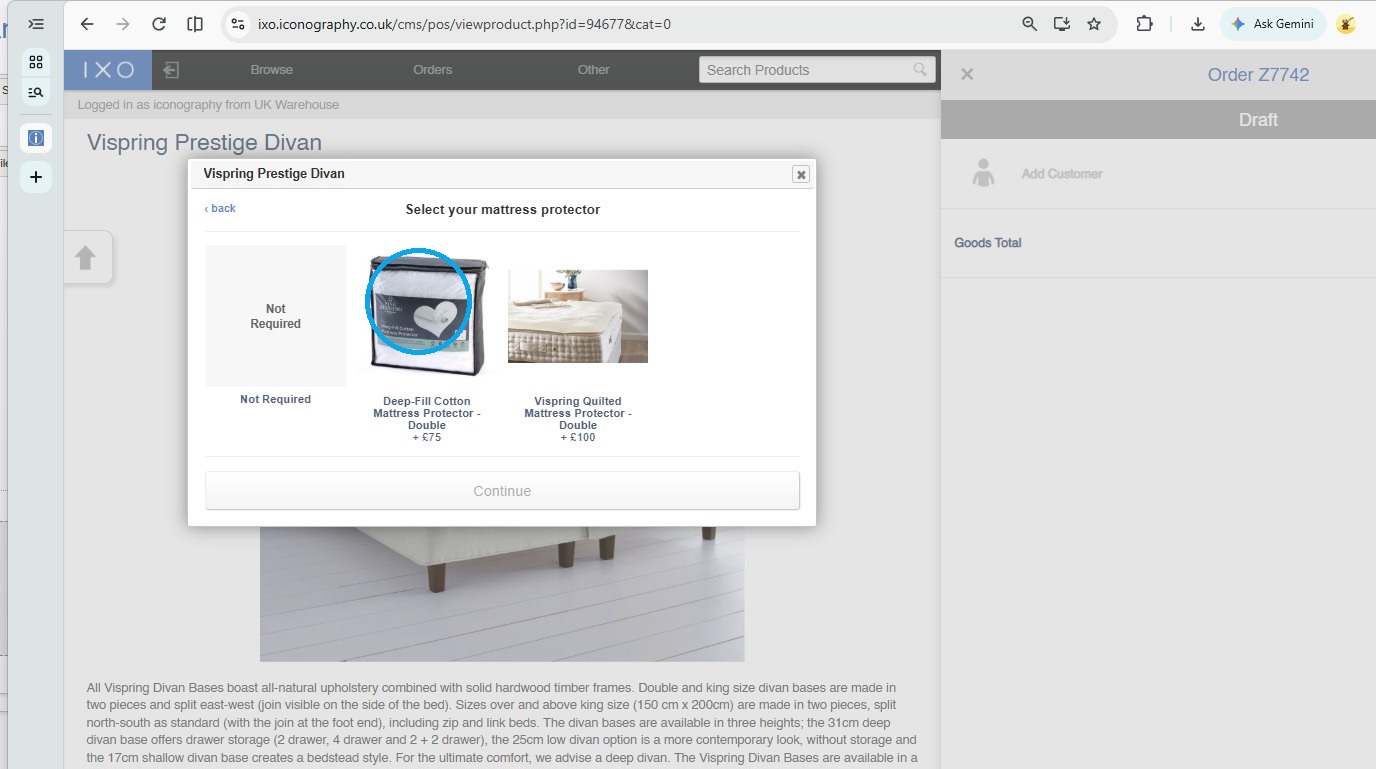
4. Once the Product is configured and your Addons are selected (if applicable), the first Upsells will be shown
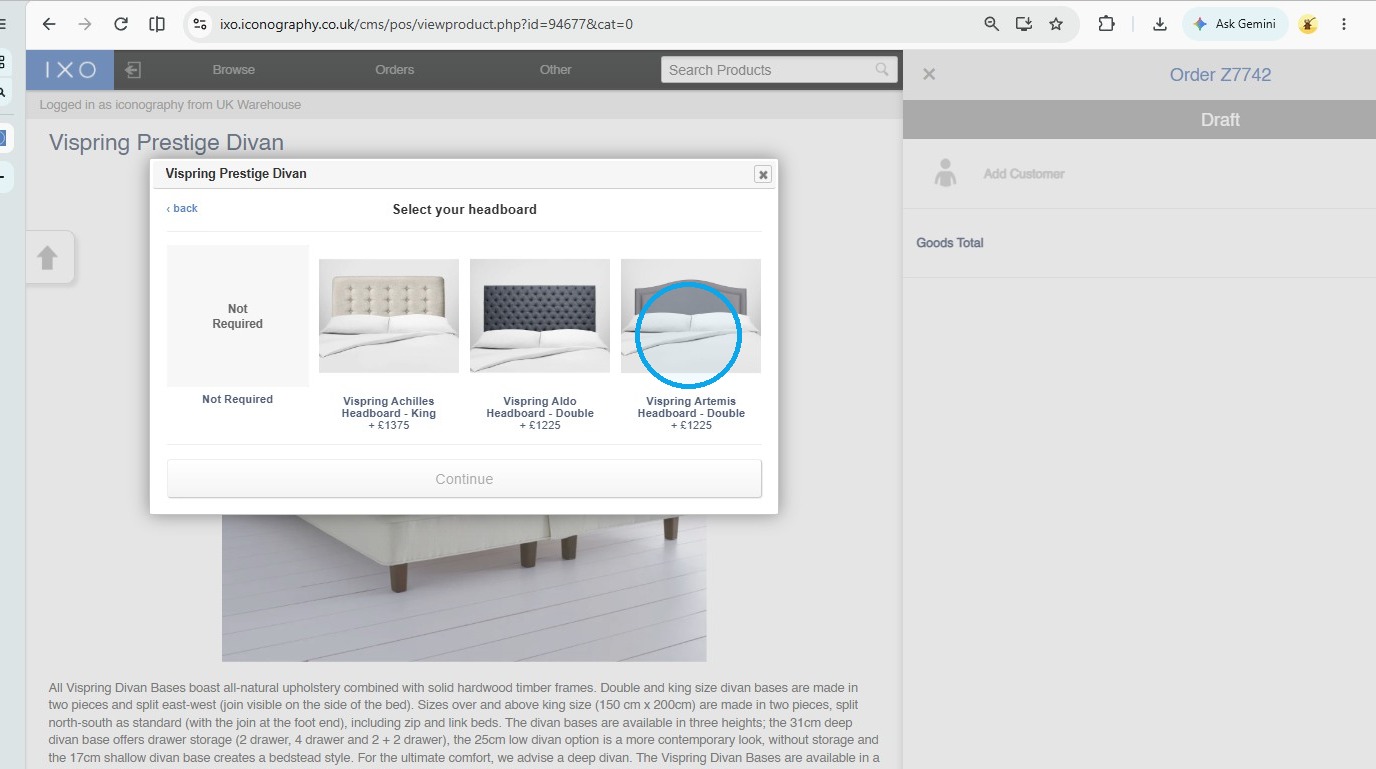
Tip: At this stage, you will have to configure Customisations for the Upsell product, if applicable.
In this example, the Pink was preselected, as it matched the Pink we chose on the original Product.
5. Click "Continue"
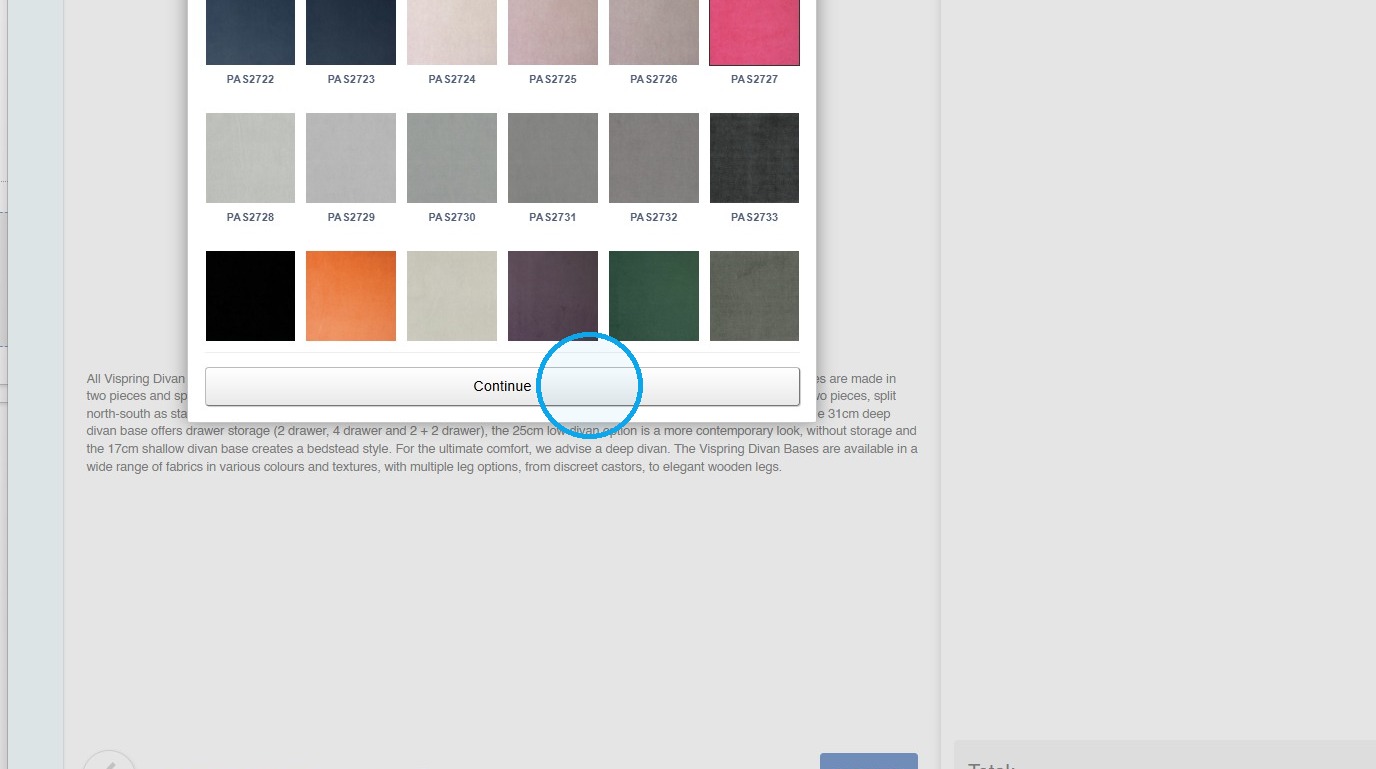
Tip: If set up, the User will be asked to configure Addons at this stage
6. The wizard will then automatically take the user to the next set of Upsells
Upsell Visibility (POS, eCommerce and CMS)
This page covers how upsells work in IXO Commerce, where they appear, and the order they are presented in.
If you would like to see how to select Upsells in the POS and CMS, click here.
Where upsells are shown
Upsells are presented in a step-by-step wizard in two places:
- POS and CMS, when a product is added to an order
- Ecommerce website, for made-to-order (MTO) items only
Wizard sequence
The wizard runs through the following steps in order. Any step with nothing to show is skipped.
- Configure the main product. Only shown if the product needs configuring (for example, an MTO item with Customisations).
- Variant upsells assigned manually. Set on the product edit screen.
- Variant upsells assigned by rules.
- Product upsells assigned manually. Set on the product edit screen.
All variant-level steps come before any product-level step.
Add-ons to upsells
If an upsell has its own add-ons, they slot into the journey straight after that upsell, before the wizard moves on to the next step.
Stacking
Upsells can be stacked, so a product can have as many upsell groups as it needs. Each group is shown in turn within its step.
Rules and restrictions
Product type combinations
| Parent product | Upsell product | Result |
|---|---|---|
| Standard | Standard | Shown |
| MTO | Standard | Shown |
| Standard | MTO | Can be attached, but will not show |
| MTO | MTO | Shown |
An MTO item cannot be upsold with a standard product. The system will let you attach one, but it will not appear in the wizard.
Rule-based upsells
Upsells assigned by rules only appear in the wizard if they are a variant upsell type. Rule-based product upsells will not show.
MTO option preselection
When an MTO upsell has options that match those already chosen on the parent product, those options are preselected. For example, if the customer picked a fabric on the parent and the same fabric is available on the upsell, it will be selected for them. The customer can still change it.