# Carousel
Use this block to add small images on a swipeable carousel.
There are also other blocks which can be used to add images:
- [Image](https://bookstack.iconography.co.uk/books/general/page/image "Image") (simple images)
- [Hero](https://bookstack.iconography.co.uk/books/general/page/hero "Hero") (large rotating banners)
- [Parallax](https://bookstack.iconography.co.uk/books/general/page/parallax "Parallax") (an image that sits behind content, adding depth to a page)
- [Feature](https://bookstack.iconography.co.uk/books/general/page/feature "Feature") (a styled image)
- [Multi-Feature](https://bookstack.iconography.co.uk/books/general/page/multi-feature "Multi-Feature") (multiple static images in a single block)
- [Wide Feature](https://bookstack.iconography.co.uk/books/general/page/wide-feature "Wide-Feature") (image with a block of text)
## Appearance
[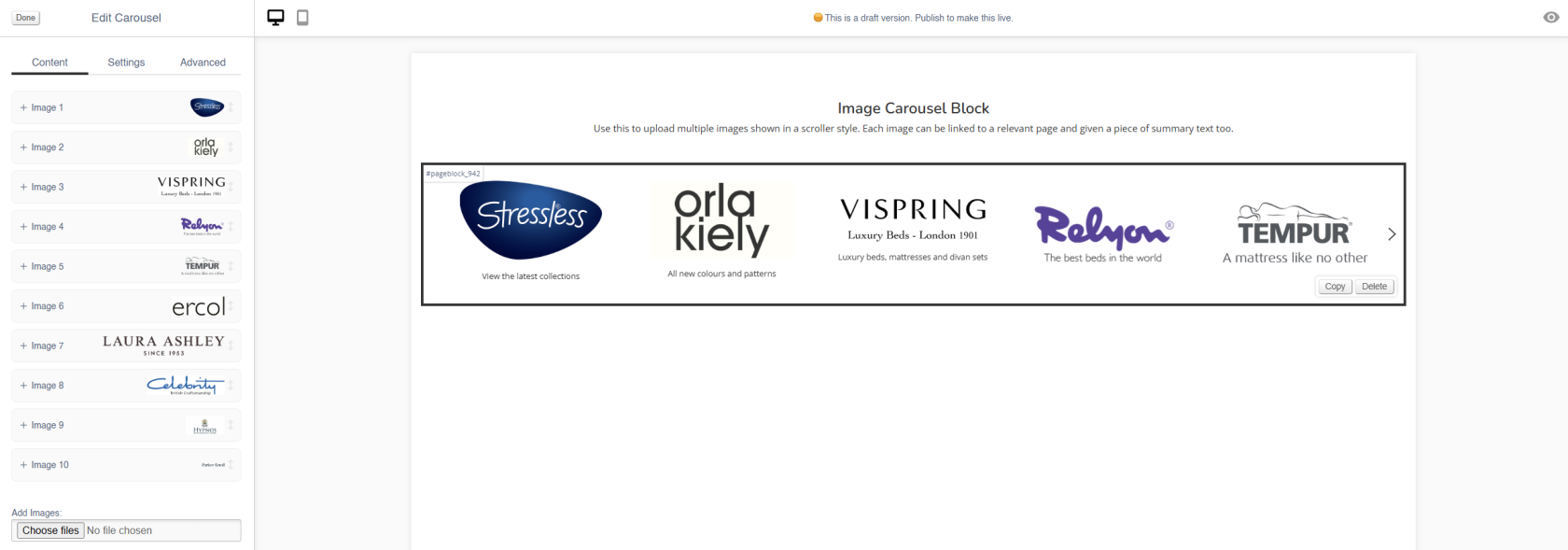](https://bookstack.iconography.co.uk/uploads/images/gallery/2024-11/92simage.png)
## Editing the Block
### Content
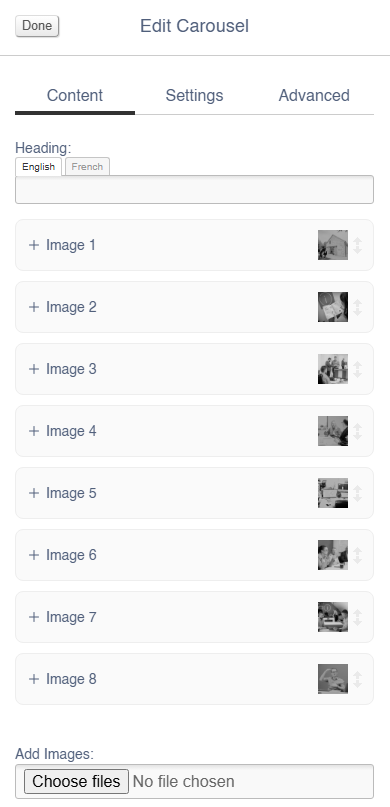
Each image has an expandable menu, allowing it to be edited individually.
[](https://bookstack.iconography.co.uk/uploads/images/gallery/2025-09/B7pimage.png)
Images may be dragged around to resequence them.
| Field | Purpose |
| Link URL | *Enter a link URL - if populated, this will add a link to the image* |
| Alt Text | *Amend the Alt Text for the image*
|
| Summary | *Enter text that will be shown below the image* |
| Delete Image | *Use the tick box to delete an image - you will be asked to confirm your action* |
Use the Image dialogue to select images to upload to this block.
### Settings
Block width is not editable for the Hero block - it is always set to 100%.
| Field | Purpose |
| Visibility | *Set the block visibility from the list:*
- *Default (both)*
- *Desktop Only*
- *Mobile Only*
- *Hidden (none)*
|
| Items Visible | *Defines how many images will be visible on page load*
|
| Items Visible (mobile) | *Defines how many images will be visible on page load when on a mobile device*
|
#### Additional Options
| Field | Purpose |
| Mouse Drag | *Allow a user to mouse drag/swipe to scoll through the Carousel* |
| Alt Style | *Alters the amount of padding between each image within the block* |
| Caption on Right? | *Choose to show the Summary text below the image, or to the right of the image* |
| Auto-play | *Set the Carousel to auto scroll* |
| Loop? | *Set the auto scroll on a loop* |
### Advanced
#### Padding
Adding padding will insert space within the current block; this will adjust the position of content within the block.
More information is available [here](https://bookstack.iconography.co.uk/books/general/page/padding).
#### Margin
The margin will add additional space around the current block.
More information is available [here](https://bookstack.iconography.co.uk/books/general/page/margin).