# Multi-Feature

Use this block to add multiple static images in a single block.

There are also other blocks which can be used to add images:

- [Image](https://bookstack.iconography.co.uk/books/general/page/image "Image") (simple images)
- [Carousel](https://bookstack.iconography.co.uk/books/general/page/carousel "Carousel") (small images on a swipeable carousel)
- [Hero](https://bookstack.iconography.co.uk/books/general/page/hero "Hero") (large rotating banners)
- [Parallax](https://bookstack.iconography.co.uk/books/general/page/parallax "Parallax") (an image that sits behind content, adding depth to a page)
- [Feature](https://bookstack.iconography.co.uk/books/general/page/feature "Feature") (a styled image)
- [Wide Feature](https://bookstack.iconography.co.uk/books/general/page/wide-feature "Wide-Feature") (image with a block of text)

## Appearance

[![image.png](https://bookstack.iconography.co.uk/uploads/images/gallery/2024-11/scaled-1680-/e62image.png)](https://bookstack.iconography.co.uk/uploads/images/gallery/2024-11/e62image.png)

## Editing the Block

<p class="callout info">To best configure this block, it is important to select your layout under Settings (see below) before you upload any images</p>

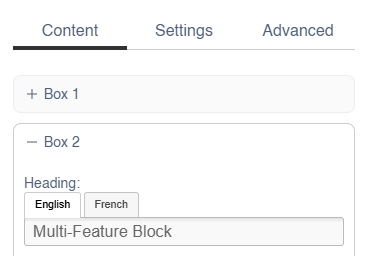
Each image has an expandable menu, allowing it to be edited individually.

[![image.png](https://bookstack.iconography.co.uk/uploads/images/gallery/2024-12/scaled-1680-/sm7image.png)](https://bookstack.iconography.co.uk/uploads/images/gallery/2024-12/sm7image.png)
### Content

<table border="1" id="bkmrk-field-purpose-headin" style="border-collapse: collapse; width: 100%; border-width: 1px; height: 244.8px;"><colgroup><col style="width: 50.0477%;"></col><col style="width: 50.0477%;"></col></colgroup><thead><tr style="height: 29.6px;"><td style="height: 29.6px;">Field</td><td style="height: 29.6px;">Purpose</td></tr></thead><tbody><tr style="height: 46.4px;"><td style="height: 46.4px;">Heading</td><td style="height: 46.4px;">*Enter a short title - this will be output as a text overlay, on top of the image*</td></tr><tr style="height: 46.4px;"><td style="height: 46.4px;">Text</td><td style="height: 46.4px;">*Enter some short text - this will be output as a text overlay, on top of the image below the title*</td></tr><tr><td>Alt Text</td><td>*Amend the Alt Text for the image*

</td></tr><tr style="height: 29.6px;"><td style="height: 29.6px;">Link URL</td><td style="height: 29.6px;">*Enter a link URL - if populated, this will add a link to the image.* </td></tr><tr style="height: 63.2px;"><td style="height: 63.2px;">Link Text</td><td style="height: 63.2px;">*Text to be shown with a button, if a link is set*

*If left blank, the whole image will act as a button*

</td></tr><tr style="height: 29.6px;"><td style="height: 29.6px;">Delete This Image?</td><td style="height: 29.6px;">*Use this control to delete an image*</td></tr></tbody></table>

Use the Image dialogue to select images to upload to this block.

### Settings


<table border="1" id="bkmrk-field-purpose-block-" style="border-collapse: collapse; width: 100%; border-width: 1px;"><colgroup><col style="width: 50.053%;"></col><col style="width: 50.053%;"></col></colgroup><thead><tr><td>Field</td><td>Purpose</td></tr></thead><tbody><tr><td>Block Width</td><td>*Choose from:*

- *25%*
- *33%*
- *50%*
- *66%*
- *75%*
- *100%*
- *Full Width (set to always be the full width of the user's device)*

</td></tr><tr><td>Visibility</td><td>*Set the block visibility from the list:*

- *Default (both)*
- *Desktop Only*
- *Mobile Only*
- *Hidden (none)*

</td></tr><tr><td>Text Colour</td><td>*Choose from:*

- *Auto (will select a high contrast automatically)*
- *Black*
- *White*

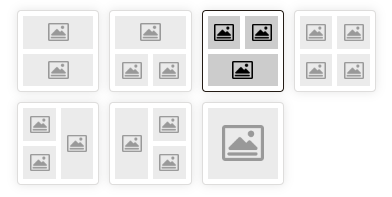
</td></tr><tr><td>Layout</td><td>*Use the control to select the layout - this may alter the number of images in this block*

[![image.png](https://bookstack.iconography.co.uk/uploads/images/gallery/2024-12/scaled-1680-/45gimage.png)](https://bookstack.iconography.co.uk/uploads/images/gallery/2024-12/45gimage.png)
</td></tr><tr><td>Gap</td><td>*Choose the number of pixels between the images within this block*

</td></tr></tbody></table>

#### Additional Options

These options allow you to auto assign Products to Hero Images, without assigning specific Products.

<table border="1" id="bkmrk-field-purpose-invert" style="border-collapse: collapse; width: 100%; border-width: 1px;"><colgroup><col style="width: 50.0477%;"></col><col style="width: 50.0477%;"></col></colgroup><thead><tr><td>Field</td><td>Purpose</td></tr></thead><tbody><tr><td>Text central</td><td>*Output the text centrally on the image*</td></tr></tbody></table>

### Advanced

#### Padding

Adding padding will insert space within the current block; this will adjust the position of content within the block.

More information is available [here](https://bookstack.iconography.co.uk/books/general/page/padding).

#### Margin

The margin will add additional space around the current block.

More information is available [here](https://bookstack.iconography.co.uk/books/general/page/margin).