# Products

Use this to insert blocks of Products onto your page.

<p class="callout warning">This is only possible if your system is enabled for eCommerce</p>

This will add live products to your page, so if any product data is updated, this page will also be automatically updated.

Disabled products are not shown within the block; add automated products to fill any gaps (see below for more details)

## Appearance

[![image.png](https://bookstack.iconography.co.uk/uploads/images/gallery/2024-11/scaled-1680-/FtRimage.png)](https://bookstack.iconography.co.uk/uploads/images/gallery/2024-11/FtRimage.png)
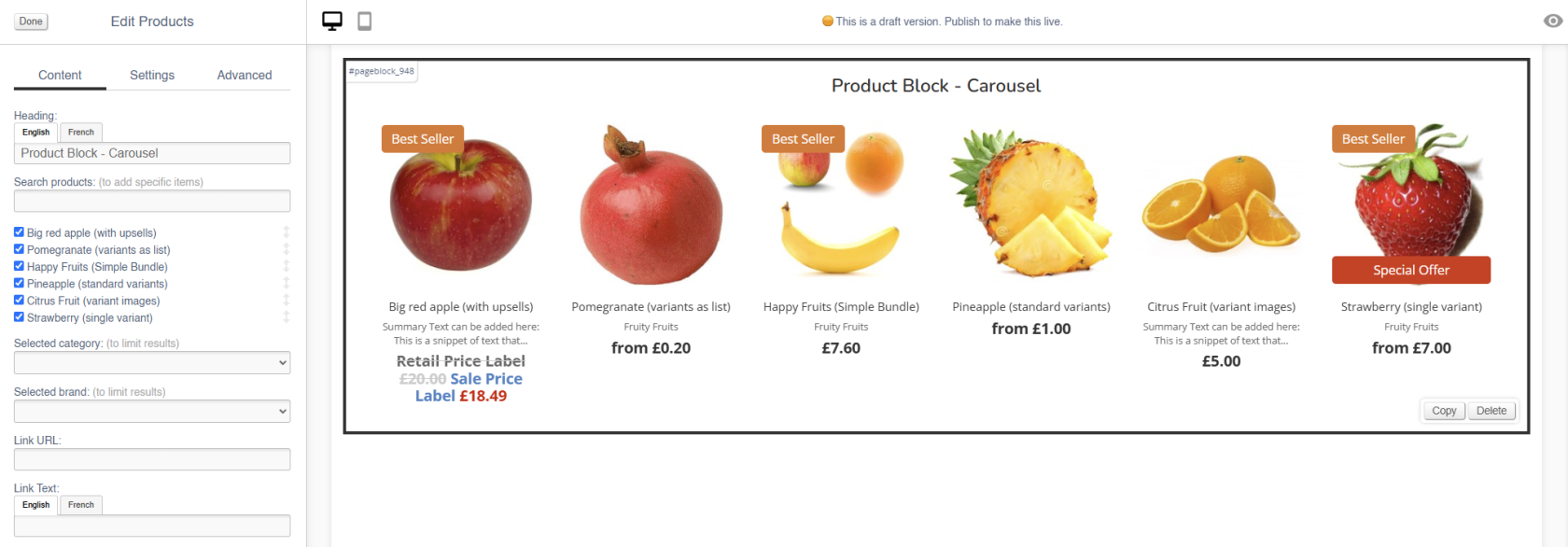
### Content

<table border="1" id="bkmrk-field-purpose-headin" style="border-collapse: collapse; width: 100%; height: 349.903px;"><colgroup><col style="width: 50.0596%;"></col><col style="width: 50.0596%;"></col></colgroup><thead><tr style="height: 29.6806px;"><td style="height: 29.6806px;">Field</td><td style="height: 29.6806px;">Purpose</td></tr></thead><tbody><tr style="height: 46.4722px;"><td style="height: 46.4722px;">Heading</td><td style="height: 46.4722px;">*Enter a short block title - this will show above the main content of the block*</td></tr><tr style="height: 46.4722px;"><td style="height: 46.4722px;">Search Product</td><td style="height: 46.4722px;">*Use this to search for specific products to display within this block*</td></tr><tr><td>Selected Category</td><td>*Select a Category - this will filter automated Products*

*If left blank, no filter will be applied*

</td></tr><tr><td>Selected Brand</td><td>*Select a Brand - this will filter automated Products*

*If left blank, no filter will be applied*

</td></tr><tr><td>Link URL</td><td>*Enter a link URL - if populated, this will add a call to action below the content of the block.*

</td></tr><tr><td>Link Text</td><td>*Enter link text - if populated, this will change the text in a call to action below the content of the block*

*If left blank, the button will read 'More'*

</td></tr></tbody></table>

### Settings

<table border="1" id="bkmrk-field-purpose-block-" style="width: 92.7381%;"><thead><tr><td style="width: 45.7196%;">Field</td><td style="width: 54.2662%;">Purpose</td></tr></thead><tbody><tr><td style="width: 45.7196%;">Block Width</td><td style="width: 54.2662%;">*Choose from:*

- *25%*
- *33%*
- *50%*
- *66%*
- *75%*
- *100%*
- *Full Width (set to always be the full width of the user's device)*

</td></tr><tr><td style="width: 45.7196%;">Visibility</td><td style="width: 54.2662%;">*Set the block visibility from the list:*

- *Default (both)*
- *Desktop Only*
- *Mobile Only*
- *Hidden (none)*

</td></tr><tr><td style="width: 45.7196%;">Heading Position</td><td style="width: 54.2662%;">*Alter the alignment of the block header:*

- *Left*
- *Central*
- *Right*

</td></tr><tr><td style="width: 45.7196%;">Link Position</td><td style="width: 54.2662%;">*Alter the alignment of the link:*

- *Left*
- *Central*
- *Right*

</td></tr><tr><td style="width: 45.7196%;">Display</td><td style="width: 54.2662%;">- *Default*
- *Scroller*
- *List*

</td></tr><tr><td style="width: 45.7196%;">Border Colour</td><td style="width: 54.2662%;">*Choose from:*

- *Default*
- *Grey*
- *Red*
- *Black*

</td></tr><tr><td style="width: 45.7196%;">Max Rows</td><td style="width: 54.2662%;">*Select the maximum number of rows to appear:*

- *Unlimited*
- *1*
- *2*
- *3*
- *4*

</td></tr></tbody></table>

#### Additional Options

<p class="callout info">These controls should be used in conjunction with the Category and Brand filters in the Content section</p>

<table border="1" id="bkmrk-field-purpose-collap" style="border-collapse: collapse; width: 100%; height: 59.3612px;"><colgroup><col style="width: 50.0596%;"></col><col style="width: 50.0596%;"></col></colgroup><thead><tr style="height: 29.6806px;"><td style="height: 29.6806px;">Field</td><td style="height: 29.6806px;">Purpose</td></tr></thead><tbody><tr><td>Include featured products?</td><td>*Auto add featured products to the images in this content block*</td></tr><tr><td>Include home products?</td><td>*Auto add products marked as 'home page featured' to this content block*</td></tr><tr><td>Include recommended products?</td><td>*Auto add recommended products to the images in this content block*</td></tr><tr><td>Include hot this week products?</td><td>*Auto add 'hot this week' products to this content block*</td></tr><tr><td>Include most searched products?</td><td>*Auto add 'most searched' products to this content block*

</td></tr><tr><td>Include sale products?</td><td>*Auto add sale products to the images in this content block*</td></tr></tbody></table>

<span style="font-family: var(--font-heading, var(--font-body)); font-size: 2.333em; font-weight: 400;">Advanced</span>

#### Padding

Adding padding will insert space within the current block; this will adjust the position of content within the block.

More information is available [here](https://bookstack.iconography.co.uk/books/general/page/padding).

#### Margin

The margin will add additional space around the current block.

More information is available [here](https://bookstack.iconography.co.uk/books/general/page/margin).