# Tab Rules
Global Tabs are assigned to Products through the application of rules.
## How Tab Rules Work
The user sets up several rules, by which the website can check whether any product qualifies for a Tab.
Through this method, when products become eligible, that Tab will immediately display.
When a product ceases to be eligible, that Tab will immediately be removed.
A common Global Tab is 'Care Guide', which is applied per Brand. This will apply to all existing Products within that Brand. If a new Product is added to that Brand, the Global Tab will automatically show.
If all rules are left blank, the Tab will show on all products.
## Setting Up New Tab Rules
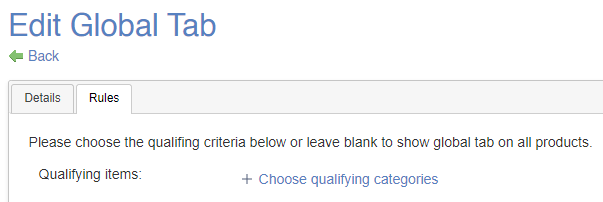
Tab Rules are managed in the second tab of the Edit Global Tab screen.
[](https://bookstack.iconography.co.uk/uploads/images/gallery/2024-09/TpFimage.png)
Simply select the criteria that you wish to apply to your Tab Rule; these will be a combination of Category, Brand, Collection and Attributes.
> Tab Rules work on an **AND** basis. That means that in order for a rule to be applied, all criteria must be met.
>
> E.g. Tab may be set to show on Products in the 'Fresh Fruit' Brand AND are in the 'Beds' category.
Once added, this will be automatically active, and live Products will display the Tab if it applies to them.