When receiving stock, you will select a single stock location; all stock will be received into this location. See Iconography's recommended [setup](https://bookstack.iconography.co.uk/books/stores/page/recommended-setup-stores-and-stock-locations "Recommended Setup - Stores and Stock Locations") for more information.
Use the filters at the top of the screen to find your Purchase Order/Stock Transfer. When receiving stock, you can manually amend the count to the right hand side, or use a barcode scanner; scanning items will increment the count by one. ### Data You can view essential data relating to each Purchase Order Line on this screen, including: - ID (Purchase Order Id) - Item (Displays Product Name, SKU and MPN if it exists) - Quantity Ordered - Quantity Allocated (to Sales Order Lines) - Quantity Received (to date) - Due Date (as defined by the Purchase Order) - Supplier - Reference (Supplier Reference as entered against the Purchase Order) - Receiving Store - Quantity to Receive - Cartons per Item (editable) ### Receiving Goods #### Receiving Via Manual Count Click [here](https://bookstack.iconography.co.uk/books/goods-in/page/receiving-goods-via-manual-count) for more information. #### Receiving Via a Barcode Click [here](https://bookstack.iconography.co.uk/books/goods-in/page/receiving-goods-via-barcode-scan) for more information. ### Actions| Button | Purpose |
| Print product labels | *This will print Product Labels for all unreceived items in your currently filtered view* *This will print labels for all stock that has not yet been received (for the selected lines)* *If this action if completed on the 'commit' screen, it will only print labels for the items that have recently been received* |
| Print warehouse labels | *This will print Warehouse Labels for all unreceived items in your currently filtered view*
*This will print labels for all stock that has not yet been received (for the selected lines)*
*This will print a combination of free and reserved stock labels*
*If this action if completed on the 'commit' screen, it will only print labels for the items that have recently been received*
*These are printed using the logic outlined on [this page](https://bookstack.iconography.co.uk/books/general/page/label-printing).* |
| Receive all | *This will set the 'qty to receive' to the outstanding quantity for all visible rows* *This will take into account the 'qty ordered' and subtract the 'qty received'* |
| Proceed to confirmation | *This will confirm the Goods In quantities that you have entered, and take you to a confirmation screen.* |
We recommend that all Stores are set up with a 'Received' stock location; click [here](https://bookstack.iconography.co.uk/books/stores/page/recommended-setup-stores-and-stock-locations) for more information
All goods should be received into the 'Received' Location; this replicates the physical action of taking the items into your Store. An internal [Stock Transfer](https://bookstack.iconography.co.uk/books/stock-transfers/page/create-a-new-stock-transfer "Create a new Stock Transfer") should then be created to move those units of stock to their ultimate home. ### No 'Received' stock Location (not recommended) You will need to receive items per Location individually from the Goods In screen.This is not recommended for companies with a more granular Store setup, e.g. shelves/bays set up as individual Locations
# Receiving Goods via Barcode Scan ### Best Practice Filter the Goods In screen as normal, to the Store and Supplier of your choice. Additionally, filter to a particular Purchase Order or Stock Transfer as required. Using a barcode scanner, scan each item individually; each successfully scanned item will increment the 'qty to receive' by one. #### What do do if your items have no barcode This is not uncommon; Suppliers do not always provide barcodes. Using the Action buttons on the Goods In screen, you can pre-print labels for items that you are about to receive. [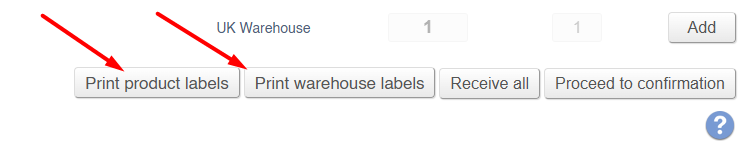](https://bookstack.iconography.co.uk/uploads/images/gallery/2025-11/rZcimage.png) Apply these labels to your items, and then scan them to increment the count.This will have the benefit of double checking your received goods; you have twenty items to receive, and print twenty labels. When you apply the labels to the products, you have one left over; it is immediately clear that you are missing an item.
#### What do do if your items have a different barcode In IXO Commerce, it is possible for a single item to have multiple barcodes. Manage this via the [Inventory](https://bookstack.iconography.co.uk/books/categories/page/inventory "Inventory") tab; these barcodes will need to be updated prior to doing Goods In. # Receiving Goods via Manual Count We recommend using [barcode scanners](https://bookstack.iconography.co.uk/books/goods-in/page/receiving-goods-via-barcode-scan "Receiving Goods via Barcode Scan") to receive goods When receiving items, simply increase the 'qty to receive' field to the correct quantity. Then click 'Proceed to Confirmation'. # Receiving Goods without a Purchase Order ### Best Practice Sometimes, a product will be delivered unexpectedly; this may be alongside another delivery, or because a Purchase Order was not logged properly on your system. Best practice is to contact someone with access to Purchase Orders to immediately create that Purchase Order. Once this is done, you can receive goods as normal. ### How to receive goods without a Purchase Order This is possible via the Goods In screen; use the search dialogue at the bottom to add a new line. Search for a Product by name or SKU code. [](https://bookstack.iconography.co.uk/uploads/images/gallery/2025-11/Utoimage.png) This will add a new line, which is 'unassigned'. [](https://bookstack.iconography.co.uk/uploads/images/gallery/2025-11/P3yimage.png) Set the quantity and cartons per item as normal, and then Proceed to Confirmation.Doing this will add stock without reference to a Purchase Order; that stock will be added at the default Cost Price for that Variant, as [Orphan Stock](https://bookstack.iconography.co.uk/books/general/page/orphan-stock-and-stock-matching "Orphan Stock and Stock Matching")
If a submitted Purchase Order is being sent to your selected Store, but due to other filters, that Purchase Order is not visible on the Goods In screen, when you add a line, a prompt will appear to select that Purchase Order. [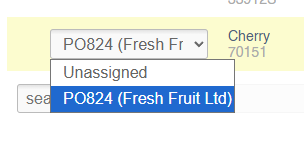](https://bookstack.iconography.co.uk/uploads/images/gallery/2025-11/nZTimage.png)If a Purchase Order does exist, it will not be possible to receive that unexpected stock without selecting it.