# Images

This may be used as an Import or an Export option.

The file looks like this:

[![image.png](https://bookstack.iconography.co.uk/uploads/images/gallery/2025-10/scaled-1680-/PElimage.png)](https://bookstack.iconography.co.uk/uploads/images/gallery/2025-10/PElimage.png)

### Export

Use the filters to narrow your selection, then click 'Export'. This will generate a file that will include all Images for Products that match your filters.

One Product may have multiple images, in which case these will be split over multiple lines.

[![image.png](https://bookstack.iconography.co.uk/uploads/images/gallery/2025-10/scaled-1680-/qiDimage.png)](https://bookstack.iconography.co.uk/uploads/images/gallery/2025-10/qiDimage.png)

### Import

Make changes to the file and import it to update Products. If the image does not exist, a new one will be imported.

<table border="1" id="bkmrk-field-purpose-code-t" style="width: 99.6429%; height: 387.36px;"><colgroup><col style="width: 48.5647%;"></col><col style="width: 51.4353%;"></col></colgroup><thead><tr style="height: 29.7969px;"><td style="height: 29.7969px;">Field</td><td style="height: 29.7969px;">Purpose</td></tr></thead><tbody><tr style="height: 29.7969px;"><td style="height: 29.7969px;">Code

</td><td style="height: 29.7969px;">*The SKU Code of the Variant to which the Images are linked*</td></tr><tr style="height: 29.7969px;"><td style="height: 29.7969px;">Image</td><td style="height: 29.7969px;">*The link to the image.*

*If importing from a URL, enter the full URL, e.g. [www.example.com/image.jpg](https://www.example.com/image.jpg)*

*If importing from the server via FTP, just enter the image name, e.g. image.jpg*

</td></tr><tr style="height: 29.7969px;"><td style="height: 29.7969px;">Alt</td><td style="height: 29.7969px;">*The alt text for the image*

<p class="callout info">*Defaults to the image name if not entered*</p>

</td></tr><tr style="height: 29.7969px;"><td style="height: 29.7969px;">Display</td><td style="height: 29.7969px;">*Enter 'yes' or 'no'*</td></tr><tr style="height: 29.7969px;"><td style="height: 29.7969px;">Image Number</td><td style="height: 29.7969px;">*Used for image sequencing*

*Enter a number*

*New images are added in the same order as the spreadsheet*

</td></tr><tr style="height: 29.7969px;"><td style="height: 29.7969px;">Colour</td><td style="height: 29.7969px;">*Use this to link a Colour to the image for eCommerce [Filters](https://bookstack.iconography.co.uk/books/product-listing-page/page/filters)*</td></tr></tbody></table>

#### Mapping

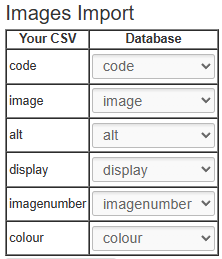
You will need to map your data before it can be imported. Included below is the optimal mapping/spreadsheet structure.

<p class="callout danger">Mistakes made here may have serious impact on your Product database.</p>

[![image.png](https://bookstack.iconography.co.uk/uploads/images/gallery/2025-10/scaled-1680-/BGvimage.png)](https://bookstack.iconography.co.uk/uploads/images/gallery/2025-10/BGvimage.png)

#### Adding Images via FTP

#### <span class="TextRun SCXW41209475 BCX0" data-contrast="none" lang="EN-GB" xml:lang="EN-GB"><span class="NormalTextRun SCXW41209475 BCX0" data-ccp-parastyle="heading 2">Step 1: Prepar</span><span class="NormalTextRun SCXW41209475 BCX0" data-ccp-parastyle="heading 2">ing</span><span class="NormalTextRun SCXW41209475 BCX0" data-ccp-parastyle="heading 2"> your images for upload</span></span><span class="EOP SCXW41209475 BCX0" data-ccp-props="{"134245418":true,"134245529":true,"201341983":0,"335559738":40,"335559739":0,"335559740":360}"> </span>

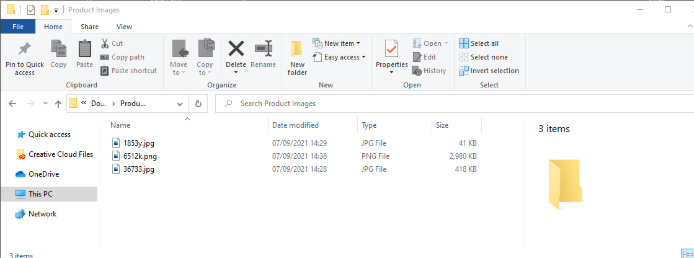
<span class="TextRun SCXW41209475 BCX0" data-contrast="auto" lang="EN-GB" xml:lang="EN-GB"><span class="NormalTextRun SCXW41209475 BCX0">To use the IXO images CSV upload your image files are required to be in a single folder</span><span class="NormalTextRun SCXW41209475 BCX0">, i</span><span class="NormalTextRun SCXW41209475 BCX0">t is </span><span class="NormalTextRun SCXW41209475 BCX0">also </span><span class="NormalTextRun SCXW41209475 BCX0">recommended that you name your image</span><span class="NormalTextRun SCXW41209475 BCX0"> files</span><span class="NormalTextRun SCXW41209475 BCX0"> as the product SKU to make </span><span class="NormalTextRun SCXW41209475 BCX0">S</span><span class="NormalTextRun SCXW41209475 BCX0">tep</span><span class="NormalTextRun SCXW41209475 BCX0"> 2</span><span class="NormalTextRun SCXW41209475 BCX0"> easier.</span></span><span class="EOP SCXW41209475 BCX0" data-ccp-props="{}"> </span>

<span class="TextRun SCXW41209475 BCX0" data-contrast="auto" lang="EN-GB" xml:lang="EN-GB"><span class="NormalTextRun SCXW41209475 BCX0">Example folder of product images prepared for upload:</span></span><span class="EOP SCXW41209475 BCX0" data-ccp-props="{}"> </span>

<span class="SCXW41209475 BCX0"><span class="WACImageContainer NoPadding BlobObject SCXW41209475 BCX0" role="presentation">![](https://bookstack.iconography.co.uk/uploads/images/gallery/2025-10/embedded-image-muhhbvrm.png)</span></span><span class="EOP SCXW41209475 BCX0" data-ccp-props="{}"> </span>

#### <span class="TextRun SCXW41209475 BCX0" data-contrast="none" lang="EN-GB" xml:lang="EN-GB"><span class="NormalTextRun SCXW41209475 BCX0" data-ccp-parastyle="heading 2">Step 2: Creat</span><span class="NormalTextRun SCXW41209475 BCX0" data-ccp-parastyle="heading 2">ing the images</span><span class="NormalTextRun SCXW41209475 BCX0" data-ccp-parastyle="heading 2"> CSV file</span></span><span class="EOP SCXW41209475 BCX0" data-ccp-props="{"134245418":true,"134245529":true,"201341983":0,"335559738":40,"335559739":0,"335559740":360}"> </span>

<span class="TextRun SCXW41209475 BCX0" data-contrast="auto" lang="EN-GB" xml:lang="EN-GB"><span class="NormalTextRun SCXW41209475 BCX0">Fill</span><span class="NormalTextRun SCXW41209475 BCX0"> out the example images </span><span class="NormalTextRun SCXW41209475 BCX0">CSV file</span> <span class="NormalTextRun SCXW41209475 BCX0">provided by Iconography along with this guide </span><span class="NormalTextRun SCXW41209475 BCX0">as per </span><span class="NormalTextRun SCXW41209475 BCX0">the </span><span class="NormalTextRun SCXW41209475 BCX0">example</span><span class="NormalTextRun SCXW41209475 BCX0"> line in the CSV.</span></span><span class="EOP SCXW41209475 BCX0" data-ccp-props="{"201341983":0,"335559740":240}"> </span>

<span class="TextRun SCXW41209475 BCX0" data-contrast="auto" lang="EN-GB" xml:lang="EN-GB"><span class="NormalTextRun SCXW41209475 BCX0">Ensure </span><span class="NormalTextRun SCXW41209475 BCX0">the </span><span class="NormalTextRun SCXW41209475 BCX0">“image” field is filled with the </span><span class="NormalTextRun SCXW41209475 BCX0">file</span> <span class="NormalTextRun SCXW41209475 BCX0">name </span><span class="NormalTextRun SCXW41209475 BCX0">and file type (png or jpg) </span><span class="NormalTextRun SCXW41209475 BCX0">exactly as it is in the </span><span class="NormalTextRun SCXW41209475 BCX0">folder you prepared in Step 1.</span></span><span class="EOP SCXW41209475 BCX0" data-ccp-props="{"201341983":0,"335559740":240}"> </span>

#### <span class="TextRun SCXW41209475 BCX0" data-contrast="none" lang="EN-GB" xml:lang="EN-GB"><span class="NormalTextRun SCXW41209475 BCX0" data-ccp-parastyle="heading 2">Step 3: Uploading your images</span></span><span class="EOP SCXW41209475 BCX0" data-ccp-props="{"134245418":true,"134245529":true,"201341983":0,"335559738":40,"335559739":0,"335559740":360}"> </span>

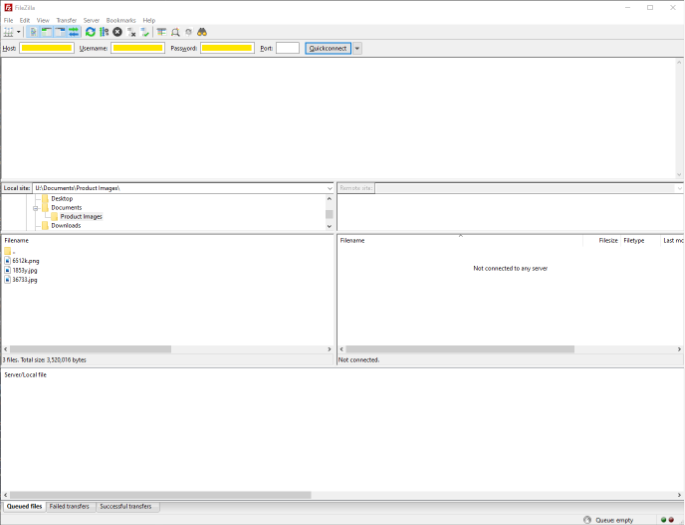
<span class="TextRun SCXW41209475 BCX0" data-contrast="auto" lang="EN-GB" xml:lang="EN-GB"><span class="NormalTextRun SCXW41209475 BCX0">Upon opening FileZilla (free to download if not already using this system</span> </span>[<span class="TextRun Underlined SCXW41209475 BCX0" data-contrast="none" lang="EN-GB" xml:lang="EN-GB"><span class="NormalTextRun SCXW41209475 BCX0" data-ccp-charstyle="Hyperlink">https://filezilla-project.org/download.php?type=client</span></span>](https://filezilla-project.org/download.php?type=client)<span class="TextRun SCXW41209475 BCX0" data-contrast="auto" lang="EN-GB" xml:lang="EN-GB"><span class="NormalTextRun SCXW41209475 BCX0">) you’ll see this screen.</span></span><span class="EOP SCXW41209475 BCX0" data-ccp-props="{}"> </span>

<span class="EOP SCXW41209475 BCX0" data-ccp-props="{}"> </span>

<span class="TextRun SCXW41209475 BCX0" data-contrast="auto" lang="EN-GB" xml:lang="EN-GB"><span class="NormalTextRun SCXW41209475 BCX0">The login fields are at the top to enter the details </span></span><span class="TextRun SCXW41209475 BCX0" data-contrast="auto" lang="EN-GB" xml:lang="EN-GB"><span class="NormalTextRun SCXW41209475 BCX0">provided by Iconography along with this guide</span><span class="NormalTextRun SCXW41209475 BCX0"> (contact us if you do not have logins)</span><span class="NormalTextRun SCXW41209475 BCX0">.</span></span><span class="EOP SCXW41209475 BCX0" data-ccp-props="{}"> </span>

<span class="SCXW41209475 BCX0"><span class="WACImageContainer NoPadding BlobObject SCXW41209475 BCX0" role="presentation">![](https://bookstack.iconography.co.uk/uploads/images/gallery/2025-10/embedded-image-sreh5g19.png)</span></span><span class="EOP SCXW41209475 BCX0" data-ccp-props="{}"> </span>

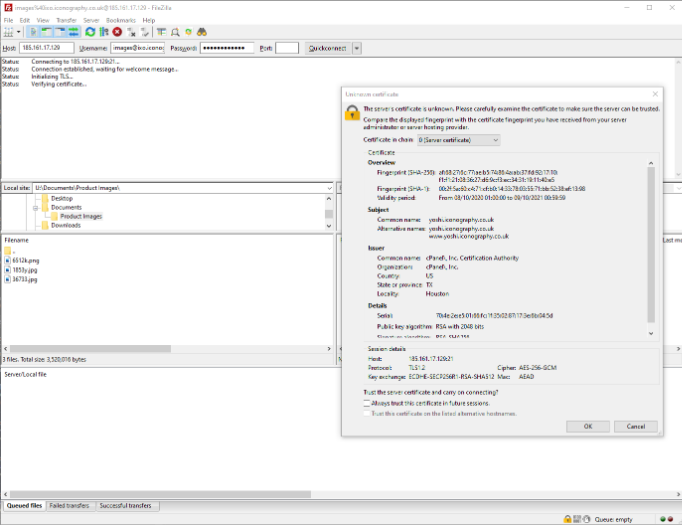
<span class="TextRun SCXW41209475 BCX0" data-contrast="auto" lang="EN-GB" xml:lang="EN-GB"><span class="NormalTextRun SCXW41209475 BCX0">After clicking Quickconnect, you’ll get this window and you just need to click ‘OK’ to confirm you trust the connection</span><span class="NormalTextRun SCXW41209475 BCX0">.</span></span><span class="EOP SCXW41209475 BCX0" data-ccp-props="{}"> </span>

<span class="SCXW41209475 BCX0"><span class="WACImageContainer NoPadding BlobObject SCXW41209475 BCX0" role="presentation">![](https://bookstack.iconography.co.uk/uploads/images/gallery/2025-10/embedded-image-bttaantl.png)</span></span><span class="EOP SCXW41209475 BCX0" data-ccp-props="{}"> </span>

<span class="LineBreakBlob BlobObject DragDrop SCXW41209475 BCX0"><span class="SCXW41209475 BCX0"> </span>  
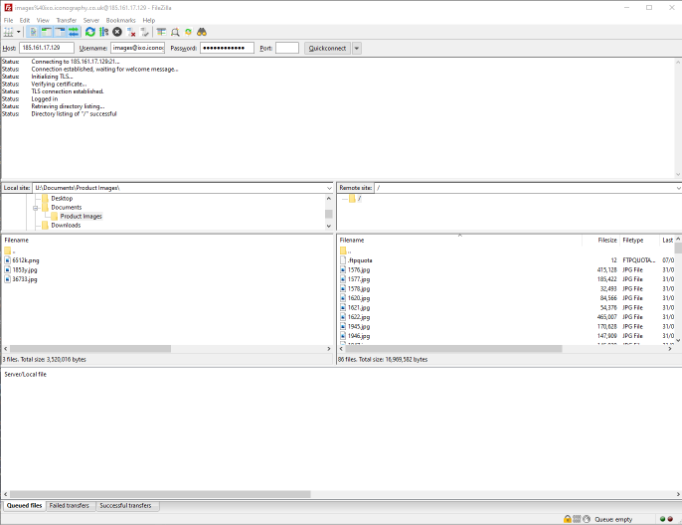
</span><span class="TextRun SCXW41209475 BCX0" data-contrast="auto" lang="EN-GB" xml:lang="EN-GB"><span class="NormalTextRun SCXW41209475 BCX0">You’ll then be logged in and can see any image files already on the server on the bottom right box and files on your computer bottom left box.</span></span><span class="EOP SCXW41209475 BCX0" data-ccp-props="{}"> </span>

<span class="SCXW41209475 BCX0"><span class="WACImageContainer NoPadding BlobObject SCXW41209475 BCX0" role="presentation">![](https://bookstack.iconography.co.uk/uploads/images/gallery/2025-10/embedded-image-xpkwjlgz.png)</span></span><span class="EOP SCXW41209475 BCX0" data-ccp-props="{}"> </span>

<span class="TextRun SCXW41209475 BCX0" data-contrast="auto" lang="EN-GB" xml:lang="EN-GB"><span class="NormalTextRun SCXW41209475 BCX0">Next in the bottom left box navigate to </span></span><span class="TextRun SCXW41209475 BCX0" data-contrast="auto" lang="EN-GB" xml:lang="EN-GB"><span class="NormalTextRun SCXW41209475 BCX0">the folder you prepared in Step 1</span></span><span class="TextRun SCXW41209475 BCX0" data-contrast="auto" lang="EN-GB" xml:lang="EN-GB"><span class="NormalTextRun SCXW41209475 BCX0"> on your computer.</span><span class="NormalTextRun SCXW41209475 BCX0"> Then </span><span class="NormalTextRun SCXW41209475 BCX0">select all the images </span><span class="NormalTextRun SCXW41209475 BCX0">you’d like to upload </span><span class="NormalTextRun SCXW41209475 BCX0">and drag them into the </span><span class="NormalTextRun SCXW41209475 BCX0">bottom right box.</span></span><span class="EOP SCXW41209475 BCX0" data-ccp-props="{"201341983":0,"335559740":240}"> </span>

<span class="TextRun SCXW41209475 BCX0" data-contrast="auto" lang="EN-GB" xml:lang="EN-GB"><span class="NormalTextRun SCXW41209475 BCX0">In the bottom window it</span><span class="NormalTextRun SCXW41209475 BCX0"> wi</span><span class="NormalTextRun SCXW41209475 BCX0">ll give you an overview of the progress of the file transfer</span><span class="NormalTextRun SCXW41209475 BCX0">.</span></span><span class="EOP SCXW41209475 BCX0" data-ccp-props="{}"> </span>

#### <span class="TextRun SCXW41209475 BCX0" data-contrast="none" lang="EN-GB" xml:lang="EN-GB"><span class="NormalTextRun SCXW41209475 BCX0" data-ccp-parastyle="heading 2">Step 4: Uploading the images CSV file</span></span><span class="EOP SCXW41209475 BCX0" data-ccp-props="{"134245418":true,"134245529":true,"201341983":0,"335559738":40,"335559739":0,"335559740":360}"> </span>

Upload your CSV via the CMS.