# Common Integrations


# Affiliates

Your Affiliates Feed will be available via the [Integrations](https://bookstack.iconography.co.uk/books/integrations/page/summary) section.

This can be downloaded as a file for manual import, or accessed via a URL for a live feed.

[![image.png](https://bookstack.iconography.co.uk/uploads/images/gallery/2025-10/scaled-1680-/wh8image.png)](https://bookstack.iconography.co.uk/uploads/images/gallery/2025-10/wh8image.png)

# Storefeeder

This third party service is used to link an IXO Commerce system to third party marketplaces like Amazon and eBay.

### Primary Functionality

- All standard products sent to StoreFeeder by default
- Updates stock
- Updates pricing
- Downloads Sales Orders into CMS

<p class="callout warning">Product listings can not be created in third party marketplaces; they can only be updated via the Storefeeder integration</p>

##### Points of note

- SKU needs to match what's set in IXO Commerce for updates to work
- Listings are downloaded from a marketplace into StoreFeeder
- Basic product data is uploaded from IXO Commerce into StoreFeeder to create a link between marketplace listing and the IXO
- Listing and products from IXO Commerce must be mapped manually
    
    
    - Stock shared across all marketplaces
    - Pricing shared across all marketplaces but this can be optional if required
    - Stock and prices updates every 15 minutes
    - Special pricing comes across as normal price
- Despatch notifications are passed to StoreFeeder to pass onto marketplaces
    
    
    - Cancellation and returns not triggered to StoreFeeder
- Items cancelled or returned on marketplace will be downloaded to IXO

### Setup

You must connect your own account.

<span style="font-size: 20pt; font-family: 'Noto Sans',sans-serif; color: #000000; background-color: transparent; font-weight: bold; font-style: normal; font-variant: normal; text-decoration: none; vertical-align: baseline; white-space: pre-wrap;">Connect StoreFeeder to Amazon </span><span style="border: none; display: inline-block; overflow: hidden; width: 107px; height: 51px;">![](https://bookstack.iconography.co.uk/uploads/images/gallery/2025-12/embedded-image-thulqpqz.png)</span>

<span style="font-size: 20pt; font-family: 'Noto Sans',sans-serif; color: #000000; background-color: transparent; font-weight: bold; font-style: normal; font-variant: normal; text-decoration: none; vertical-align: baseline; white-space: pre-wrap;">Integration </span>

<p class="callout info"><span style="font-size: 11pt; font-family: Arial, sans-serif; color: rgb(0, 0, 0); background-color: transparent; font-weight: 400; font-style: normal; font-variant: normal; text-decoration: none; vertical-align: baseline; white-space: pre-wrap;">Check your emails for a email from "support@storefeeder.com" with the subject "StoreFeeder Account Creation" select Activate Account and enter a password. </span></p>

<span style="font-size: 13.999999999999998pt; font-family: 'Noto Sans',sans-serif; color: #000000; background-color: transparent; font-weight: bold; font-style: normal; font-variant: normal; text-decoration: none; vertical-align: baseline; white-space: pre-wrap;">1 </span><span style="font-size: 11pt; font-family: Arial,sans-serif; color: #000000; background-color: transparent; font-weight: 400; font-style: normal; font-variant: normal; text-decoration: none; vertical-align: baseline; white-space: pre-wrap;">Navigate to </span><span style="font-size: 11pt; font-family: 'Noto Sans',sans-serif; color: #1d4ed8; background-color: transparent; font-weight: bold; font-style: normal; font-variant: normal; text-decoration: underline; -webkit-text-decoration-skip: none; text-decoration-skip-ink: none; vertical-align: baseline; white-space: pre-wrap;">https://my.storefeeder.com/Dashboard.aspx</span><span style="font-size: 11pt; font-family: 'Noto Sans',sans-serif; color: #1d4ed8; background-color: transparent; font-weight: bold; font-style: normal; font-variant: normal; text-decoration: none; vertical-align: baseline; white-space: pre-wrap;"> </span>

<span style="font-size: 13.999999999999998pt; font-family: 'Noto Sans',sans-serif; color: #000000; background-color: transparent; font-weight: bold; font-style: normal; font-variant: normal; text-decoration: none; vertical-align: baseline; white-space: pre-wrap;">2 </span><span style="font-size: 11pt; font-family: Arial,sans-serif; color: #000000; background-color: transparent; font-weight: 400; font-style: normal; font-variant: normal; text-decoration: none; vertical-align: baseline; white-space: pre-wrap;">Click "Settings"</span>

<span style="font-size: 11pt; font-family: Arial,sans-serif; color: #000000; background-color: transparent; font-weight: 400; font-style: normal; font-variant: normal; text-decoration: none; vertical-align: baseline; white-space: pre-wrap;"><span style="border: none; display: inline-block; overflow: hidden; width: 619px; height: 345px;">![](https://bookstack.iconography.co.uk/uploads/images/gallery/2025-12/embedded-image-o6xjxdfy.png)</span></span><span style="font-size: 10pt; font-family: 'Noto Sans',sans-serif; color: #000000; background-color: transparent; font-weight: 400; font-style: normal; font-variant: normal; text-decoration: none; vertical-align: baseline; white-space: pre-wrap;">  
</span>

<span style="font-size: 13.999999999999998pt; font-family: 'Noto Sans',sans-serif; color: #000000; background-color: transparent; font-weight: bold; font-style: normal; font-variant: normal; text-decoration: none; vertical-align: baseline; white-space: pre-wrap;">3 </span><span style="font-size: 11pt; font-family: Arial,sans-serif; color: #000000; background-color: transparent; font-weight: 400; font-style: normal; font-variant: normal; text-decoration: none; vertical-align: baseline; white-space: pre-wrap;">Click "Edit/View Integration" </span>

<span style="font-size: 11pt; font-family: Arial,sans-serif; color: #000000; background-color: transparent; font-weight: 400; font-style: normal; font-variant: normal; text-decoration: none; vertical-align: baseline; white-space: pre-wrap;"><span style="border: none; display: inline-block; overflow: hidden; width: 619px; height: 363px;">![](https://bookstack.iconography.co.uk/uploads/images/gallery/2025-12/embedded-image-jniuabde.png)</span></span>

<span style="font-size: 13.999999999999998pt; font-family: 'Noto Sans',sans-serif; color: #000000; background-color: transparent; font-weight: bold; font-style: normal; font-variant: normal; text-decoration: none; vertical-align: baseline; white-space: pre-wrap;">4 </span><span style="font-size: 11pt; font-family: Arial,sans-serif; color: #000000; background-color: transparent; font-weight: 400; font-style: normal; font-variant: normal; text-decoration: none; vertical-align: baseline; white-space: pre-wrap;">Click "Connect To Amazon"</span>

<span style="font-size: 11pt; font-family: Arial,sans-serif; color: #000000; background-color: transparent; font-weight: 400; font-style: normal; font-variant: normal; text-decoration: none; vertical-align: baseline; white-space: pre-wrap;"><span style="border: none; display: inline-block; overflow: hidden; width: 420px; height: 267px;">![](https://bookstack.iconography.co.uk/uploads/images/gallery/2025-12/embedded-image-7roiaz8s.png)</span></span>

<span style="font-size: 13.999999999999998pt; font-family: 'Noto Sans',sans-serif; color: #000000; background-color: transparent; font-weight: bold; font-style: normal; font-variant: normal; text-decoration: none; vertical-align: baseline; white-space: pre-wrap;">5 </span><span style="font-size: 11pt; font-family: Arial,sans-serif; color: #000000; background-color: transparent; font-weight: 400; font-style: normal; font-variant: normal; text-decoration: none; vertical-align: baseline; white-space: pre-wrap;">Login into your Seller Central account </span>

<span style="font-size: 11pt; font-family: Arial,sans-serif; color: #000000; background-color: transparent; font-weight: 400; font-style: normal; font-variant: normal; text-decoration: none; vertical-align: baseline; white-space: pre-wrap;"><span style="border: none; display: inline-block; overflow: hidden; width: 619px; height: 345px;">![](https://bookstack.iconography.co.uk/uploads/images/gallery/2025-12/embedded-image-oxwaby9u.png)</span></span>

<span style="font-size: 13.999999999999998pt; font-family: 'Noto Sans',sans-serif; color: #000000; background-color: transparent; font-weight: bold; font-style: normal; font-variant: normal; text-decoration: none; vertical-align: baseline; white-space: pre-wrap;">6 </span><span style="font-size: 11pt; font-family: Arial,sans-serif; color: #000000; background-color: transparent; font-weight: 400; font-style: normal; font-variant: normal; text-decoration: none; vertical-align: baseline; white-space: pre-wrap;">Click "United Kingdom"</span>

<span style="font-size: 11pt; font-family: Arial,sans-serif; color: #000000; background-color: transparent; font-weight: 400; font-style: normal; font-variant: normal; text-decoration: none; vertical-align: baseline; white-space: pre-wrap;"><span style="border: none; display: inline-block; overflow: hidden; width: 619px; height: 345px;">![](https://bookstack.iconography.co.uk/uploads/images/gallery/2025-12/embedded-image-yrtxvv6c.png)</span></span>

<span style="font-size: 13.999999999999998pt; font-family: 'Noto Sans',sans-serif; color: #000000; background-color: transparent; font-weight: bold; font-style: normal; font-variant: normal; text-decoration: none; vertical-align: baseline; white-space: pre-wrap;">7 </span><span style="font-size: 11pt; font-family: Arial,sans-serif; color: #000000; background-color: transparent; font-weight: 400; font-style: normal; font-variant: normal; text-decoration: none; vertical-align: baseline; white-space: pre-wrap;">Click "Select account" </span>

<span style="font-size: 11pt; font-family: Arial,sans-serif; color: #000000; background-color: transparent; font-weight: 400; font-style: normal; font-variant: normal; text-decoration: none; vertical-align: baseline; white-space: pre-wrap;"><span style="border: none; display: inline-block; overflow: hidden; width: 619px; height: 345px;">![](https://bookstack.iconography.co.uk/uploads/images/gallery/2025-12/embedded-image-drsxecnd.png)</span></span>

<span style="font-size: 13.999999999999998pt; font-family: 'Noto Sans',sans-serif; color: #000000; background-color: transparent; font-weight: bold; font-style: normal; font-variant: normal; text-decoration: none; vertical-align: baseline; white-space: pre-wrap;">8 </span><span style="font-size: 11pt; font-family: Arial,sans-serif; color: #000000; background-color: transparent; font-weight: 400; font-style: normal; font-variant: normal; text-decoration: none; vertical-align: baseline; white-space: pre-wrap;">Click here.</span>

<span style="font-size: 11pt; font-family: Arial,sans-serif; color: #000000; background-color: transparent; font-weight: 400; font-style: normal; font-variant: normal; text-decoration: none; vertical-align: baseline; white-space: pre-wrap;"><span style="border: none; display: inline-block; overflow: hidden; width: 619px; height: 345px;">![](https://bookstack.iconography.co.uk/uploads/images/gallery/2025-12/embedded-image-sjilldiu.png)</span></span><span style="font-size: 10pt; font-family: 'Noto Sans',sans-serif; color: #000000; background-color: transparent; font-weight: 400; font-style: normal; font-variant: normal; text-decoration: none; vertical-align: baseline; white-space: pre-wrap;"> </span>

<span style="font-size: 13.999999999999998pt; font-family: 'Noto Sans',sans-serif; color: #000000; background-color: transparent; font-weight: bold; font-style: normal; font-variant: normal; text-decoration: none; vertical-align: baseline; white-space: pre-wrap;">9 </span><span style="font-size: 11pt; font-family: Arial,sans-serif; color: #000000; background-color: transparent; font-weight: 400; font-style: normal; font-variant: normal; text-decoration: none; vertical-align: baseline; white-space: pre-wrap;">Click "Confirm" </span>

<span style="font-size: 11pt; font-family: Arial,sans-serif; color: #000000; background-color: transparent; font-weight: 400; font-style: normal; font-variant: normal; text-decoration: none; vertical-align: baseline; white-space: pre-wrap;"><span style="border: none; display: inline-block; overflow: hidden; width: 619px; height: 345px;">![](https://bookstack.iconography.co.uk/uploads/images/gallery/2025-12/embedded-image-gkggh6yz.png)</span></span>

<span style="font-size: 13.999999999999998pt; font-family: 'Noto Sans',sans-serif; color: #000000; background-color: transparent; font-weight: bold; font-style: normal; font-variant: normal; text-decoration: none; vertical-align: baseline; white-space: pre-wrap;">10 </span><span style="font-size: 11pt; font-family: Arial,sans-serif; color: #000000; background-color: transparent; font-weight: 400; font-style: normal; font-variant: normal; text-decoration: none; vertical-align: baseline; white-space: pre-wrap;">Click "Test Connection"</span>

<span style="font-size: 11pt; font-family: Arial,sans-serif; color: #000000; background-color: transparent; font-weight: 400; font-style: normal; font-variant: normal; text-decoration: none; vertical-align: baseline; white-space: pre-wrap;"><span style="border: none; display: inline-block; overflow: hidden; width: 619px; height: 345px;">![](https://bookstack.iconography.co.uk/uploads/images/gallery/2025-12/embedded-image-cjdwfyxw.png)</span></span><span style="font-size: 10pt; font-family: 'Noto Sans',sans-serif; color: #000000; background-color: transparent; font-weight: 400; font-style: normal; font-variant: normal; text-decoration: none; vertical-align: baseline; white-space: pre-wrap;"> </span>

<span style="font-size: 13.999999999999998pt; font-family: 'Noto Sans',sans-serif; color: #000000; background-color: transparent; font-weight: bold; font-style: normal; font-variant: normal; text-decoration: none; vertical-align: baseline; white-space: pre-wrap;">11 </span><span style="font-size: 11pt; font-family: Arial,sans-serif; color: #000000; background-color: transparent; font-weight: 400; font-style: normal; font-variant: normal; text-decoration: none; vertical-align: baseline; white-space: pre-wrap;">Click "Test Connection" </span>

<span style="font-size: 11pt; font-family: Arial,sans-serif; color: #000000; background-color: transparent; font-weight: 400; font-style: normal; font-variant: normal; text-decoration: none; vertical-align: baseline; white-space: pre-wrap;"><span style="border: none; display: inline-block; overflow: hidden; width: 619px; height: 345px;">![](https://bookstack.iconography.co.uk/uploads/images/gallery/2025-12/embedded-image-ihwy3trj.png)</span></span>

<span id="bkmrk--9" style="font-weight: normal;"></span>

<span style="font-size: 13.999999999999998pt; font-family: 'Noto Sans',sans-serif; color: #000000; background-color: transparent; font-weight: bold; font-style: normal; font-variant: normal; text-decoration: none; vertical-align: baseline; white-space: pre-wrap;">12 </span><span style="font-size: 11pt; font-family: Arial,sans-serif; color: #000000; background-color: transparent; font-weight: 400; font-style: normal; font-variant: normal; text-decoration: none; vertical-align: baseline; white-space: pre-wrap;">Please inform Iconography that your account is connected to StoreFeeder</span><span style="font-size: 11pt; font-family: Arial,sans-serif; color: #000000; background-color: transparent; font-weight: 400; font-style: normal; font-variant: normal; text-decoration: none; vertical-align: baseline; white-space: pre-wrap;"><span style="border: none; display: inline-block; overflow: hidden; width: 619px; height: 345px;">![](https://bookstack.iconography.co.uk/uploads/images/gallery/2025-12/embedded-image-svcvomkt.png)</span></span>

# eBay

The eBay integration allows for feed to and from eBay.

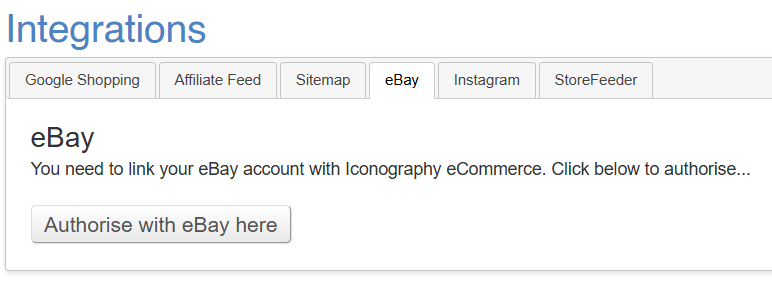
To reauthorise your account use the [Integrations](https://bookstack.iconography.co.uk/books/integrations/page/summary) section of the CMS.

<p class="callout info">For this tab to be visible, this Product must be linked to a Category that has been mapped to the eBay category hierarchy</p>

Individual Products may be managed via the [eBay](https://bookstack.iconography.co.uk/books/categories/page/ebay "eBay") tab and eBay Fulfilment Latency is managed via [Site Settings](https://bookstack.iconography.co.uk/books/site-settings "Site Settings").

### How it works

The eBay integration will:

- Create new listings via individual Products (includes description, images and variant options)
- Update listings with Stock and Prices
- Import new Sales Orders from eBay
- Push Sales Order updates to eBay

### Reauthorisation

If reauthorisation is needed, click this button in [Integrations](https://bookstack.iconography.co.uk/books/integrations/summary).

[![image.png](https://bookstack.iconography.co.uk/uploads/images/gallery/2025-10/scaled-1680-/CSsimage.png)](https://bookstack.iconography.co.uk/uploads/images/gallery/2025-10/CSsimage.png)
# Permitted Third Party Domains

This is a list of whitelisted domains for use within IXO Commerce. These are typically linked to integrations.

<table id="bkmrk-domain-service-vimeo" style="width: 110.833%;"><thead><tr><th class="align-left" style="width: 50.6634%;">Domain</th><th class="align-left" style="width: 49.3499%;">Service</th></tr></thead><tbody><tr><td style="width: 50.6634%;">`vimeo.com`</td><td style="width: 49.3499%;">Vimeo video embeds</td></tr><tr><td style="width: 50.6634%;">`ampproject.org`</td><td style="width: 49.3499%;">AMP blog pages</td></tr><tr><td style="width: 50.6634%;">`clarity.ms`</td><td style="width: 49.3499%;">Microsoft Clarity</td></tr><tr><td style="width: 50.6634%;">`gstatic.com`</td><td style="width: 49.3499%;">Google Fonts</td></tr><tr><td style="width: 50.6634%;">`googleapis.com`</td><td style="width: 49.3499%;">Google Fonts</td></tr><tr><td style="width: 50.6634%;">`google.com`</td><td style="width: 49.3499%;">Google Pay</td></tr><tr><td style="width: 50.6634%;">`google.co.uk`</td><td style="width: 49.3499%;">Google Pay</td></tr><tr><td style="width: 50.6634%;">`google-analytics.com`</td><td style="width: 49.3499%;">Google Analytics</td></tr><tr><td style="width: 50.6634%;">`googletagmanager.com`</td><td style="width: 49.3499%;">Google Tag Manager</td></tr><tr><td style="width: 50.6634%;">`googleadservices.com`</td><td style="width: 49.3499%;">Google Analytics</td></tr><tr><td style="width: 50.6634%;">`googlesyndication.com`</td><td style="width: 49.3499%;">Google Ads</td></tr><tr><td style="width: 50.6634%;">`g.doubleclick.net`</td><td style="width: 49.3499%;">Google Ads</td></tr><tr><td style="width: 50.6634%;">`googlecommerce.com`</td><td style="width: 49.3499%;">Google Commerce</td></tr><tr><td style="width: 50.6634%;">`bing.com`</td><td style="width: 49.3499%;">Bing tracking</td></tr><tr><td style="width: 50.6634%;">`facebook.net`</td><td style="width: 49.3499%;">Facebook Pixel</td></tr><tr><td style="width: 50.6634%;">`trustpilot.com`</td><td style="width: 49.3499%;">Trustpilot</td></tr><tr><td style="width: 50.6634%;">`feefo.com`</td><td style="width: 49.3499%;">Feefo</td></tr><tr><td style="width: 50.6634%;">`chimpstatic.com`</td><td style="width: 49.3499%;">Mailchimp</td></tr><tr><td style="width: 50.6634%;">`klaviyo.com`</td><td style="width: 49.3499%;">Klaviyo</td></tr><tr><td style="width: 50.6634%;">`sibautomation.com`</td><td style="width: 49.3499%;">Brevo</td></tr><tr><td style="width: 50.6634%;">`omnisnippet1.com`</td><td style="width: 49.3499%;">Omnisend</td></tr><tr><td style="width: 50.6634%;">`ddlnk.net`</td><td style="width: 49.3499%;">Dotdigital</td></tr><tr><td style="width: 50.6634%;">`trackedlink.net`</td><td style="width: 49.3499%;">Dotdigital</td></tr><tr><td style="width: 50.6634%;">`trackedweb.net`</td><td style="width: 49.3499%;">Dotdigital</td></tr><tr><td style="width: 50.6634%;">`dotdigital-pages.com`</td><td style="width: 49.3499%;">Dotdigital</td></tr><tr><td style="width: 50.6634%;">`postcodeanywhere.co.uk`</td><td style="width: 49.3499%;">Loqate (PCA Predict / Postcode Anywhere)</td></tr><tr><td style="width: 50.6634%;">`opayo.cloud`</td><td style="width: 49.3499%;">Opayo</td></tr><tr><td style="width: 50.6634%;">`elavon.com`</td><td style="width: 49.3499%;">Opayo</td></tr><tr><td style="width: 50.6634%;">`stripe.com`</td><td style="width: 49.3499%;">Stripe</td></tr><tr><td style="width: 50.6634%;">`dnapayments.com`</td><td style="width: 49.3499%;">DNA Payments</td></tr><tr><td style="width: 50.6634%;">`blinkpayment.co.uk`</td><td style="width: 49.3499%;">Blink Payment</td></tr><tr><td style="width: 50.6634%;">`api.ipify.org`</td><td style="width: 49.3499%;">Blink Payment</td></tr><tr><td style="width: 50.6634%;">`applepay.cdn-apple.com`</td><td style="width: 49.3499%;">Apple Pay</td></tr><tr><td style="width: 50.6634%;">`cardstream.com`</td><td style="width: 49.3499%;">Cardstream</td></tr><tr><td style="width: 50.6634%;">`handepay.co.uk`</td><td style="width: 49.3499%;">Handepay</td></tr><tr><td style="width: 50.6634%;">`morphpay.com`</td><td style="width: 49.3499%;">Morphpay</td></tr><tr><td style="width: 50.6634%;">`paydough.me`</td><td style="width: 49.3499%;">Paydough</td></tr><tr><td style="width: 50.6634%;">`tponlinepayments.com`</td><td style="width: 49.3499%;">Takepayments</td></tr><tr><td style="width: 50.6634%;">`universaltp.com`</td><td style="width: 49.3499%;">UTP</td></tr><tr><td style="width: 50.6634%;">`paysafe.com`</td><td style="width: 49.3499%;">Paysafe</td></tr><tr><td style="width: 50.6634%;">`worldpay.com`</td><td style="width: 49.3499%;">Worldpay</td></tr><tr><td style="width: 50.6634%;">`paypal.com`</td><td style="width: 49.3499%;">PayPal</td></tr><tr><td style="width: 50.6634%;">`paypalobjects.com`</td><td style="width: 49.3499%;">PayPal</td></tr><tr><td style="width: 50.6634%;">`dekopay.com`</td><td style="width: 49.3499%;">Deko Finance</td></tr><tr><td style="width: 50.6634%;">`afterpay.com`</td><td style="width: 49.3499%;">Clearpay Finance</td></tr><tr><td style="width: 50.6634%;">`payments-amazon.com`</td><td style="width: 49.3499%;">Amazon Pay</td></tr><tr><td style="width: 50.6634%;">`zdassets.com`</td><td style="width: 49.3499%;">Zendesk Chat</td></tr><tr><td style="width: 50.6634%;">`zendesk.com`</td><td style="width: 49.3499%;">Zendesk Chat</td></tr><tr><td style="width: 50.6634%;">`zopim.com`</td><td style="width: 49.3499%;">Zendesk Chat</td></tr><tr><td style="width: 50.6634%;">`zendesk-eu.my.sentry.io`</td><td style="width: 49.3499%;">Zendesk Chat</td></tr><tr><td style="width: 50.6634%;">`smooch.io`</td><td style="width: 49.3499%;">Zendesk Chat</td></tr><tr><td style="width: 50.6634%;">`olark.com`</td><td style="width: 49.3499%;">Olark Chat</td></tr><tr><td style="width: 50.6634%;">`hotjar.com`</td><td style="width: 49.3499%;">Hotjar tracking</td></tr></tbody></table>

# Finance

eCommerce finance integrations are available. If implemented, finance will be available at checkout.

A finance calculator will be shown on relevant Product pages, and as part of the checkout journey.

Individual [Products](https://bookstack.iconography.co.uk/books/categories/page/product "Product") may be disabled from finance if necessary.

Minimum order values, etc., are managed via [Site Settings](https://bookstack.iconography.co.uk/books/site-settings "Site Settings").

### Supported Integrations

[![image.png](https://bookstack.iconography.co.uk/uploads/images/gallery/2025-10/scaled-1680-/QV9image.png)](https://bookstack.iconography.co.uk/uploads/images/gallery/2025-10/QV9image.png)

# Google

### Google Adwords

Managed via [Site Settings](https://bookstack.iconography.co.uk/books/site-settings "Site Settings").

### Google Analytics

Managed via [Site Settings](https://bookstack.iconography.co.uk/books/site-settings "Site Settings").

### Google Maps API

Managed via [Site Settings](https://bookstack.iconography.co.uk/books/site-settings "Site Settings").

### Google Shopping

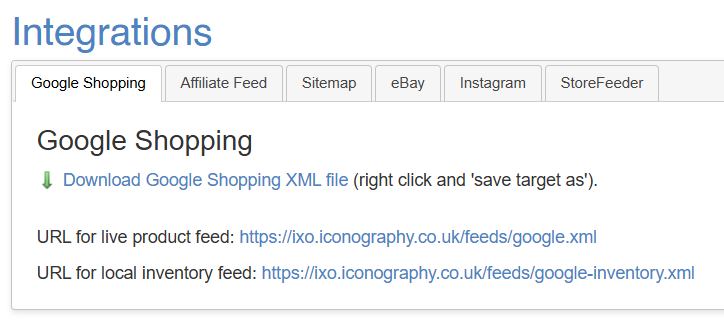
Your Google Shopping feed will be available via the [Integrations ](https://bookstack.iconography.co.uk/books/integrations/page/summary)section.

You may either download this file for manual upload, or enter a URL for live product/local inventory feeds.

<p class="callout info">[Categories](https://bookstack.iconography.co.uk/books/categories/page/summary-UWK) must be mapped to Google Shopping categories for this feed to function.</p>

Products within Categories mapped to Google Shopping categories will be output in this file.

Manage Google Shopping information per [Product](https://bookstack.iconography.co.uk/books/categories/page/google "Google").

[![image.png](https://bookstack.iconography.co.uk/uploads/images/gallery/2025-10/scaled-1680-/QX8image.png)](https://bookstack.iconography.co.uk/uploads/images/gallery/2025-10/QX8image.png)
### Google Store Reviews

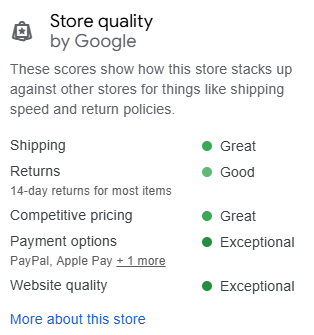
Support has been added for Google Store Reviews.

<p class="callout warning">To function, reviews must be enabled with your Merchant Centre account, and you must enter your Merchant Id in Site Settings. </p>

This will add a floating, expandable, review widget to your website:

[![image.png](https://bookstack.iconography.co.uk/uploads/images/gallery/2026-06/scaled-1680-/OCBimage.png)](https://bookstack.iconography.co.uk/uploads/images/gallery/2026-06/OCBimage.png)
In addition, successful orders will be sent to Merchant Centre for automated follow up.

### Google Tag Manager

Managed via [Site Settings](https://bookstack.iconography.co.uk/books/site-settings "Site Settings").

# Instagram

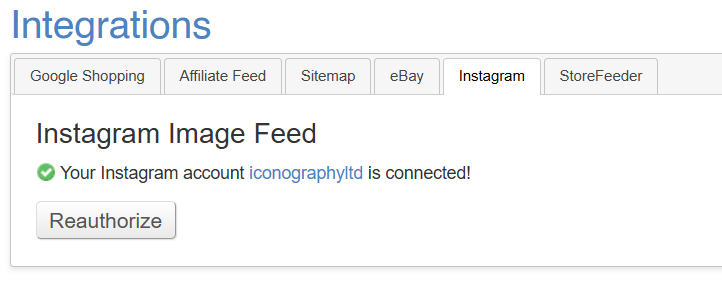
The Instagram integration allows for an Instagram image feed.

To reauthorise your account use the [Integrations ](https://bookstack.iconography.co.uk/books/integrations/page/summary)section of the CMS.

[![image.png](https://bookstack.iconography.co.uk/uploads/images/gallery/2025-10/scaled-1680-/sffimage.png)](https://bookstack.iconography.co.uk/uploads/images/gallery/2025-10/sffimage.png)
# Sitemap

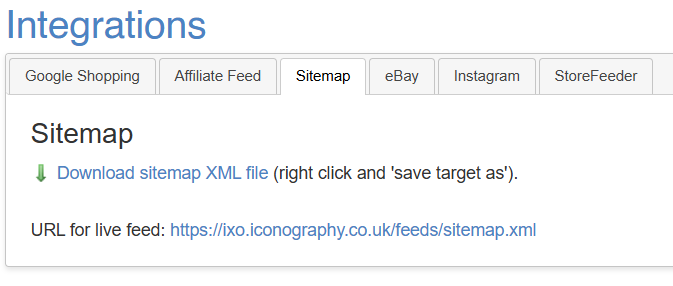
Your Sitemap will be available via the [Integrations](https://bookstack.iconography.co.uk/books/integrations/page/summary) section.

You may either download this file for manual upload, or enter a URL for a live feed.

[![image.png](https://bookstack.iconography.co.uk/uploads/images/gallery/2025-10/scaled-1680-/f3eimage.png)](https://bookstack.iconography.co.uk/uploads/images/gallery/2025-10/f3eimage.png)
# Staingard

Orders will be submitted directly to Staingard via their API (as per documentation ‘Staingard Warranty System API Documentation v1'). The whole order will be submitted once the first item on that sales order has been marked as delivered.

The warranty number will be returned via the API; this will be recorded as a note against the sales order.

It will not be possible to further update or cancel a warranty via the API.

Where an order upload fails, that Sales Order will be marked as 'Awaiting Action'.

# StoreFeeder

StoreFeeder is a third party plug in that allows for the download of Sales Orders from multiple marketplaces.

### How it works

<p class="callout info">All listings must be created directly within the marketplace - there is no automated listing creation available via this service. </p>

IXO Commerce will import all Sales Orders from linked 3rd party marketplaces, and push updates when those Sales Orders are despatched.

IXO Commerce will push pricing and stock updates to existing listings.

### Status

The current status of the StoreFeeder link is visible within the [Integrations](https://bookstack.iconography.co.uk/books/integrations/page/summary) section.

[![image.png](https://bookstack.iconography.co.uk/uploads/images/gallery/2025-10/scaled-1680-/XWzimage.png)](https://bookstack.iconography.co.uk/uploads/images/gallery/2025-10/XWzimage.png)
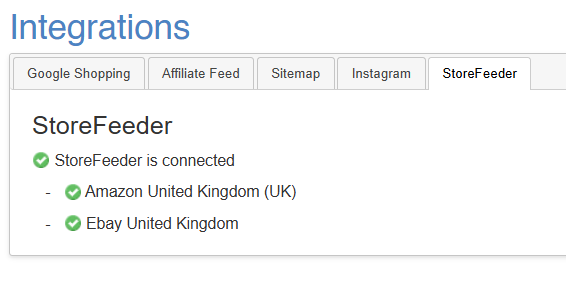
Integrated Marketplaces

[![image.png](https://bookstack.iconography.co.uk/uploads/images/gallery/2025-10/scaled-1680-/OdXimage.png)](https://bookstack.iconography.co.uk/uploads/images/gallery/2025-10/OdXimage.png)

# Xero

The scheduler calls the following functions, in this order:

**getItems**  
Gets default cost price of all items in Xero

**getOrdersForXero**  
Get all orders from IXO that haven't been acknowledged already, excluding draft, abandoned, cancelled or quotes.  
Creates the customer as a contact in Xero if it doesn't already exist.  
Ensures all sold products exist in Xero. Adds them if not.  
Posts an invoice to Xero as "draft" status

**getReturnsForXero**  
Gets all returned items that haven't been acknowledged already.  
Ensure the customer exists in Xero. Adds one if not.  
Creates Credit Note in Xero as "draft" status

**getPurchaseOrdersForXero**  
Gets all submitted purchase orders that haven't been acknowledged.  
Ensures supplier exists as a contact. Adds one if not.  
Ensures all products exist as items in Xero.  
Creates a Purchase Order in Xero.

<p class="callout info">Purchase Order lines will inherit the IXO Commerce Nominal Code as the Xero Account Code</p>

**getUnpaidInvoices**  
Gets a list of unpaid invoices from Xero.  
Compares payments in IXO against the Sales Order ID.  
Creates a payment in Xero if one exists.

**getUnpaidCreditNotes**  
Gets a list of unpaid credit notes from Xero.  
Compares refunds in IXO against the Sales Order ID.  
Creates a payment in Xero if one exists.

### Configs

All Sales Order invoices can either be created as draft invoices, or as authorised.

There is a config that will change this. If created as draft invoices, they can be automatically updates to 'authorised' once all non cancelled lines on a Sales Order are marked as completed.

# Whatsapp

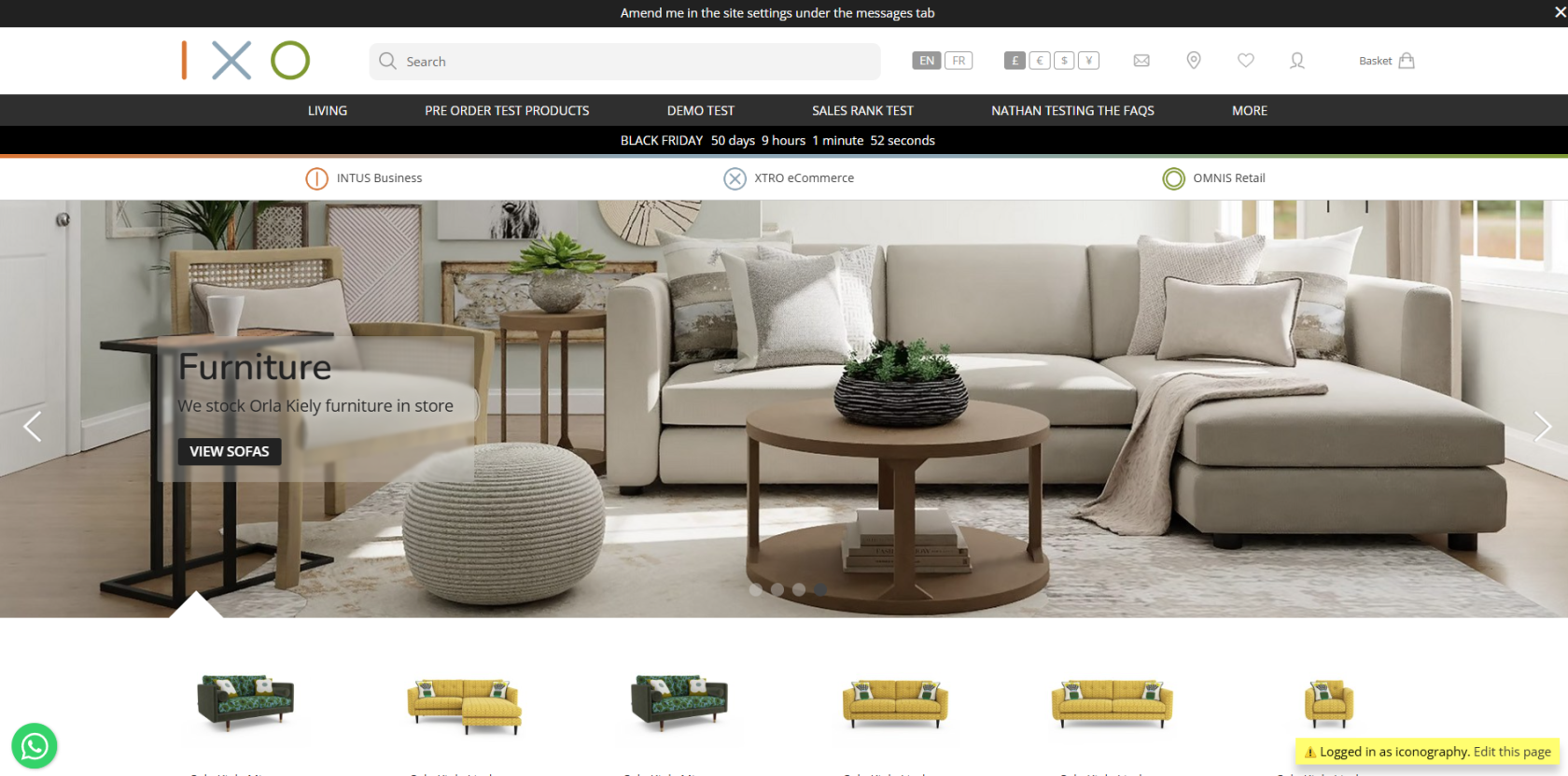
If a WhatsApp social media Phone number has been entered in Site Settings, a pop up will display on the website.

[![image.png](https://bookstack.iconography.co.uk/uploads/images/gallery/2026-06/scaled-1680-/7Lyimage.png)](https://bookstack.iconography.co.uk/uploads/images/gallery/2026-06/7Lyimage.png)
### Behaviour

On mouseover (or tap for touchscreen devices), this will open as below.

[![image.png](https://bookstack.iconography.co.uk/uploads/images/gallery/2026-06/scaled-1680-/CPKimage.png)](https://bookstack.iconography.co.uk/uploads/images/gallery/2026-06/CPKimage.png)
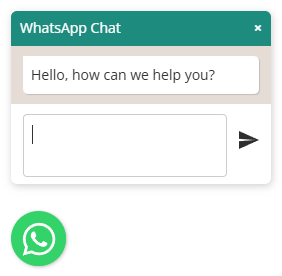
The customer will then be able to enter a message. When sent it will either:

- open the Whatsapp app on their device (if available)
- open Whatsapp for web

### Customisation

It is possible to amend the colour of:

- Title
- Title background
- Message
- Button image
- Position (left and right)