Labels that include barcodes will take those from the Variant; where a label is for a Unique Stock Record, it will display the barcode for that Unique Stock Record instead
[](https://bookstack.iconography.co.uk/uploads/images/gallery/2025-11/9oOimage.png) Use the filters and search to locate the Products for which you need to print labels.Made to Order Products and Products without stock will be displayed when searching, but only if Store is set to all; this is to allow printing of labels and tickets for Products prior to stock being entered into the system.
## Printing Labels ### Setup Labels can be printed either via a dedicated label printer, or via a standard A4 printer. #### Dedicated Printer Labels can be printed via a dedicated [STAR printers](https://bookstack.iconography.co.uk/books/hardware-device-setup/chapter/star-printers). This will require separate setup; please contact Iconography if you have have not purchased a printer. #### Standard Printer Labels will be printed on standard A4 paper; this should be done on pre cut A4 label sheets. To configure the size of these labels, you should use 'product label layout (A4 sheet)' in [Site Settings](https://bookstack.iconography.co.uk/books/site-settings/page/summary). ### How to Print Labels Use the filters at the top of the screen to refine your results, and then tick the items for which you would like to print labels.Be sure to tick the box to include Product Prices if required
Be sure to amend the quantities accordingly.The quantities will default to the number of stock on hand
In order to print labels for Products with no stock, you must set the Store filter to 'All'
### Pre-print using a specific date If entered, labels will print with a simulated date. For example, if you have entered sale prices to take effect from the 1st May, you can enter the 2nd May as your date, and any labels printed will print as though it were that date, along with any special offer prices that would then be active. This function will take into account: - Special Offer Prices with Start and End Dates as set against the Variant Tab - The same against Unique Stock Records - [Scheduled price changes](https://bookstack.iconography.co.uk/books/price-management "Price Management") (any field, e.g. RRP/Retail/Special Offer) ## Label Types From this drop down, you can choose to print Labels and Tickets. If connected to an appropriate printer, these can be printed directly onto labels - see [here](https://bookstack.iconography.co.uk/books/hardware-device-setup/page/label-types) for detail. Alternatively, they can be printed on any normal A4 sheet. The number of labels output at a time can be controlled in Site Settings. ### Price Labels These are small labels, which may also be used as shelf edge labels. These will come with a barcode, and may optionally show the price. [](https://bookstack.iconography.co.uk/uploads/images/gallery/2025-11/dkzimage.png) ### Warehouse (Reservation) LabelsThese are printed using the logic outlined on [this page](https://bookstack.iconography.co.uk/books/general/page/label-printing).
These are larger labels, which will have more detailed information on the unit of stock. These typically include SKU code, details of any Customisations, as well as the Supplier and barcode. These will also include details of the Sales Order and Customer to which the item is reserved. This will print all reserved stock labels for the selected Variants. [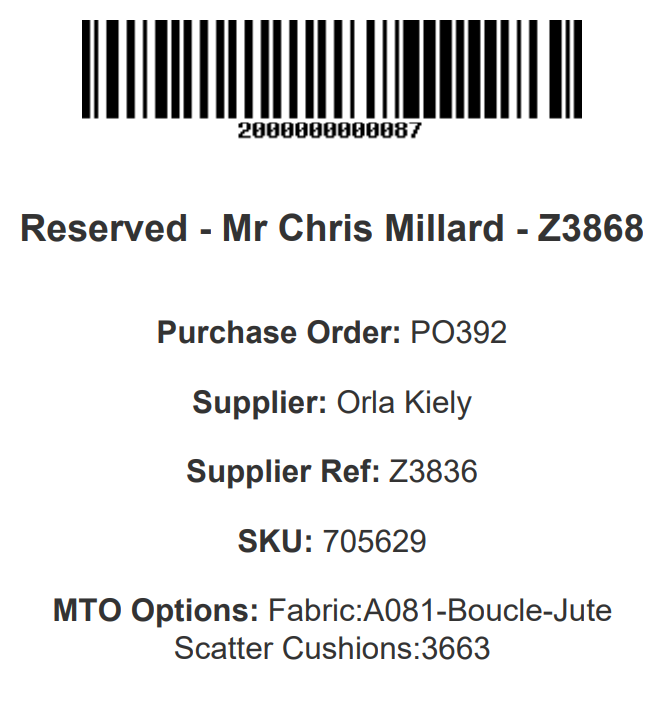](https://bookstack.iconography.co.uk/uploads/images/gallery/2025-11/nQSimage.png) ### Warehouse (Free Stock) LabelsThese are printed using the logic outlined on [this page](https://bookstack.iconography.co.uk/books/general/page/label-printing).
These are larger labels, which will have more detailed information on the unit of stock. These typically include SKU code, details of any Customisations, as well as the Supplier and barcode. This will print as many free stock labels as required, but Purchase Order information will be missing if more labels are printed than stock records exist. [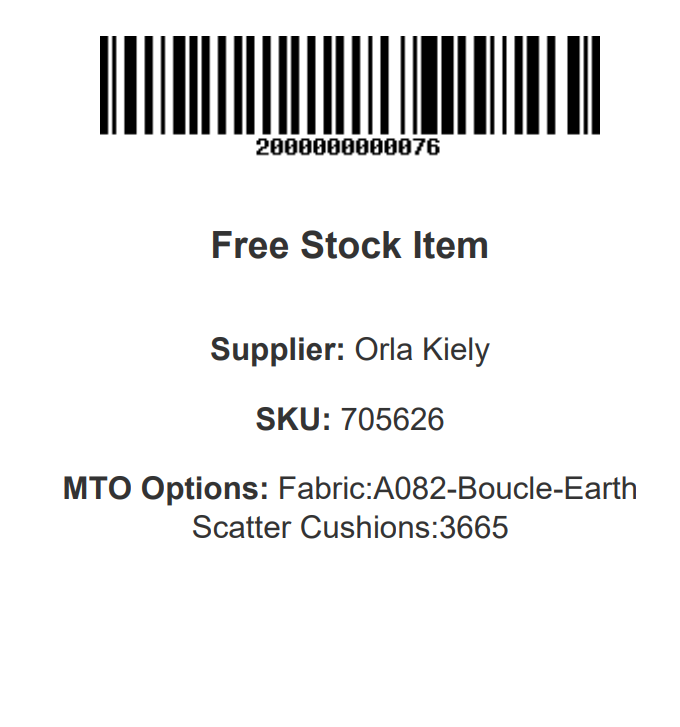](https://bookstack.iconography.co.uk/uploads/images/gallery/2025-11/fxMimage.png) ### Variant Tickets This will print a large scale Ticket that is sized to print at A4, A5 or A6 depending on your local printer settings. This will print a Ticket for a specific Product. If you select multiple Variants from the same Product, they will be printed on separate tickets. If you select a Variant with a USR, the detail for that USR will be printed instead. The QR code will open the Product page on your website. For information on configuring this template, click [here.](https://bookstack.iconography.co.uk/books/label-printing/page/configuring-tickets) [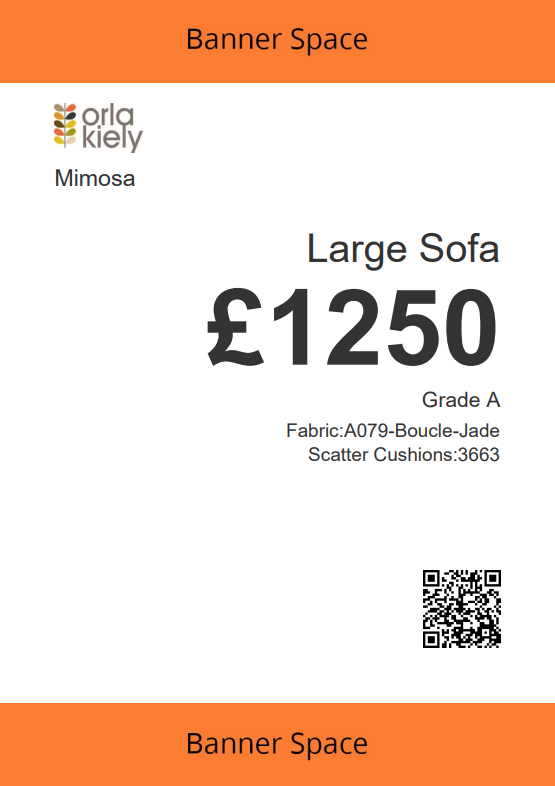](https://bookstack.iconography.co.uk/uploads/images/gallery/2025-11/oYpimage.png) ### Product Tickets This will print a large scale Ticket that is sized to print at A4, A5 or A6 depending on your local printer settings. This will print a Ticket for a specific Product. If you select multiple Variants from the same Product, they will be combined onto a single Ticket. The QR code will open the Product page on your website. For information on configuring this template, click [here.](https://bookstack.iconography.co.uk/books/label-printing/page/configuring-tickets) [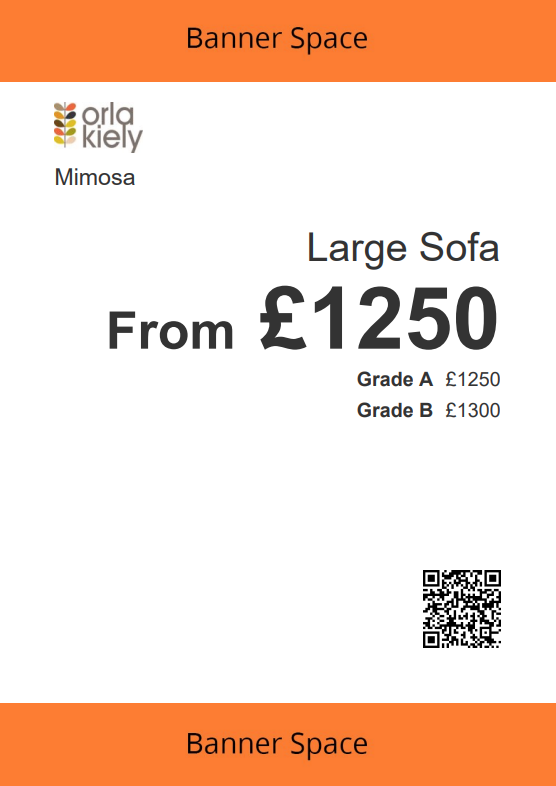](https://bookstack.iconography.co.uk/uploads/images/gallery/2025-11/jU1image.png) ### Collection Tickets This will print a large scale Ticket that is sized to print at A4, A5 or A6 depending on your local printer settings. If you select multiple items, these will be grouped by Collection. The QR code will open the Collection page on your website. For information on configuring this template, click [here.](https://bookstack.iconography.co.uk/books/label-printing/page/configuring-tickets)If you select multiple Variants for a single Product, these will be grouped and shown with a 'from price'
[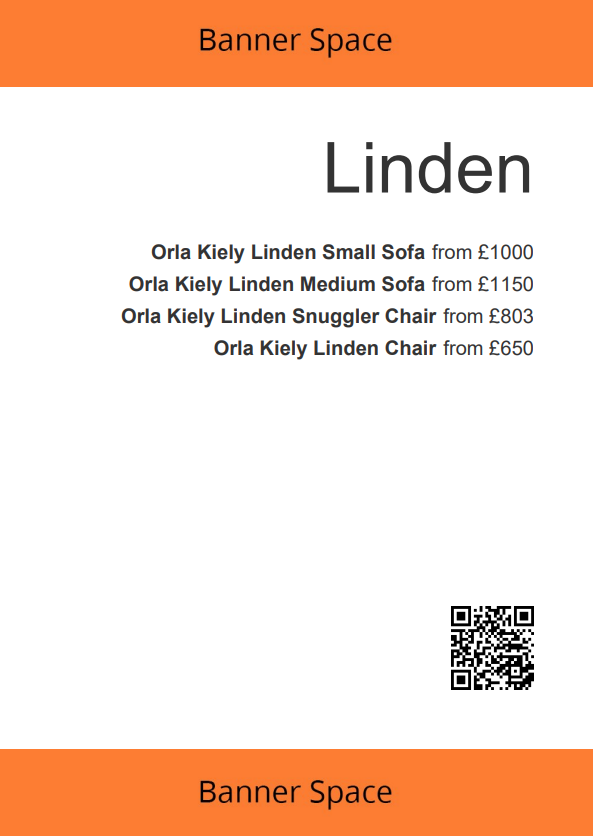](https://bookstack.iconography.co.uk/uploads/images/gallery/2025-11/SwQimage.png) # Configuring Tickets Tickets are a type of Label, and can be printed from the [Label Printing](https://bookstack.iconography.co.uk/books/label-printing "Label Printing") screen. These are designed to be printed on a colour printer, and are for shop floor display. They come in three varieties: 1. [Variant](https://bookstack.iconography.co.uk/books/label-printing/page/summary#bkmrk-variant-tickets) 2. [Product](https://bookstack.iconography.co.uk/books/label-printing/page/summary#bkmrk-product-tickets) 3. [Collection](https://bookstack.iconography.co.uk/books/label-printing/page/summary#bkmrk-collection-tickets) Each Ticket can be given a header and a footer, and it is possible to set up multiple varieties of each for different events. ### Managing Templates To add a new template, use the 'edit ticket templates' button on the Label Printing Screen. [](https://bookstack.iconography.co.uk/uploads/images/gallery/2025-11/Zgtimage.png) This will then display a list of Templates which already exist. #### Key to icons  = edit  = delete #### Setup If you click to edit a Template , or to add a Ticket Template , then you will be able to edit/add a new template.| Field | Purpose |
| Name | *Enter a name for the Template* *This will be displayed when choosing a Label type to print* |
| Template Type | *Choose from:* - *Variant* - *Product* - *Collection* |
| Template header | *This will display at the top of the ticket* *Upload a JPG, GIY or PNG* *1000px wide and up to 150px high* |
| Template footer | *This will display at the bottom of the ticket* *Upload a JPG, GIY or PNG* *1000px wide and up to 150px high* |
| Include QR Code | *Toggle the QR code on or off* |