# Options
# Summary
Product Options have two purposes - they provide the Option Names for variant options, as well as for customisations.
In addition, Product Options can be used to drive variant level [Filters](https://bookstack.iconography.co.uk/books/product-listing-page/page/filters "Filters").
> You will need to create Options before you can set up any products with Customisations or Variants.
#### Key to icons
 = edit
 = delete
## Setup
| Field | Purpose |
| Option Name | *This doubles as a label in the CMS, and also as the value that will be shown to the customer on the website*
|
| Show on Filter | *This enables this Option Name to be used as a filter on Product Listing Pages, when this Option Name is linked to a variant option.*
|
## How will it appear?
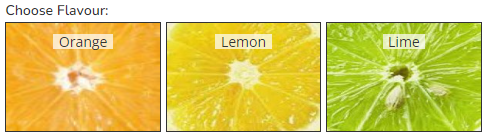
The Option will appear as the Option name, e.g. 'colour' or 'size':
[](https://bookstack.iconography.co.uk/uploads/images/gallery/2024-09/TUkimage.png)