Packing
Used to pack and despatch Sales Orders
Summary
This screen is used to Pack and Despatch Sales Orders and barcode scanning can be used to speed up and verify the workflow.
This is broken into three tabs:
- Awaiting Packing
- Awaiting Despatch
- Awaiting Collection
The expected workflow is that all Sales Orders should be Packed, and their status will then turn into either Awaiting Despatch or Awaiting Collection.
Once a Collection Sales Order is Packed, the customer will be sent an email telling them that the item is ready for collection.
Barcode Scanning
This section of the CMS is designed to be used with a barcode scanner. You can scan a Sales Order barcode to search for that Sales Order, or item barcodes to pack a specific item.
Sales Order Visibility
Orders will appear here if they are of any of the following statuses:
- Awaiting Packing
- Awaiting Despatch
- Partially Despatched
- Awaiting Collection
- Partially Collected
Other statuses may also be shown if the user ticks 'include partially received', as this will show orders with other statuses, which have items ready to be delivered/collected, and that are in the appropriate Store/Location.
'Include partially received' will show orders that may have an outstanding balance
Filters
Use the filters to select the orders that you would like to process.
Search by Sales Order number.
Filter by:
- Fulfilment Store
- Delivery Type
- Delivery Date
- Include partially received
Individual Processing
This can be done either manually order via a barcode scanner.
If done manually, the user can specify the number of items to process.
Bulk Processing
Use the tick boxes to select multiple lines. Then use the buttons at the bottom of the screen to confirm an action.

Packing and Despatching a Sales Order (Packing Screen)
This can be done manually, or via a barcode scanner.
Packing an Item
Manual Process
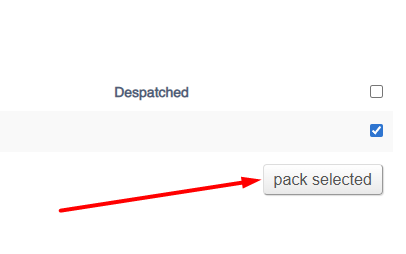
Tick the line items to process, and then use the button to complete the action:
Barcode Process
Correct Item

Incorrect Item
A warning will be shown if an incorrect item has been scanned.

Despatching an item
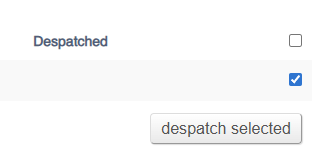
Tick the line items to process, and then use the button to complete the action.
You will also need to confirm the quantity to process if there are multiple required.
Collecting an item
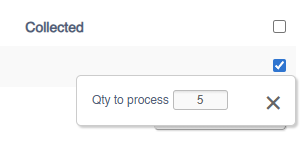
Tick the line items to process, and then use the button to complete the action.
You will also need to confirm the quantity to process if there are multiple required.
FAQs
What does 'Location not allowed for fulfilment' mean?
A warning will be shown if the allocated stock is in a location not enabled for fulfilment. You will either need to enable that Location/Store, or arrange a Stock Transfer.

What does 'no more of this item required' mean?
This means that you have already packed the required quantity. Please double check the quantity that you have physically in hand to prevent over packing.
