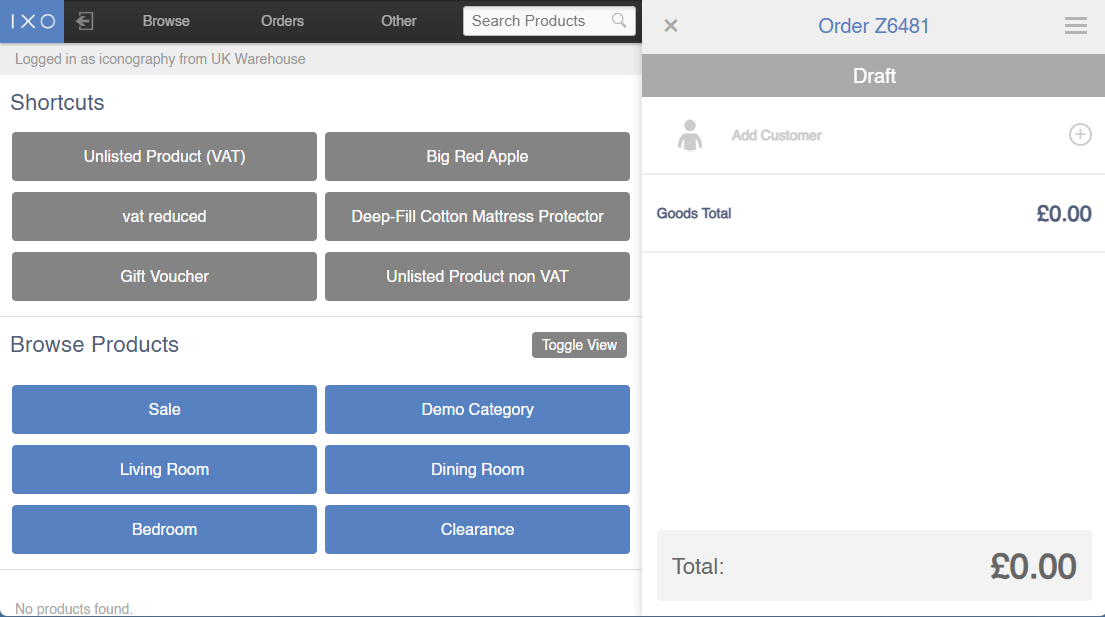
POS Shortcuts
Add Shortcuts that will show in the POS.
Summary
Use this screen to add POS Shortcuts. These may be existing or unlisted items.
Setup
Existing Product
Simply use the 'add shortcut' button to add a new shortcut.
In the Product field, enter the name or SKU of an existing Product; the remaining fields will be autofilled.
Unlisted Product
Use the POS Shortcuts to add an unlisted item.
An unlisted item may also be known as a 'dump code' or 'emergency product', for use when the salesperson needs to add an item to a Sales Order that does not exist within the system.
Iconography recommends that when an unlisted item is added to a Sales Order, the proper Product should be added to the system by an administrator, and the Sales Order in question edited accordingly.
| Field | Purpose |
| Product | The SKU of the unlisted Product |
| Default Name |
The default Name of the unlisted Product
This may be edited within the POS when the Product is added to a Sales Order |
| Default Price |
The default Price of the unlisted Product
This may be edited within the POS when the Product is added to a Sales Order |
| VAT Status |
Select the VAT status of unlisted Product - choose from:
VAT rates for Standard and Reduced are controlled via Countries |
How it displays