Price Lists
Summary
Price Lists can be assigned to any Customer. When they are logged into their account on the website, or when their account is linked to a POS order, Product prices will change to match those in the price list.
Key to Icons
 = edit
 = delete
Add a Price Group
To add a new Price List, use the  icon.
icon.
Manage a Price Group
| Field | Purpose |
| Group Code |
This is shown in the drop down when assigning a Price List to a Customer
It will also be used to link your Price List to any third party system |
| Group name | This is shown in the drop down when assigning a Price List to a Customer |
Discounts
It is possible to add top level, order based discounts linked to a Price List Group; these will be applied to all Sales Orders linked to Customers who are assigned to this Group.
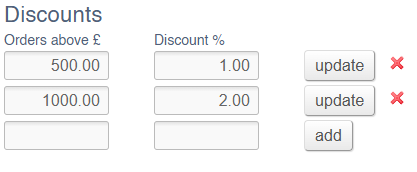
Price Lists
You can also add Product and Category specific Price Lists.
Click here for information on how to build Product specific Price Lists.
Click here for information on how to build Category specific Price Lists.
Product Specific Price Lists
Use the controls to build a Product Specific Price List.
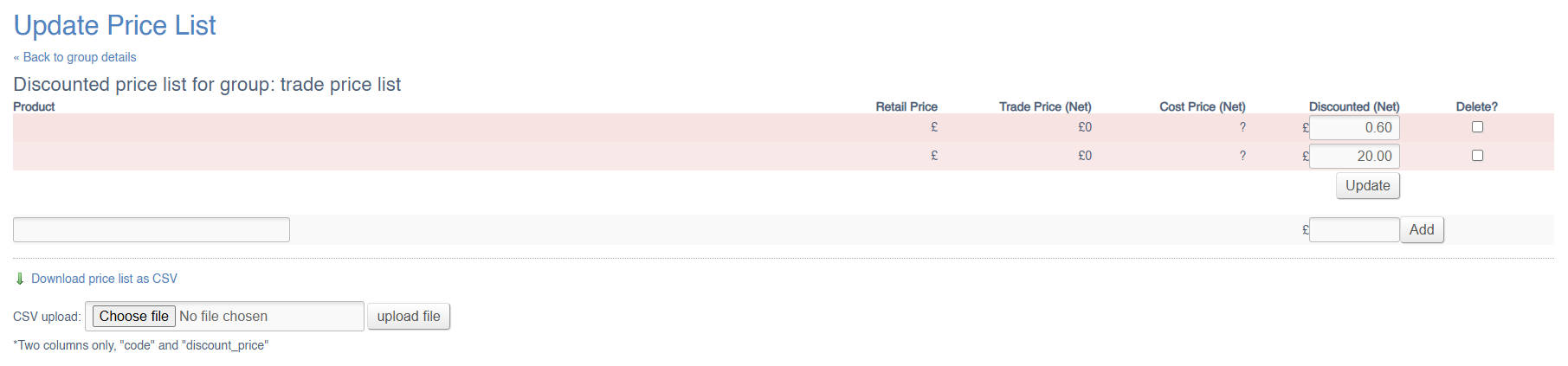
The Prices added here will take precedence if a Customer is assigned to the Price List Group, and is logged in to their account.
A Price List can also be populated via a CSV.
Enter absolute prices here - these will be the actual prices paid by your Customers.
Category Specific Price Lists
To build a Category specific Price List, simply select a Category from the Drop Down List, and add a percentage discount.

If a Product is in multiple Categories with discounts, the largest one will be applied.