This screen can be used to export Product data in bulk
A combination of search and filters are used to refine the product list. #### Key to icons  = is live  = is disabled  = archived  = edit You can [Show/Hide Disabled Items](https://bookstack.iconography.co.uk/books/general/page/showhide-disabled) on this screen. You can Show/Hide Variants on this screen.If you choose to 'Show Variants' a breakdown of Unique Stock Records will also be shown, if applicable.
### Channels  = enabled for Google  = enabled for eBay  = enabled for Amazon ### Product Search In addition to filtering your product catalogue by Category, Brand, Supplier, Brand or Collection, you can use the search function. The search on the Product Lookup screen works differently to other search methods, because it is also enabled to search for variants. You can use this to search for a product and an option simultaneously; this can be combined with filters to give specific results. [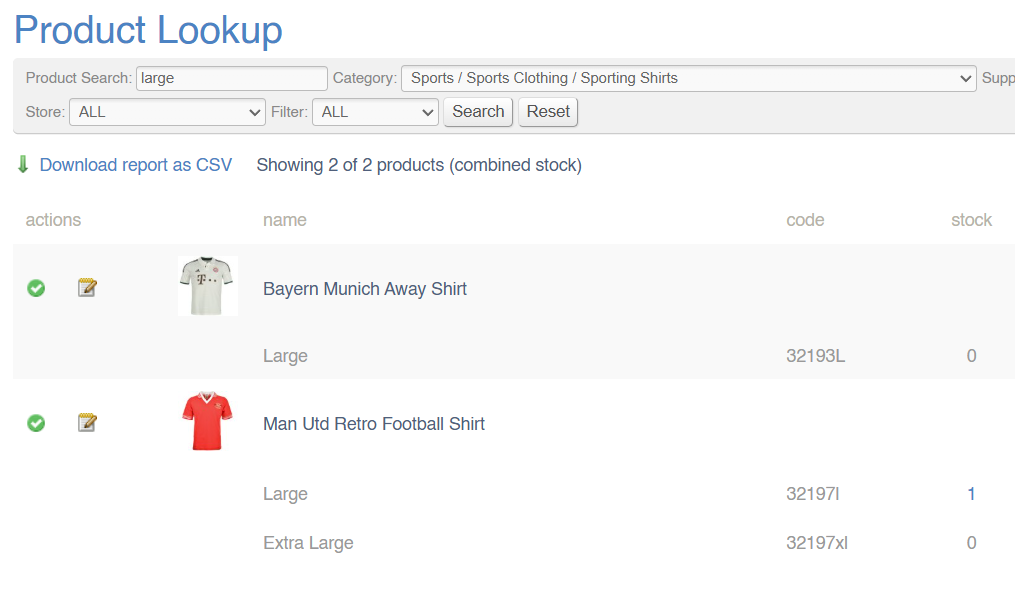](https://bookstack.iconography.co.uk/uploads/images/gallery/2025-04/image.png) ### Product Lookup (Availability and Prices) This screen should also be used to lookup Product Availability and Prices, including stock on hand, available, reserved, and on order. #### Products with Stock To view stocked products, simply filter to a specific Store, or apply a filter for Products which have Stock. This is in line with the [Stock Definitions](https://bookstack.iconography.co.uk/books/general/page/stock-terminology "Terminology - Stock"). ##### Reserved Stock Clicking on the quantity 'reserved' for a specific Variant will open a pop up. This will display the quantity of stock reserved from any given location, as well as the specific Sales Orders to which that stock is reserved. ##### On Order Clicking on the quantity 'on order' for a specific Variant will open a pop up. This will display the stock On Order, which Purchase Orders that stock is linked to, and how much of it is reserved to Sales Orders. #### Check Prices Prices can be viewed from this screen. If a product has multiple variants, these prices will be listed against each one. ### Product Export Once you have searched for Products, it is possible to export that Product data as a csv. [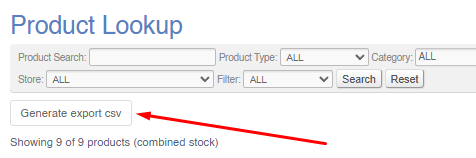](https://bookstack.iconography.co.uk/uploads/images/gallery/2026-09/X0cimage.png) This will export data for the Products currently visible to you on the Product Lookup screen. When exporting, you will be prompted to select columns for the Product (Variant) export, and you can then use the secondary pop up to download individual files. [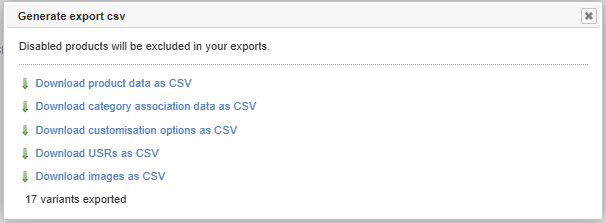](https://bookstack.iconography.co.uk/uploads/images/gallery/2026-09/EqTimage.png) #### File Types There are six file types: - [Product (Variant)](https://bookstack.iconography.co.uk/books/general/page/product-data "Products") - [Category Association](https://bookstack.iconography.co.uk/books/general/page/category-association "Category Association") - [Customisations](https://bookstack.iconography.co.uk/books/general/page/customisations-aka-made-to-order "Made to Order options (Customisations)") - [Unique Stock Records](https://bookstack.iconography.co.uk/books/general/page/unique-stock-records-aka-usrs "Unique Stock Records (AKA USRs)") - [Images](https://bookstack.iconography.co.uk/books/general/page/images "Images Import") - [Cost Prices](https://bookstack.iconography.co.uk/books/general/page/cost-prices "Cost Prices")There are additional exports, including ones for [Price Management](https://bookstack.iconography.co.uk/books/price-management "Price Management"), [Purchase Orders](https://bookstack.iconography.co.uk/books/purchase-orders "Purchase Orders") and via the [Bulk Update](https://bookstack.iconography.co.uk/books/bulk-update "Bulk Update") and [Product Lookup](https://bookstack.iconography.co.uk/books/product-lookup "Product Lookup") tools
### Product Management #### Missing Content This page can be used to isolate and list products that are missing key information, such as: - Products without a Category - Products without a Brand - Products without a Collection - Products without Images - Products without a Selling Price - Products without a Cost Price - Products without a Department #### Featured Products You can use this screen to quickly find products which are Featured across your eCommerce website. - Home Page Featured Products - Featured Products - Checkout Featured Products #### Product Types - Standard - [Made to Order](https://bookstack.iconography.co.uk/books/categories/page/customisation "Customisation") - Gift Voucher - Bundle - [Booking](https://bookstack.iconography.co.uk/books/categories/page/booking "Booking") #### Other Statuses You can also use this screen to locate products with specific Statuses. - Featured Products - Home - Checkout - Featured (Category) - Information Only Products - Unavailable Products - Archived Products - Disabled Products - Products which are On Offer - New Products #### Manage Products in Bulk You can also apply [bulk changes](https://bookstack.iconography.co.uk/books/categories/page/how-to-make-bulk-changes-to-products-from-the-category-screen-in-the-cms "How to make bulk changes to Products from the Category screen in the CMS") to products from this screen using the tick boxes down the right hand side in conjunction with the controls at the bottom. # How to Find a Product by Search ##### 1. Navigate to your CMS. ##### 2. Click "Product Lookup" under Catalogue.  ##### 3. Click the "Product Search:" field. 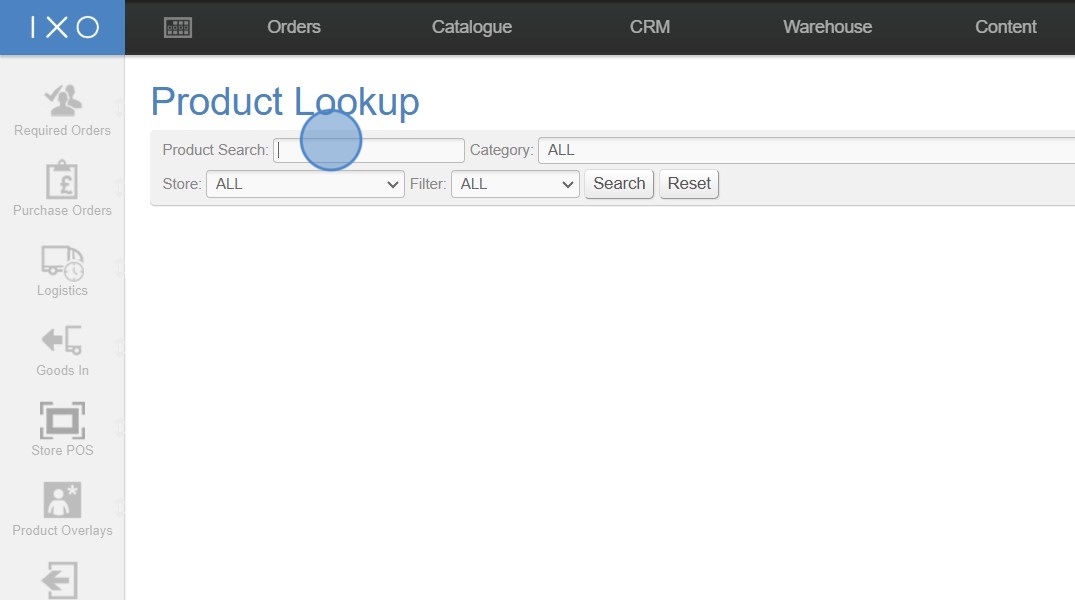 ##### 4. Type the term you a searching for, in this instance we have used "orla kiely sofa". ##### 5. Click "Search".  ##### 6. All products matching this term will be returned. 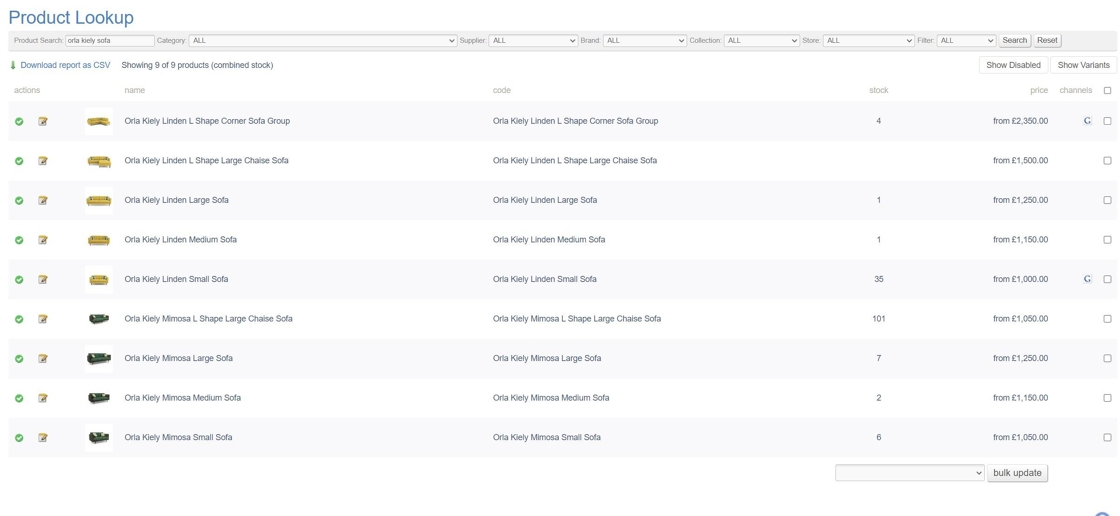 # How to Find a Product by Filtering ##### 1. Navigate to your CMS. ##### 2. Click "Product Lookup" under Catalogue.  ##### 3. From here you will be presented with a number of different filters to choose from - Product Type, Category, Supplier, Brand, Collection, Store and Filter. Use the appropriate filters depending on what it is you are searching for. In this instance, I am searching for an "Orla Kiely Mimosa Sofa". ##### 4. Select the appropriate category.  ##### 5. Select the appropriate brand.  ##### 6. Select the appropriate collection.  ##### 7. Click "Search" to return the matching products.  ##### 8. Any product matching the filters that you have chosen will then be shown.  # How to Check Availability # How to Check a Price # How to Export Product Data # How to Export Product Data and Images Learn how to filter your product catalog by brand and specific collections to find the items you need. This guide will walk you through generating custom export files and downloading your product images efficiently. ### Product Lookup 1\. Open the Product menu 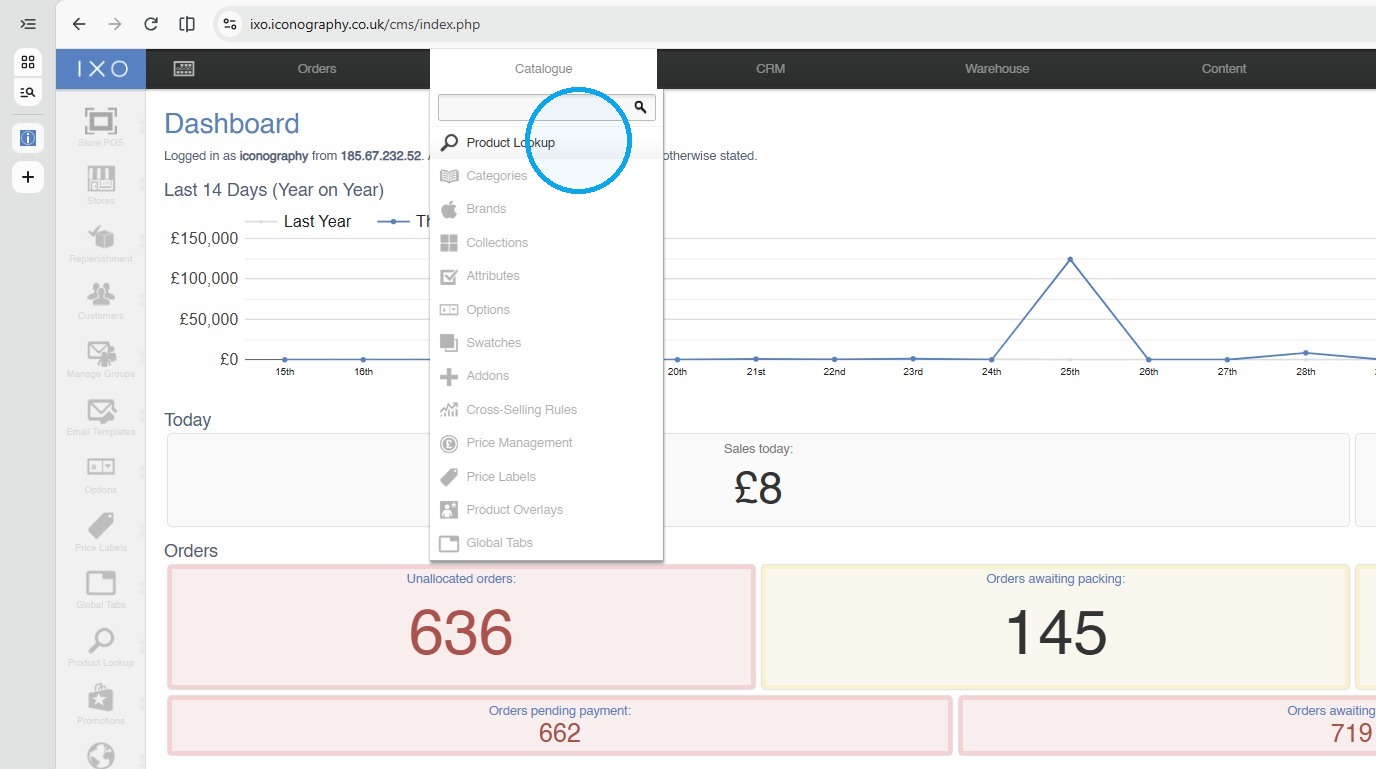 2\. Click "Product Search" to search for a Product by Name or SKU or Variant Option Value 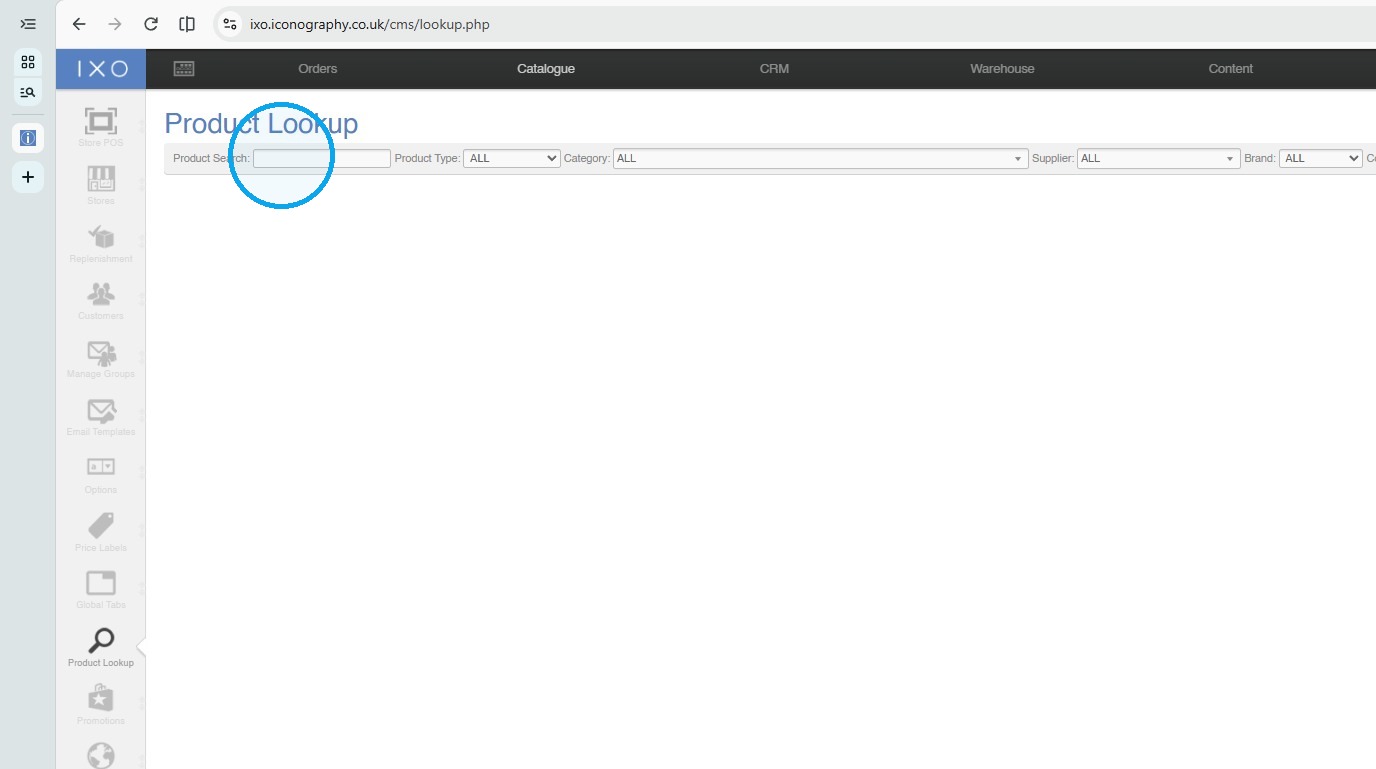 3\. Apply other filters as required 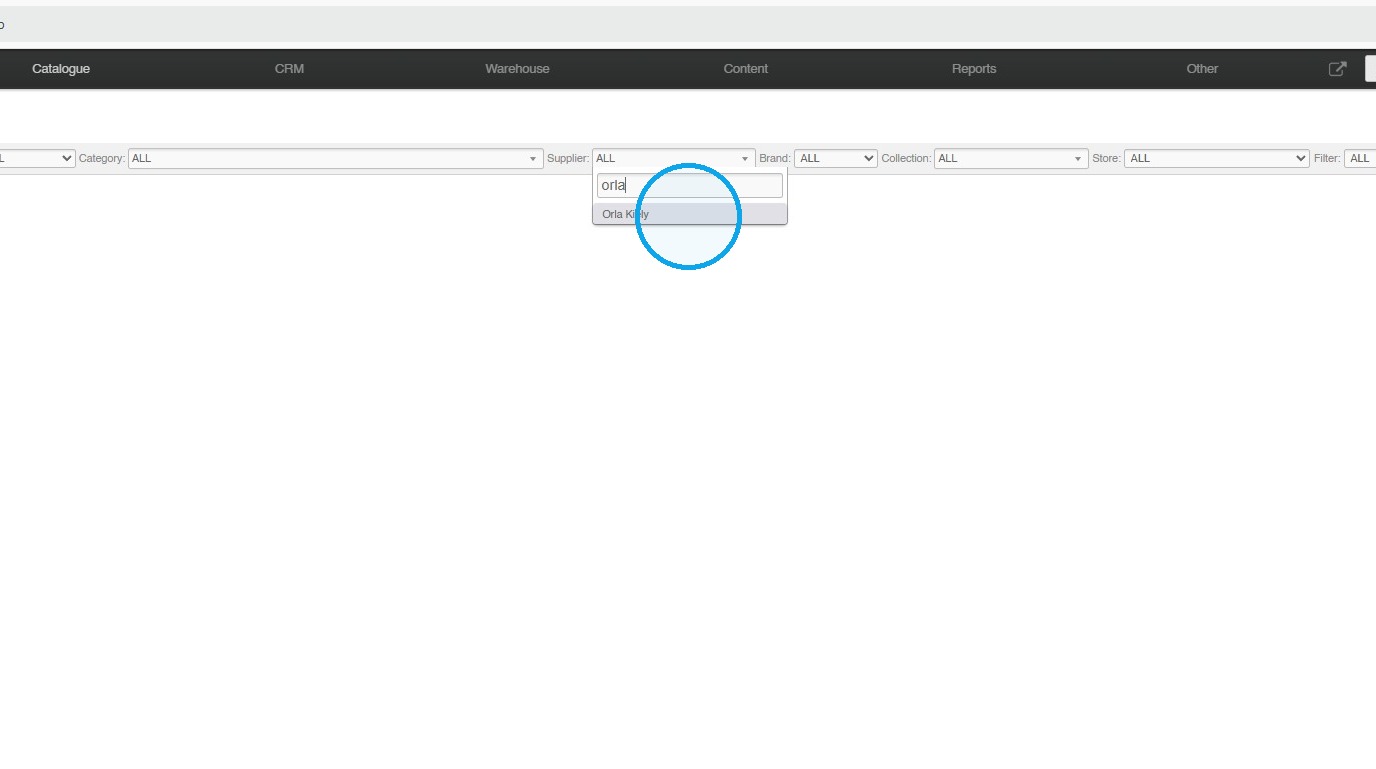 ### Run the Search 4\. Click "Search" 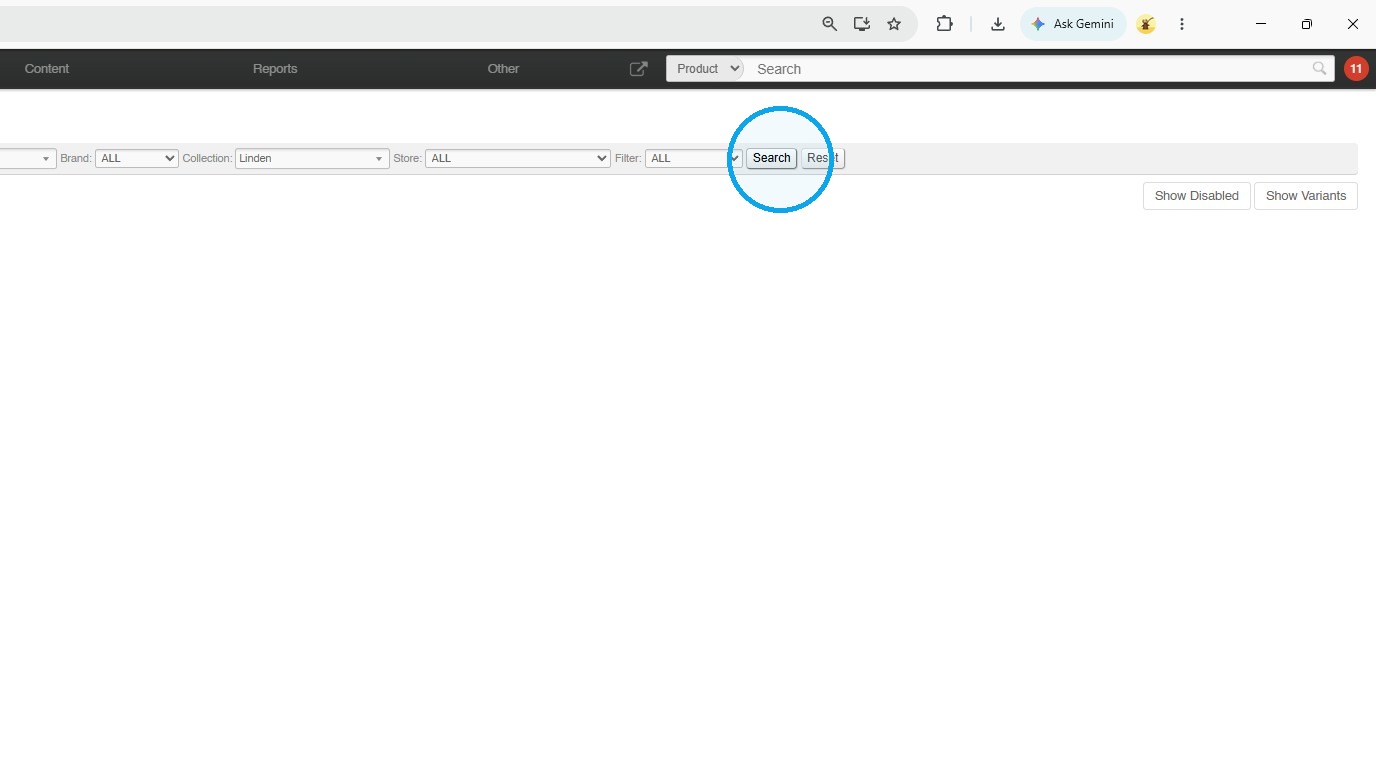 5\. Click "Show Disabled" to view disabled Products, Variants and USRs 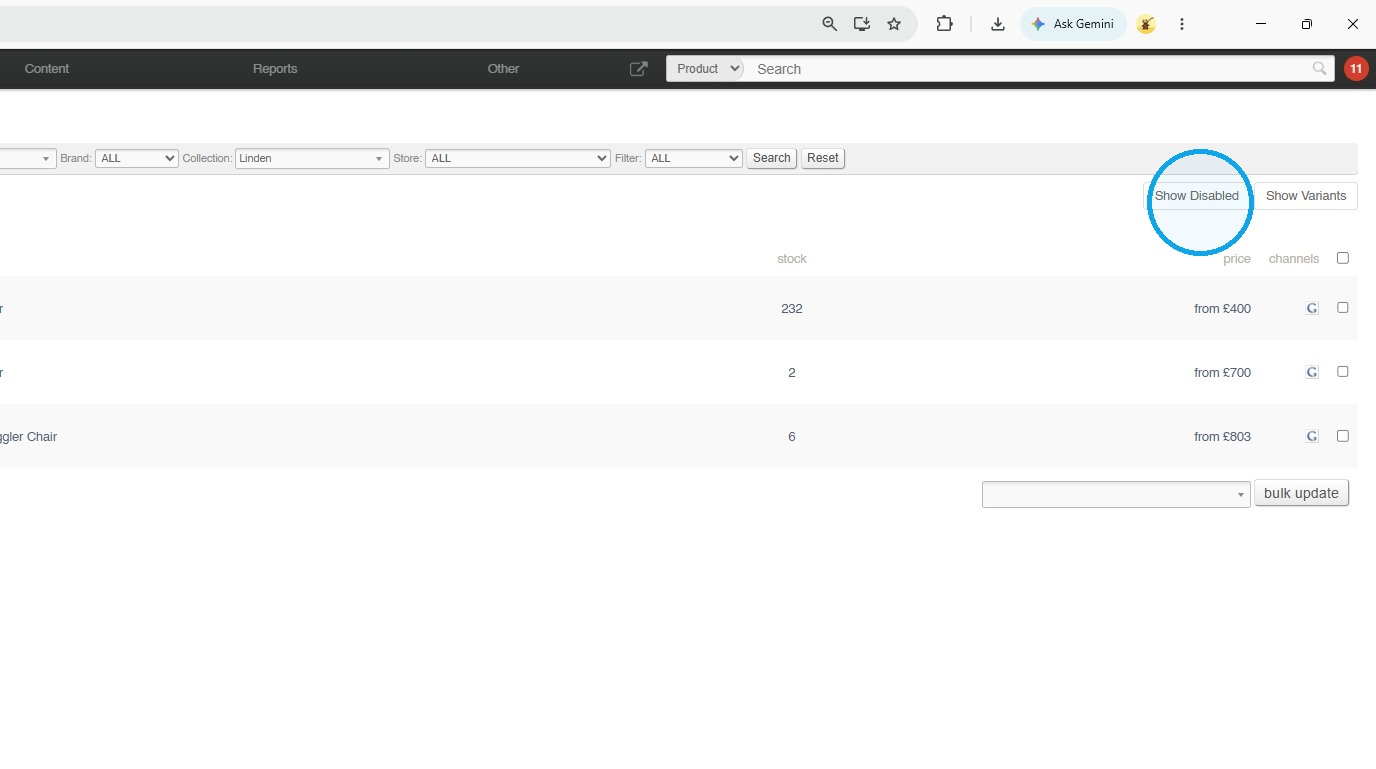 6\. Click "Show Variants" if you would like to review them prior to export 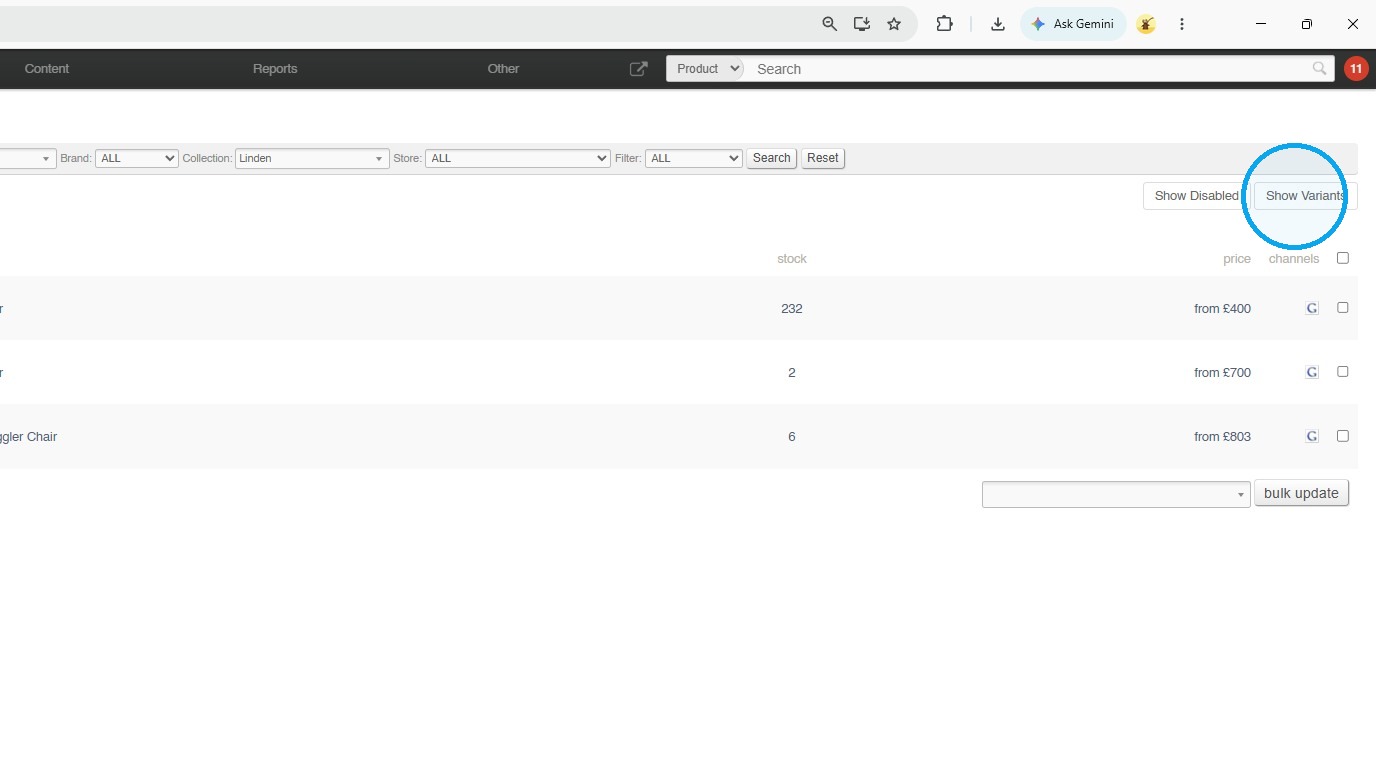 ### Export Product Data 7\. Click "Generate export csv" 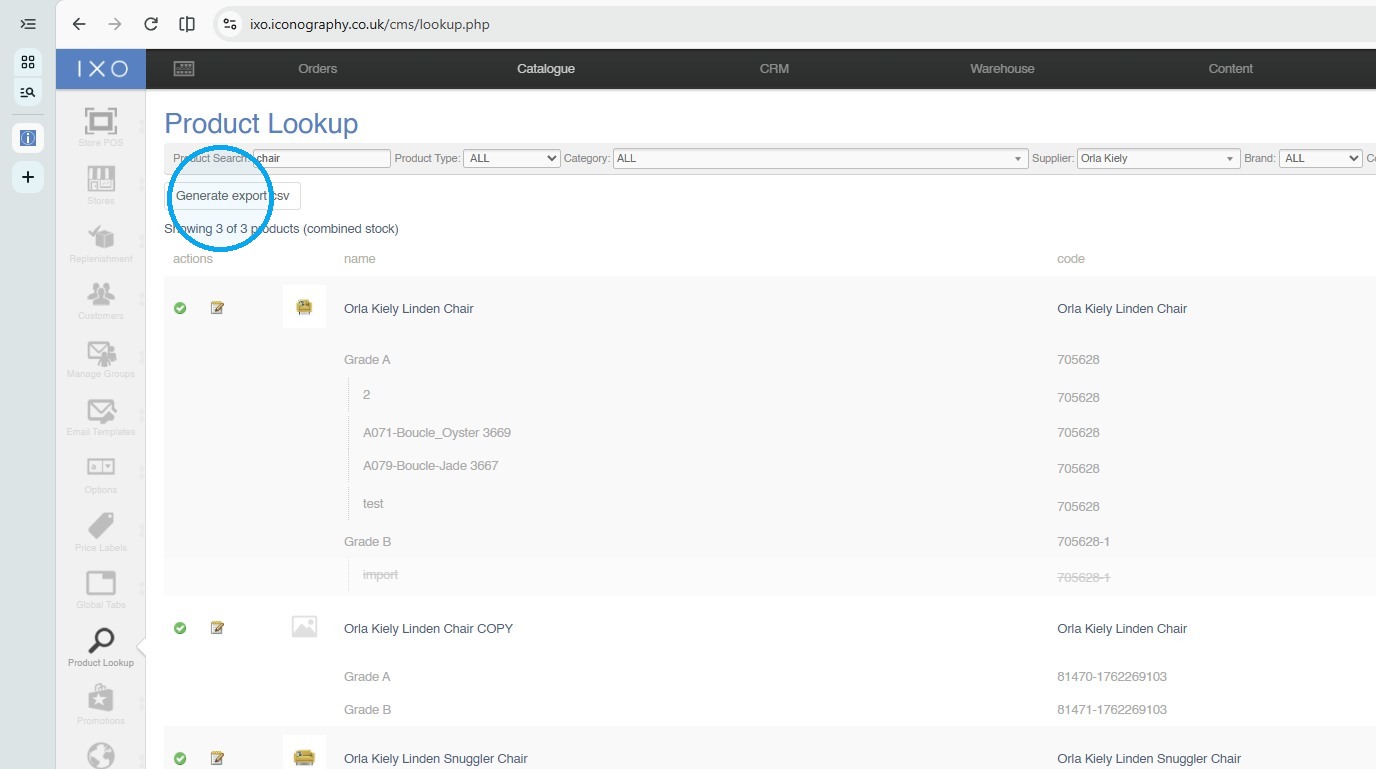 8\. Click "Select export columns for product file" if you would like to pre-filter your export 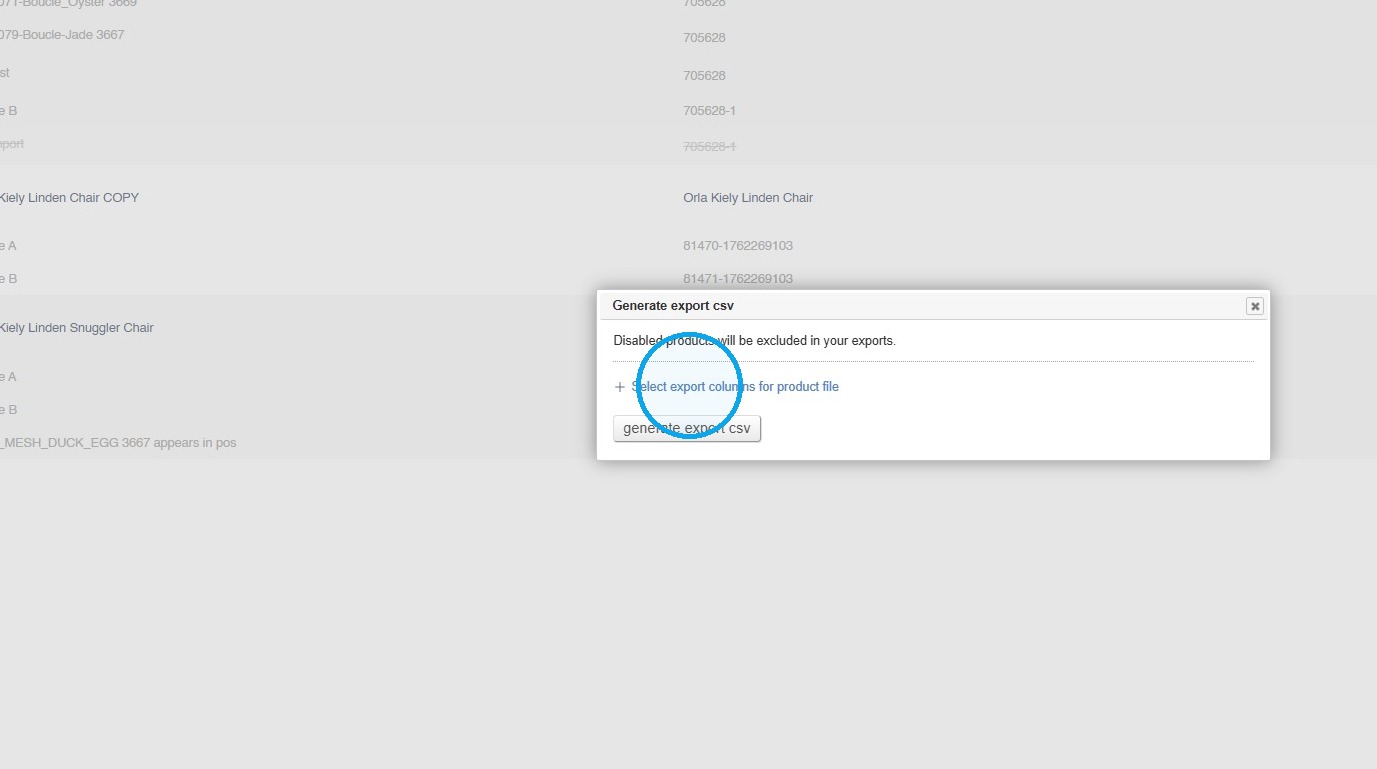 9\. You can use a preset, or manually select the columns 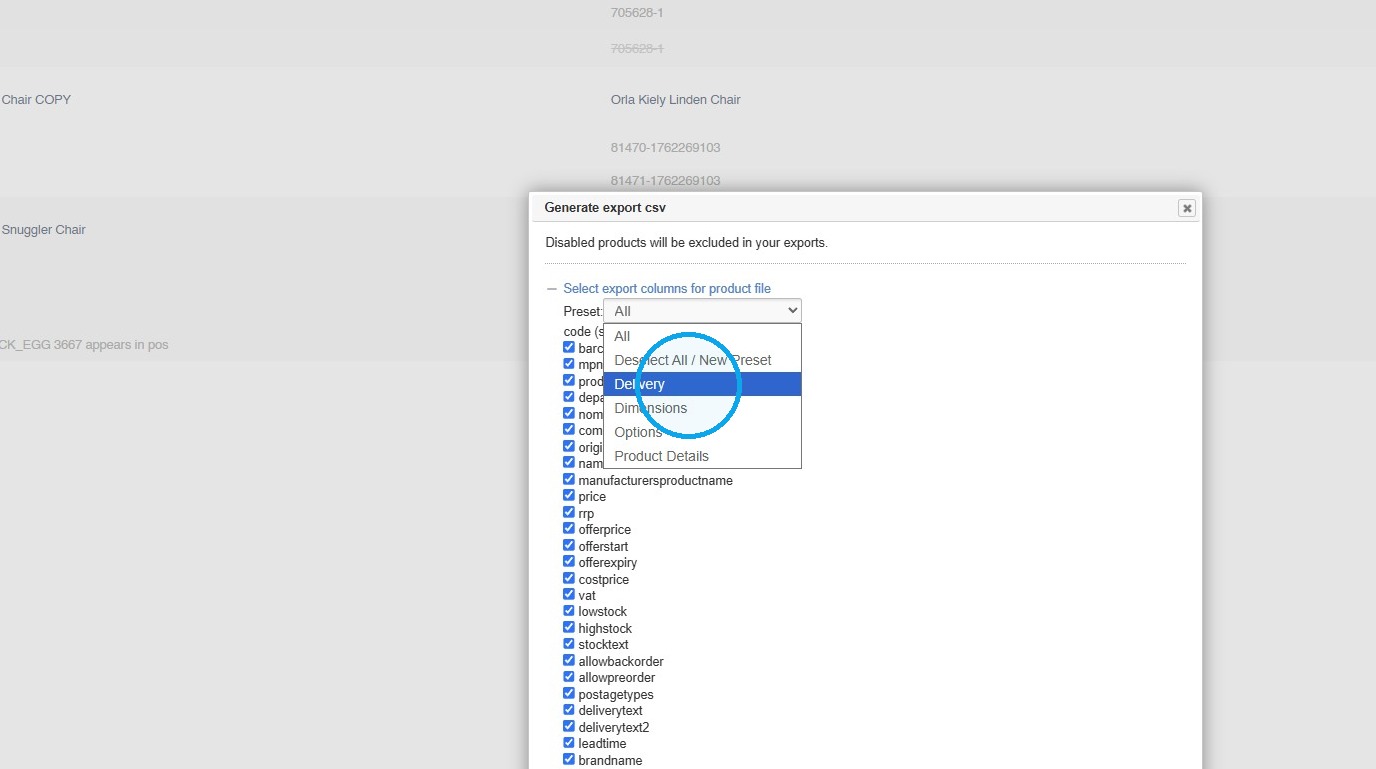 10\. Click "generate export csv" 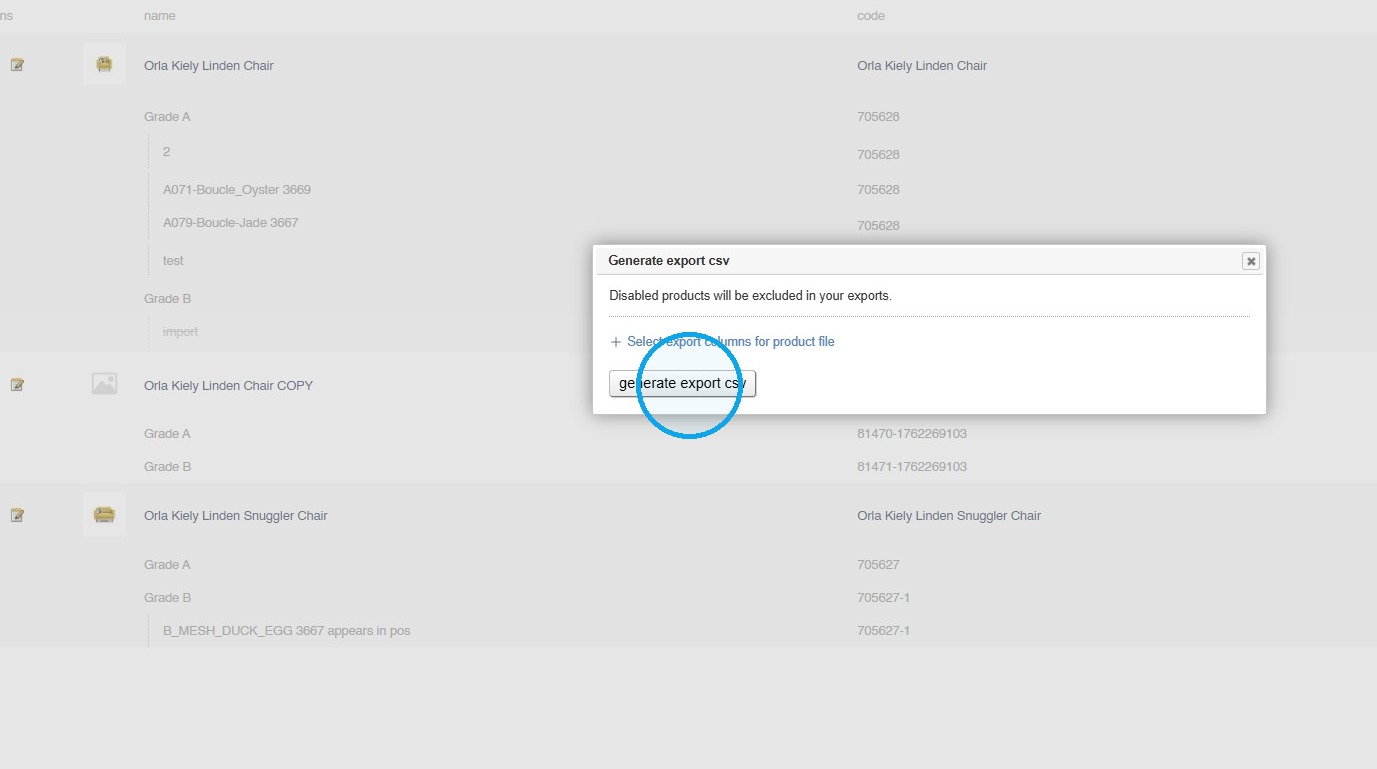 11\. Choose which files to download 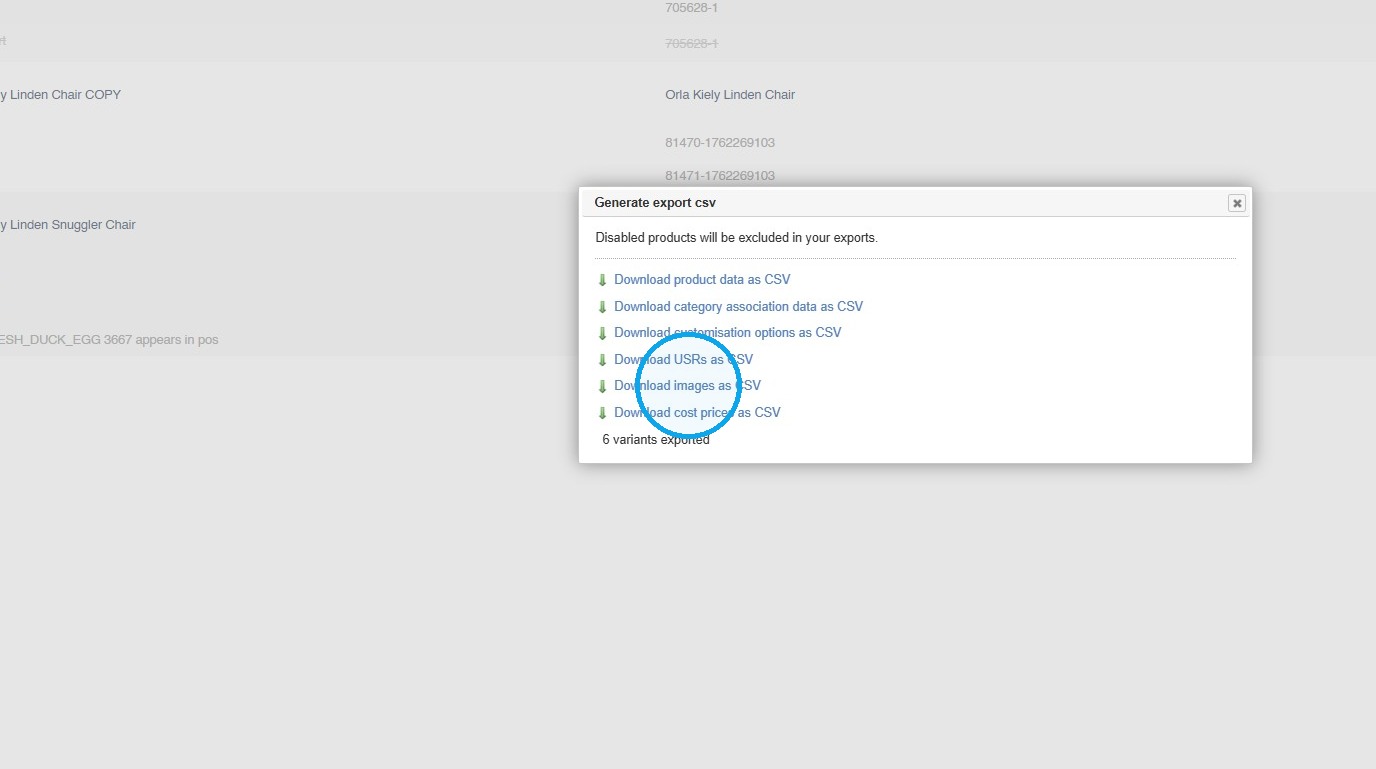 Tip: Make sure you take a copy of your export prior to making amends - this will give you a backup from before you completed your export.