| - [Purchase Order Status](https://bookstack.iconography.co.uk/books/purchase-orders/page/purchase-order-status "Purchase Order Status") - [Header](https://bookstack.iconography.co.uk/books/purchase-orders/page/header "Header") - [Action Buttons](https://bookstack.iconography.co.uk/books/purchase-orders/page/action-buttons "Action Buttons") - [Purchase Order Lines](https://bookstack.iconography.co.uk/books/purchase-orders/page/purchase-order-lines "Purchase Order Lines") - [Print Information](https://bookstack.iconography.co.uk/books/purchase-orders/page/print-information "Print Information") - [Purchase Order Notes](https://bookstack.iconography.co.uk/books/purchase-orders/page/purchase-order-notes) - [Audit History](https://bookstack.iconography.co.uk/books/purchase-orders/page/audit-history) | [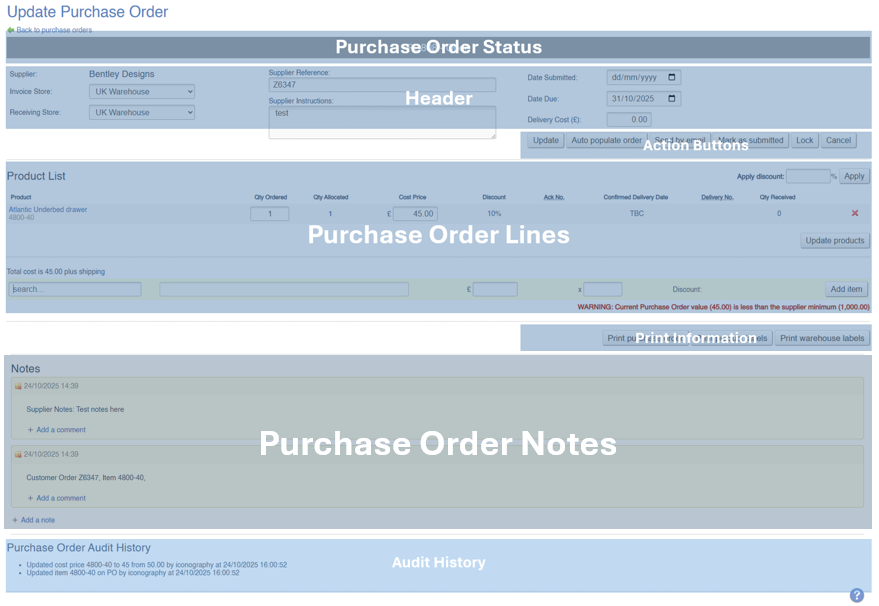](https://bookstack.iconography.co.uk/uploads/images/gallery/2025-10/kdDimage.png) |
These can be used to filter the list of Purchase Orders.
### A List of StatusesThese statuses have an impact on the function of the system. For example, it is impossible to receive goods from an Open or Completed Purchase Order
| Field | Purpose |
| Open | *A Purchase Order which has not yet been submitted to a Supplier* *You may still items to this Purchase Order* |
| Submitted | *A Purchase Order that has been sent to the Supplier, but not yet acknowledged* *You may receive items on this Purchase Order and amend the Cost Prices* |
| Acknowledged | *A Purchase Order that has been sent to the Supplier and acknowledged*
*You may receive items on this Purchase Order and amend the Cost Prices*
*You should manage the expected arrival dates on these Purchase Orders* |
| Cancelled | *A Purchase Order which has been Cancelled*
*The Supplier will be sent an automated email, but please follow up manually to ensure that you are not incorrectly sent the goods in question* |
| Partially Received | *A Purchase Order is automatically changed to this status if at least one item on it has been received* *You may receive other items on this Purchase Order and amend the Cost Prices* |
| Received | *A Purchase Order is automatically changed to this status if every item has been received* |
| Invoiced | *A Purchase Order must be manually marked as invoiced* *You may amend the Cost Prices at this stage, but take no further action* |
| Completed | *A Purchase Order must be manually marked as completed*
*No further action may be taken on the Purchase Order at this stage*
*If you have an accounts integration, changing to this status will post the Purchase Order to your accounts package* |
| Field | Purpose |
| Supplier | *The Supplier linked to this Purchase Order*
*This field is locked and can not be changed* |
| Invoice Store | *The invoice Store for this Purchase Order*
*On new Purchase Orders, this will default to that set against the Store* *If additional lines are added through the collation of Purchase Orders, the invoice Store will be updated to match the default of the selling Store; if this has been manually altered, it may need to be reviewed prior to invoicing* |
| Receiving Store | *The receiving Store for this Purchase Order*
*On new Purchase Orders, this will default to that set against the Store* |
| Supplier Reference | *Enter a Supplier Reference number for this Purchase Order*
*This field is optional* |
| Supplier Instructions | *Supplier Instructions are included within the email sent to the Supplier*
*These may be edited and resent to the Supplier using he 'email to supplier' [Action Button](https://bookstack.iconography.co.uk/books/purchase-orders/page/action-buttons "Action Buttons")* |
| Acknowledged by supplier on... | *A label that will show when the Purchase Order was marked as acknowledged* |
| Date Submitted | *The date the Purchase Order was submitted to the Supplier* |
| Date Due | *The date the Purchase Order is due; this is based on the longest Lead Time of any Variant on the Purchase Order*
*This will initially be based on the date the Purchase Order was submitted, and updated once the Purchase Order is acknowledged* *This will be output in various locations, as the due date for this unit of stock; this is overridden by the Expected Delivery Date* |
| Expected Delivery Date | *A manually entered date*
*This will be output in various locations, as the due date for this unit of stock; this is overridden by the Confirmed Delivery Date (see [Purchase Order Lines](https://bookstack.iconography.co.uk/books/purchase-orders/page/purchase-order-lines "Purchase Order Lines"))* |
| Delivery Cost | *Enter the total cost of delivery* |
Only shows on Open Purchase Orders
Press this to automatically populate the Purchase Order. This will apply logic as per the [Replenishment](https://bookstack.iconography.co.uk/books/replenishment "Replenishment") screen and automatically add all system recommended items and quantities.This may result in large numbers of items being ordered; we recommend that this Purchase Order be reviewed manually prior to being sent to the Supplier.
#### Send by Email Only shows on Open Purchase Orders This will send the Open Purchase Order to the Supplier via email and change the status to 'Submitted'.The email is editable within [Email Templates](https://bookstack.iconography.co.uk/books/email-templates "Email Templates")
The Supplier will be sent a link to this screen: [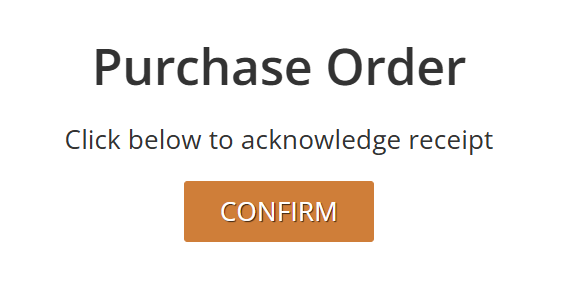](https://bookstack.iconography.co.uk/uploads/images/gallery/2026-09/Awhimage.png) #### Mark as Submitted Only shows on Open Purchase Orders. This will change the status to 'Submitted'. This will not trigger an automated notification to the Supplier. #### Lock Use this to Lock the Purchase Order. This will prevent users from allocating Sales Order Lines to this Purchase Order. Typically, this is used for display items and forward orders. Sales Order Lines already allocated to this Purchase Order are unaffected. #### Unlock Use this to unlock the Purchase Order (see above). #### Mark as Acknowledged Only shows on Submitted Purchase Orders. This will change the status to 'Acknowledged'. This will not trigger an automated notification to the Supplier.If the Purchase Order was submitted via an email, the Supplier will be able to acknowledge this via a link in the email.
#### Cancel Only shows on Submitted and Acknowledged Purchase Orders. This will change the status to 'Cancelled'.The email is editable within [Email Templates](https://bookstack.iconography.co.uk/books/email-templates "Email Templates")
#### Mark as Invoiced Only shows on Received Purchase Orders. Use this to mark the Purchase Order as invoiced; this will change the status to Invoiced and prevent further units of stock from being received against it. #### Mark as Completed Only shows on Invoiced Purchase Orders. Use this to mark the Purchase Order as Completed. This will prevent the Cost Prices against Purchase Order Lines from being edited, and will also send the Purchase Order to your Accounts package if you have an integration set up. # Purchase Order Lines [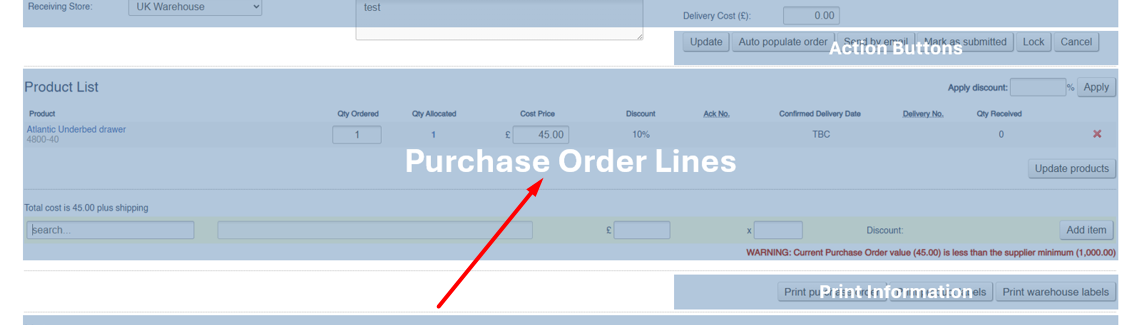](https://bookstack.iconography.co.uk/uploads/images/gallery/2025-10/eMGimage.png) This section will show a list of Order Products, which are separated into individual Purchase Order Lines. ### Updating Cost Prices It is possible to update a variety of information in this section, all relating to the individual Purchase Order Lines. When doing so, there are two buttons: [](https://bookstack.iconography.co.uk/uploads/images/gallery/2026-09/4ULimage.png) #### Update Products This will only save changes to this Purchase Order, e.g. if you change a Cost Price, it will only apply to this Purchase Order. #### Update Cost Prices This will be greyed out by default, but becomes useable when the User amends the Cost Price on a Purchase Order Line. If pressed, this will save the change against the Product (specifically the Variant/Unique Stock Record) on the Purchase Order.This will update the ongoing Cost Price for that item, which will be used on all ongoing Purchase Orders and Sales Orders. This may also affect Price Changes when using the Price Management screen.
It is not possible to apply this to only one of the lines on a Purchase Order - it will either save the Cost Price against all Products, or none of them. ### Fields| Field | Purpose |
| Product | *The Product Name and SKU Code* |
| Qty Ordered | *The quantity ordered from the Supplier* |
| Qty Allocated | *The quantity allocated to Sales Orders*
*If greater than zero, the number may be clicked to view a pop up with a breakdown of allocations* |
| Cost Price | *The Cost Price of the unit ordered*
*Initially, this will be autofilled from the [Variant](https://bookstack.iconography.co.uk/books/categories/page/inventory "Inventory")*
*This is editable both before and after the Products have been received, except in these circumstances:*
- *The PO status is 'invoiced'*
- *The stock linked to the PO has already been updated*
*This can be used to edit the ongoing Cost Price of the Variant/Unique Stock Record on the Purchase Order (See above for more information)* |
| Discount | *The discount against this Order Line* *This label is automatically calculated based on the difference between the current Cost Price against the Variant and the Cost Price on the current Purchase Order* |
| Ack No. | *Enter an acknowledgment number for this Purchase Order Line* *Optionally, use Supplier Reference in the [Header](https://bookstack.iconography.co.uk/books/purchase-orders/page/header "Header") if all items in the Purchase Order share the same Acknowledgement Number* |
| Confirmed Delivery Date | *Enter a confirmed delivery date for this Order Line*
*This will update delivery estimates throughout the system*
*Alternatively, use the [Action Buttons](https://bookstack.iconography.co.uk/books/purchase-orders/page/action-buttons "Action Buttons") to apply a date to every line on the Purchase Order simultaneously* |
| Delivery No. | *Enter a delivery number for this Order Line* *Alternatively, store the delivery note within the [Notes](https://bookstack.iconography.co.uk/books/purchase-orders/page/purchase-order-notes "Purchase Order Notes")* |
| Qty Received | *A label that shows the quantity received against this Order Line* |
| Receive into Stock | *Use this field to receive items; simply enter a number of units to receive*
*Must also select a Location to which you receive the stock* *Alternatively, use Goods In to receive goods* |
| Location | *The Location to which you are receiving stock*
*Must also enter an amount to receive* *Alternatively, use Goods In to receive goods* |
| Cancel Line | *Cancel the Purchase Order Line* |
The 'title' field will pull from the 'Manufacturer's Product Name' field, if one has been entered against the Product.
[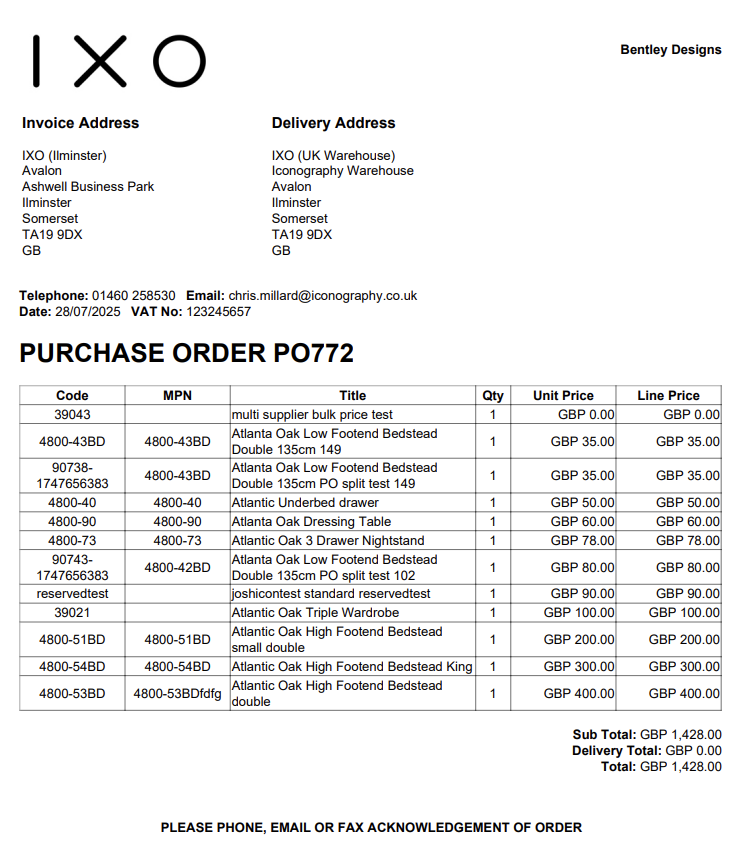](https://bookstack.iconography.co.uk/uploads/images/gallery/2025-10/rhYimage.png) ### Print Product Labels This will print Product Labels for items on the Purchase Order. It is possible to print labels with or without prices.If a Purchase Order has not yet received any stock, this will print labels for all Purchase Order Lines using logic available [here](https://bookstack.iconography.co.uk/books/general/page/label-printing)
If a Purchase Order has received stock, an option is given to print all, or just received lines using logic available [here](https://bookstack.iconography.co.uk/books/general/page/label-printing)
### Print Warehouse Labels This will print Warehouse Labels for items on the Purchase Order.If a Purchase Order has not yet received any stock, this will print labels for all Purchase Order Lines using logic available [here](https://bookstack.iconography.co.uk/books/general/page/label-printing)
If a Purchase Order has received stock, an option is given to print all, or just received lines using logic available [here](https://bookstack.iconography.co.uk/books/general/page/label-printing)
# Purchase Order Notes [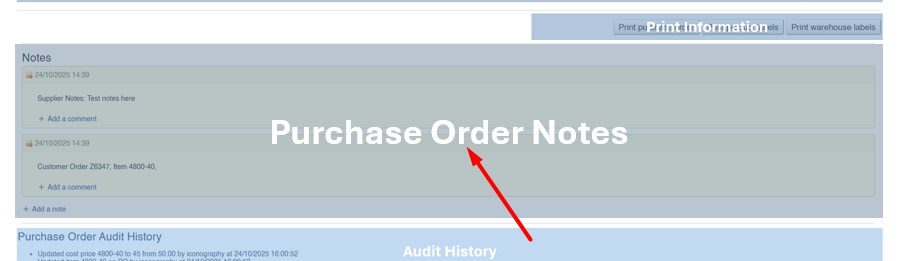](https://bookstack.iconography.co.uk/uploads/images/gallery/2025-10/JjRimage.png) A user may add notes to a Purchase Order here. Use the controls to [add a note or a task](https://bookstack.iconography.co.uk/books/general/page/adding-notes-and-tasks "Adding Notes and Tasks"). #### Supplier Notes Anything entered in the 'Supplier Notes' field against the Supplier will be copied into a Purchase Order note whenever a Purchase Order is created. This information will not change if the 'Supplier Notes' are updated in the future. [](https://bookstack.iconography.co.uk/uploads/images/gallery/2025-10/qSRimage.png) #### Sales Order Notes If a Purchase Order Line is created from the [Sales Order](https://bookstack.iconography.co.uk/books/sales-orders "Sales Orders") detail page, or from [Required Orders](https://bookstack.iconography.co.uk/books/required-orders "Required Orders"), a note will be added to the Sales Order with more information. [](https://bookstack.iconography.co.uk/uploads/images/gallery/2025-10/8WOimage.png) # Audit History [](https://bookstack.iconography.co.uk/uploads/images/gallery/2025-10/st1image.png) The audit history shows a log of all actions taken on a Purchase Order, along with a timestamp and who took the action.