Sales Orders (Detail)
- Summary
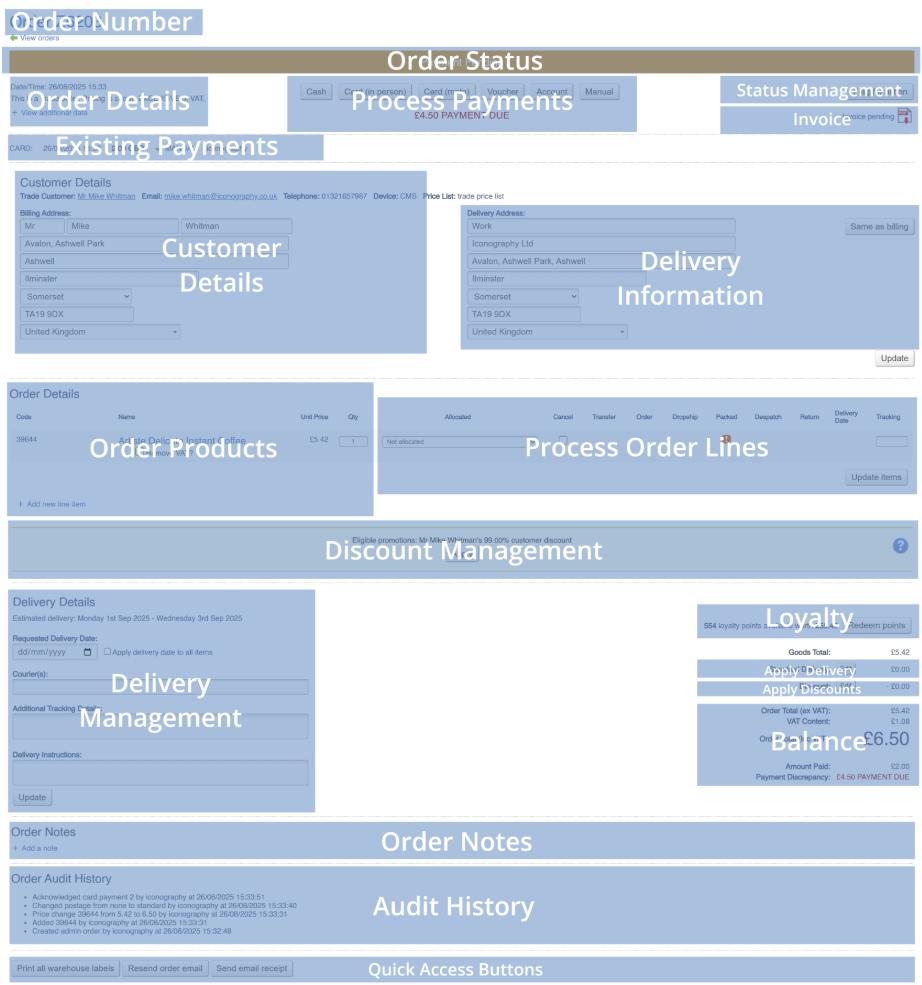
- Order Number
- Order Status
- Order Details
- Process Payments
- Status Management
- Invoice
- Existing Payments
- Customer Details
- Delivery Information
- Order Products
- Process Order Lines
- Discount Management
- Delivery Management
- Loyalty
- Apply Delivery
- Apply Discounts
- Balance
- Order Notes
- Audit History
- Quick Access Buttons
- FAQs
Summary
The Sales Order Detail page displays all of the information relevant to the Sales Order, allows the user to process it, add notes, manage payments, etc.
Page Breakdown
This is one of the most complex pages within IXO Commerce. Below is a breakdown of the key sections.
FAQs
Is it possible to cancel a payment, e.g. if a user has entered it incorrectly, or in error?
A Superuser can cancel a payment on the same day it was added to the system. See here for more information.
Order Number

The Sales Order number is a sequential number.
This is automated.
Order Status

The Order Status is set automatically based on a variety of things within the Sales Order.
These can be used to filter the list of Sales Orders.
A List of Statuses
These statuses have an impact on the function of the system. For example, it may be impossible to Pack or Despatch a Sales Order which is Payment Pending, or process a return for an Abandoned Sales Order.
| Status | Purpose |
|
Draft |
This implies that an order is still being created or edited and is not yet active. |
|
Payment Pending |
This flags an outstanding balance on an order. |
| Unallocated |
This flags that no stock has yet been allocated to the Sales Order
Unallocated orders may be auto-allocated, and will appear on the Required Orders screen |
| On Order | This will be set if at least on line on the Sales Order is allocated to an active Purchase Order |
| On Transfer | This will be set if at least on line on the Sales Order is allocated to an active Stock Transfer |
| Awaiting Packing | Set if all items are allocated to Stock Locations with free stock, which are also enabled for fulfilment |
| Awaiting Despatch | Set if all items are marked as Packed |
| Awaiting Collection | Set if all items are marked as Packed and the delivery type is 'Collect' |
| Partially Despatched | Set if at least one order line has been marked as Despatched |
| Partially Collected | Set if at least one order line has been marked as Collected |
| Completed |
Set if all order lines have been marked as Despatched/Collected, and there is no outstanding payment
May be overridden by Awaiting Action |
| Awaiting Action |
This will be set if there is a problem with the Sale Order
Some potential reasons include (but are not limited to):
It may be set and must be cleared manually |
| Refund Pending |
Set if a refund needs to be paid to the customer |
| Returned | Set if all line items have been Returned |
| Partially Returned | Set if at least one line item has been Returned |
| Cancelled |
Set if all lines have been Cancelled prior to delivery
Alternatively, set if an eCommerce customer clicks 'pay', and then actively choose to cancel within the payment gateway; in this instance, a cancelled payment will be logged against the Sales Order |
| Abandoned |
An Abandoned Sales Order is created when the eCommerce customer clicks 'pay', but fails to complete payment within the payment gateway |
| Quote | Created by a User within IXO Commerce, typically within the POS |
Occasionally it may be possible for a Sales Order to fall into multiple statuses (e.g. one order line is On Order and another is On Transfer); because each Sales Order can only have a single status, IXO Commerce will prioritise the most important.
Order Details

This section shows key information about the Sales Order, including:
| Field | Purpose |
| Date/Time | Date and time the Sales Order was created |
| Order Type | Retail or Trade |
| VAT Type |
How VAT should be applied to pricing (inclusive/exclusive) |
| Source |
Sources include:
There could be multiple Stores and Marketplaces
|
| Store | The selling store (if applicable) |
| Created by | The User who created the order (if applicable) |
| Campaign Code | Marketing campaign code; this may be set manually in the POS, or automatically from Google Ads campaigns for eCommerce Sales Orders |
| Mark as High Priority | Use this to prioritise this Sales Order in Stock Allocation from Purchase Orders |
| Mark as acknowledged |
This will show whether a third party system has acknowledged the Sales Order; uncheck this to return the Sales Order to the feed
Only required for third party integrations |
| Order Margin | This displays the Sales Order margin (if known) |
Process Payments

Use this section to add Payments to the Sales Order.
Available Payment Types will be visible here.
If you need to finalise a PENDING payment, you will need to manage Existing Payments
How to Add a Payment
Different payment types may have different payment flows, up to and include virtual terminals
1. Select the payment that you wish to add, and click the relevant button

2. Confirm payment amount (defaults to full amount)
3. For the 'Manual' payment , choose a payment type from the drop down

4. Enter a reference if required (this will be automated for some payment types)

5. Click to acknowledge or confirm payment
Status Management

Status management may be used to adjust the status of a Sales Order. It's use is limited as most statuses are automated based on various factors.
Possible Actions
| Field | Purpose |
| Convert to Order |
This will change the status of the Sales Order to Payment Pending
It is possible to use this to create a Sales Order without any payment
This button will only appear on Sales Orders with the Draft and Quote statuses |
| Convert to Quote |
This will change the status of the Sales Order to Quote
This will created a quote reference, but will not automatically email the customer with the Retrieve a Quote email; to send this, use the Quick Access Buttons
This button will only appear on Sales Orders with the Draft and Abandoned statuses |
| Flag for Action |
This will change the order status to Awaiting Action
This button is always visible |
Invoice
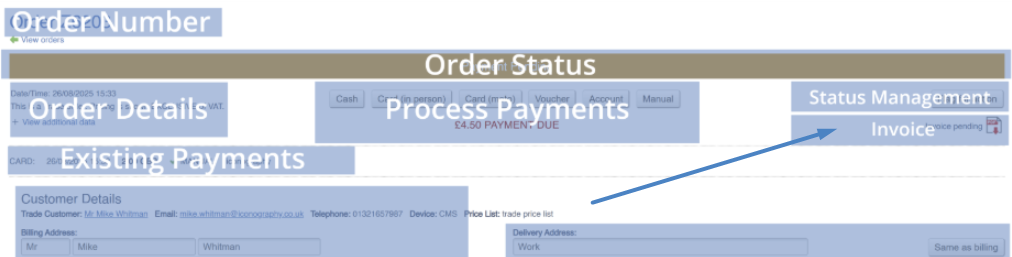
The invoice section allows you to review paperwork for the Sales Order.
If the document has previously been downloaded, it will be labelled as such
Although on Sales Orders with the status Quote, this will read 'Quote Pending', the document is almost identical
Existing Payments
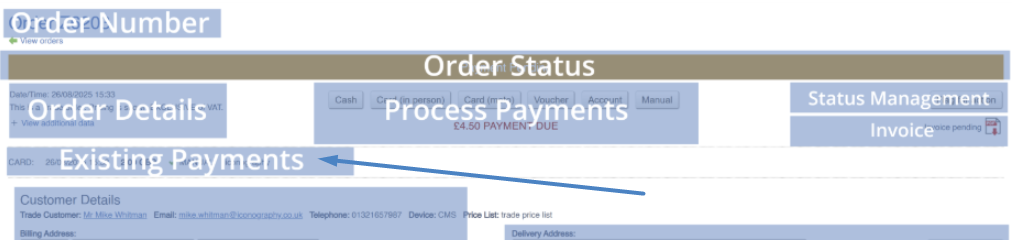
A list of existing payments will be shown here, along with any relevant information, including date/timestamps, payment methods and references.
PENDING Payments
Certain payment types (Finance and Other by default) require secondary confirmation; this is because it is expected that although the order is 'paid', further action will be required to complete that payment. This is intended as a flag for manual action outside of IXO Commerce, such as cooling of a finance agreement.
For the purposes of order processing, a Sales Order with a PENDING payment is considered to be paid.
Once the Sales Order has been delivered, its status will be set to Awaiting Action, and a message will be shown:

Use the controls to confirm or cancel finance; this will automatically reset the status.
Refunds
It may be possible to refund payments for certain payment types; this function is available for eCommerce payments processed via the Opayo Pi integration, for example.
Cancelling Payments
This should only be done to correct errors
Payments may be cancelled by superusers, but only on the same day that they were added. They may not be cancelled at a later date, as this would affect payment reporting, and may enable malicious activity.
In order to cancel a payment, the user must have superuser access rights, and the payment must either be a 'Manual' or 'Cash' payment. To cancel the payment, simply press the relevant button:
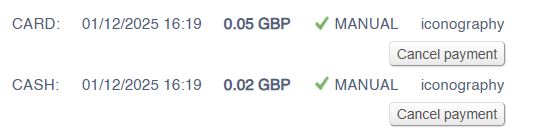
This will then alter the Sales Order:

The user is then free to add further payments as required.
Cancelled payments are discounted from all payment reporting
Customer Details
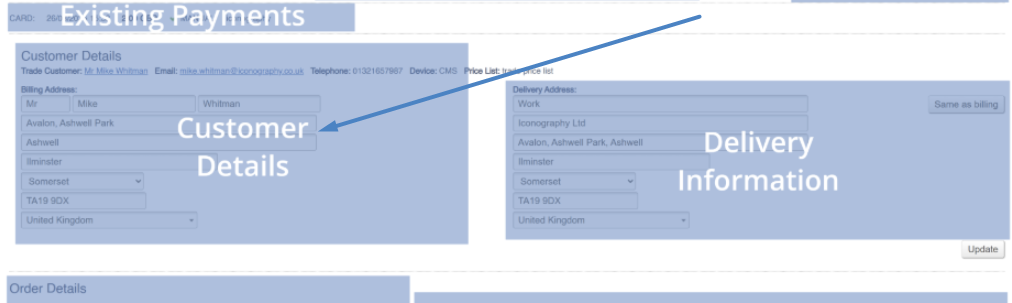
This section can be used to amend the customer details. Some details can only be edited as part of the Customer record.
Click on the customer name hyperlink to open the Customer record
Delivery Information
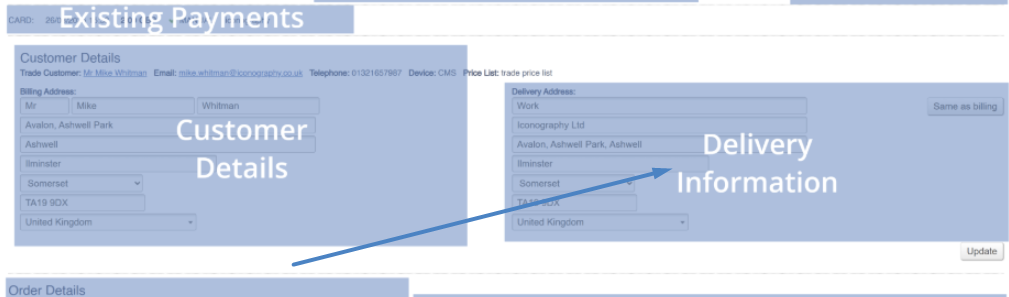
Edit delivery information here.
Same as billing
This will copy the billing address to the delivery address.
Collection Store
If the delivery type 'collect' has been selected for this order, you can select a Ccollection Store from the list.
A Store must be enabled for collection to appear in this list
Order Products
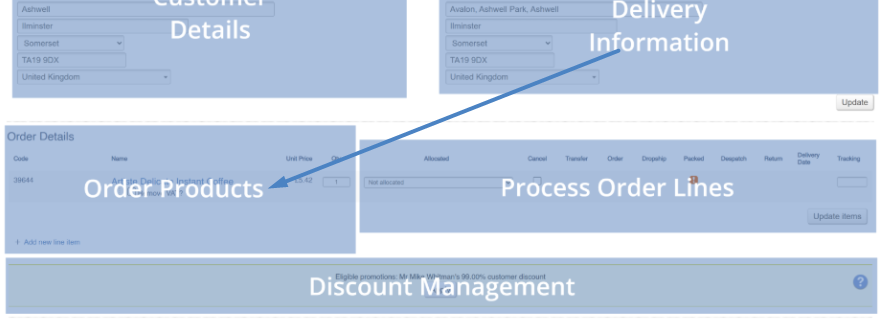
This section will show a list of Order Products, which are separated into individual Sales Order Lines.
Product Types
Different products will display differently, with different information.
Standard Products
These are products without Customisations.
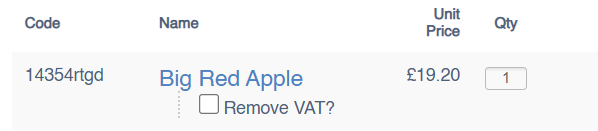
| Field | Purpose |
| Code | This is the SKU code of the Variant purchased |
| Name | This is the name of the Product purchased |
| Unit Price |
This is the price of the Product purchased
This will show additional detail if order level discounts have been applied, but not if a special offer price is active on the Variant sold |
| Quantity | The quantity of the Variant purchased by the Customer |
Made to Order Products
These are products with Customisations.
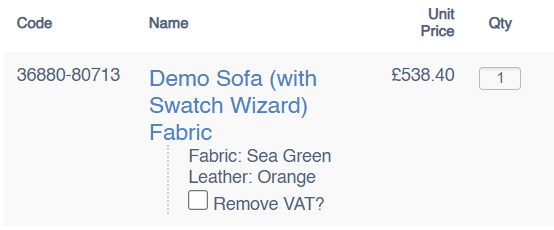
| Field | Purpose |
| Code | This is the SKU code of the Variant purchased |
| Name |
This is the name of the Product purchased
Customisations selected by the Customer are detailed below; these are shown in alphabetical order with additional custom options appended below the ones applied on the Customisation tab |
| Unit Price |
This is the price of the Product purchased
This will show additional detail if order level discounts have been applied, but not if a special offer price is active on the Variant sold |
| Quantity | The quantity of the Variant purchased by the Customer |
Bundle
These are products set up as Bundles.
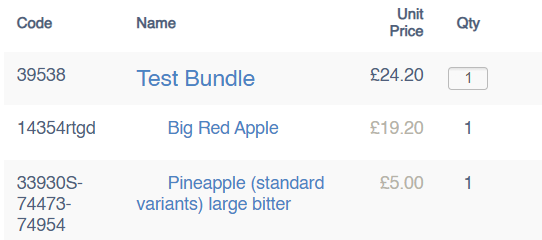
The contents of a Bundle are displayed below the parent Bundle product; for these, the price and quantity will be greyed out and locked. The prices are for reporting purposes only, designed to show an indicative value assigned to the Bundle components. The quantities are used for fulfilment and stock reservation, as each component may be processed individually.
| Field | Purpose |
| Code | This is the SKU code of the Variant purchased |
| Name | This is the name of the Product purchased |
| Unit Price |
This is the price of the Product purchased
This will show additional detail if order level discounts have been applied, but not if a special offer price is active on the Variant sold |
| Quantity | The quantity of the Variant purchased by the Customer |
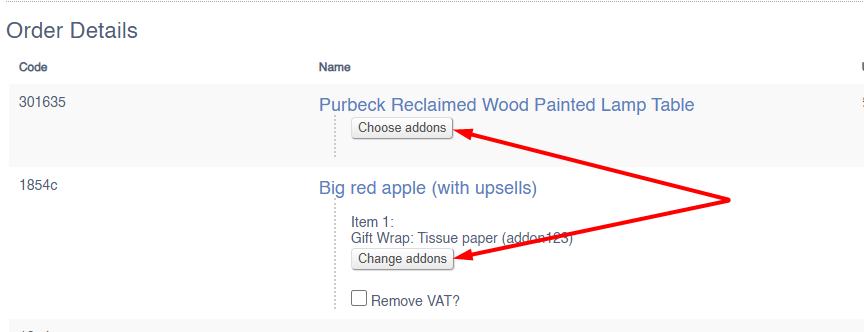
Addons
These are shown below linked Sales Order Lines.
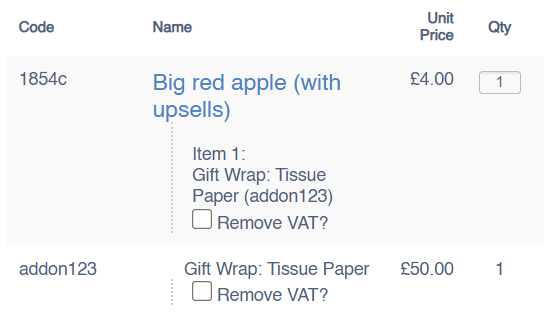
Addons will be displayed on linked items, as well as on their own line; this is to clearly show which Sales Order Lines are linked to which Addons.
| Field | Purpose |
| Code | This is the SKU code of the Addonpurchased |
| Name | This is the name of the Addon purchased |
| Unit Price |
This is the price of the Addon purchased
This will show additional detail if order level discounts have been applied, but not if a special offer price is active on the Variant sold |
| Quantity | The quantity of the Addon will always be '1' |
Voucher
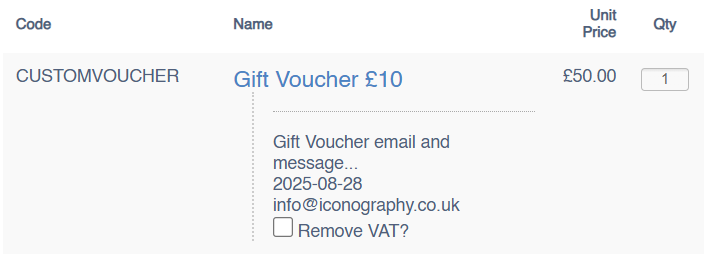
Vouchers are automatically despatched when the order is paid in full.
| Field | Purpose |
| Code | This is the SKU code of the Variant purchased |
| Name | This is the name of the Product purchased |
| Unit Price |
This is the price of the Voucher, either as per the Variant selected, or as per a customer amount for this Sales Order
Additional information will also show on the Sales Order Line:
|
| Quantity | The quantity of the Variant purchased by the Customer |
Booking
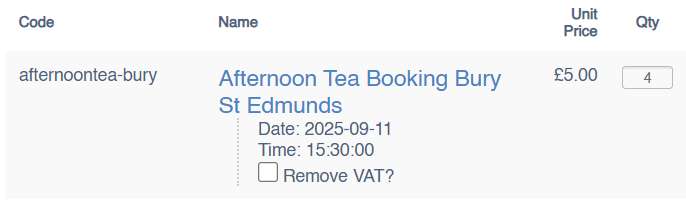
| Field | Purpose |
| Code | This is the SKU code of the Variant purchased |
| Name | This is the name of the Product purchased |
| Unit Price |
This is the price of the Variant purchased
Additional information will also show on the Sales Order Line:
This will show additional detail if order level discounts have been applied, but not if a special offer price is active on the Variant sold |
| Quantity | The quantity of the Variant purchased by the Customer |
Other Actions
Adding a new line item
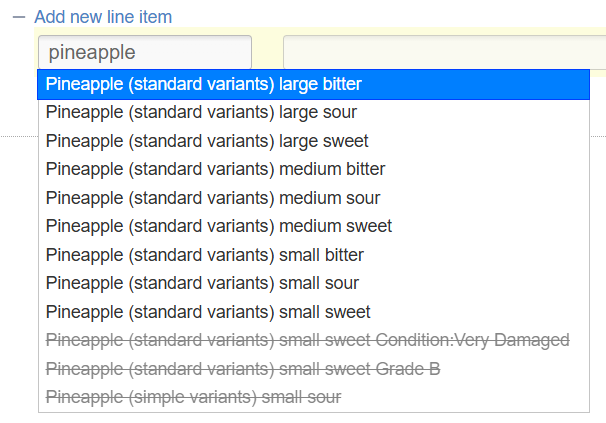
You can either search for an existing product or add a custom product to a Sales Order
Existing Product
Search for an existing Product by Name or by Code; you will then be able to make your selection from a list.
Custom Product
Simply enter a custom SKU Code which doesn't match anything within your product database. Then add a name and price as required.
Changing quantity ordered
It is only possible to amend the quantity on a Sales Order Line on the day that it was added to the Sales Order. This is to preserve the integrity of reporting.
Removing VAT
Use the tick box to remove VAT from a product.
A VAT Exemption Form may be added from the Quick Access Buttons
Delete Cancelled Lines
These Sales Order Lines are not deleted from the system, and are retained for reporting purposes.
Change/Choose Addons
Create RMA
Use this option to create an RMA (return merchandise authorisation) to formally process a return.
Process Order Lines
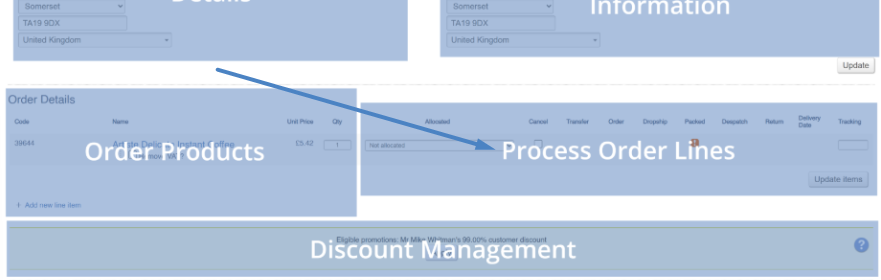
This section is used to manage Sales Order Lines. Actions taken here will affect the Order Status.
Actions
| Field | Purpose |
| Cancel |
Tick this to cancel the Sales Order Line; you will then be prompted or additional information
If you partially cancel a line, this will split the line into two
This will only be possible prior to the item being delivered
Cancelling all or part of a line will also remove all associated discounts applied at line level; sales order level discounts will not be deleted |
| Transfer |
Initiate a Transfer
This will allow you to initiate a Transfer from the allocated Store and Location to one of your choosing
This will only display if the allocated Store has 'Enable for web sales fulfilment?' set to 'no' |
| Order |
Create a back to back Purchase Order for this Sales Order line
Ticking this will create a new Purchase Order Line, either as part of an existing Purchase Order, or as a new Purchase Order, depending on whether you have set the Supplier to 'collate purchase orders'
This will only display if the Product is linked to a Supplier enabled for Purchase Orders |
| Dropship |
Create a drop ship Purchase Order for this Sales Order line
Ticking this will create a new Purchase Order for delivery to the Customer's delivery address
This will only display if the Product is linked to a Supplier enabled for Dropship AND the Sales Order has Delivery applied |
| Packed |
Tick this to pack the Sales Order Line
You will be prompted to confirm the quantity to pack |
| Despatch |
Tick this to despatch the Sales Order Line
You will be prompted to confirm the quantity to despatch; this will default to the number of items which have been packed
If you partially despatch a line, this will split the line into two |
| Return |
Tick this to return the Sales Order Line; you will then be prompted or additional information
This will only be possible after the item has been delivered
If you partially return a line, this will split the line into two |
| Delivery Date |
This will show the requested delivery date, if there is one
This will be overwritten by the actual delivery date for the Sales Order Line once it is marked as despatched |
| Expected Goods In Date |
This will show below the requested delivery date
This will only show if the Sales Order Line is allocated to a Purchase Order |
| Tracking |
Use this to record line specific tracking information
This will be sent to the customer
For order level tracking information, use the Delivery Management section |
Discount Management
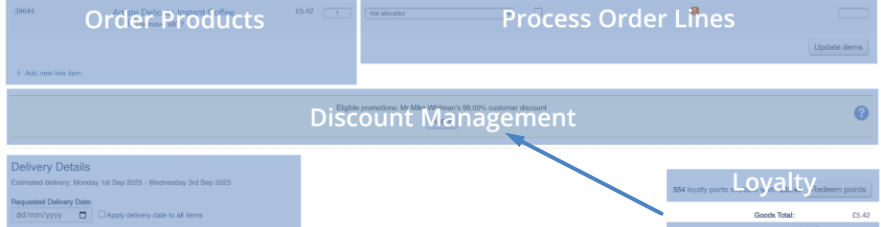
Promotions and manual discounts are displayed and can be managed in this section.
Discounts will be displayed here only if they have been applied
Promotions which are live for all customers, e.g. unconditionally, can not be removed.
Delivery Management
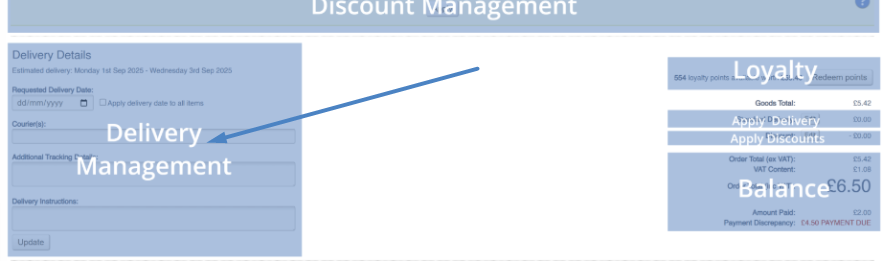
Use this to add delivery details to a Sales Order
| Field | Purpose |
| Book Delivery |
This will open a pop up to Schedule the Sales Order for delivery
See Scheduling for more information |
| Requested Delivery Date | Input a requested delivery date This is set at a Sales Order level here, but can also be edited per Sales Order Line |
| Apply delivery date to all items | Tick to show the requested delivery date against individual Sales Order Lines |
| Courier(s) |
Enter couriers used for the Sales Order
This will be sent to the customer
This may be auto-filled by certain integrations |
| Additional Tracking Detail |
Enter tracking numbers used for the Sales Order
This will be sent to the customer
This may be auto-filled by certain integrations |
| Delivery Instructions |
Use this to amend Delivery Instructions
These will be output on Sales Order Invoices and Delivery Notes |
FAQs
How do the different delivery dates, estimated dates and estimated arrival dates combine on a Sales Order?
The estimated delivery date within the Delivery Management section is an estimate at Sales Order level. It is based on the lead time of the items, and will automatically update as linked Purchase Orders are managed.
It will always show the date that is furthest away.
Loyalty

This section displays the loyalty points accrued by the customer, their monetary worth, and invites the user to apply that balance to the current Sales Order.
Apply Delivery
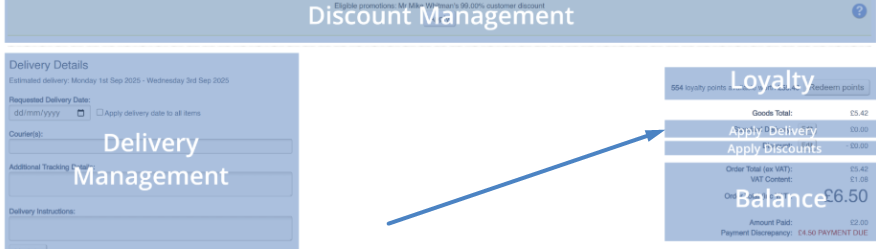
Use the controls in this section to add or change the delivery type associated with a Sales Order.
If a delivery type has been added, you will need to configure a delivery address within the Delivery Information section
If you select 'Collect' you will also need to select a Collection location (this is visible within the Delivery Information section)
Apply Discounts
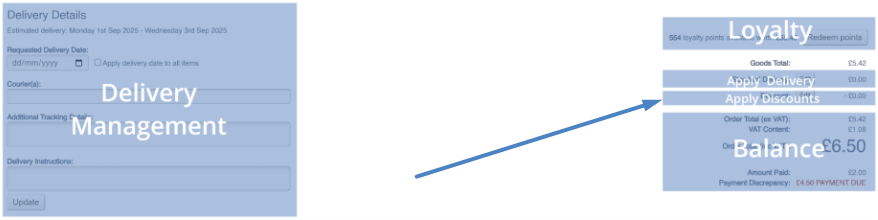
Promo Code
Enter a valid promo code to apply the relevant discount.
Custom Discount
| Field | Purpose |
| Reason |
Select a reason from the list
This is reported on in the Discount Report
The list is controllable via Site Settings |
| Apply to |
Choose from:
|
| Discount Mode |
Choose from:
|
| Value | Enter the value for the corresponding Discount Mode, e.g. 12% or £100 |
| Auth |
Enter an Authorisation Pin to approve the Custom Discount
Only Superusers will have an Authorisation Pin
Controllable via Update Users |
Balance
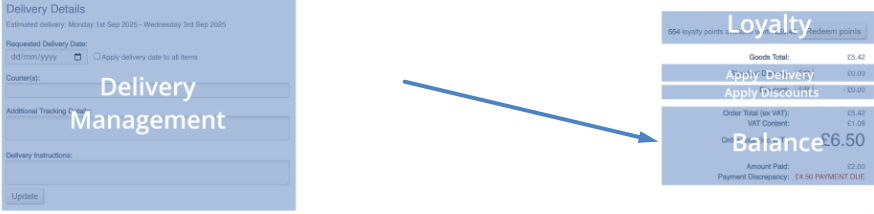
This will show a complete breakdown of the Sales Order VAT content, with additional detail on the total amount paid, as well as any Payment Discrepancy.
Order Notes
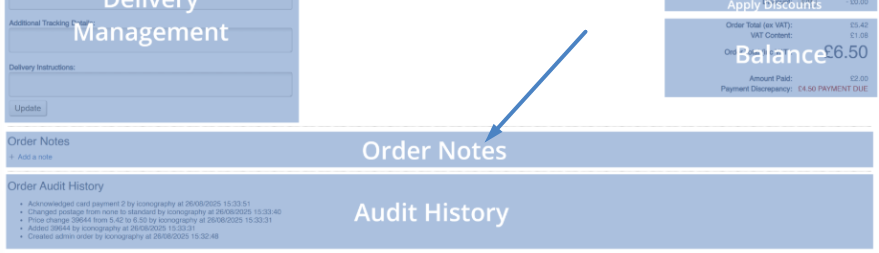
A user may add notes to a Sales Order here.
Use the controls to add a note or a task.
Email to customer
If toggled, this will email the note to the customer, along with any attachments.
Audit History
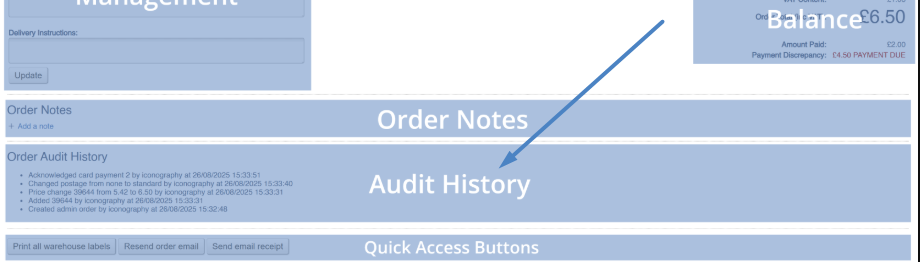
The audit history shows a log of all actions taken on a Sales Order, along with a timestamp and who took the action.
Quick Access Buttons

Found at the bottom of the page, these buttons allow you to take various quick actions regarding the order:
| Button | Purpose |
|
Print all warehouse labels |
Print Warehouse labels for Sales Order Lines
The print labels button will print out all active sales order lines, e.g. those lines where the allocation drop down is visible
This may print many labels, as it will print one for each unit required to fulfil the Sales Order |
| (Re)Send order email | Sends the Sales Order confirmation email |
| (Re)Send quote email | Sends the Quote email |
| (Re)Send email receipt |
Sends an email receipt for Store orders
If no email has been entered against the customer, an input box will display here |
| (Re)Send despatch email | Sends despatch notification |
| Create VAT Exemption Form |
Use this to create a VAT Exemption Form for the Sales Order
Will only show if VAT has been removed from a Sales Order Line |
| (Re)Send Collection Email |
This will send the customer an email telling them that their order is ready to collection
This will change the status of the Sales Order to Awaiting Collection |
FAQs
How can I find the profit margin on a Sales Order?
Look in the Order Details section of the Sales Order screen.
How can I add a payment to my Sales Order?
Use the Process Payments section of the Sales Order screen.
Can I edit the quantity on a Sales Order Line?
Yes, but only on the date that line was added to the Sales Order; this is an important restriction to prevent reporting errors.
To change the quantity, either Cancel the line, or add a new one for the same item.
Why can I remove the VAT on a Sales Order Line?
This is intended for use with Products that are not typically VAT exempt, but where a user may wish to remove the VAT on behalf of the customer.
Typically, this would be for mobility products, such as riser/recliner chairs, for customers with a disability.
Use the Order Products section to remove VAT from a Sales Order Line.
See also VAT Exemption Forms.
What does 'Stock allocation to resolve' mean?
This indicates that a Sales Order Line has been overallocated. See Stock Allocation for more information.