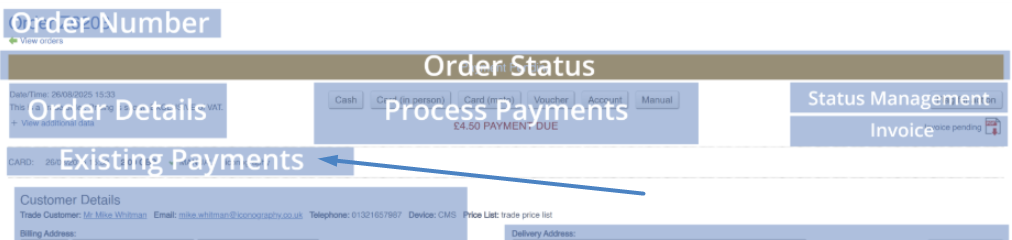
# Existing Payments
[](https://bookstack.iconography.co.uk/uploads/images/gallery/2025-08/twTimage.png)
A list of existing payments will be shown here, along with any relevant information, including date/timestamps, payment methods and references.
### PENDING Payments
Certain payment types (Finance and Other by default) require secondary confirmation; this is because it is expected that although the order is 'paid', further action will be required to complete that payment. This is intended as a flag for manual action outside of IXO Commerce, such as cooling of a finance agreement.
For the purposes of order processing, a Sales Order with a PENDING payment is considered to be paid.
Once the Sales Order has been delivered, its status will be set to Awaiting Action, and a message will be shown:
[](https://bookstack.iconography.co.uk/uploads/images/gallery/2025-08/pDEimage.png)
Use the controls to confirm or cancel finance; this will automatically reset the status.
### Refunds
It may be possible to refund payments for certain payment types; this function is available for eCommerce payments processed via the Opayo Pi integration, for example.
### Cancelling Payments
This should only be done to correct errors
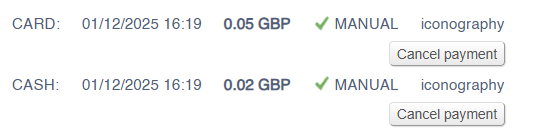
Payments may be cancelled by superusers, but only on the same day that they were added. They may not be cancelled at a later date, as this would affect payment reporting, and may enable malicious activity.
In order to cancel a payment, the user must have superuser access rights, and the payment must either be a 'Manual' or 'Cash' payment. To cancel the payment, simply press the relevant button:
[](https://bookstack.iconography.co.uk/uploads/images/gallery/2025-12/VS3image.png)
This will then alter the Sales Order:
[](https://bookstack.iconography.co.uk/uploads/images/gallery/2025-12/vCEimage.png)
The user is then free to add further payments as required.
Cancelled payments are discounted from all payment reporting