In the case of Stock Transfers, all items must be Scheduled simultaneously
[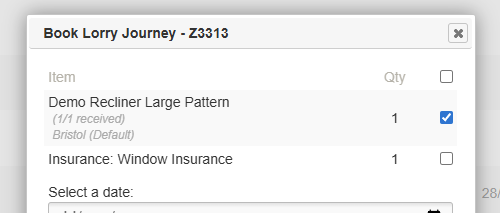](https://bookstack.iconography.co.uk/uploads/images/gallery/2025-12/yRFimage.png) #### 3. Select the date of delivery Choose the date you would like to use for delivery. It may be useful to have the Journey Planner open in a separate tab, as this will assist you when looking for availability. #### 4. Select a Lorry Select a Lorry Journey that is available on that specific date. Your selection will be restricted based on the Postage Zones which that [Lorry Journey](https://bookstack.iconography.co.uk/books/lorry-journeys "Lorry Journeys") includes.In the case of a Stock Transfer, the postcode of the destination Store will be used determine which Postage Zone is required
#### 5. Select a timeslot Select a timeslot for this delivery. This is optional.This will require timeslots being set up against the [Lorry Journey](https://bookstack.iconography.co.uk/books/lorry-journeys "Lorry Journeys")
#### 6. Confirm selection Click to confirm your selection. The booking will now appear on the Journey Planner.