Journey Planner
From this tab, you can:
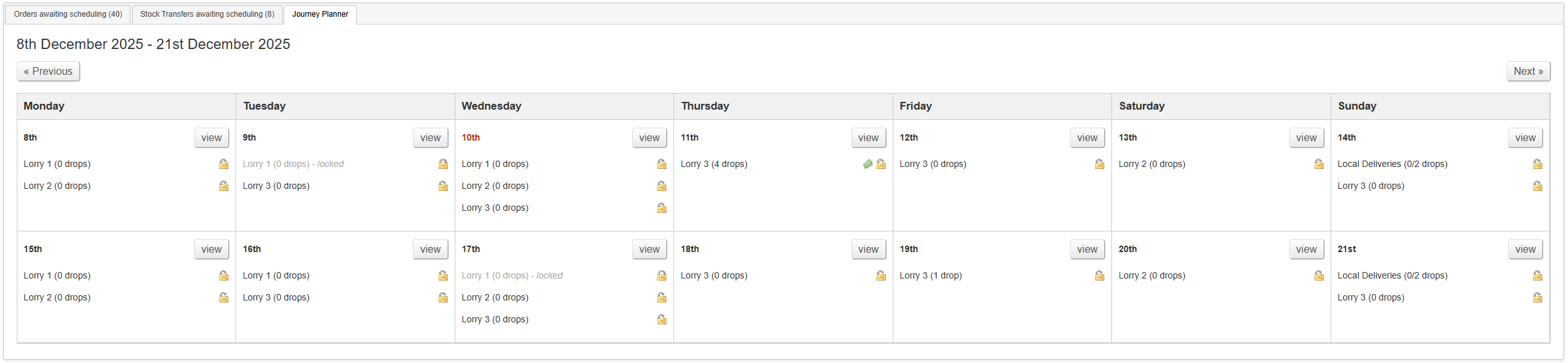
- view a summary of all booked deliveries and Lorry Journeys over a two week period
- lock and unlock Lorry Journeys
- review Lorry Journeys where a booked delivery has an outstanding balance
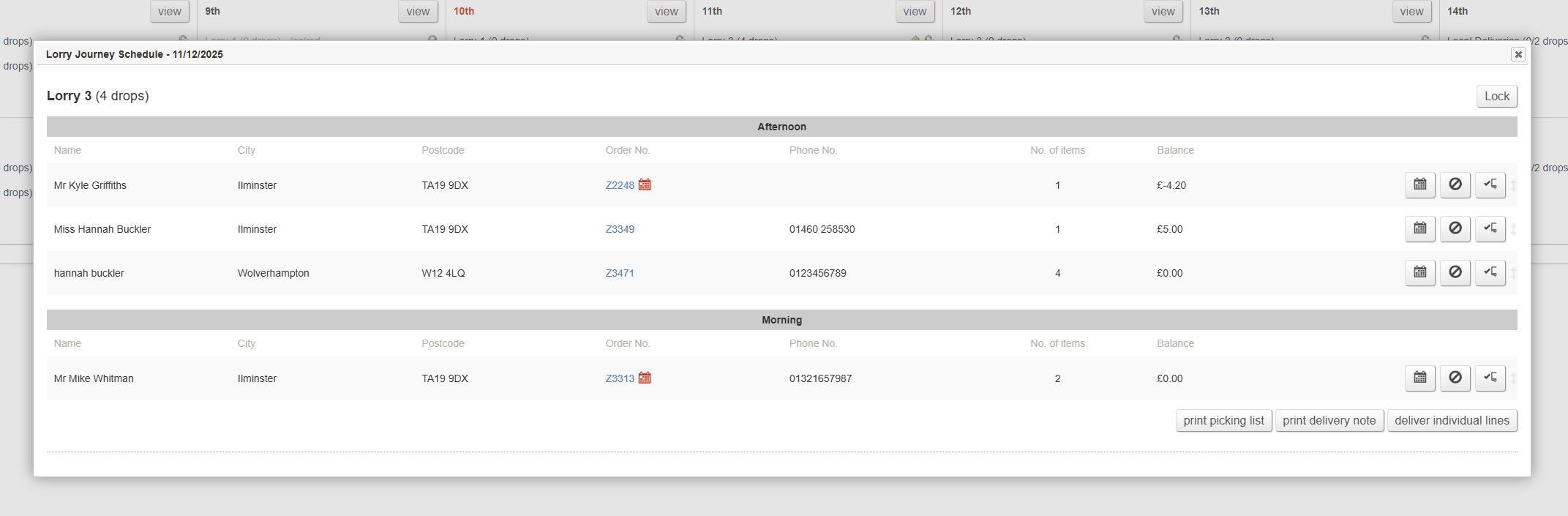
You can also click in to see a 'day view', which will provide a detailed view of all Lorry Journeys and scheduled deliveries for a given day. From this screen, you can:
- resequencing deliveries
- reschedule deliveries
- cancel deliveries
- mark deliveries as completed
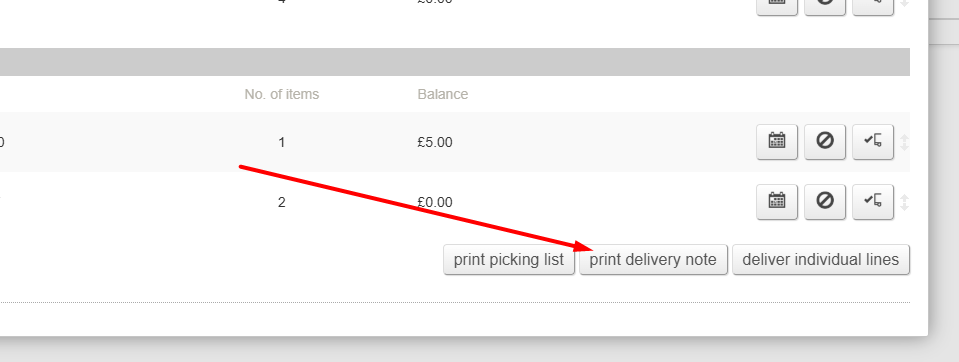
- print picking lists
- print delivery notes
- deliver individual lines
Key to icons
 = this Lorry Journey contains a booked delivery with an outstanding balance
 = this Lorry Journey is unlocked, e.g. it is possible to book deliveries onto it
 = this Lorry Journey is locked, e.g. it is not possible to book deliveries onto it
 = this Lorry Journey contains a Sales Order which is Awaiting Action
 = the scheduled date is different to the customer's requested delivery date
Summary View
This shows a fortnightly summary.
Detail View
To access this mode, click the 'view' button on the summary view; there is one per day.
Resequencing Deliveries
This should be done to confirm the route for your drivers; sequence the orders to match their route
To sequence deliveries, simply drag and drop them to change the order; this order will be reflected on the Picking Lists, and when printing the Delivery Note.
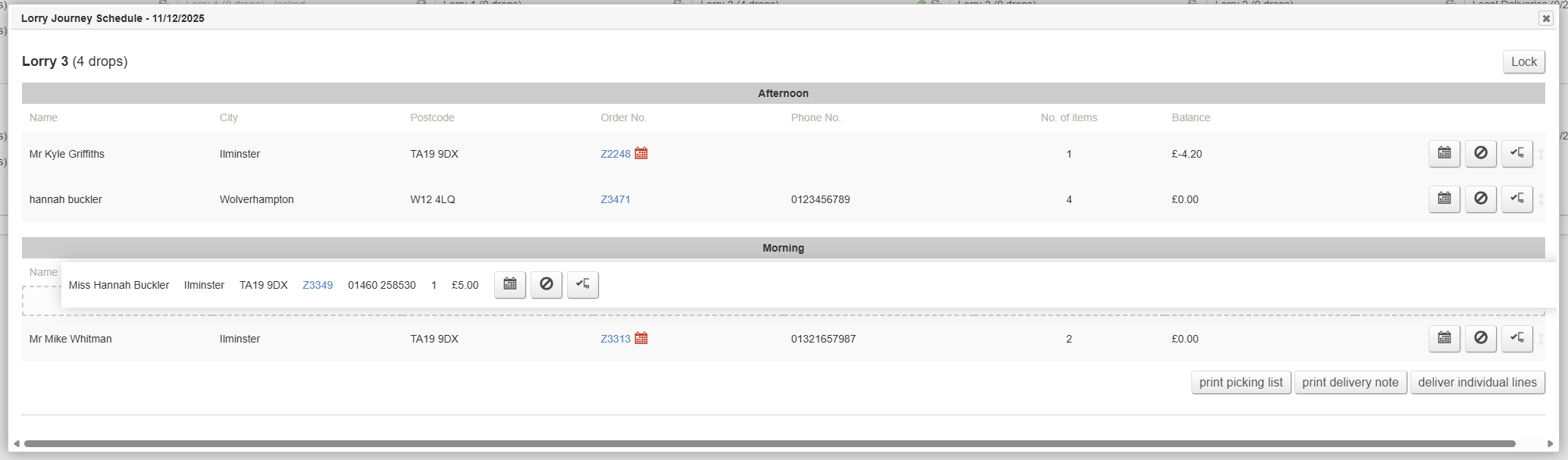
When doing this, it is possible to drag and drop a delivery between different Lorry Journeys on the same day.
Reschedule Deliveries
To reschedule a specific delivery, click the  icon.
icon.
Cancel Deliveries
To cancel a specific delivery, click the  icon.
icon.
Once cancelled, it will fall into the awaiting scheduling list.
Mark Deliveries as Completed
To mark a delivery as complete, click the  icon.
icon.
Print Picking Lists
From this screen you can print Picking Lists per Lorry Journey.
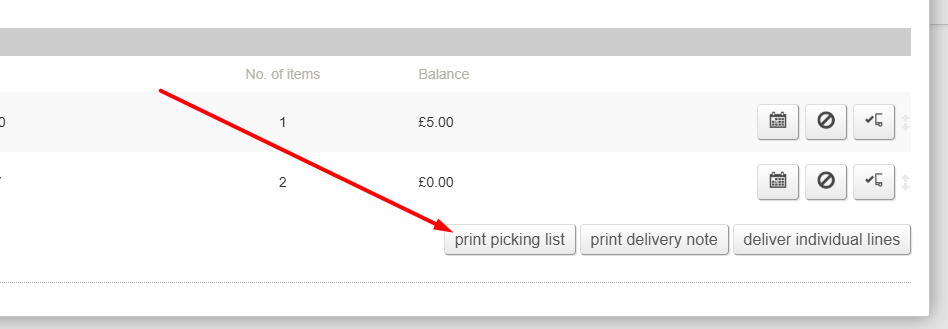
Print Delivery Notes
From this screen you can print Delivery Notes per Lorry Journey.
Deliver Individual Lines
You can also deliver individual lines. Use this to mark individual lines within a Sales Order as delivered.
This should be used if delivery was unsuccessful