# Journey Planner
From this tab, you can:
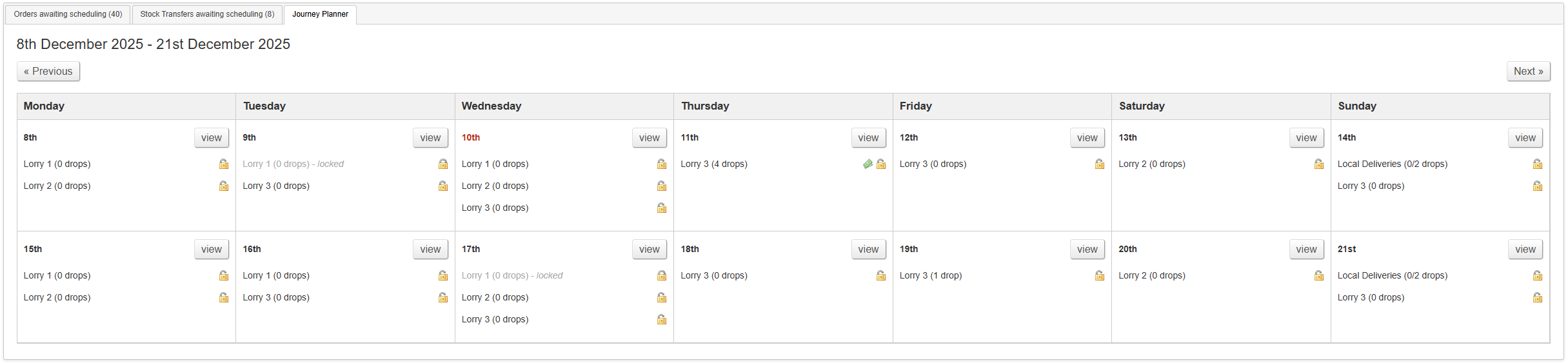
- view a summary of all booked deliveries and Lorry Journeys over a two week period
- lock and unlock Lorry Journeys
- review Lorry Journeys where a booked delivery has an outstanding balance
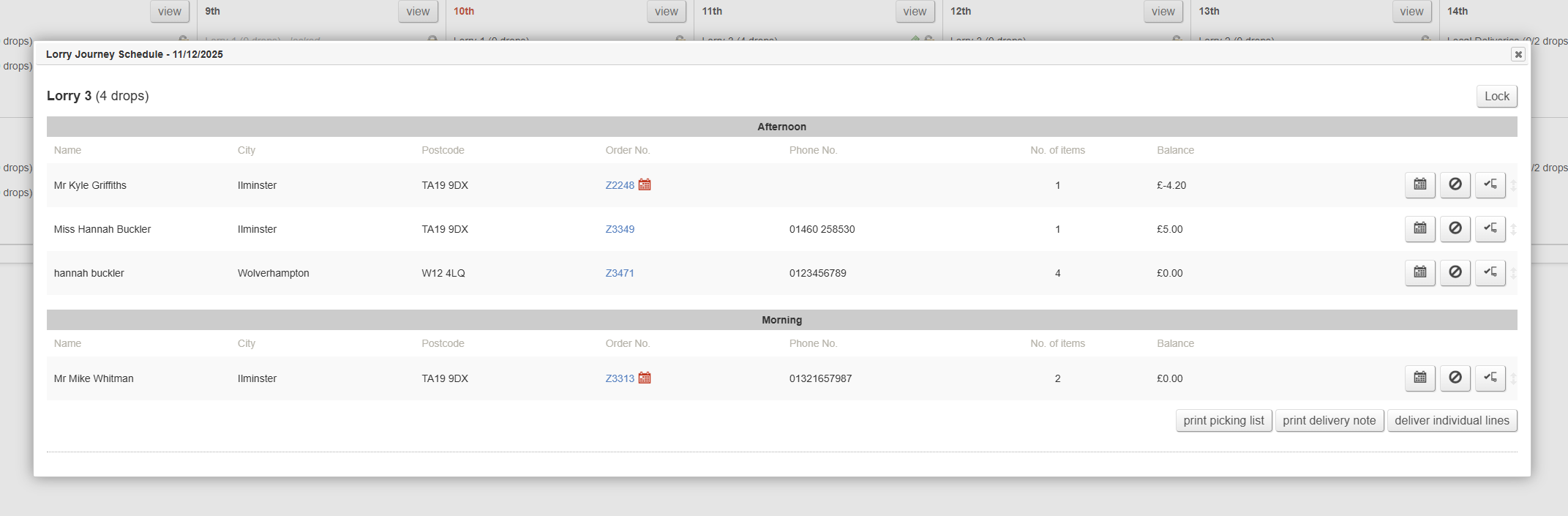
You can also click in to see a 'day view', which will provide a detailed view of all Lorry Journeys and scheduled deliveries for a given day. From this screen, you can:
- resequencing deliveries
- reschedule deliveries
- cancel deliveries
- mark deliveries as completed
- print picking lists
- print delivery notes
- deliver individual lines
#### Key to icons
 = this Lorry Journey contains a booked delivery with an outstanding balance
 = this Lorry Journey is unlocked, e.g. it is possible to book deliveries onto it
 = this Lorry Journey is locked, e.g. it is not possible to book deliveries onto it
[](https://bookstack.iconography.co.uk/uploads/images/gallery/2026-01/image.png) = this Lorry Journey contains a Sales Order which is Awaiting Action
 = the scheduled date is different to the customer's requested delivery date
## Summary View
This shows a fortnightly summary.
[](https://bookstack.iconography.co.uk/uploads/images/gallery/2025-12/3jximage.png)
## Detail View
To access this mode, click the 'view' button on the summary view; there is one per day.
[](https://bookstack.iconography.co.uk/uploads/images/gallery/2025-12/dffimage.png)
### Resequencing Deliveries
This should be done to confirm the route for your drivers; sequence the orders to match their route
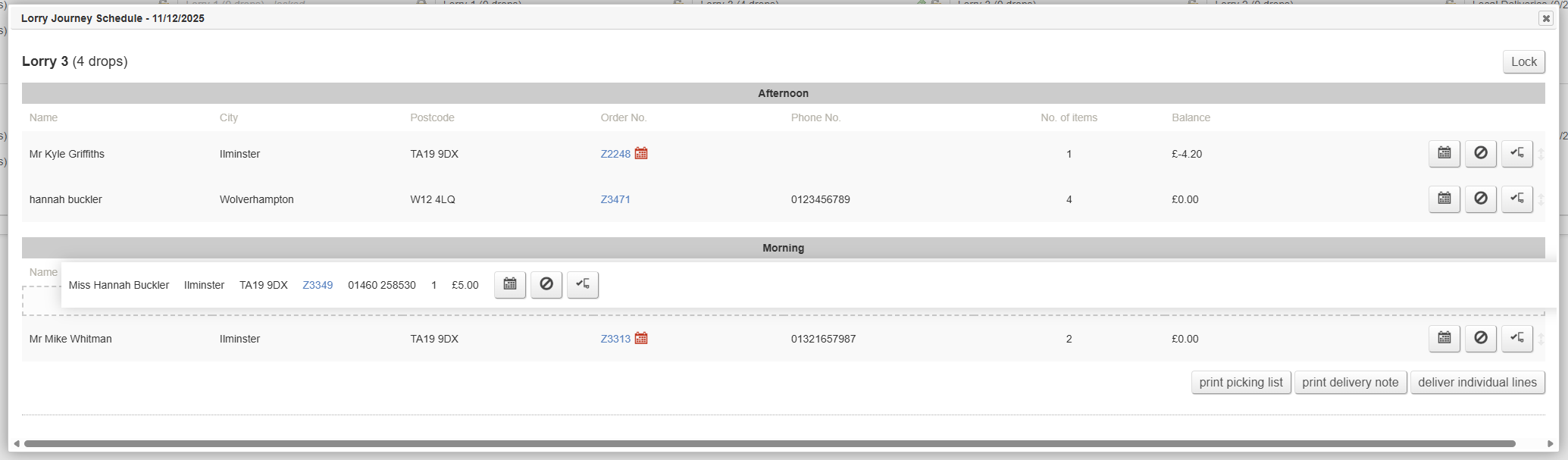
To sequence deliveries, simply drag and drop them to change the order; this order will be reflected on the Picking Lists, and when printing the Delivery Note.
[](https://bookstack.iconography.co.uk/uploads/images/gallery/2025-12/uXBimage.png)
When doing this, it is possible to drag and drop a delivery between different Lorry Journeys on the same day.
### Reschedule Deliveries
To reschedule a specific delivery, click the  icon.
### Cancel Deliveries
To cancel a specific delivery, click the  icon.
Once cancelled, it will fall into the awaiting scheduling list.
### Mark Deliveries as Completed
To mark a delivery as complete, click the  icon.
### Print Picking Lists
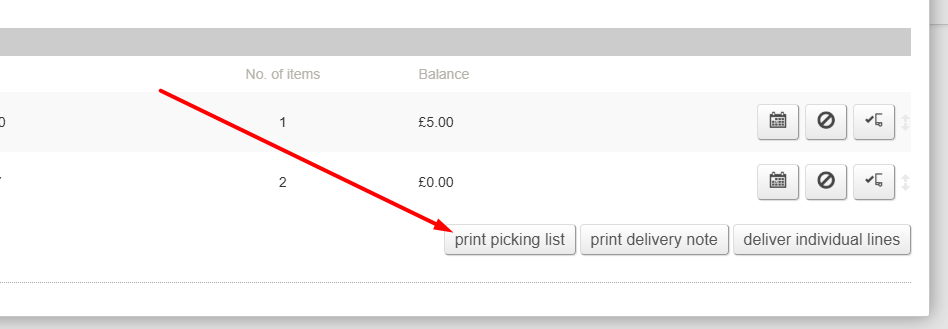
From this screen you can print [Picking Lists](https://bookstack.iconography.co.uk/books/general/page/picking-list "Picking List") per Lorry Journey.
[](https://bookstack.iconography.co.uk/uploads/images/gallery/2025-12/yPpimage.png)
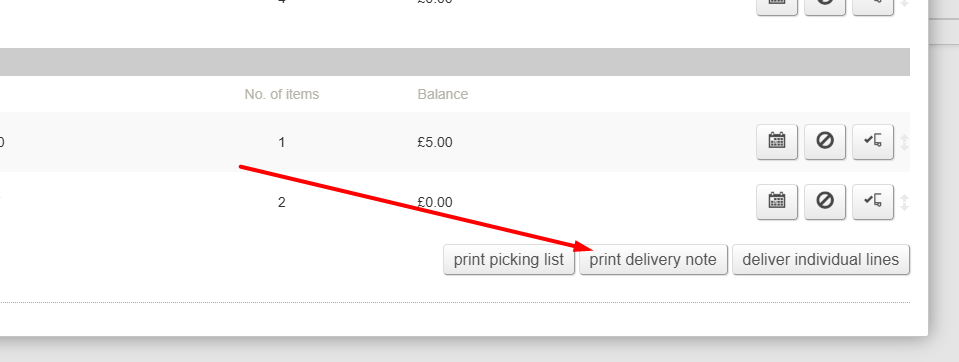
### Print Delivery Notes
From this screen you can print [Delivery Notes](https://bookstack.iconography.co.uk/books/general/page/delivery-notes "Delivery Notes") per Lorry Journey.
[](https://bookstack.iconography.co.uk/uploads/images/gallery/2025-12/zNDimage.png)
### Deliver Individual Lines
You can also deliver individual lines. Use this to mark individual lines within a Sales Order as delivered.
This should be used if delivery was unsuccessful