To use this section, you must have created [Lorry Journeys](https://bookstack.iconography.co.uk/books/lorry-journeys "Lorry Journeys")
It is also possible to Schedule a Sales Order from the [Sales Order Detail](https://bookstack.iconography.co.uk/books/sales-orders/page/delivery-management "Delivery Management") page
### Orders awaiting Scheduling This tab shows a list of Sales Orders which are awaiting scheduling. [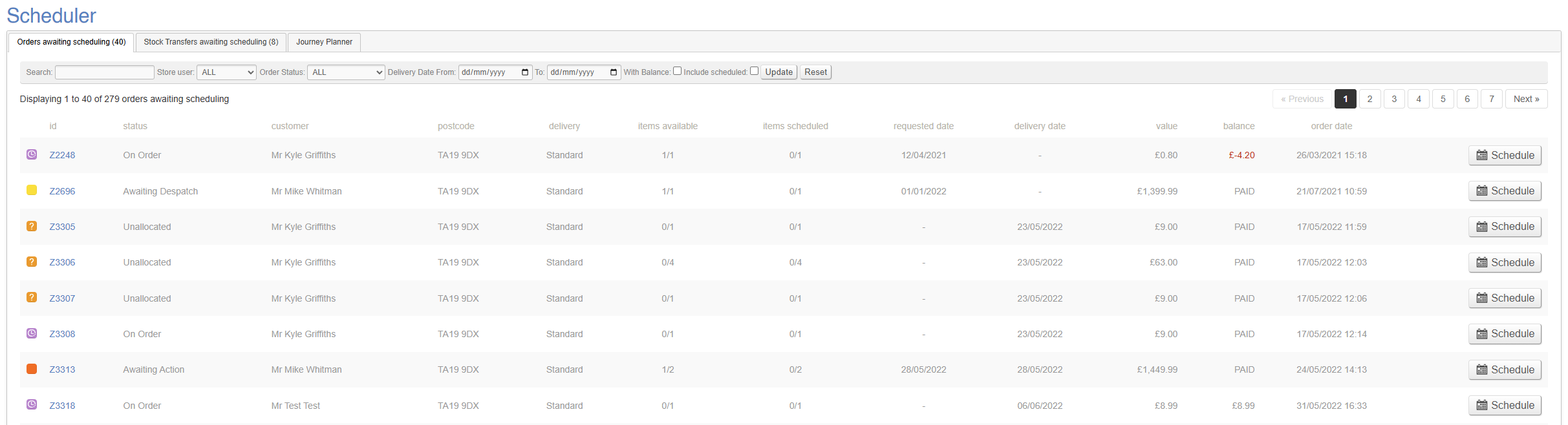](https://bookstack.iconography.co.uk/uploads/images/gallery/2025-12/Jumimage.png) #### Eligibility To be included in this list, a Sales Order must meet certain criteria: - It must be an Active Sales Order (e.g. have one or more lines which are not Cancelled/Returned/Delivered, and where the Sales Order is a valid order, e.g. not a Quote or an Abandoned order) - It must have a [Postage Type](https://bookstack.iconography.co.uk/books/postage/page/postage-types "Postage Types") which is marked as 'Available for Lorry Loader' #### Filters By default, this will show all eligible Sales Orders, but a user may apply various filters. This allows the user to search for a particular Sales Order, or to filter by: - Sales Store - Store User (sales person) - Order status (fully available/partially available/on order) - Delivery Date - With Balance - Include ScheduledIf you need to reschedule a Sales Order, be sure to tick the box for 'include scheduled'
#### Sales Order Information Most of this information is self explanatory, but more information is available below. ##### Items Available This column shows the total number of items ordered by the Customer, as well as the total number of items available in the business to fulfil the Sales Order. For example, if this shows as '2/7', that means that the Customer order seven items, but only two are available for immediate fulfilment.To show in the Order Status 'Fully Available' filter, it is necessary for al items to be available, e.g. this column should read '7/7'
##### Items Scheduled This column shows the total number of items scheduled from this Sales Order. For example, if this shows as '2/7', that means that only two out of the seven items the Customer has ordered have actually been Scheduled.It is possible to schedule multiple items from the same Sales Order across multiple dates and journeys
### Stock Transfers awaiting Scheduling This tab shows a list of Stock Transfers that require Scheduling. This is intended for use when companies use their own vehicles to complete inter branch transfers.This is an optional element of Stock Transfers; these can be managed solely via the Stock Transfer screen
[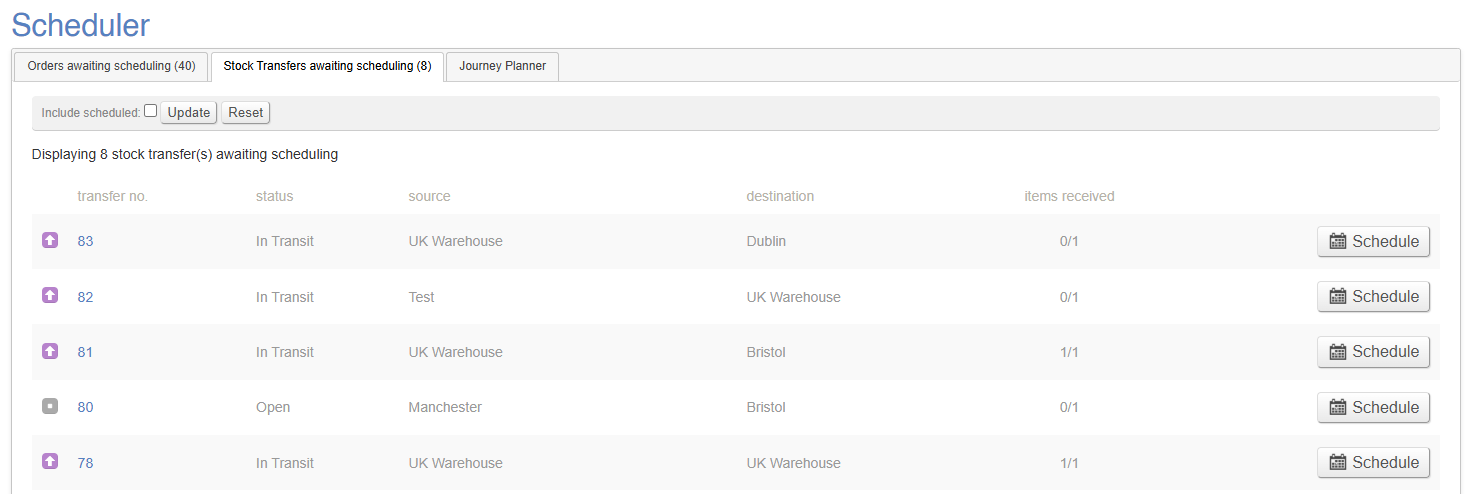](https://bookstack.iconography.co.uk/uploads/images/gallery/2025-12/jpOimage.png) A Stock Transfer may be Scheduled in the same way as a Sales Order. ### Journey Planner This tab shows you a summary of your Lorry Journeys over a calendar period; the default view is the current fortnight. [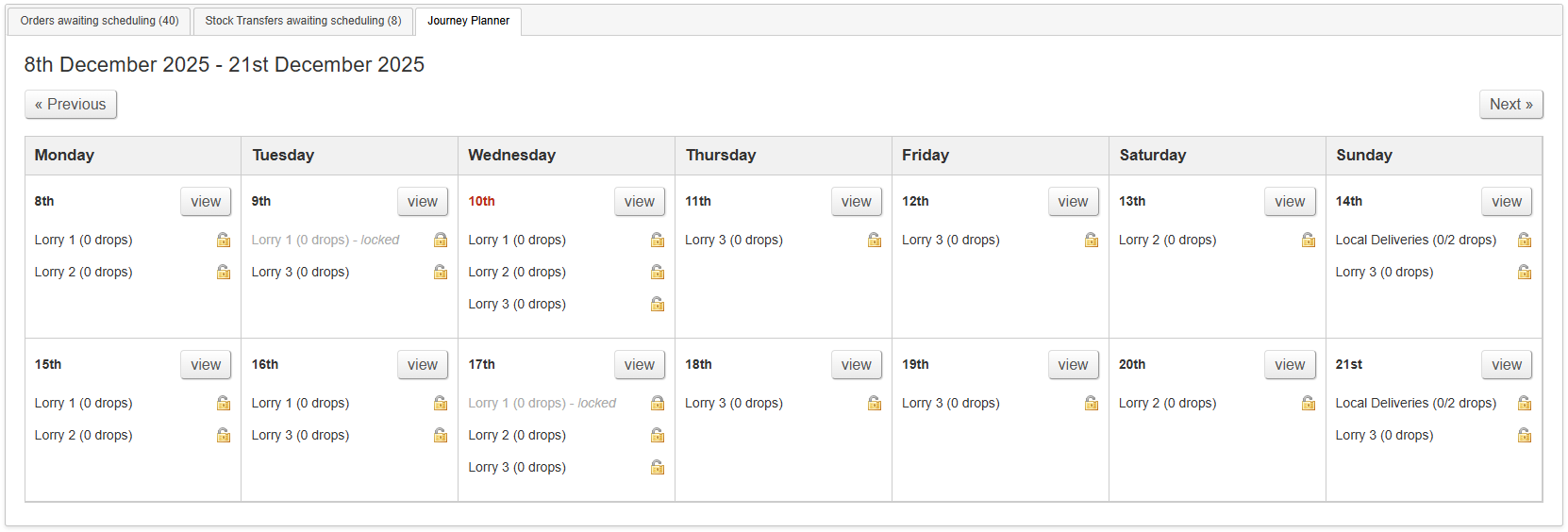](https://bookstack.iconography.co.uk/uploads/images/gallery/2025-12/rc7image.png) For more information on how this tab works, click [here](https://bookstack.iconography.co.uk/books/scheduling/page/journey-planner). From this screen, you can mark Sales Orders as Despatched.