# Stock Take

# Summary

This screen is used to complete a Stock Take within your system.

<p class="callout warning">If incorrectly handled, a Stock Take may have major impact on stock availability and the value of your Stock Holding.</p>

There are three ways to complete a Stock Take:

1. [Stock Take via a CSV](https://bookstack.iconography.co.uk/books/stock-take/page/stock-take-via-csv "Stock Take via CSV")
2. [Stock Take via a Barcode Scanner](https://bookstack.iconography.co.uk/books/stock-take/page/stock-take-via-barcode-scanner "Stock Take via Barcode Scanner")
3. [Stock Take via a Browser](https://bookstack.iconography.co.uk/books/stock-take/page/stock-take-in-browser "Stock Take in Browser")

### Best Practice

Ideally, all stock movement should be paused while the physical count is in progress. This action requires you to stop all inbound deliveries, outbound shipments, and internal stock transfers.

If continuous operation is unavoidable, please ensure that you implement exceptionally rigorous control measures for every single transaction (receipt or issue) that takes place during the count period.

### Hide Recently Committed

If checked, Stock Records have have been committed to a Stock Take within the last 30 days will be hidden from the list.

This will allow you to view only those lines which have not had a recent Stock Take.

<p class="callout info">Use this feature to quickly hide lines for which you have recently completed a Stock Take</p>

### Changed Since

Your system will track changes in stock figures since the start of a Stock Take. This is taken from when a stock figure is entered for a specific SKU in a specific location. If there are adjustments made after that to that location (e.g. despatch, transfers, goods in, etc.), the count will be automatically updated to take those into account.

### FAQs

#### Can I create new stock via a Stock Take?

Yes. If your count is larger than expected, [Orphan Stock](https://bookstack.iconography.co.uk/books/general/page/orphan-stock-and-stock-matching "Orphan Stock and Stock Matching") will be created. If you add a new SKU to a location within the Stock Take, Orphan Stock will be created.

Orphan Stock is stock that is not linked to a Purchase Order and is added based on the current Cost Price. More information on this is available [here](https://bookstack.iconography.co.uk/books/general/page/orphan-stock-and-stock-matching "Orphan Stock and Stock Matching").

#### Can I correct my Orphan Stock once I understand where it came from?

Yes - see the [Orphan Stock](https://bookstack.iconography.co.uk/books/general/page/orphan-stock-and-stock-matching "Orphan Stock and Stock Matching") page for more information.

#### What happens to items that are written off in a Stock Take? Is there a record of them?

Full details on changes within a Stock Take are found within the [Stock History](https://bookstack.iconography.co.uk/books/stock-reports/page/stock-history "Stock History") report.

A complete log (including values) of write-offs and overages may be found in the [Stock Discrepancy](https://bookstack.iconography.co.uk/books/stock-reports/page/stock-discrepancy "Stock Discrepancy") report.

### How do I know which items were checked recently?

If you use the 'hide recently committed' checkbox on the Stock Take screen, all Stock Records for which a stock take has been committed in the previous 30 days will be hidden.

# Stock Take via CSV

<p class="callout info">A full history of Stock Takes will be found within the [Stock History](https://bookstack.iconography.co.uk/books/stock-reports/page/stock-history "Stock History") report. </p>

<p class="callout info">There is a separate record of [Stock Discrepancies](https://bookstack.iconography.co.uk/books/stock-reports/page/stock-discrepancy "Stock Discrepancy").</p>

### Choose your Store and Location

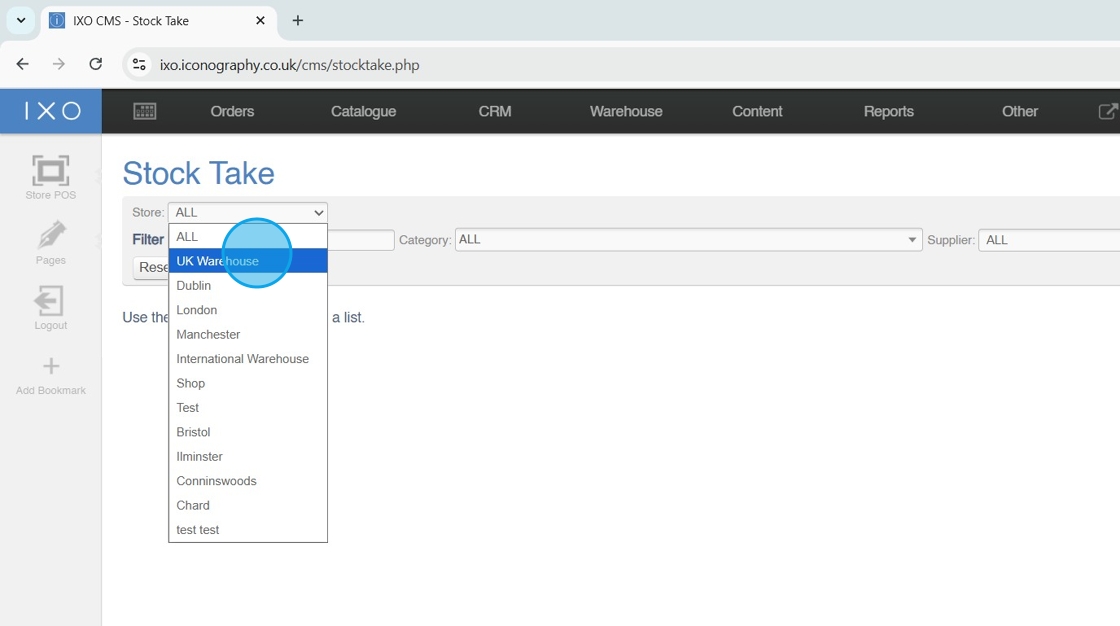
1\. Choose the Store to Stock Take
![](https://ajeuwbhvhr.cloudimg.io/https://colony-recorder.s3.amazonaws.com/files/2025-10-27/19783907-44d0-48d9-9417-8ea5fcf79821/ascreenshot.jpeg?tl_px=0,0&br_px=1376,769&force_format=jpeg&q=100&width=1120.0&wat=1&wat_opacity=1&wat_gravity=northwest&wat_url=https://colony-recorder.s3.amazonaws.com/images/watermarks/0EA5E9_standard.png&wat_pad=221,217)

Tip: Filtering by Store and Location is mandatory

2\. Choose the Location to Stock Take

![](https://ajeuwbhvhr.cloudimg.io/https://colony-recorder.s3.amazonaws.com/files/2025-10-27/8cc3b458-9f43-4c93-b66d-8ad4f39caedd/ascreenshot.jpeg?tl_px=0,142&br_px=1376,911&force_format=jpeg&q=100&width=1120.0&wat=1&wat_opacity=1&wat_gravity=northwest&wat_url=https://colony-recorder.s3.amazonaws.com/images/watermarks/0EA5E9_standard.png&wat_pad=484,277)

### Apply Other Filters

Tip: You can apply further filters to complete a Stock Take for a specific Category, Supplier, Brand or Collection

Alternatively, search for a specific Product to Stock Take

3\. Apply your filters

![](https://ajeuwbhvhr.cloudimg.io/https://colony-recorder.s3.amazonaws.com/files/2025-10-27/9fc1627c-8207-410b-80b9-a148f1f4cdd0/ascreenshot.jpeg?tl_px=544,272&br_px=1920,1041&force_format=jpeg&q=100&width=1120.0&wat=1&wat_opacity=1&wat_gravity=northwest&wat_url=https://colony-recorder.s3.amazonaws.com/images/watermarks/0EA5E9_standard.png&wat_pad=629,276)

### Export your file

4\. Click "Import / Export CSV"

![](https://ajeuwbhvhr.cloudimg.io/https://colony-recorder.s3.amazonaws.com/files/2025-10-27/f2eed06f-0b2d-46c1-8fb3-88615a8bea8c/ascreenshot.jpeg?tl_px=0,4&br_px=1376,773&force_format=jpeg&q=100&width=1120.0&wat=1&wat_opacity=1&wat_gravity=northwest&wat_url=https://colony-recorder.s3.amazonaws.com/images/watermarks/0EA5E9_standard.png&wat_pad=149,276)

5\. Click "download as csv"

![](https://ajeuwbhvhr.cloudimg.io/https://colony-recorder.s3.amazonaws.com/files/2025-10-27/4f0b0ff3-d5df-4cba-9b4e-b0e7a649ad38/ascreenshot.jpeg?tl_px=331,36&br_px=1708,805&force_format=jpeg&q=100&width=1120.0&wat=1&wat_opacity=1&wat_gravity=northwest&wat_url=https://colony-recorder.s3.amazonaws.com/images/watermarks/0EA5E9_standard.png&wat_pad=524,277)

### Update your spreadsheet

6\. Update quantities as required

![](https://ajeuwbhvhr.cloudimg.io/https://colony-recorder.s3.amazonaws.com/files/2025-10-27/f10e86a9-d44a-410a-b421-abdfb46e3021/ascreenshot.jpeg?tl_px=0,0&br_px=1376,769&force_format=jpeg&q=100&width=1120.0&wat=1&wat_opacity=1&wat_gravity=northwest&wat_url=https://colony-recorder.s3.amazonaws.com/images/watermarks/0EA5E9_standard.png&wat_pad=165,228)

Tip: Stock adjustments will require a reason; enter these in bulk in column G

7\. Enter new products/lines as required by adding the SKU Codes

In the case of USRs, enter the barcode (see below)

![](https://ajeuwbhvhr.cloudimg.io/https://colony-recorder.s3.amazonaws.com/files/2025-10-27/29cef491-7d3c-46e5-9c78-f17f64682070/ascreenshot.jpeg?tl_px=0,41&br_px=1376,810&force_format=jpeg&q=100&width=1120.0&wat=1&wat_opacity=1&wat_gravity=northwest&wat_url=https://colony-recorder.s3.amazonaws.com/images/watermarks/0EA5E9_standard.png&wat_pad=80,277)

### Upload your file

8\. Click to select your file

![](https://ajeuwbhvhr.cloudimg.io/https://colony-recorder.s3.amazonaws.com/files/2025-10-27/5201c03d-0057-4cfd-99ee-7b77744b3aba/ascreenshot.jpeg?tl_px=0,34&br_px=1376,803&force_format=jpeg&q=100&width=1120.0&wat=1&wat_opacity=1&wat_gravity=northwest&wat_url=https://colony-recorder.s3.amazonaws.com/images/watermarks/0EA5E9_standard.png&wat_pad=303,277)

9\. Click "upload file"

![](https://ajeuwbhvhr.cloudimg.io/https://colony-recorder.s3.amazonaws.com/files/2025-10-27/fccd55f6-c7ba-472c-8bc5-2d92b1f0e1f5/ascreenshot.jpeg?tl_px=119,42&br_px=1496,811&force_format=jpeg&q=100&width=1120.0&wat=1&wat_opacity=1&wat_gravity=northwest&wat_url=https://colony-recorder.s3.amazonaws.com/images/watermarks/0EA5E9_standard.png&wat_pad=524,277)

10\. Map fields and click "confirm import"

![](https://ajeuwbhvhr.cloudimg.io/https://colony-recorder.s3.amazonaws.com/files/2025-10-27/72a38aeb-c0bf-4180-8891-a360434ff8ea/ascreenshot.jpeg?tl_px=0,406&br_px=1376,1175&force_format=jpeg&q=100&width=1120.0&wat=1&wat_opacity=1&wat_gravity=northwest&wat_url=https://colony-recorder.s3.amazonaws.com/images/watermarks/0EA5E9_standard.png&wat_pad=187,276)

11\. If you did not enter them in the CSV, you will need to add reasons for adjustments at this stage

![](https://ajeuwbhvhr.cloudimg.io/https://colony-recorder.s3.amazonaws.com/files/2025-10-27/23f008e2-a95a-47c4-b96d-c3f424e71c98/ascreenshot.jpeg?tl_px=544,45&br_px=1920,814&force_format=jpeg&q=100&width=1120.0&wat=1&wat_opacity=1&wat_gravity=northwest&wat_url=https://colony-recorder.s3.amazonaws.com/images/watermarks/0EA5E9_standard.png&wat_pad=920,277)

12\. Click "commit changes"

![](https://ajeuwbhvhr.cloudimg.io/https://colony-recorder.s3.amazonaws.com/files/2025-10-27/99eba38d-b379-45a0-abec-c42f954a13e7/ascreenshot.jpeg?tl_px=544,343&br_px=1920,1112&force_format=jpeg&q=100&width=1120.0&wat=1&wat_opacity=1&wat_gravity=northwest&wat_url=https://colony-recorder.s3.amazonaws.com/images/watermarks/0EA5E9_standard.png&wat_pad=982,277)

13\. Click "ok"

![](https://ajeuwbhvhr.cloudimg.io/https://colony-recorder.s3.amazonaws.com/files/2025-10-27/026a2781-a448-45d6-9c4c-85062a739a72/ascreenshot.jpeg?tl_px=374,0&br_px=1750,769&force_format=jpeg&q=100&width=1120.0&wat=1&wat_opacity=1&wat_gravity=northwest&wat_url=https://colony-recorder.s3.amazonaws.com/images/watermarks/0EA5E9_standard.png&wat_pad=524,152)

# Stock Take via Barcode Scanner

An in browser stock take should be managed either via a [manual count](https://bookstack.iconography.co.uk/books/stock-take/page/stock-take-in-browser "Stock Take in Browser"), or through barcode scanning. Regardless of these choices, the process is very similar.

<p class="callout info">A full history of Stock Takes will be found within the [Stock History](https://bookstack.iconography.co.uk/books/stock-reports/page/stock-history "Stock History") report. </p>

<p class="callout info">There is a separate record of [Stock Discrepancies](https://bookstack.iconography.co.uk/books/stock-reports/page/stock-discrepancy "Stock Discrepancy").</p>

### Choose your Store and Location

1\. Choose the Store to Stock Take

![](https://ajeuwbhvhr.cloudimg.io/https://colony-recorder.s3.amazonaws.com/files/2025-10-27/19783907-44d0-48d9-9417-8ea5fcf79821/ascreenshot.jpeg?tl_px=0,0&br_px=1376,769&force_format=jpeg&q=100&width=1120.0&wat=1&wat_opacity=1&wat_gravity=northwest&wat_url=https://colony-recorder.s3.amazonaws.com/images/watermarks/0EA5E9_standard.png&wat_pad=221,217)

Tip: Filtering by Store is mandatory, filtering by Location is optional

2\. Choose the Location to Stock Take

![](https://ajeuwbhvhr.cloudimg.io/https://colony-recorder.s3.amazonaws.com/files/2025-10-27/8cc3b458-9f43-4c93-b66d-8ad4f39caedd/ascreenshot.jpeg?tl_px=0,142&br_px=1376,911&force_format=jpeg&q=100&width=1120.0&wat=1&wat_opacity=1&wat_gravity=northwest&wat_url=https://colony-recorder.s3.amazonaws.com/images/watermarks/0EA5E9_standard.png&wat_pad=484,277)

### Apply Other Filters

Tip: You can apply further filters to complete a Stock Take for a specific Category, Supplier, Brand or Collection

Alternatively, search for a specific Product to Stock Take

3\. Apply your filters

![](https://ajeuwbhvhr.cloudimg.io/https://colony-recorder.s3.amazonaws.com/files/2025-10-27/9fc1627c-8207-410b-80b9-a148f1f4cdd0/ascreenshot.jpeg?tl_px=544,272&br_px=1920,1041&force_format=jpeg&q=100&width=1120.0&wat=1&wat_opacity=1&wat_gravity=northwest&wat_url=https://colony-recorder.s3.amazonaws.com/images/watermarks/0EA5E9_standard.png&wat_pad=629,276)

### Define Blank Values

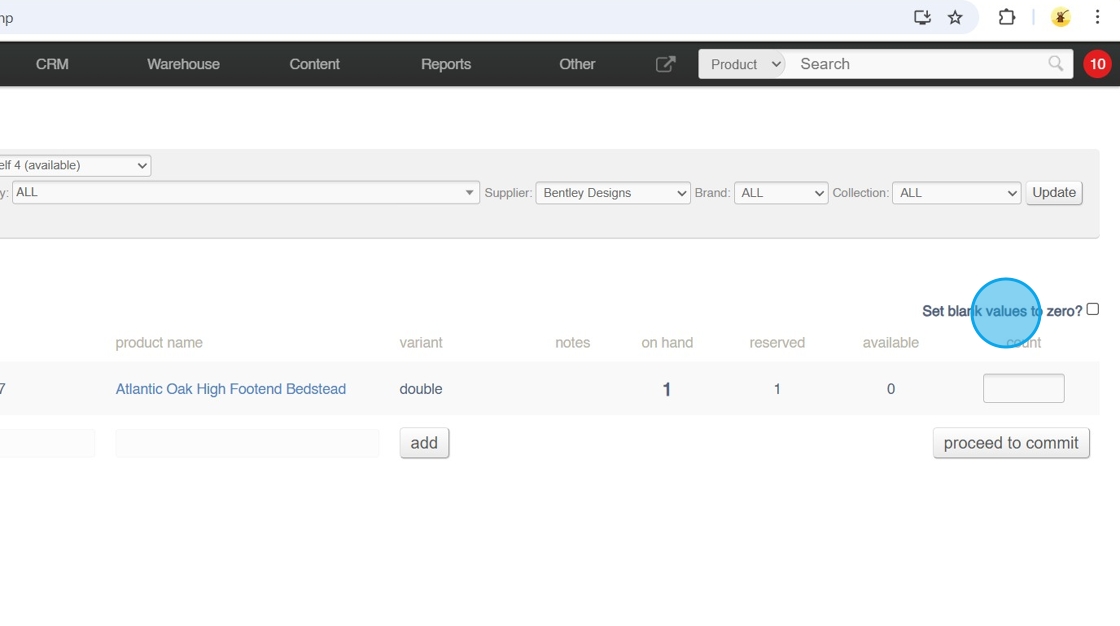
Tip: Setting blank values to zero will wipe any stock that is not counted; toggling this will force the user to do a full stock take

It blank values are left blank, products which do not have a count entered will by left untouched, and will not be updated by the stock take

4\. Click to toggle 'set blank values to zero'
![](https://ajeuwbhvhr.cloudimg.io/https://colony-recorder.s3.amazonaws.com/files/2025-10-27/512472a7-76d3-4291-b5ef-a659acbe7641/ascreenshot.jpeg?tl_px=544,58&br_px=1920,827&force_format=jpeg&q=100&width=1120.0&wat=1&wat_opacity=1&wat_gravity=northwest&wat_url=https://colony-recorder.s3.amazonaws.com/images/watermarks/0EA5E9_standard.png&wat_pad=970,277)

### Complete the Count

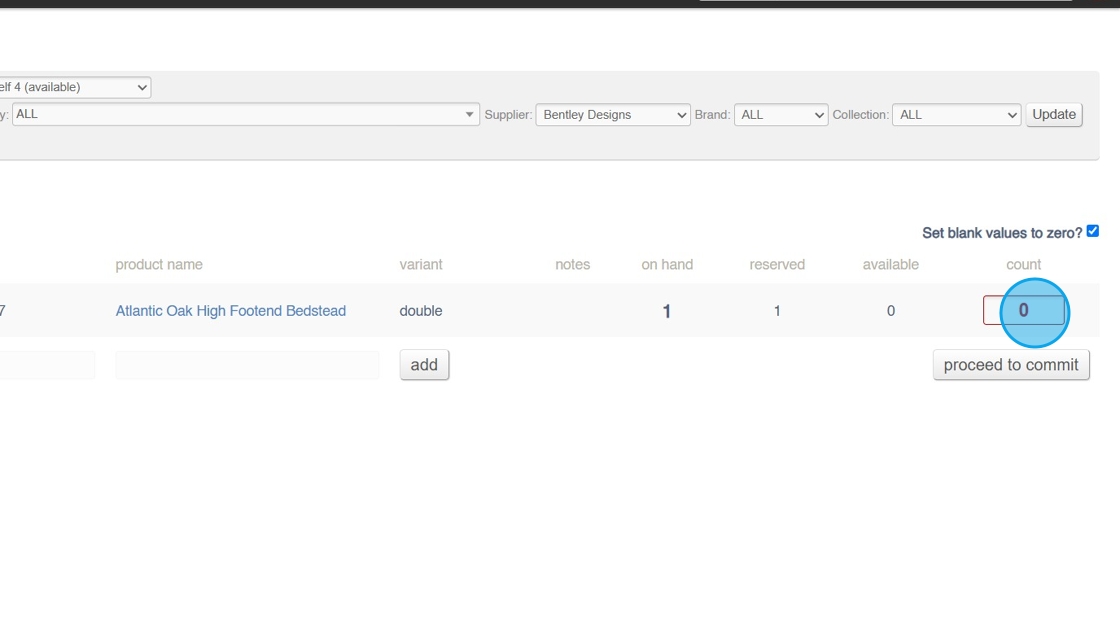
5\. Scan barcodes to make the count; each scanned barcode will increase the quantity by one
![](https://ajeuwbhvhr.cloudimg.io/https://colony-recorder.s3.amazonaws.com/files/2025-10-27/93884556-5225-4346-a8a3-db2937548ba8/ascreenshot.jpeg?tl_px=544,154&br_px=1920,923&force_format=jpeg&q=100&width=1120.0&wat=1&wat_opacity=1&wat_gravity=northwest&wat_url=https://colony-recorder.s3.amazonaws.com/images/watermarks/0EA5E9_standard.png&wat_pad=999,277)

6\. If you have found unexpected items, scan them; this will automatically add a new line

7\. Commit the count

![](https://ajeuwbhvhr.cloudimg.io/https://colony-recorder.s3.amazonaws.com/files/2025-10-27/21fd927a-52b5-41d7-b0f6-56ff75a48e06/ascreenshot.jpeg?tl_px=544,281&br_px=1920,1050&force_format=jpeg&q=100&width=1120.0&wat=1&wat_opacity=1&wat_gravity=northwest&wat_url=https://colony-recorder.s3.amazonaws.com/images/watermarks/0EA5E9_standard.png&wat_pad=987,277)

8\. Add reasons for adjustments at this stage

![](https://ajeuwbhvhr.cloudimg.io/https://colony-recorder.s3.amazonaws.com/files/2025-10-27/23f008e2-a95a-47c4-b96d-c3f424e71c98/ascreenshot.jpeg?tl_px=544,45&br_px=1920,814&force_format=jpeg&q=100&width=1120.0&wat=1&wat_opacity=1&wat_gravity=northwest&wat_url=https://colony-recorder.s3.amazonaws.com/images/watermarks/0EA5E9_standard.png&wat_pad=920,277)

9\. Click "commit changes"

![](https://ajeuwbhvhr.cloudimg.io/https://colony-recorder.s3.amazonaws.com/files/2025-10-27/99eba38d-b379-45a0-abec-c42f954a13e7/ascreenshot.jpeg?tl_px=544,343&br_px=1920,1112&force_format=jpeg&q=100&width=1120.0&wat=1&wat_opacity=1&wat_gravity=northwest&wat_url=https://colony-recorder.s3.amazonaws.com/images/watermarks/0EA5E9_standard.png&wat_pad=982,277)

10\. Click "ok"

![](https://ajeuwbhvhr.cloudimg.io/https://colony-recorder.s3.amazonaws.com/files/2025-10-27/026a2781-a448-45d6-9c4c-85062a739a72/ascreenshot.jpeg?tl_px=374,0&br_px=1750,769&force_format=jpeg&q=100&width=1120.0&wat=1&wat_opacity=1&wat_gravity=northwest&wat_url=https://colony-recorder.s3.amazonaws.com/images/watermarks/0EA5E9_standard.png&wat_pad=524,152)

# Stock Take in Browser

An in browser stock take should be managed either via a manual count, or through [barcode scanning](https://bookstack.iconography.co.uk/books/stock-take/page/stock-take-via-barcode-scanner "Stock Take via Barcode Scanner"). Regardless of these choices, the process is very similar.

<p class="callout info">A full history of Stock Takes will be found within the [Stock History](https://bookstack.iconography.co.uk/books/stock-reports/page/stock-history "Stock History") report. </p>

<p class="callout info">There is a separate record of [Stock Discrepancies](https://bookstack.iconography.co.uk/books/stock-reports/page/stock-discrepancy "Stock Discrepancy").</p>

### Choose your Store and Location

1\. Choose the Store to Stock Take

![](https://ajeuwbhvhr.cloudimg.io/https://colony-recorder.s3.amazonaws.com/files/2025-10-27/19783907-44d0-48d9-9417-8ea5fcf79821/ascreenshot.jpeg?tl_px=0,0&br_px=1376,769&force_format=jpeg&q=100&width=1120.0&wat=1&wat_opacity=1&wat_gravity=northwest&wat_url=https://colony-recorder.s3.amazonaws.com/images/watermarks/0EA5E9_standard.png&wat_pad=221,217)

Tip: Filtering by Store is mandatory, filtering by Location is optional

2\. Choose the Location to Stock Take

![](https://ajeuwbhvhr.cloudimg.io/https://colony-recorder.s3.amazonaws.com/files/2025-10-27/8cc3b458-9f43-4c93-b66d-8ad4f39caedd/ascreenshot.jpeg?tl_px=0,142&br_px=1376,911&force_format=jpeg&q=100&width=1120.0&wat=1&wat_opacity=1&wat_gravity=northwest&wat_url=https://colony-recorder.s3.amazonaws.com/images/watermarks/0EA5E9_standard.png&wat_pad=484,277)

### Apply Other Filters

Tip: You can apply further filters to complete a Stock Take for a specific Category, Supplier, Brand or Collection

Alternatively, search for a specific Product to Stock Take

3\. Apply your filters

![](https://ajeuwbhvhr.cloudimg.io/https://colony-recorder.s3.amazonaws.com/files/2025-10-27/9fc1627c-8207-410b-80b9-a148f1f4cdd0/ascreenshot.jpeg?tl_px=544,272&br_px=1920,1041&force_format=jpeg&q=100&width=1120.0&wat=1&wat_opacity=1&wat_gravity=northwest&wat_url=https://colony-recorder.s3.amazonaws.com/images/watermarks/0EA5E9_standard.png&wat_pad=629,276)

### Define Blank Values

Tip: Setting blank values to zero will wipe any stock that is not counted; toggling this will force the user to do a full stock take

It blank values are left blank, products which do not have a count entered will by left untouched, and will not be updated by the stock take

4\. Click to toggle 'set blank values to zero'

![](https://ajeuwbhvhr.cloudimg.io/https://colony-recorder.s3.amazonaws.com/files/2025-10-27/512472a7-76d3-4291-b5ef-a659acbe7641/ascreenshot.jpeg?tl_px=544,58&br_px=1920,827&force_format=jpeg&q=100&width=1120.0&wat=1&wat_opacity=1&wat_gravity=northwest&wat_url=https://colony-recorder.s3.amazonaws.com/images/watermarks/0EA5E9_standard.png&wat_pad=970,277)

### Complete the Count

5\. Enter the count as a quantity in this column

![](https://ajeuwbhvhr.cloudimg.io/https://colony-recorder.s3.amazonaws.com/files/2025-10-27/93884556-5225-4346-a8a3-db2937548ba8/ascreenshot.jpeg?tl_px=544,154&br_px=1920,923&force_format=jpeg&q=100&width=1120.0&wat=1&wat_opacity=1&wat_gravity=northwest&wat_url=https://colony-recorder.s3.amazonaws.com/images/watermarks/0EA5E9_standard.png&wat_pad=999,277)

6\. If you have found unexpected items, add them using the search function

![](https://ajeuwbhvhr.cloudimg.io/https://colony-recorder.s3.amazonaws.com/files/2025-10-27/073fd1f3-5e2a-40ef-820d-be7741768e05/ascreenshot.jpeg?tl_px=0,314&br_px=1376,1083&force_format=jpeg&q=100&width=1120.0&wat=1&wat_opacity=1&wat_gravity=northwest&wat_url=https://colony-recorder.s3.amazonaws.com/images/watermarks/0EA5E9_standard.png&wat_pad=270,277)

7\. Commit the count

![](https://ajeuwbhvhr.cloudimg.io/https://colony-recorder.s3.amazonaws.com/files/2025-10-27/21fd927a-52b5-41d7-b0f6-56ff75a48e06/ascreenshot.jpeg?tl_px=544,281&br_px=1920,1050&force_format=jpeg&q=100&width=1120.0&wat=1&wat_opacity=1&wat_gravity=northwest&wat_url=https://colony-recorder.s3.amazonaws.com/images/watermarks/0EA5E9_standard.png&wat_pad=987,277)

8\. Add reasons for adjustments at this stage

![](https://ajeuwbhvhr.cloudimg.io/https://colony-recorder.s3.amazonaws.com/files/2025-10-27/23f008e2-a95a-47c4-b96d-c3f424e71c98/ascreenshot.jpeg?tl_px=544,45&br_px=1920,814&force_format=jpeg&q=100&width=1120.0&wat=1&wat_opacity=1&wat_gravity=northwest&wat_url=https://colony-recorder.s3.amazonaws.com/images/watermarks/0EA5E9_standard.png&wat_pad=920,277)

9\. Click "commit changes"

![](https://ajeuwbhvhr.cloudimg.io/https://colony-recorder.s3.amazonaws.com/files/2025-10-27/99eba38d-b379-45a0-abec-c42f954a13e7/ascreenshot.jpeg?tl_px=544,343&br_px=1920,1112&force_format=jpeg&q=100&width=1120.0&wat=1&wat_opacity=1&wat_gravity=northwest&wat_url=https://colony-recorder.s3.amazonaws.com/images/watermarks/0EA5E9_standard.png&wat_pad=982,277)

10\. Click "ok"

![](https://ajeuwbhvhr.cloudimg.io/https://colony-recorder.s3.amazonaws.com/files/2025-10-27/026a2781-a448-45d6-9c4c-85062a739a72/ascreenshot.jpeg?tl_px=374,0&br_px=1750,769&force_format=jpeg&q=100&width=1120.0&wat=1&wat_opacity=1&wat_gravity=northwest&wat_url=https://colony-recorder.s3.amazonaws.com/images/watermarks/0EA5E9_standard.png&wat_pad=524,152)