Items may also be received via the Goods In screen
For a full guide, click [here](https://bookstack.iconography.co.uk/books/stock-transfers/chapter/stock-transfer-detail "Create a new Stock Transfer"). ## FAQs #### Is it possible to close an incomplete Stock Transfer? No - all items must either be received or rejected before a Transfer can be completed. #### An item hasn't arrived. What do I do? Missing items need to be rejected. #### I have been sent too many items. Can I over receive items on a Stock Transfer? If you are sent an item that is not on the Stock Transfer, a new one must immediately be added, as it is not possible to over receive stock on a Stock Transfer. #### I have been sent an item that I was not expecting. How should I handle this? If you are sent an item that is not on the Stock Transfer, a new one must immediately be added, as it is not possible to receive unexpected stock on a Stock Transfer. #### When transferring units of stock, will they retain their original Goods In date? Transferred Stock Records will retain the date that they were originally added to the system. # Stock Transfer - Summary View This screen will show you a list of all of your Stock Transfers. From this screen, it is possible to filter the Stock Transfers by Status, Source Store, Destination Store, or to search for a Stock Transfer ID. An additional 'Value Not Received' column is also visible. #### Value not Received This column shows the total value of goods currently in transit. This covers units of stock which have been removed from the source Location, but not yet received at the destination Location. This will only show for Stock Transfers which have been moved to In Transit, but have not yet Received. There is a total at the bottom of the screen. ### Actions #### Print Picking List Select multiple Stock Transfers and click 'Print Picking List'; this will print a [Picking List](https://bookstack.iconography.co.uk/books/general/page/picking-list "Picking List") for your selected Stock Transfers. #### View PDF To view a PDF summary of a Stock Transfer, simply click the PDF icon. # Create a new Stock Transfer 1\. Click here to select your source Store  2\. Use the other filters as appropriate, including Location, Category, Collection, Brand and Supplier  3\. Click "Update" to apply the filters  4\. Select your destination Store; this will default to an internal transfer  5\. Choose the items to transfer  6\. Click "Proceed to confirmation" 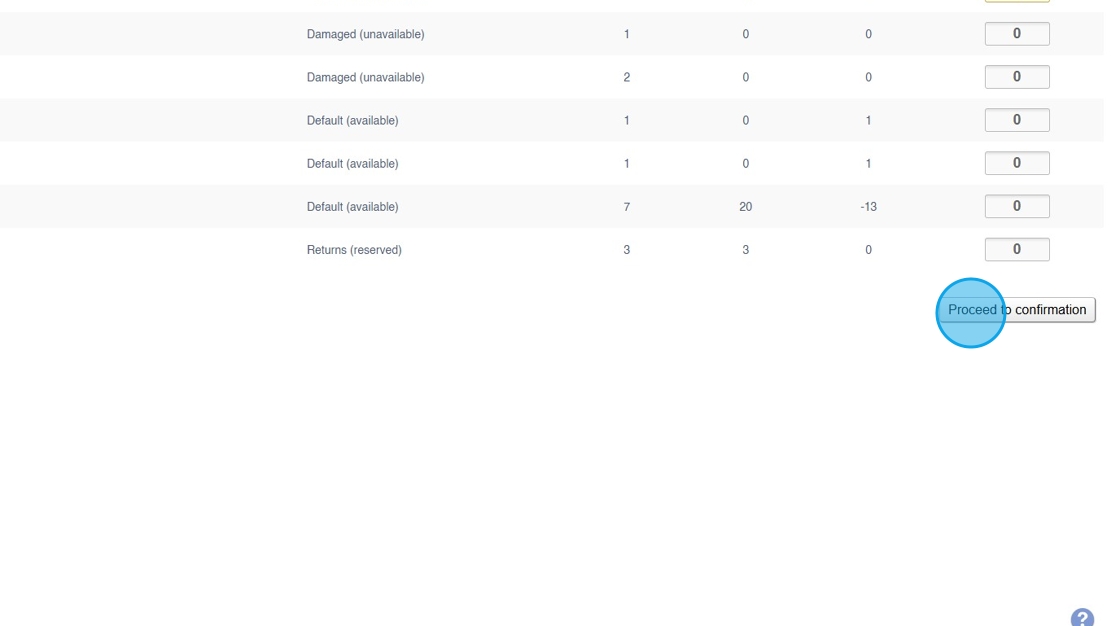 7\. Review your transfer and click to "Create Transfer" This will create a Stock Transfer. For internal transfers, it will automatically create the transfer, complete the movement and close the transfer. For inter branch transfers, it will create an open transfer (or add it to an existing open transfer with matching source/destination Stores); this will then need to be managed from the Stock Transfer (Detail) screen.
8\. Click "Yes"  # Stock Transfer (Detail) # Summary From this screen you can manage an individual Stock Transfer.You can also receive stock on a Stock Transfer via the [Goods In](https://bookstack.iconography.co.uk/books/goods-in "Goods In") screen
### Page Breakdown| - [Status](https://bookstack.iconography.co.uk/books/stock-transfers/page/status) - [Header](https://bookstack.iconography.co.uk/books/stock-transfers/page/header) - [Stock Transfer Lines](https://bookstack.iconography.co.uk/books/stock-transfers/page/stock-transfer-lines) - [Delivery](https://bookstack.iconography.co.uk/books/stock-transfers/page/delivery) - [Stock Transfer Notes](https://bookstack.iconography.co.uk/books/stock-transfers/page/stock-transfer-notes) - [Audit History](https://bookstack.iconography.co.uk/books/stock-transfers/page/audit-history) | [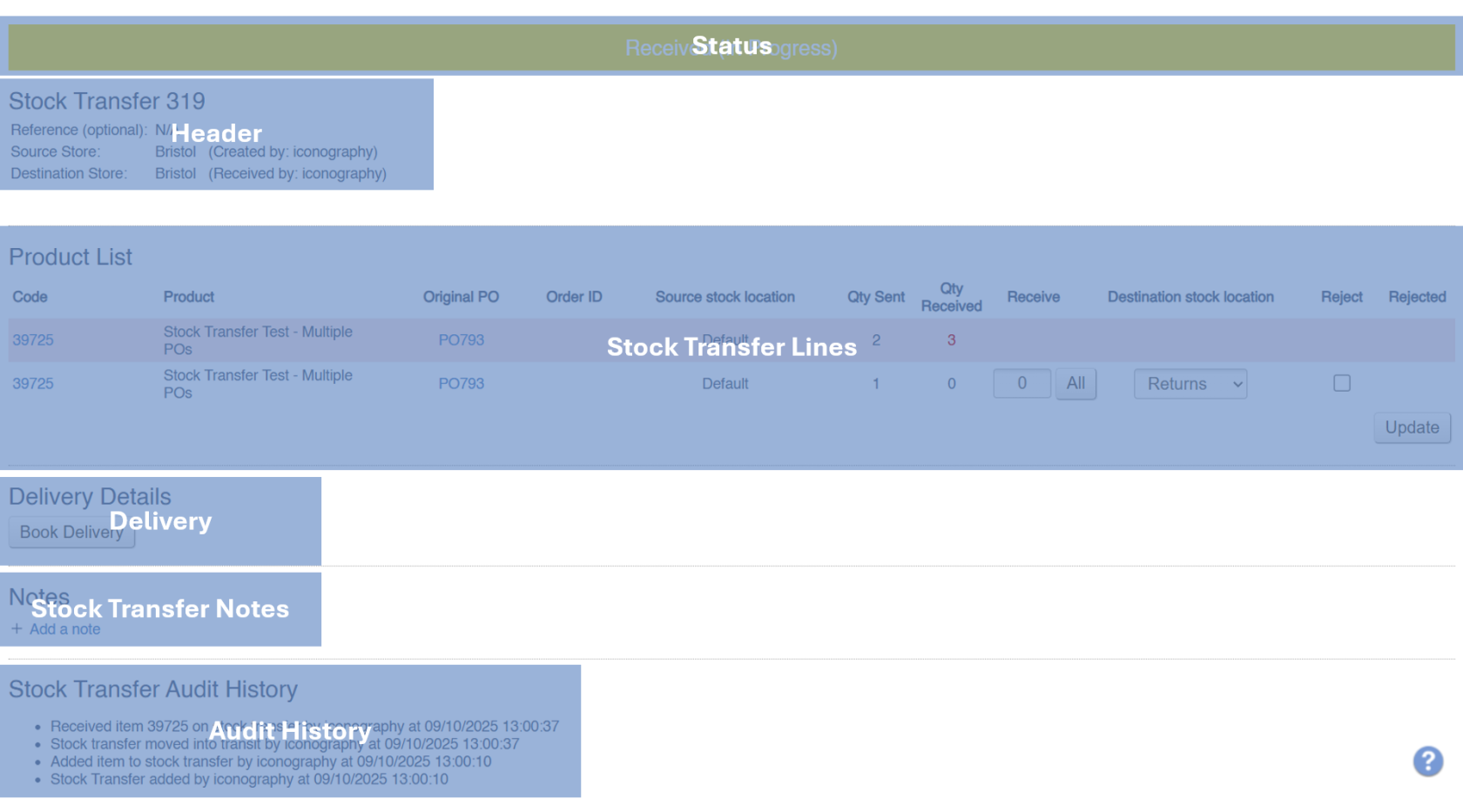](https://bookstack.iconography.co.uk/uploads/images/gallery/2025-11/gFmimage.png) |
These can be used to filter the list of Stock Transfers
### A List of Statuses| Status | Purpose |
| Open | *While a Stock Transfer is Open, more items may be added to it* *You may also change the destination Store of an Open Stock Transfer* |
| In Transit | *A Stock Transfer that is In Transit is in the progress of being moved from A to B*
*Marking a Stock Transfer as In Transit will make all stock on that transfer unavailable* |
| Received | *This status is activated as soon as a single item on the Stock Transfer has been received* *It is not possible to 'complete' a Received Stock Transfer until all items have been received or rejected* |
| Awaiting action | *Highlights that there is an issue with this Stock Transfer* |
| completed | *A complete Stock Transfer; no further action is needed or possible.* |
| Field | Purpose |
| Reference | *Enter an internal reference for the Stock Transfer (optional)* |
| Source Store | *The source of the stock on this Transfer* *Amending this is only possible on open Stock Transfers, and doing so may cause issues if stock is not available in the new Store* |
| Destination Store | *The destination for stock on this Transfer* *Amending this is only possible on open Stock Transfers* |
This is only possible on Open Stock Transfers.
### Receive lines Enter a number of items to receive. You will also need to select the destination stock location; this is where the goods will be added.This is only possible on In Transit and Received Stock Transfers
You can also do this on the [Goods In](https://bookstack.iconography.co.uk/books/goods-in "Goods In") screen
### Reject lines Use this option to reject units of stock. Select a reason and enter a quantity.Please ensure that before taking these actions, you investigate the matter with the appropriate individuals in your company to confirm exactly what has happened and where the stock actually is.
If you are sent an item that is not on the Stock Transfer, a new one must immediately be added, as it is not possible to over receive stock on a Stock Transfer.
#### Return to sender Use this when you have more items than required. This will receive the stock into your current Store and immediately create a new Stock Transfer; the destination Store on the new transfer will be the source of the original. #### Not sent Use this if an item is missing from your shipment. This will immediately add the unit of stock back into its source Store and Location. #### Lost in transit Use this if an item is lost or destroyed. This stock will be removed from the system, and an entry will be added to the [Stock Discrepancy](https://bookstack.iconography.co.uk/books/stock-reports/page/stock-discrepancy "Stock Discrepancy") report. # Delivery [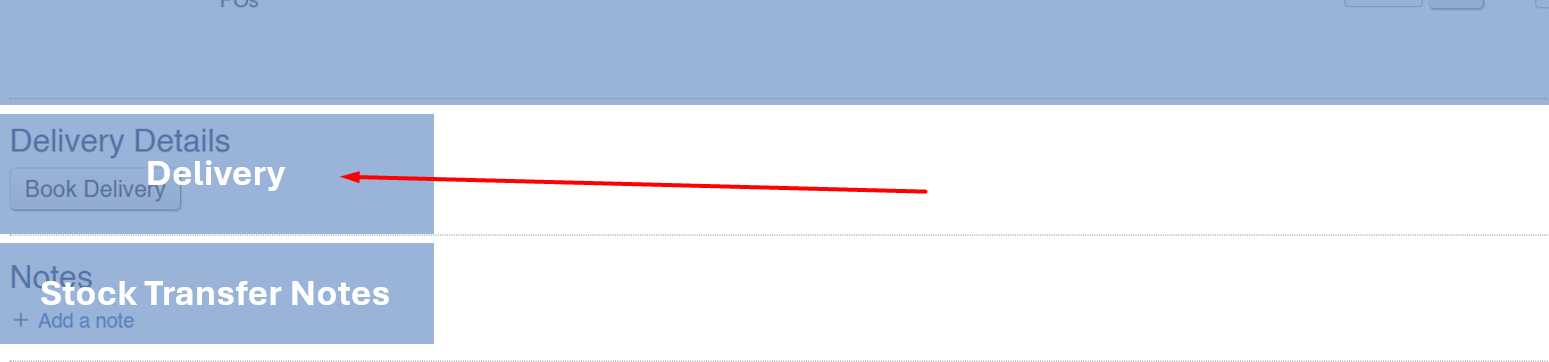](https://bookstack.iconography.co.uk/uploads/images/gallery/2025-11/1tWimage.png) Use this screen to book delivery of the Stock Transfer on a lorry. You can also use the Scheduling tool for this purpose.Click [here](https://bookstack.iconography.co.uk/books/scheduling/page/how-to-schedule-a-sales-orderstock-transfer) for a guide on booking deliveries
# Stock Transfer Notes [](https://bookstack.iconography.co.uk/uploads/images/gallery/2025-11/f77image.png) A user may add notes to a Stock Transfer here. Use the controls to [add a note or a task](https://bookstack.iconography.co.uk/books/general/page/adding-notes-and-tasks "Adding Notes and Tasks"). [](https://bookstack.iconography.co.uk/uploads/images/gallery/2025-10/8WOimage.png) # Audit History [](https://bookstack.iconography.co.uk/uploads/images/gallery/2025-11/WM4image.png) The audit history shows a log of all actions taken on a Stock Transfer, along with a timestamp and who took the action.