Stores
Summary
Use this screen to set up and manage your Stores; a Store is defined as a location from which your and your staff may sell Products and/or manage Stock.
Stores are a key component to the setup of your system, and are integral to your reporting and stock management; please speak to Iconography and read this guide thoroughly prior to beginning setup
Making significant changes to your Store setup once you are live is not recommended and may result in significant problems throughout the system
For a guide on our recommended setup, please click here.
Setup
Stores
| Field | Purpose |
| Name |
Enter the name of the Store (mandatory)
This will display throughout the CMS, and also as an option when the Customer is choosing a collection location for eCommerce Sales Orders
Must be unique |
| Address Line 1 |
The address of the Store
This will be used throughout the system, as well as being output to the Customer |
| Address line 2 | |
| Town/City | |
| County | |
| Postcode | |
| Country | |
| Telephone | Enter the Store's phone number |
| Enter the Store's email address | |
| Website (inc http://) | Enter the Store's website |
| Additional Details | Enter any additional details regarding the Store, e.g. opening hours. |
| Display entry |
Toggle whether the entry should be displayed to Customers on your website
Typically, this should be toggled to 'no' for your warehouses |
| Enable for stock management |
Toggle whether this Store holds Stock
This must be set to 'yes' even if it is only being used as a collection option |
| Enable for collection |
Toggle whether this Store can be used as a collection option for eCommerce and instore Customers
Stores toggled to 'yes' will appear in the Collection Location drop down on Sales Orders |
| Enable for web sales fulfilment |
Toggle whether stock can be despatched from this Store to fulfil eCommerce Sales Order
If toggled to 'no', and stock in this Store is required to fulfil a Sales Order, an entry will be added to the Transfers Needed list |
| Allow as a replenishment source |
Toggle whether stock in this Store can be used to replenish other Stores
If set to 'no' stock in this Store will not be available for Replenishment |
| Default receiving store (if different) |
Choose an alternative Store as your receiving Store from the drop down list if required
When completing a back to back Purchase Order (e.g. fulfilling a Customer special order), by default stock will be Purchase Ordered to the selling Store; if you would like this to go to a central warehouse Store instead, choose this from the drop down instead
Note: On the Purchase Orders screen, the filter is used to show Selling Store, not Receiving Store |
| Default invoice to store (if different) |
Choose an alternative Store as your default invoice Store from the drop down list if required
This will update all Purchase Orders to reflect this invoice address |
| Google store code |
Enter a Google Store Code
A Store Code is a unique identifier that a business with multiple physical retail locations assigns to each of its stores within their Google Business Profile (formerly Google My Business).
It helps Google organise and identify each specific store location. It's particularly important for advanced features like Local Inventory Ads in Google Shopping, which show customers what products are available at a nearby physical store. |
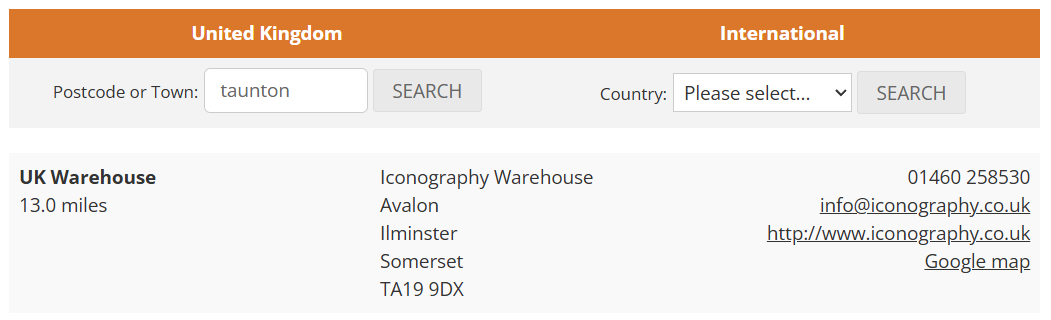
How it displays to a Customer
This information is accessible if your website has a Store Finder.
Locations
All stock is held in Locations.
There must be at least one Location set up per Store that is enabled for stock management.
To see our recommendations on setup, please click here.
| Field | Purpose |
| Location Name |
The label used throughout the system (mandatory)
Not customer facing |
| Stock Type |
Choose from:
Unavailable This will apply to all stock in this location |
| Default return location | By default all returns will go to the selected Location |
More than one Store
If you have more than one Store, many screens and reports in the CMS will be filterable by Store.
If you have only set up a single Store, that filter will usually be removed.
Please note that deleting a second Store will remove filters and potentially hide data permanently - please delete Stores with extreme caution.
Recommended Setup - Stores and Stock Locations
This page is not intended to act as iron clad rules, rather as a general guide. Your specific setup may vary, but it is important to understand some of the underlying logic behind these decisions, and how your systems can adapt to the real world realities of your business.
Stores are a key component to the setup of your system, and are integral to your reporting and stock management; please speak to Iconography and read this guide thoroughly prior to beginning setup
Making significant changes to your Store setup once you are live is not recommended and may result in significant problems throughout the system
Setup
Each physical site managing stock should be set up as its own Store. Doing so will ensure:
- Proper Stock History and movement reporting via Stock Transfers
- Multiple receiving Stores for Purchase Orders
- Sales reporting per Store
- Payment reporting per Store
However, please be aware of the following limitations:
- Stock availability is more limited (e.g. Stock must be Transferred prior to allocation
- Visibility of stock in the POS will be affected
Selling Stores
This is a Store that is used as a store front; a Store from which you sell. There is only one essential requirement, and the rest are optional, based entirely on your setup. See here for more information.
- Enable for stock management
- Enable for collection
- Enable for web sales fulfilment
- Allow as a replenishment source
- Default receiving store
Locations
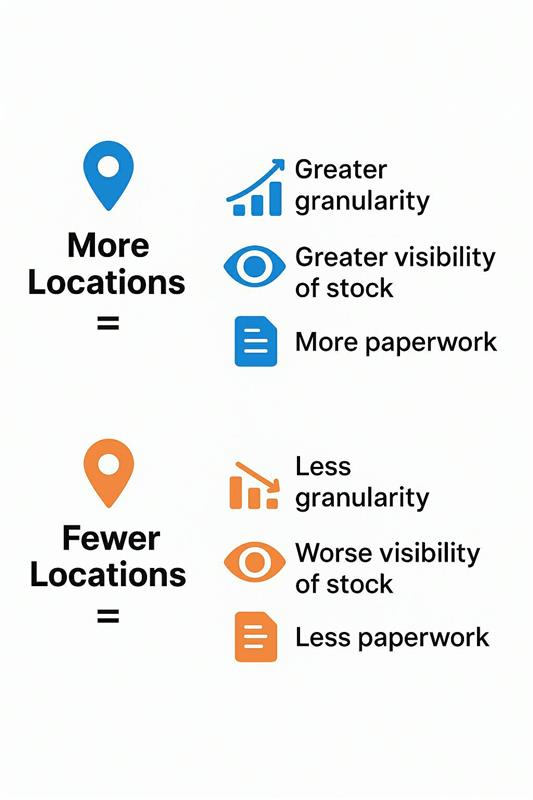
Your Locations should emulate your physical setup, but please consider granularity when building out your Stores.
One option would be to have a different Location for each individual shelf. This will increase visibility and accuracy of Stock Holding reports, but will make stock management more onerous, as the slightest movement will need to be accounted for within a Stock Transfer.
Alternatively, you can opt for the bare minimum of stock Locations in your Store. This allows for easy movement of stock between shelves, as such movement doesn't require a proper Stock Transfer, but the downside is that you wouldn't have sight of which shelf a specific unit of stock is on.
At a minimum, a selling Store should have the following Locations set up:
- Received (available) (recommended)
- Display Stock (reserved)
- Sellable Stock (available)*
- Returns (unavailable)
- Supplier Returns (unavailable)
* In some Stores, this might be called 'Clearance'
Display Stock
This represents display stock in your Store.
This should be set as 'reserved', as this stock does have a value, and would be sellable were it not display stock.
Sellable Stock
The default location for sellable stock. This is the Location that should be expanded to reflect your physical setup, e.g. into multiple bays, shelves, floors, etc.
Returns
This should be your default returns location. All Customer returns to this Store will be returned to this Location.
This should be set up as 'unavailable', as this stock is not considered sellable without someone first completed quality assurance.
Requires additional setup at Store level.
Supplier Returns
This is only required is you are managing Supplier Returns from this Store.
To manage Supplier Returns, all returnable items must be in an unavailable Location.
Adding a specific Location for 'Supplier Returns' will give you clear visibility of stock that is to be returned, along with its age and value.
Warehouse Stores
This is a Store that is used as a warehouse; a Store receives stock and transfers it to your selling Stores or despatches it to your Customers. There is only one essential requirement, and the rest are optional, based entirely on your setup. See here for more information.
- Enable for stock management
- Enable for collection
- Enable for web sales fulfilment (recommended)
- Allow as a replenishment source (recommended)
- Default receiving store
Locations
Your Locations should emulate your physical setup, but please consider granularity when building out your Stores.
Some clients have numbered bays and shelves in their warehouse, while others split it up by product type, e.g. 'upholstery' vs 'beds', while still others will work from a single, all encompassing Location. Any of these setups is perfectly fine, but please ensure that you consult with Iconography prior to setting this up for the first time/making any changes to your current setup.
If you choose to have more Locations, this will increase visibility and accuracy of Stock Holding reports, but will make stock management more onerous, as the slightest movement will need to be accounted for within a Stock Transfer.
Alternatively, you can opt for the bare minimum of stock Locations in your Store. This allows for easy movement of stock between shelves, as such movement doesn't require a proper Stock Transfer, but the downside is that you wouldn't have sight of which shelf a specific unit of stock is on.
At a minimum, a warehouse Store should have the following Locations set up:
- Received (available) (recommended)
- Sellable Stock (available)*
- Returns (unavailable)
- Return to Supplier (unavailable)
* In some Stores, this might just be called 'Available' or 'Warehouse'
Received
This is only required if you have multiple locations with available stock.
This Location is the Location that you should receive stock into from the Goods In screen.
The recommendation is that all stock is received into a generic goods received location. This emulates most warehouse practice, whereby stock is received at the door, and allows for that stock to be immediately available.
Your warehouse team should then transfer that stock to its actual Location once the physical movement has been created, e.g. moved from 'goods receivable' to 'shelf 1'.
Sellable Stock
The default location for sellable stock. This is the Location that should be expanded to reflect your physical setup, e.g. into multiple bays, shelves, floors, etc.
Returns
This should be your default returns location. All Customer returns to this Store will be returned to this Location.
This should be set up as 'unavailable', as this stock is not considered sellable without someone first completed quality assurance.
Requires additional setup at Store level.
Supplier Returns
This is only required is you are managing Supplier Returns from this Store.
To manage Supplier Returns, all returnable items must be in an unavailable Location.
Adding a specific Location for 'Supplier Returns' will give you clear visibility of stock that is to be returned, along with its age and value.
FAQs
I'd like to set up my system as a single Store even though I have multiple Stores. Can I do this?
Yes, you can, but it is not recommended. You may gain a few shortcuts in terms of stock management, but you will lose significant functionality, and your reporting will be impaired:
- You will lose the ability to report on sales and payments by different Stores
- Stock History reporting will not be as clear, there will be no need to record stock movements properly via Stock Transfers
- Physical stock movements will not be reflected in the setup of your system, meaning that Stock Holding will be unspecific
I would like to change my setup - can I do this?
Yes, but we would strongly recommend that you do not do this. Altering the setup of your Stores will have major impacts, as it can affect historical reporting, incoming Purchase Orders and Stock Transfers which are due into that Store, etc.
Can I delete a Store?
Yes, but not if it has held stock within it.
We strongly recommend against this action, as it can affect historical reporting, incoming Purchase Orders and Stock Transfers which are due into that Store, etc.
Can I delete a Location?
Yes, but not if it has stock held within it.