# Swatch Assignment Tool
Normally, you’d have to open each collection and product individually to remove or add a swatch. This tool makes it faster: you just tick or untick swatches for products under a chosen collection in one place.
We recommend using the swatch assign tool for maintenance purposes, rather than creating products. For example:
- If I stop using a swatch, I’d untick it to remove it from the front end.
- If I start using that swatch again, I’d tick it to show it again.
Changes made will go live immediately, so you need to be careful about what you tick or untick. Accidentally selecting/deselecting a whole row or column could overwrite assignments, and you might not remember the previous setup.
The swatch assignment tool allows you to assign in a swatch group, to the product variants of a specific collection. It also shows you the individual swatches that are assigned to the product variants of a specific collection, within that swatch group.
Please see the following guide below:
**1. Open the swatch assign tool**
Access the tool under ‘Swatches’. There is an ‘assign’ icon next to the swatch groups.

**2. Select the collection and variant option you want to assign the swatch to**
You are required to select an 'option' and a 'collection' (these are collections within the brand that the swatch group is associated to). Hitting search will return all product variants within the chosen collection that have the selected option applied to it (in this instance we have chosen fabric as the option).

**3. Review current swatch assignments**
Look at the table to see which swatches are currently ticked (assigned) and unticked (not assigned) for each product variant.
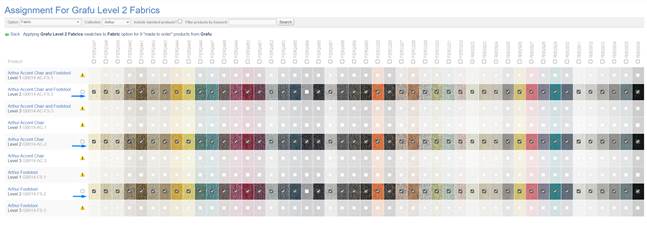
**4. Make changes carefully**
To remove a swatch: Untick the box next to that swatch for the relevant product(s).
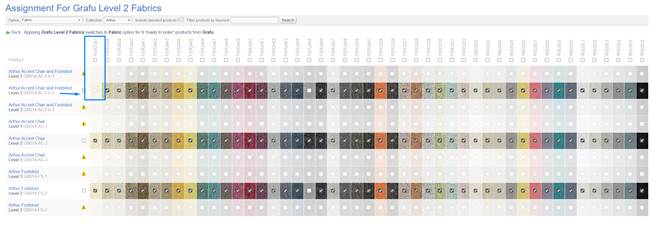
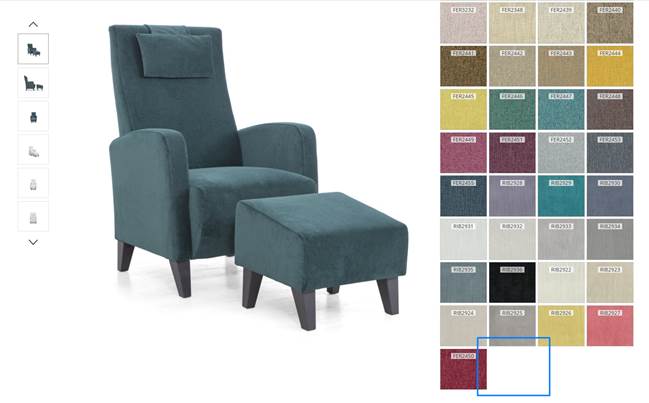
To add a swatch back: Tick the box again for the relevant product(s).
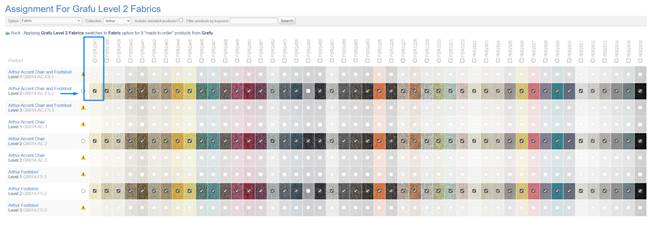
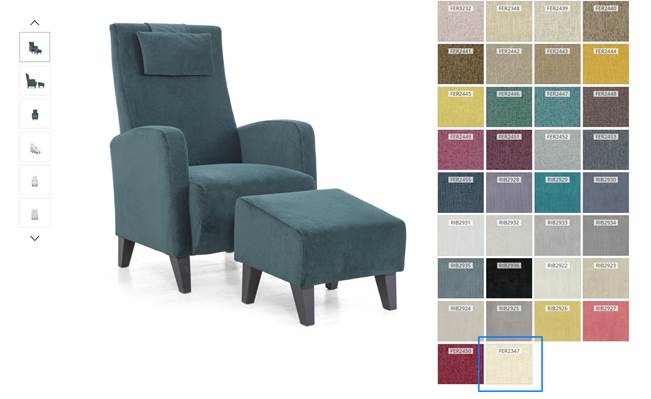
**5. Double-check before closing/moving away**
Since changes update immediately on the live site, review what you’ve ticked and unticked before moving on.
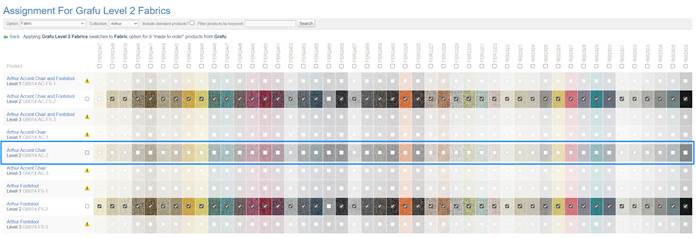
Avoid unticking/ticking an entire row unless you’re certain about the changes.
**6. Restore mistakes (if needed)**
If you untick the wrong swatch, tick it again—the tool updates live, so re-ticking will restore it.
If you lose track of what was originally assigned, compare against another product setup you trust, or refer to backup notes/screenshots if you made them.
**7. Verify on the front end**
Check your website or storefront to ensure the swatches display (or disappear) as intended.
***Quick Checklist to assist:***
- Select the correct collection
- Note current swatch assignments (optional: take a screenshot as a backup).
- Make precise tick/untick changes.
- Review changes carefully before leaving the page.
- If a mistake happens, re-tick or untick as needed to correct it.
- Confirm updates on the live site.