Managing Tasks
Summary
The Task page displays all of the relevant information about any specific Task, and allows the User to update and manage the Task as appropriate.
Page Breakdown
|
|
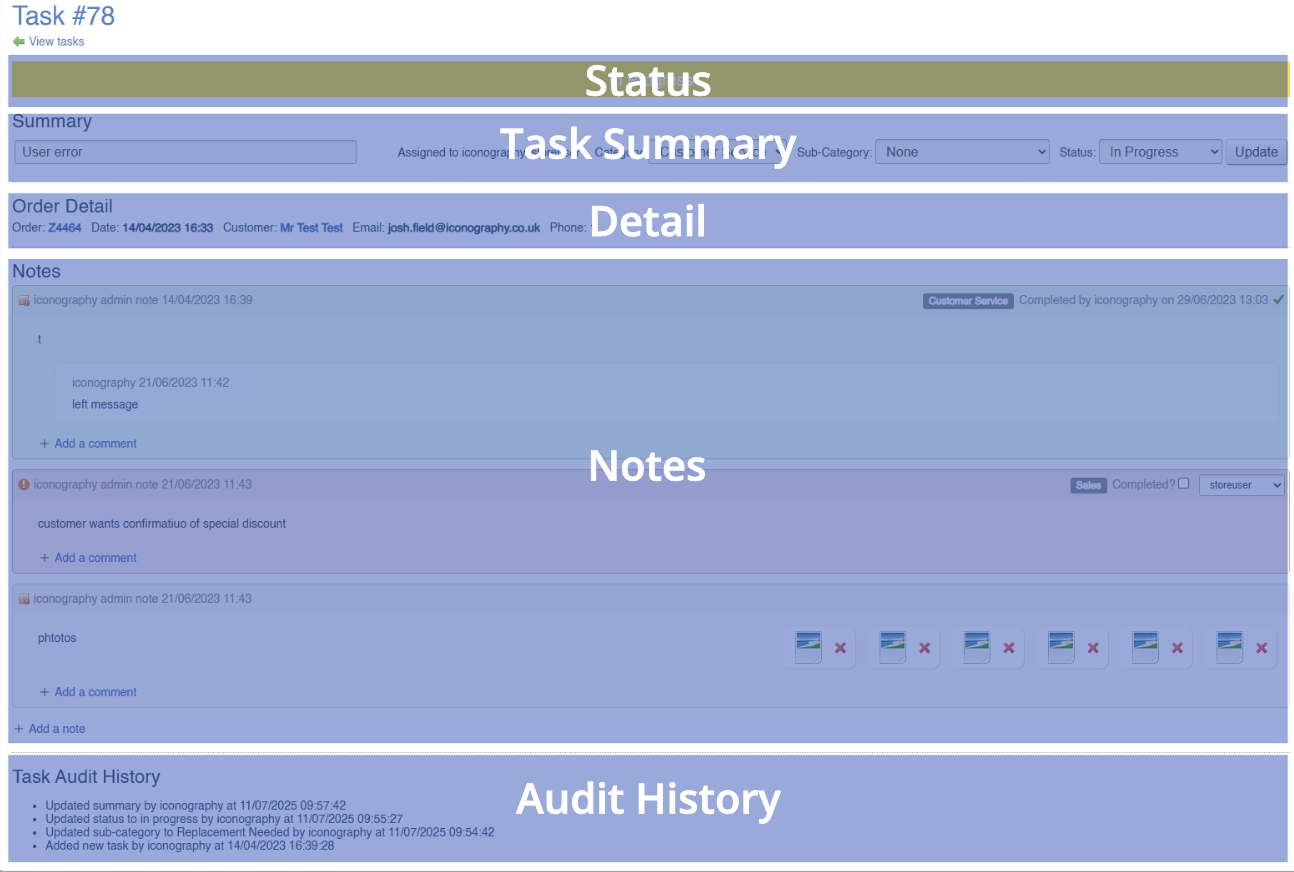
Status
This section shows the status of the Task; this is actually managed within the Task Summary.

The statuses include:
- open
- in progress
- awaiting reply
- awaiting action
- completed
These statuses are set manually; they are not linked to any additional function
Task Summary
This section shows essential information about the Task.

Summary
Use this to enter a summary of the task - this is output as part of the list of Tasks on the previous page, and is intended to be used as a small snapshot of the action.
This is an optional field.
Assignment
This will show a list of all Users linked to this Task.
Note: a single Task can have multiple Notes added to it, and each of those may have different Users assigned to them
Category
Use these controls to set the Category and Sub-Category to the Task.
These must be manually assigned, and no automation is linked to them
Status
Use this to control the Status of the Task.
These must be manually assigned, and no automation is linked to them
Detail
This section will show the Detail of any linked item, e.g. a Sales Order.

Detail
This will vary depending on the lined item.
For example, a Task linked to a Sales Order will include information on the Sales Order No. and Date, the Customer, etc.
These are the different kinds of links:
- Customer
- Customer Return (RMA)
- Purchase Order
- Sales Order
- Stock Transfer
- Supplier Return
Notes
This section is used to manage the Notes that are within a Task.
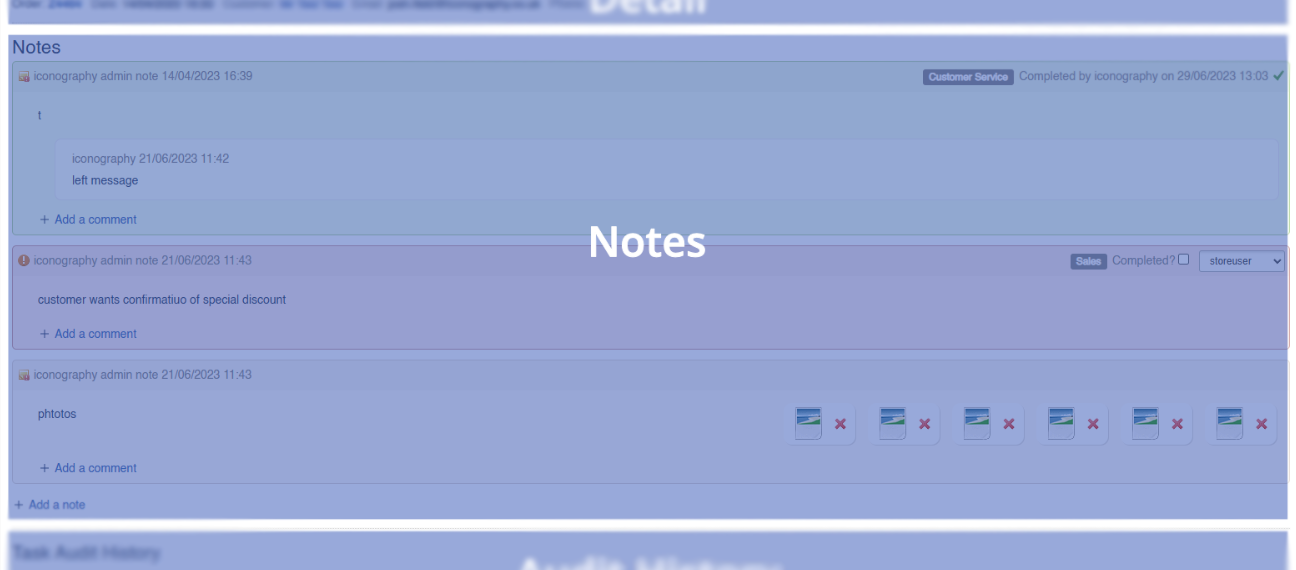
From this section is is possible to view and comment on individual Notes, as well as reassign them to a new User.
It is also possible to mark a Note as completed within this section.
Multiple Notes/Users
All Tasks must have at least one Note. It is also possible to insert addition Notes to a Task within this section.
As each Note may be assigned to a different User, it is possible to have multiple Users linked to a single Task.
Audit History
In this section, a complete Audit History for the Task is displayed.

This is automatically generated based on actions taken by Users in the CMS.