Tasks may be added throughout the system, against Sales Orders, Purchase Orders, Stock Transfers and more; for a guide on adding Notes and Tasks, click [here](https://bookstack.iconography.co.uk/books/general/page/adding-notes-and-tasks)
Notes are simply Tasks without an actionable task
#### Key to Icons  = open  = in progress  = awaiting reply  = awaiting action  = completedOverdue Tasks are highlighted in red
For more information on Statuses click [here](https://bookstack.iconography.co.uk/books/tasks/page/status). ### Finding a Task All Tasks are listed on this summary screen; use the filters to find or view Tasks. You can filter by: - Store - Store User - Category - Status - Due Date You can also choose to view overdue only. [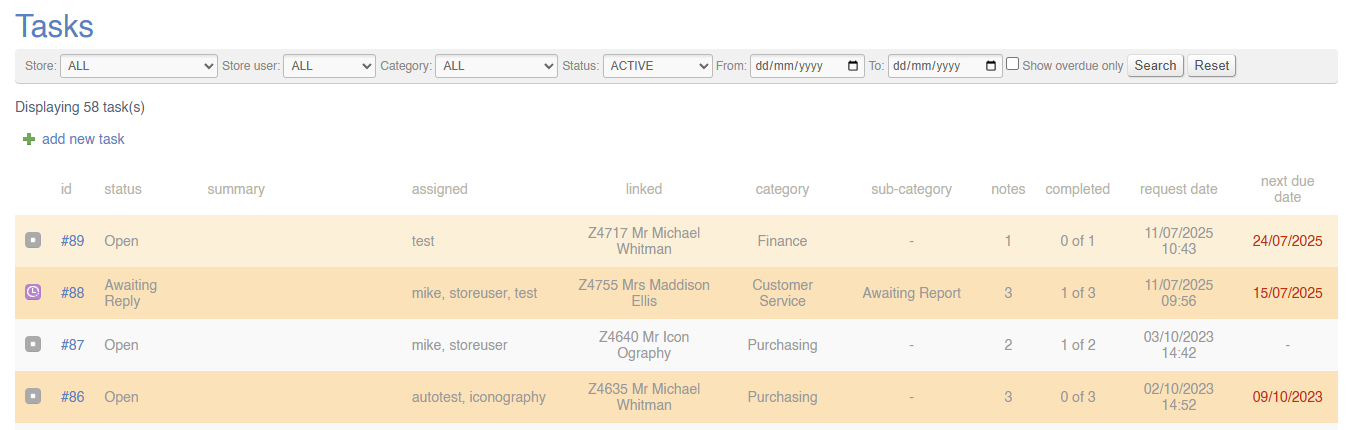](https://bookstack.iconography.co.uk/uploads/images/gallery/2025-12/dgbimage.png) #### View by Category Use the filters to view Tasks linked to a specific Category; these are set up in [Site Settings](https://bookstack.iconography.co.uk/books/site-settings "Site Settings"). [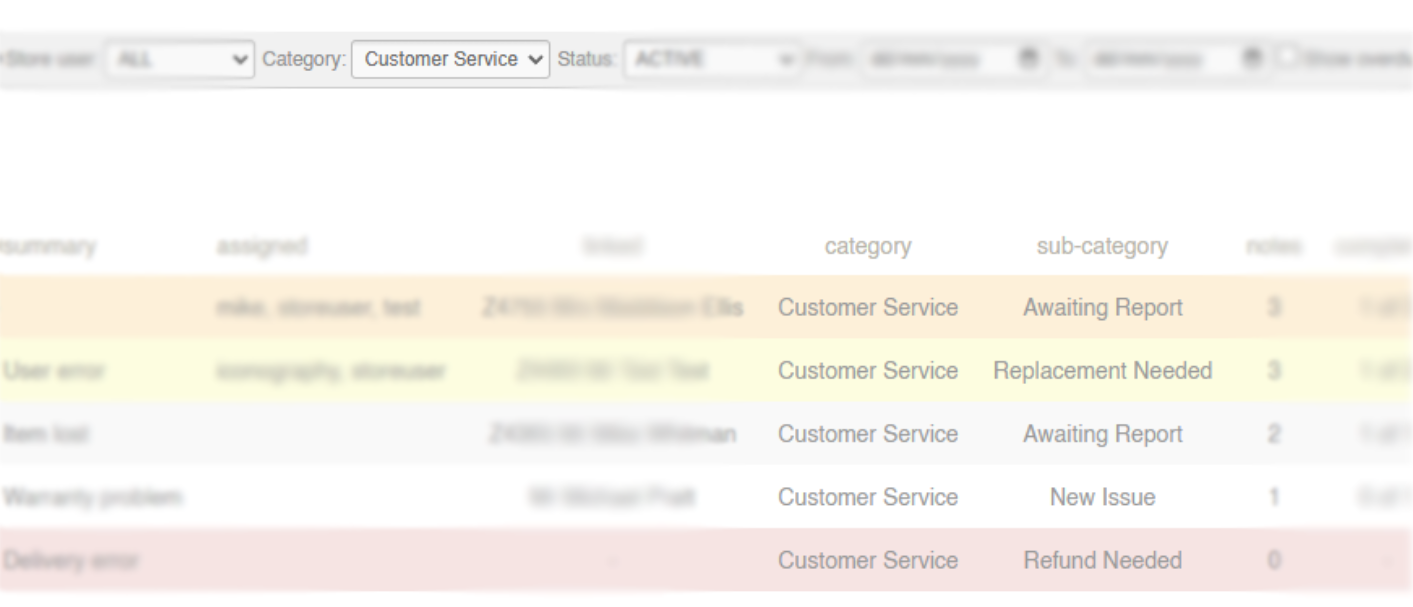](https://bookstack.iconography.co.uk/uploads/images/gallery/2025-12/1gaimage.png)It is not possible to filter by sub-category
#### View by User Use the filters to view tasks assigned to a specific User. [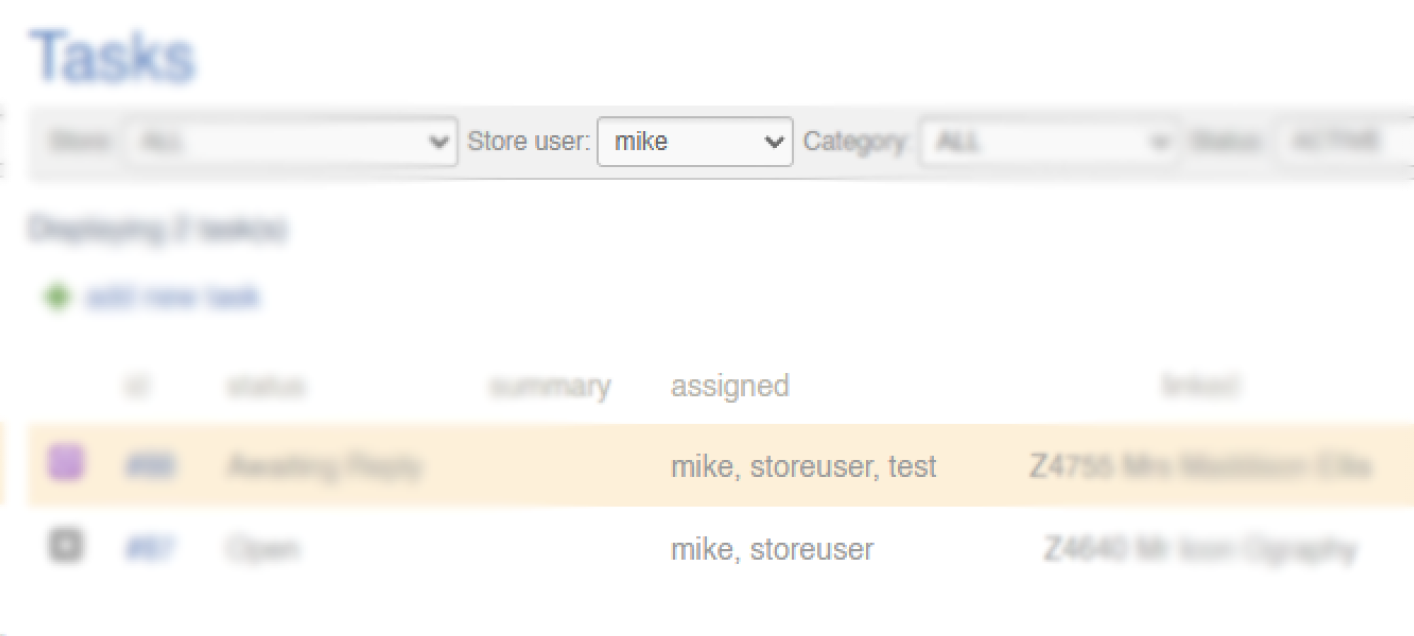](https://bookstack.iconography.co.uk/uploads/images/gallery/2025-12/B5dimage.png)Some tasks may be linked to more than one User
### Managing a Task Click on the Task Id to manage that Task. More information on managing tasks is available [here](https://bookstack.iconography.co.uk/books/tasks/page/summary-jEN). # Managing Tasks # Summary The Task page displays all of the relevant information about any specific Task, and allows the User to update and manage the Task as appropriate. ### Page Breakdown| - [Status](https://bookstack.iconography.co.uk/books/tasks/page/status) - [Summary](https://bookstack.iconography.co.uk/books/tasks/page/task-summary) - [Detail](https://bookstack.iconography.co.uk/books/tasks/page/detail) - [Notes](https://bookstack.iconography.co.uk/books/tasks/page/notes) - [Audit History](https://bookstack.iconography.co.uk/books/tasks/page/audit-history) | [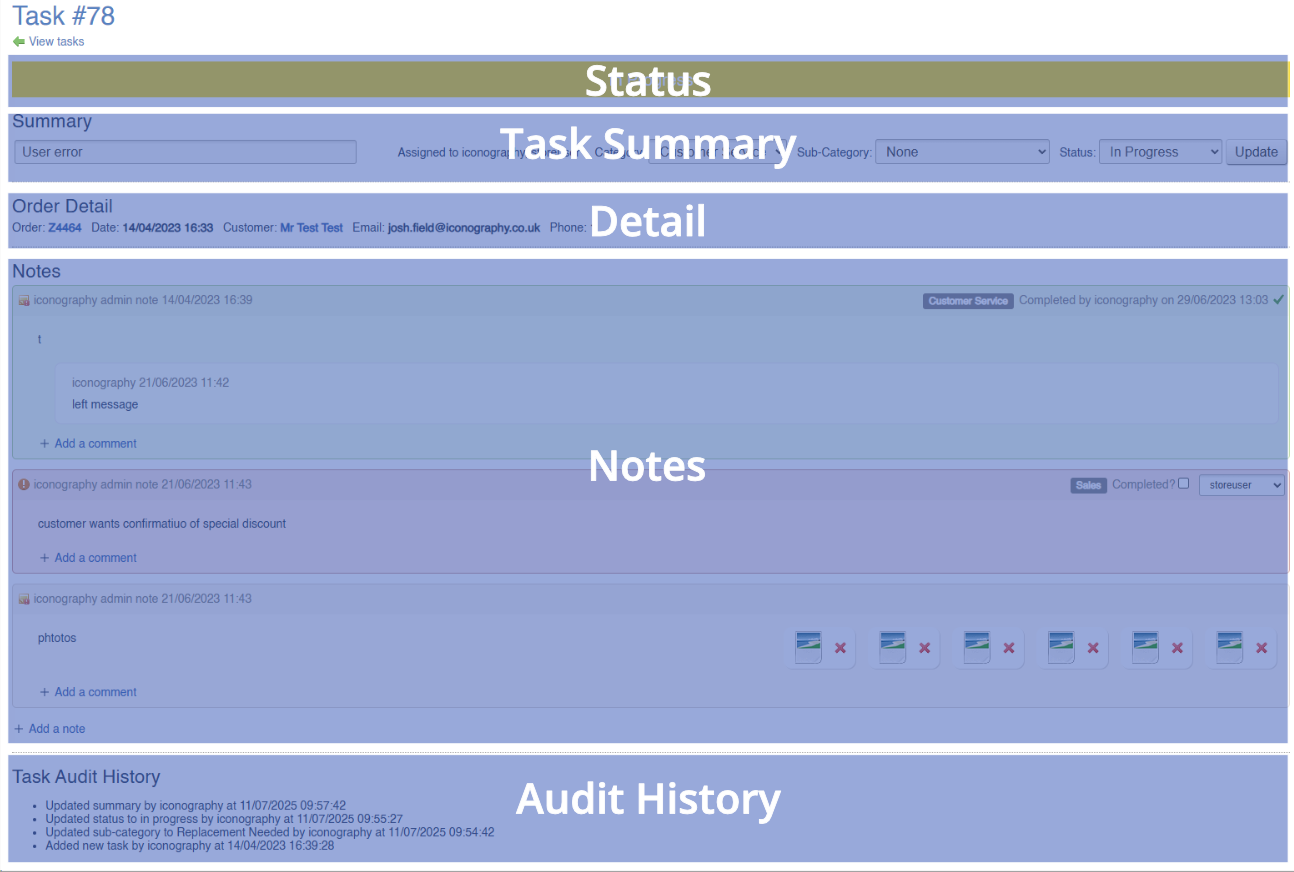](https://bookstack.iconography.co.uk/uploads/images/gallery/2025-12/4r8image.png) |
These statuses are set manually; they are not linked to any additional function
# Task Summary This section shows essential information about the Task. [](https://bookstack.iconography.co.uk/uploads/images/gallery/2025-12/hrDimage.png) ### Summary Use this to enter a summary of the task - this is output as part of the list of Tasks on the previous page, and is intended to be used as a small snapshot of the action. This is an optional field. ### Assignment This will show a list of all Users linked to this Task.Note: a single Task can have multiple Notes added to it, and each of those may have different Users assigned to them
### Category Use these controls to set the Category and Sub-Category to the Task.These must be manually assigned, and no automation is linked to them
### Status Use this to control the [Status](https://bookstack.iconography.co.uk/books/tasks/page/status) of the Task.These must be manually assigned, and no automation is linked to them
# Detail This section will show the Detail of any linked item, e.g. a Sales Order. [](https://bookstack.iconography.co.uk/uploads/images/gallery/2025-12/Ttlimage.png) ### Detail This will vary depending on the lined item. For example, a Task linked to a Sales Order will include information on the Sales Order No. and Date, the Customer, etc. These are the different kinds of links: - Customer - Customer Return (RMA) - Purchase Order - Sales Order - Stock Transfer - Supplier Return # Notes This section is used to manage the Notes that are within a Task. [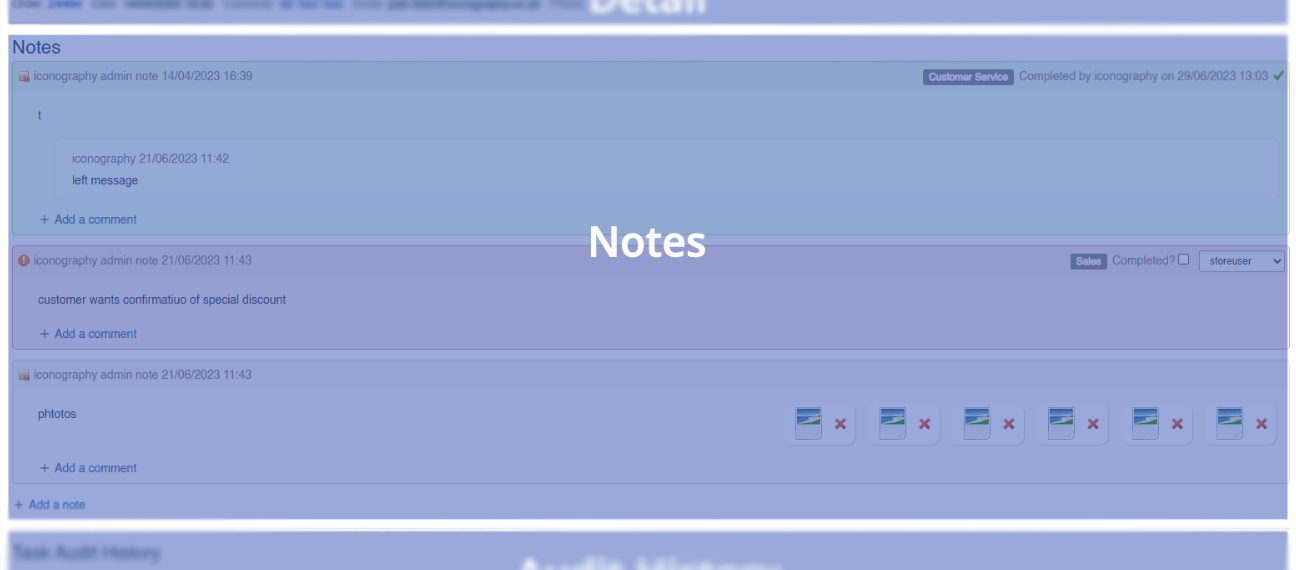](https://bookstack.iconography.co.uk/uploads/images/gallery/2025-12/bcdimage.png) From this section is is possible to view and comment on individual Notes, as well as reassign them to a new User. It is also possible to mark a Note as completed within this section. ### Multiple Notes/Users All Tasks must have at least one Note. It is also possible to insert addition Notes to a Task within this section. As each Note may be assigned to a different User, it is possible to have multiple Users linked to a single Task. # Audit History In this section, a complete Audit History for the Task is displayed. [](https://bookstack.iconography.co.uk/uploads/images/gallery/2025-12/twwimage.png) This is automatically generated based on actions taken by Users in the CMS.