Update Users
Summary
Use this screen to manage Users
Key to icons
 = edit
 = delete
Deleting Users may have serious irreversible impact on your reporting, stock and allocation.
Summary
This screen shows basic information about your system users.
| Column | Purpose |
| User | Login name |
| User email address | |
| Last Logged | The date the user last logged into the system |
| Last IP Address | The last IP address from which the user logged in |
| Logins (month) | Number of logins within the last month |
| Logins (year) | Number of logins in the last year |
| Two factor authentication | Has the user got 2FA setup? |
User Management
Use this screen to setup or edit new users.
Setup
User Details
| Field | Purpose |
| Username |
Enter the user's username - this will be user when logging in, and in in the CMS
Must be unique |
| Full Name | Enter the user's full name |
| Enter user's email address | |
| Job Title | Enter the user's job title |
| Location | Choose the user's default Store (used for default Sales Store when placing POS and Telephone Orders) |
| Commission Percentage (%) |
Enter a commission percentage for the User
Used to calculate commission in the Sales by User report |
| Weekly Sales Target (£) |
Set a weekly sales target for this user
This will be used to measure performance within the POS |
Permissions
User Type
Toggle permissions for the user.
| Field | Purpose |
| User Type |
Choose from:
|
Access Privileges
Toggle the tick boxes to determine which sections of the CMS this user has access to.

How to Set Up a New User
A new user can be set up easily by a 'superuser' from within the CMS.
1. Navigate to your CMS.
2. Click "Update Users" under the Dashboard icon.

3. You will see a list of all current users - Click "add a user".
Only a 'superuser' can add and change users.

4. Enter the desired Username and Full Name, along with the appropriate email address.

5. Select the appropriate User Type.

6. Select the appropriate permissions.

7. Click the "Enabled?" toggle.
The "Enabled?" toggle is also useful if you wish to disable users

8. Create a new password.

9. Click "Add" to create the new user.

How to access the CMS
To access the CMS, you will need a User to be created. This is done via the Update Users screen by a Super User.
The user must be 'enabled' for them to log in
Login via a Password
On first login, it is best practice for that use to immediately change their password and/or set up their pin.
This is done via the My Details screen.
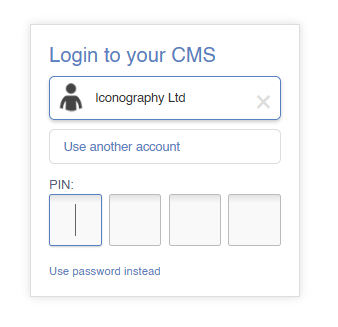
Login via a Pin
From the My Details screen, it is also possible to set up a Pin (if the User has been granted permission to do so).
When logging into a Trusted Device, if a pin has been set, the user will be prompted to enter their pin, rather than their password.
Trusted Devices
A device will automatically be marked as trusted once a user has logged in via their CMS username/password for the first time.
This will expire every 30 days, and a user will have to log in properly again. Please not that on shared computers, it will not prompt the user to add a saved password.
Trusted Devices do not override IP restrictions.