The user must be 'enabled' for them to log in
### Login via a Password Your user will navigate to [WWW.YOURDOMAIN.CO.UK/cms](https://bookstack.iconography.co.uk/WWW.YOURDOMAIN.CO.UK/cms) and enter their username and password. On first login, it is best practice for that use to immediately change their password and/or set up their pin. This is done via the [My Details](https://bookstack.iconography.co.uk/books/my-details "My Details") screen. ### Login via a Pin From the My Details screen, it is also possible to set up a Pin (if the User has been granted permission to do so). When logging into a Trusted Device, if a pin has been set, the user will be prompted to enter their pin, rather than their password. [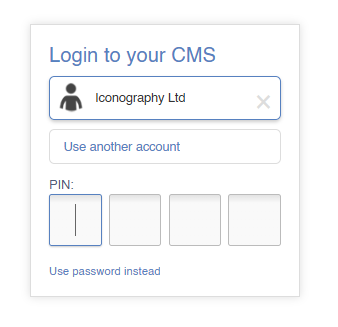](https://bookstack.iconography.co.uk/uploads/images/gallery/2026-11/image.png) #### Trusted Devices A device will automatically be marked as trusted once a user has logged in via their CMS username/password for the first time. This will expire every 30 days, and a user will have to log in properly again. Please not that on shared computers, it will not prompt the user to add a saved password.Trusted Devices do not override IP restrictions.