Scheduling
Summary
Use this screen to schedule deliveries; this is to be used when completing deliveries using your own vehicles.
To use this section, you must have created Lorry Journeys
It is also possible to Schedule a Sales Order from the Sales Order Detail page
Orders awaiting Scheduling
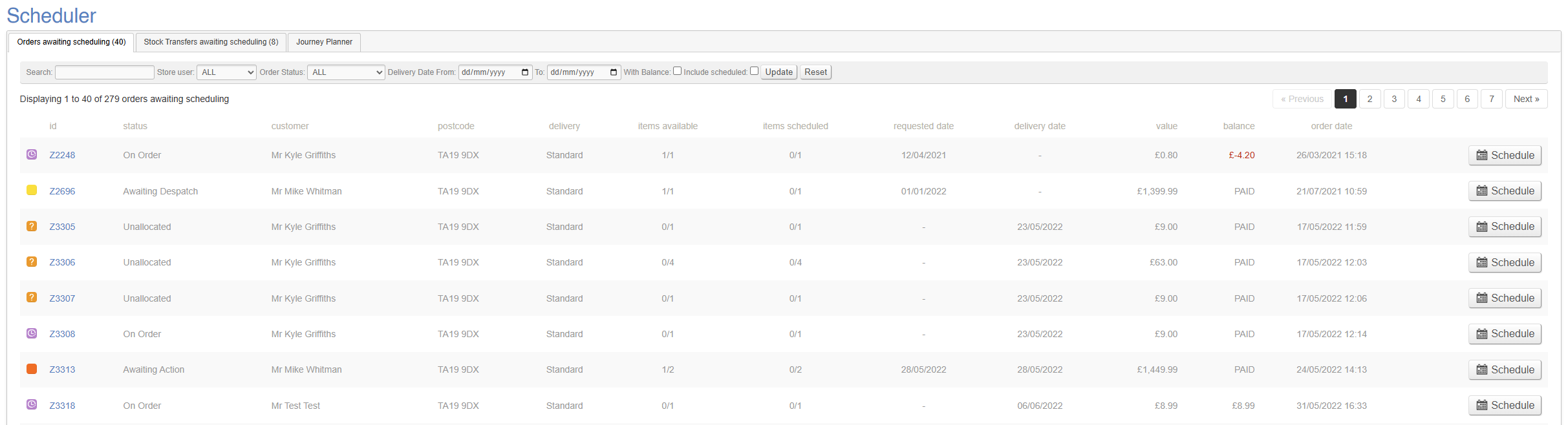
This tab shows a list of Sales Orders which are awaiting scheduling.
Eligibility
To be included in this list, a Sales Order must meet certain criteria:
- It must be an Active Sales Order (e.g. have one or more lines which are not Cancelled/Returned/Delivered, and where the Sales Order is a valid order, e.g. not a Quote or an Abandoned order)
- It must have a Postage Type which is marked as 'Available for Lorry Loader'
Filters
By default, this will show all eligible Sales Orders, but a user may apply various filters. This allows the user to search for a particular Sales Order, or to filter by:
- Sales Store
- Store User (sales person)
- Order status (fully available/partially available/on order)
- Delivery Date
- With Balance
- Include Scheduled
If you need to reschedule a Sales Order, be sure to tick the box for 'include scheduled'
Sales Order Information
Most of this information is self explanatory, but more information is available below.
Items Available
This column shows the total number of items ordered by the Customer, as well as the total number of items available in the business to fulfil the Sales Order.
For example, if this shows as '2/7', that means that the Customer order seven items, but only two are available for immediate fulfilment.
To show in the Order Status 'Fully Available' filter, it is necessary for al items to be available, e.g. this column should read '7/7'
Items Scheduled
This column shows the total number of items scheduled from this Sales Order.
For example, if this shows as '2/7', that means that only two out of the seven items the Customer has ordered have actually been Scheduled.
It is possible to schedule multiple items from the same Sales Order across multiple dates and journeys
Stock Transfers awaiting Scheduling
This tab shows a list of Stock Transfers that require Scheduling. This is intended for use when companies use their own vehicles to complete inter branch transfers.
This is an optional element of Stock Transfers; these can be managed solely via the Stock Transfer screen
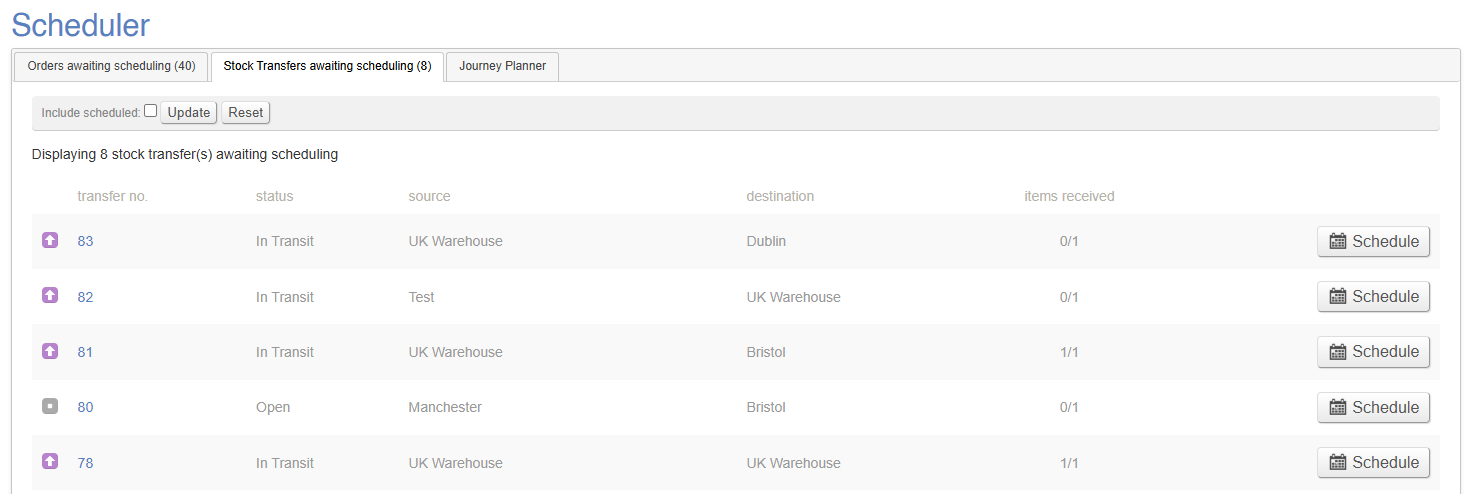
A Stock Transfer may be Scheduled in the same way as a Sales Order.
Journey Planner
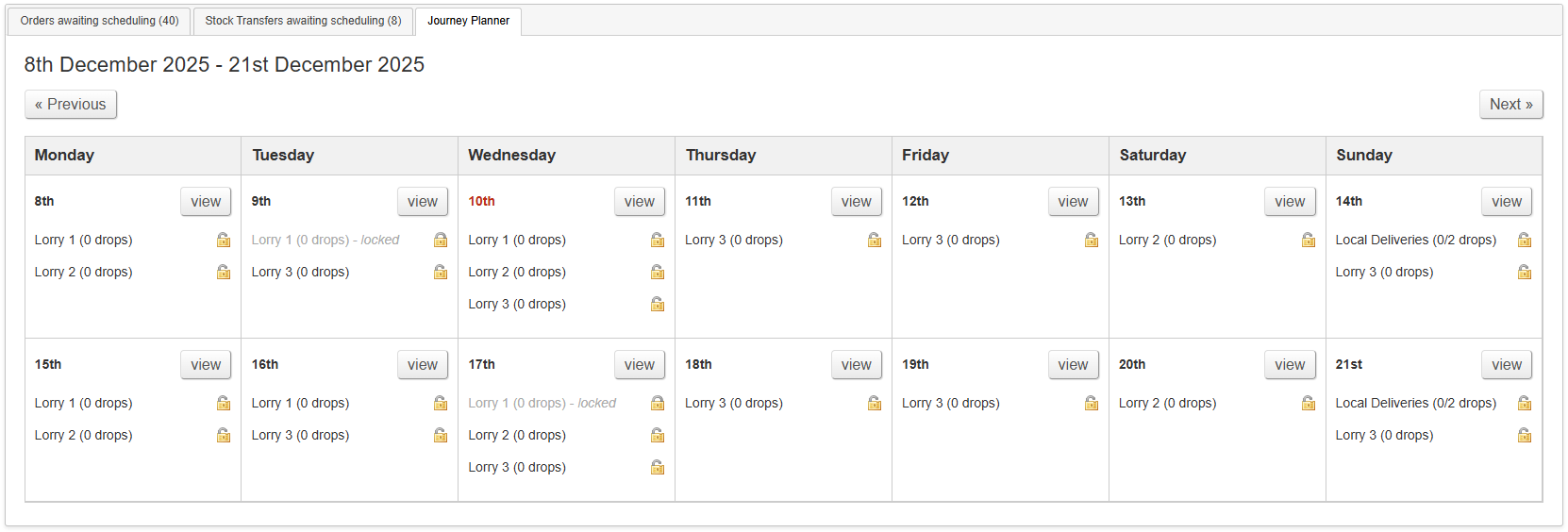
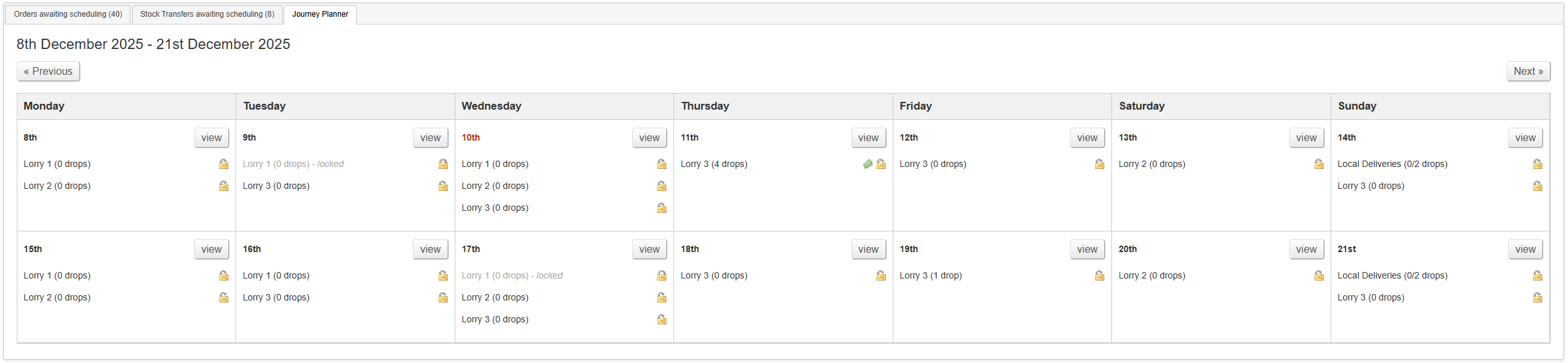
This tab shows you a summary of your Lorry Journeys over a calendar period; the default view is the current fortnight.
For more information on how this tab works, click here.
From this screen, you can mark Sales Orders as Despatched.
How to Schedule a Sales Order/Stock Transfer
Note that this process can works for both Stock Transfers and Sales OrdersStores
1. Press the Schedule button
This is found on the Scheduler screen, but may also be found on the Sales Order Detail screen, the POS screen, and the Stock Transfer Detail screen.
2. Select the items you wish to Schedule
Use the tick boxes to confirm which items you wish to Schedule
In the case of Stock Transfers, all items must be Scheduled simultaneously
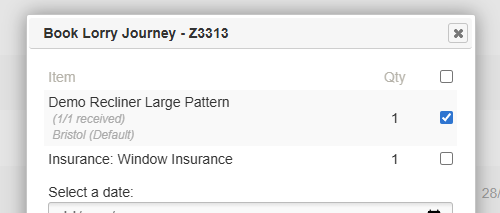
3. Select the date of delivery
Choose the date you would like to use for delivery.
It may be useful to have the Journey Planner open in a separate tab, as this will assist you when looking for availability.
4. Select a Lorry
Select a Lorry Journey that is available on that specific date.
Your selection will be restricted based on the Postage Zones which that Lorry Journey includes.
In the case of a Stock Transfer, the postcode of the destination Store will be used determine which Postage Zone is required
5. Select a timeslot
Select a timeslot for this delivery.
This is optional.
This will require timeslots being set up against the Lorry Journey
6. Confirm selection
Click to confirm your selection.
The booking will now appear on the Journey Planner.
Journey Planner
From this tab, you can:
- view a summary of all booked deliveries and Lorry Journeys over a two week period
- lock and unlock Lorry Journeys
- review Lorry Journeys where a booked delivery has an outstanding balance
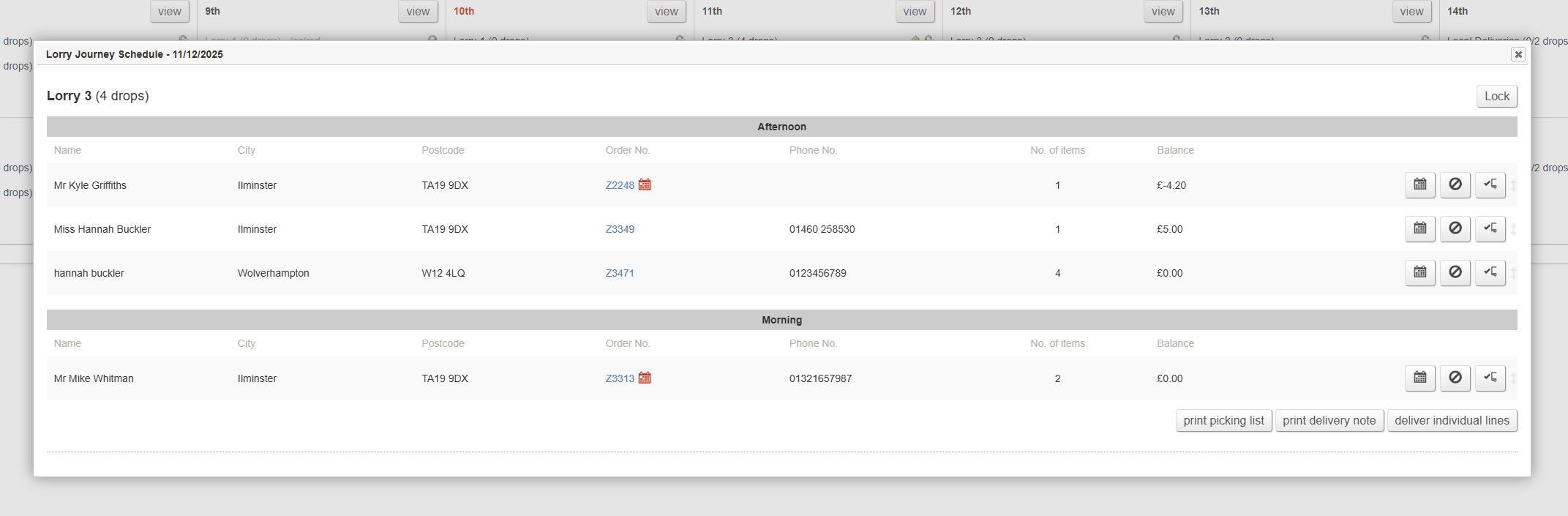
You can also click in to see a 'day view', which will provide a detailed view of all Lorry Journeys and scheduled deliveries for a given day. From this screen, you can:
- resequencing deliveries
- reschedule deliveries
- cancel deliveries
- mark deliveries as completed
- print picking lists
- print delivery notes
- deliver individual lines
Key to icons
 = this Lorry Journey contains a booked delivery with an outstanding balance
 = this Lorry Journey is unlocked, e.g. it is possible to book deliveries onto it
 = this Lorry Journey is locked, e.g. it is not possible to book deliveries onto it
 = this Lorry Journey contains a Sales Order which is Awaiting Action
 = the scheduled date is different to the customer's requested delivery date
Summary View
This shows a fortnightly summary.
Detail View
To access this mode, click the 'view' button on the summary view; there is one per day.
Resequencing Deliveries
This should be done to confirm the route for your drivers; sequence the orders to match their route
To sequence deliveries, simply drag and drop them to change the order; this order will be reflected on the Picking Lists, and when printing the Delivery Note.
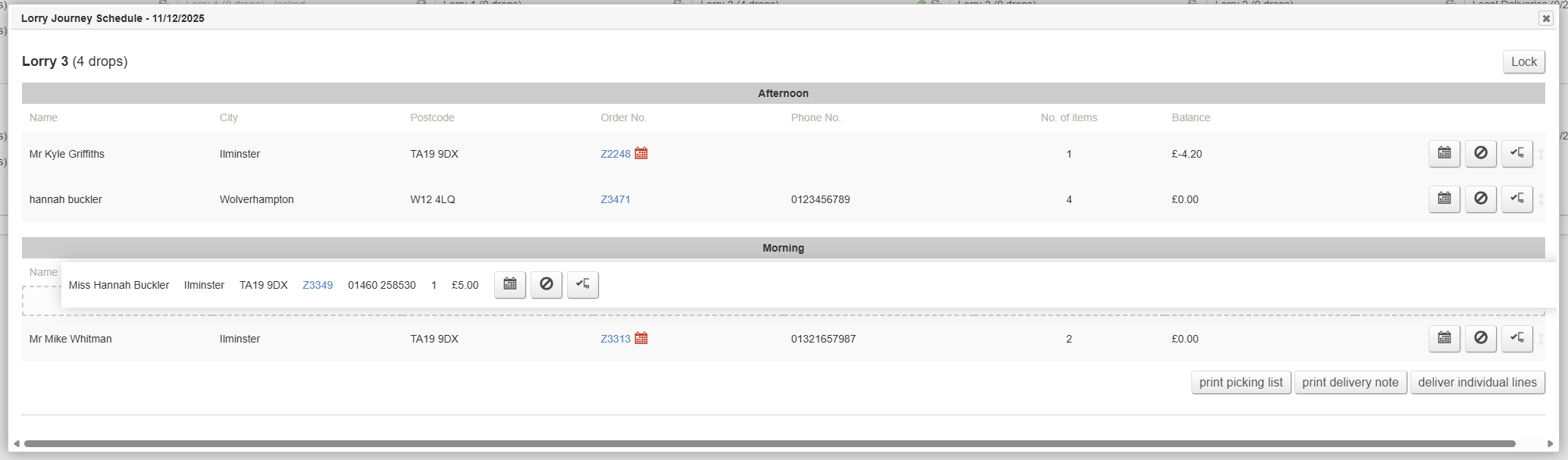
When doing this, it is possible to drag and drop a delivery between different Lorry Journeys on the same day.
Reschedule Deliveries
To reschedule a specific delivery, click the  icon.
icon.
Cancel Deliveries
To cancel a specific delivery, click the  icon.
icon.
Once cancelled, it will fall into the awaiting scheduling list.
Mark Deliveries as Completed
To mark a delivery as complete, click the  icon.
icon.
Print Picking Lists
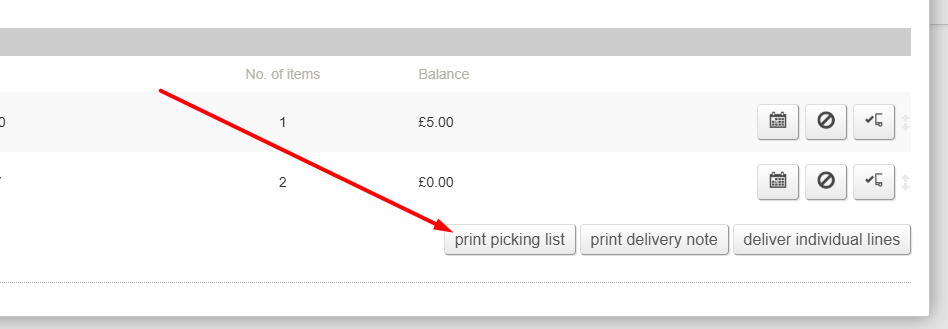
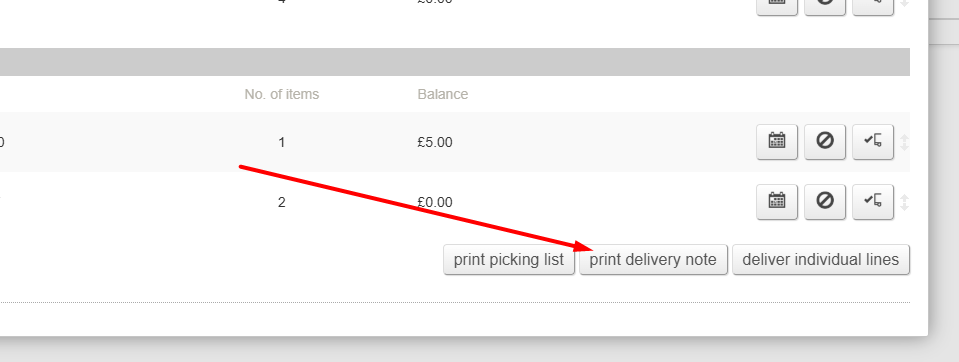
From this screen you can print Picking Lists per Lorry Journey.
Print Delivery Notes
From this screen you can print Delivery Notes per Lorry Journey.
Deliver Individual Lines
You can also deliver individual lines. Use this to mark individual lines within a Sales Order as delivered.
This should be used if delivery was unsuccessful