Stock Transfer (Detail)
Summary
From this screen you can manage an individual Stock Transfer.
You can also receive stock on a Stock Transfer via the Goods In screen
Page Breakdown
|
|
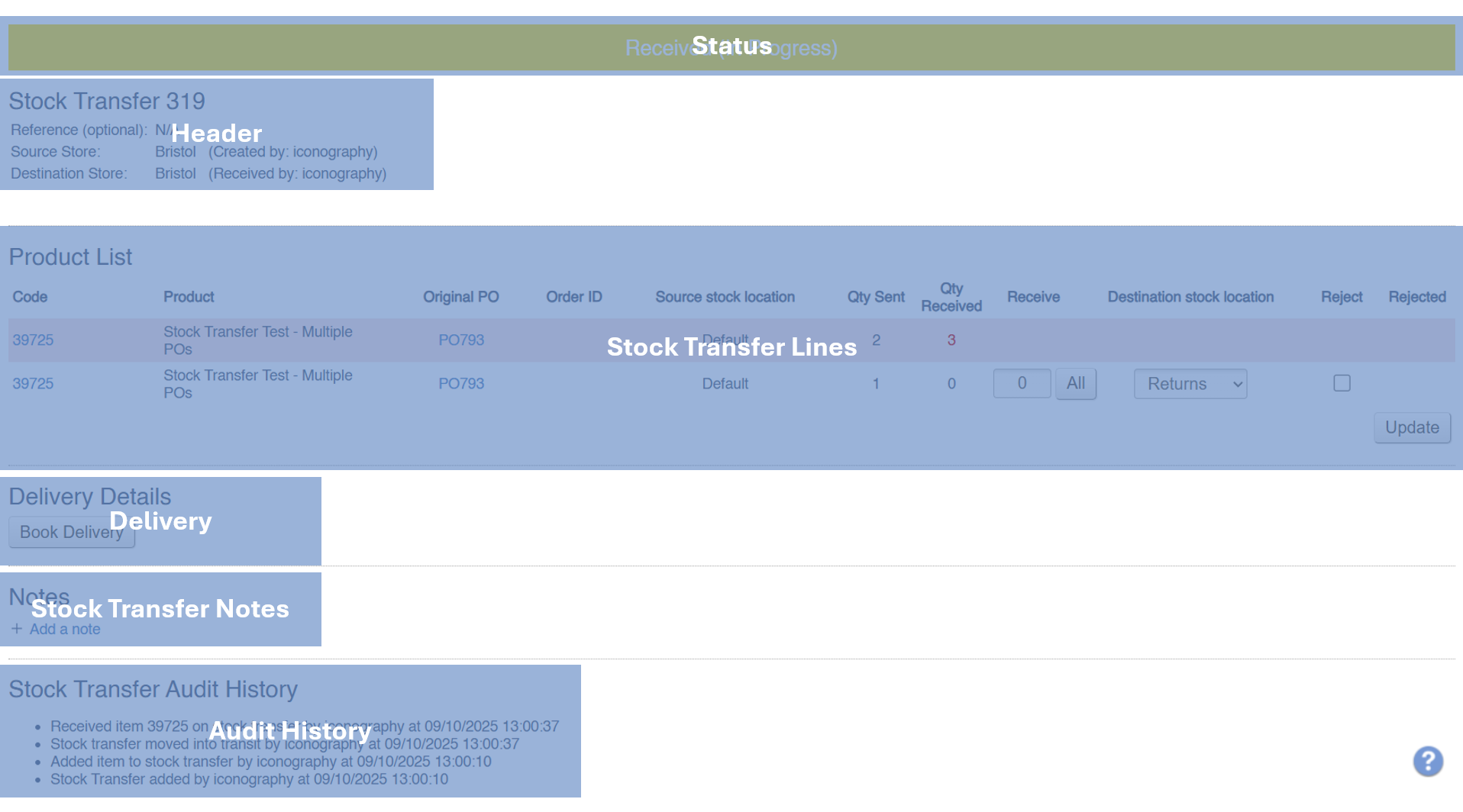
Status

The Stock Transfer status is set automatically based on a variety of things within the Stock Transfer.
These can be used to filter the list of Stock Transfers
A List of Statuses
| Status | Purpose |
|
Open |
While a Stock Transfer is Open, more items may be added to it
You may also change the destination Store of an Open Stock Transfer |
| In Transit |
A Stock Transfer that is In Transit is in the progress of being moved from A to B
Marking a Stock Transfer as In Transit will make all stock on that transfer unavailable |
| Received |
This status is activated as soon as a single item on the Stock Transfer has been received
It is not possible to 'complete' a Received Stock Transfer until all items have been received or rejected |
| Awaiting action | Highlights that there is an issue with this Stock Transfer |
| completed | A complete Stock Transfer; no further action is needed or possible. |
Header

Use this screen to view and manage key information about the Stock Transfer.
This information may only be amended on 'open' Stock Transfers.
| Field | Purpose |
| Reference | Enter an internal reference for the Stock Transfer (optional) |
| Source Store |
The source of the stock on this Transfer
Amending this is only possible on open Stock Transfers, and doing so may cause issues if stock is not available in the new Store |
| Destination Store |
The destination for stock on this Transfer
Amending this is only possible on open Stock Transfers |
Stock Transfer Lines
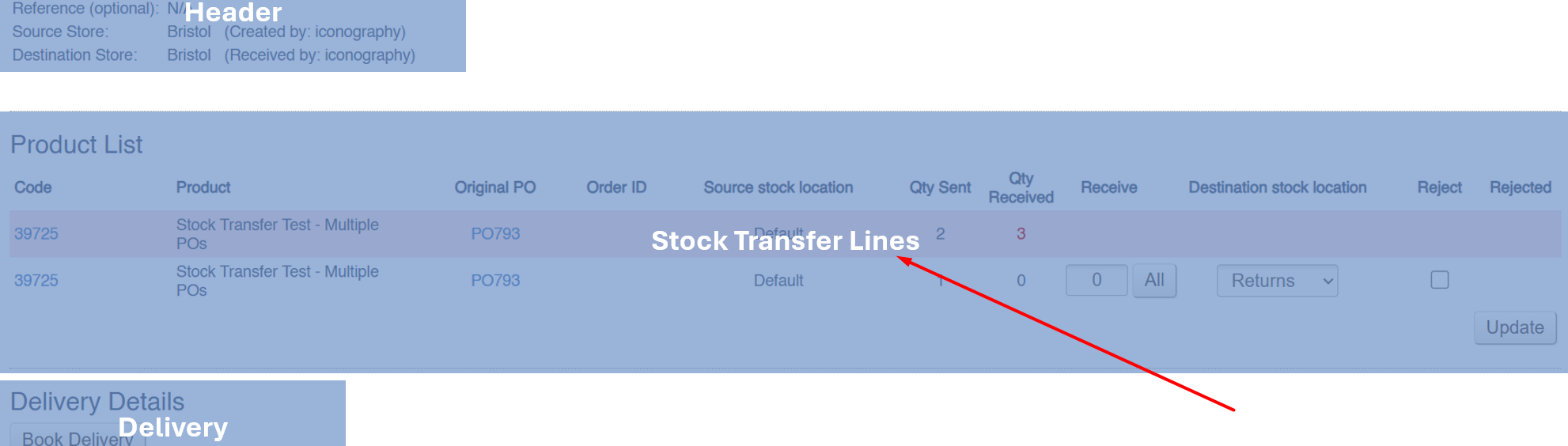
Use this section to view and update Stock Transfer lines. This shows essential information, and also allows for the following actions:
Add new Stock Transfer line
Search for products to add to the Stock Transfer.
This is only possible on Open Stock Transfers.
Receive lines
Enter a number of items to receive. You will also need to select the destination stock location; this is where the goods will be added.
This is only possible on In Transit and Received Stock Transfers
You can also do this on the Goods In screen
Reject lines
Use this option to reject units of stock. Select a reason and enter a quantity.
Please ensure that before taking these actions, you investigate the matter with the appropriate individuals in your company to confirm exactly what has happened and where the stock actually is.
If you are sent an item that is not on the Stock Transfer, a new one must immediately be added, as it is not possible to over receive stock on a Stock Transfer.
Return to sender
Use this when you have more items than required.
This will receive the stock into your current Store and immediately create a new Stock Transfer; the destination Store on the new transfer will be the source of the original.
Not sent
Use this if an item is missing from your shipment.
This will immediately add the unit of stock back into its source Store and Location.
Lost in transit
Use this if an item is lost or destroyed.
This stock will be removed from the system, and an entry will be added to the Stock Discrepancy report.
Delivery
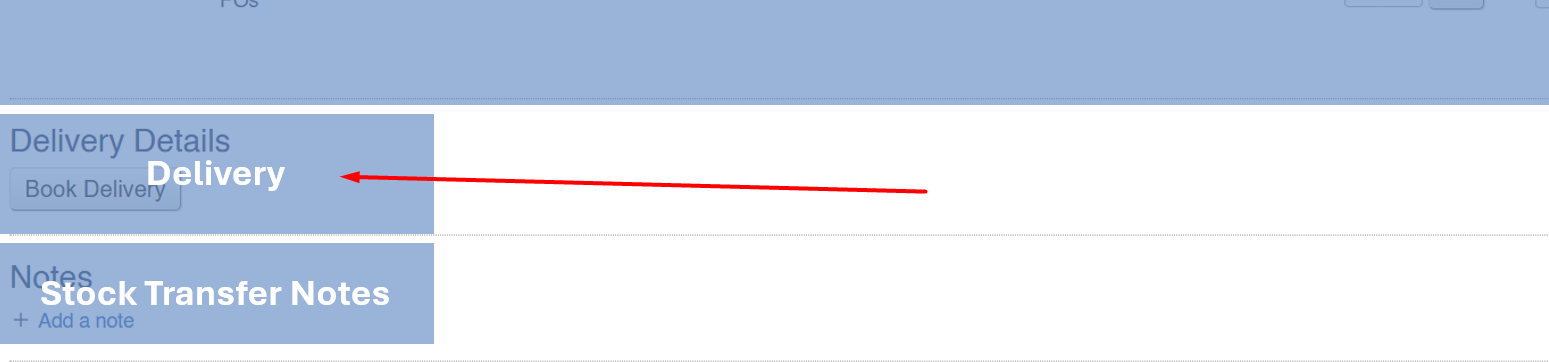
Use this screen to book delivery of the Stock Transfer on a lorry.
You can also use the Scheduling tool for this purpose.
Click here for a guide on booking deliveries
Stock Transfer Notes

A user may add notes to a Stock Transfer here.
Use the controls to add a note or a task.

Audit History

The audit history shows a log of all actions taken on a Stock Transfer, along with a timestamp and who took the action.