
How to Schedule a Sales Order/Stock Transfer
Note that this process can works for both Stock Transfers and Sales OrdersStores
1. Press the Schedule button
This is found on the Scheduler screen, but may also be found on the Sales Order Detail screen, the POS screen, and the Stock Transfer Detail screen.
2. Select the items you wish to Schedule
Use the tick boxes to confirm which items you wish to Schedule
In the case of Stock Transfers, all items must be Scheduled simultaneously
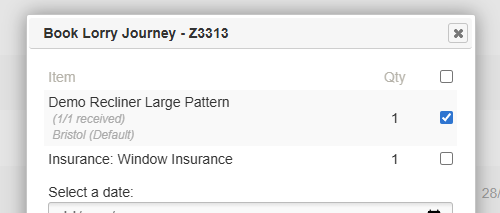
3. Select the date of delivery
Choose the date you would like to use for delivery.
It may be useful to have the Journey Planner open in a separate tab, as this will assist you when looking for availability.
4. Select a Lorry
Select a Lorry Journey that is available on that specific date.
Your selection will be restricted based on the Postage Zones which that Lorry Journey includes.
In the case of a Stock Transfer, the postcode of the destination Store will be used determine which Postage Zone is required
5. Select a timeslot
Select a timeslot for this delivery.
This is optional.
This will require timeslots being set up against the Lorry Journey
6. Confirm selection
Click to confirm your selection.
The booking will now appear on the Journey Planner.