
Summary
Use this screen to search for and manage customers.
You can also use the search in the top right of the CMS to locate a Customer record
You can also use it to register a new customer.
New Customers may also be registered by Customers online, or in the POS
Key to Icons
 = edit
 = registered customer
 = customer pending registration
 = inactive customer
Adding a New Customer
To add a new Customer, click the 'Register' button in the top right.
This will take you to a screen where you can add customer information.
Managing Customer Accounts (in bulk)
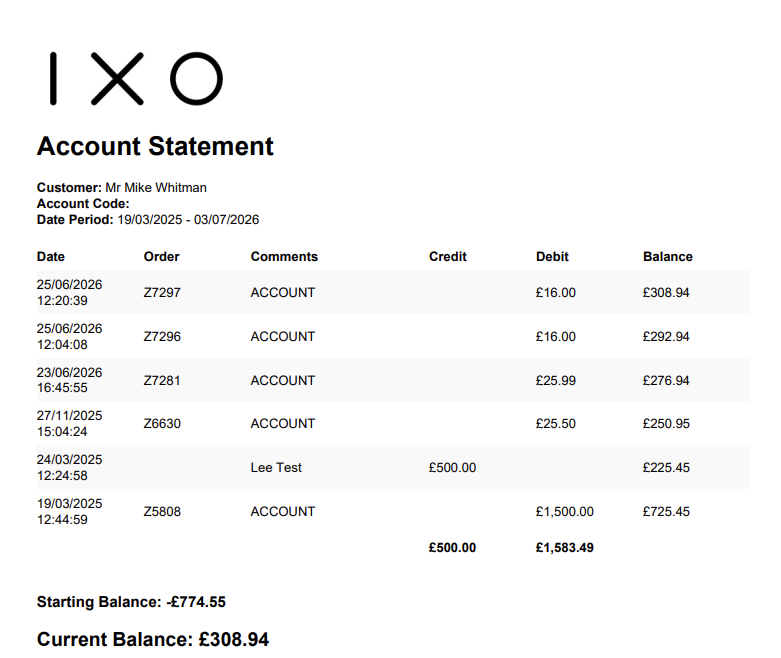
It is possible to download/email account statement for Customers on this screen, either in bulk, or individually.

Download
This will download a PDF account statement for all selected customers, compressed into a single .zip file.
If 'email' is clicked, each selected customer will be sent an email with a PDF account statement as below.
Sample Account Statement
FAQs
How do I find Customers with an outstanding balance?
This can be done on the Customer list screen. Use the filters to choose an account type, and then toggle the button for 'with balance'.
Can I reset a Customer Password?
Yes - this is done on the Customer Details tab when Managing Customer Information.
Customers may also reset their password via your website.