
Product Data
This may be used as an Import or an Export.
Export
Use these filters to limit which columns are exported.
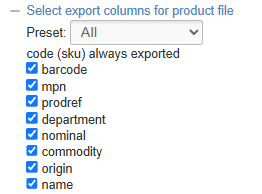
Use the filters to narrow your selection, then click 'Export'. This will generate a file that will include all Products that match your filters.
The export will include one row for each Variant linked to those Products.
Presets
It is possible to build Export presets. These provide a shortcut to which columns will be output.
You can either choose an existing preset from the drop down, or select 'new preset' If you do so, you will be prompted to enter a preset name, and select the required fields. That preset will then be available for future exports.
The SKU Code is always exported as the first column.
Import
Make changes to the file and import it to update Products.
When imported, the file will perform these two functions for each row:
- If the SKU Code already exists in the database, then it will be updated as per the data in the spreadsheet
- If the SKU Code does not exist, then a new Product will be created (see below for more details)
It is not possible to remove data using this method; blank cells will be ignored
Merging Products
When creating a new Product, it is possible tomerge multiple rows into a Product with multiple Variants.
To do so, each row must share the same Name and ProdRef.
New Products with the same Name and ProdRef will be automatically merged on creation.
Field Summary
| Field | Purpose |
| code |
Sku Code (alphanumeric, mandatory, max 80 characters)
This field will not accept special characters; please limit your entries to letters, numbers, '-' and '.' |
| barcode |
Barcode field (alphanumeric)
This will be autogenerated if left blank |
| mpn |
Manufacturer's Part Number (alphanumeric, stored per Variant) |
| prodref |
Product Reference
This is used to link Products as separate Products, or to merge new Variants into a new Product (see above) |
| department | This powers |
| nominal | This field typically forms part of an integration with an accounts package |
| commodity | Enter the Commodity Code of the product (for use with exports) |
| origin |
Enter the Country of Origin (enter the country code, e.g. GB)
This is only required when exporting |
| name |
The Name of the Product (mandatory)
Displays as the page title (also known as the H1 Text) and is also output on Product Listing Pages, as well as being the primary field for search results
Also used as the Meta-Title by default
This may be used to merge new Variants into a new Product (see above) |
| manufacturersproductname | If populated, this will replace the Product Name on |
| price |
The selling price of the Variant
Defaults to 0 |
| rrp |
The RRP of
Defaults to 0 |
| offerprice |
A retail offer price for
Defaults to 0 |
| offerstart |
Date until which the Retail/Trade Offer price should apply
If left blank, the Retail/Trade Offer price will apply unless an start date has been set in the future |
| offerexpiry |
Date from which the Retail/Trade Offer price should apply
If left blank, the Retail/Trade Offer price will apply unless an expiry date has been set in the past |
| costprice |
The cost price of
Defaults to 0
May be set
This may only be used if the Product is linked to a single Supplier. If there are multiple Suppliers, you will need to use the Cost Price import. |
| vat |
Select the VAT status of
VAT rates for Standard and Reduced are controlled |
| lowstock |
Use this to set a low stock threshold, e.g. '7'
If the stock level is below this level, a warning will be show on your website and
This will also be used to |
| highstock |
Use this to set a minimum stock level, e.g. '5'
This will be used to |
| stocktext | A label that will display on |
| allowbackorder | This sets whether |
| allowpreorder | This will determine whether stock 'on the water', e.g. on a |
| postagetypes |
Default postage types will be applied automatically to new Products |
| deliverytext |
Text entered in this field will display to the customer on the website if the product has available free stock
If left blank, this will default to 'In Stock' |
| deliverytext2 |
Text entered in this field will display to the customer on the website if the product does not have available free stock
If left blank, this will default to 'Out of Stock', or, if enabled for allowbackorder on |
| leadtime | Set the leadtime (total days) for |
| brandname |
This adds
This will text match to an existing entry; if a matching entry does not exist, it will be created |
| supplier |
This section is used to
If you are using multiple Suppliers for a single product, these may be added as a comma delimited list This will text match to an existing entry; if a matching entry does not exist, it will be created |
| collection |
This section is used to
This will text match to an existing entry; if a matching entry does not exist, it will be created |
| summary |
This field allows for a simple summary of the product, with simple formatting
This may be uploaded with HTML to apply basic formatting |
| description |
This field controls the Product Description; formatting may be added to this using the controls at the top of the screen
This may be uploaded with HTML to apply basic formatting |
| tab1 to tab 4 |
If populated, this will add a new product information tab onto the product page; this field will provide the title of that tab
This will display in the same manner as |
| tab1to tab 4 content | This will form the content of a custom tab; this is populated as per the Product Description |
| Merge Tag Title |
The title used on linked eCommerce Products
Used in Conjunction with Product Reference
Note that this field is optional for linked Products |
| Merge Tag |
The label used on linked eCommerce Products
If multiple Products have the same Product Reference, they will be linked to the eCommerce Customer if a Merge Tag Title and Merge Tag are entered
Used in Conjunction with Product Reference
Note that this field is mandatory for linked Products |
| pdftext | Text entered here will be the link text shown to the customer on your website
This will default to the file name, if left blank |
| videoid |
Use this to determine the type of video (Youtube/Vimeo) |
| videotype | Enter the ID of the video that you want to attached to the product
You can find the video ID from the URL:
https://www.youtube.com/watch?v=dQw4w9WgXcQ
|
| weight | Dimension of |
| volume | Dimension of |
| unitwidth | Dimension of |
| unitdepth | Dimension of |
| unitlength | Dimension of |
| unitheight | Dimension of the Variant (cm) |
| cartons |
The number of Cartons in which
This will determine the number of product labels which will be printed from |
| productlive | Defines the Product Status (yes/no) |
| variantlive |
Sets whether
It is possible to have a Product with multiple Variants where some are not live
If all Variants are set 'Variant Live' to No, then the Product will be disabled.
Defaults to Yes |
| buyonline | Defines whether the Product can be bought online (yes/no) |
| visibility |
By default, all products will be visible on your website, but this setting allows you to determine visibility of the product within the POS, or across multiple websites
Enter a comma delimited list, e.g. website/instore |
| featuredhome | Toggle to feature the product on the Home Page |
| featured | Toggle to feature the product on Category Pages |
| freeshipping |
Determines whether this Variant
This will only apply to orders within which all items have this enabled
(yes/no) |
| disallowdiscounts | |
| swatchwizard | Toggle to enable |
| multiswatch |
Toggle to combine variants within the Swatch Wizard (yes/no)
This controls the following field against the Product: 'Combine variant and swatch selection in Swatch Wizard if applicable (enables "multiswatch")'
This will not be available if multiple layers of Variant option are on a product, e.g. 'Size' and 'Colour'
This will not be available if any live Variant has no Customisations |
| previewswatch |
Enables swatch preview panel (yes/no)
Made to Order Products only |
| requestaswatch | Toggle to enable the Swatch Request Popup (yes/no)
(Swatches |
| itemcondition | Choose if a product is 'New' or 'Used' |
| meta_title | Use this to set a manual Meta Title |
| meta_description | Use this to set a manual Meta Description |
| meta_keywords | Use this to set your Meta Keywords |
| google_product_type |
Use this to override the Google Category assigned to this product
May be left blank
By default, this will inherit the setting in |
| excludefinance |
Baskets that include this Product will not be permitted to checkout with finance (eCommerce) |
| allowvatremoval |
Enables the ability to exempt this Product from VAT, either in the POS or the CMS |
| option1 to 3 name |
Enter an Option Name for the Product
This will text match to an existing entry; if a matching entry does not exist, it will be created |
| option1 to 3 | Enter an Option Value for the Variant |
| related | Enter a comma delimited list of SKU codes as Related items |
| upsells | Enter a comma delimited list of SKU codes as Upsells |
| productaddons | Enter a comma delimited list of Addon SKU codes |
| prodid |
Export only
This will export the Product ID of the selected Product |
Mapping
You will need to map your data before it can be imported.
It is highly recommended that your import file should only include the columns for the fields that you are intending to edit, and nothing else.
Mistakes made here may have serious impact on your Product database.