Price Management
Use rules to apply bulk price changes.
Summary
This page is used to manage the prices of Variants and Unique Stock Records in Bulk.
It is possible to:
- Manually edit prices
- Update prices via a CSV Import/Export
- Use rules to manipulate prices
All changes will be scheduled at least 15 minutes into the future, and can be viewed within the Time Pricing report.
CSV Upload
Use this screen to import and export files to schedule pricing updates.

Import
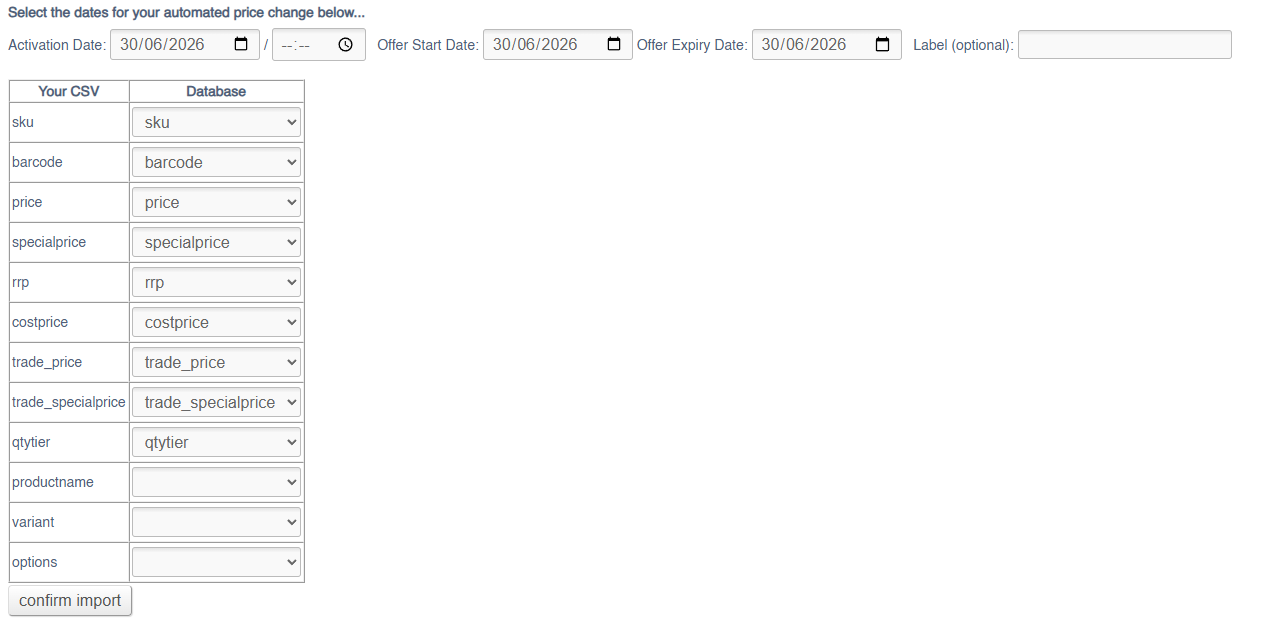
To import a file simply use the controls and map your data appropriately. You will also need to enter an activation date for your price changes.
The Label is optional, and is used to find your price changes once they have been uploaded; these are visible in the Timed Pricing report
Export
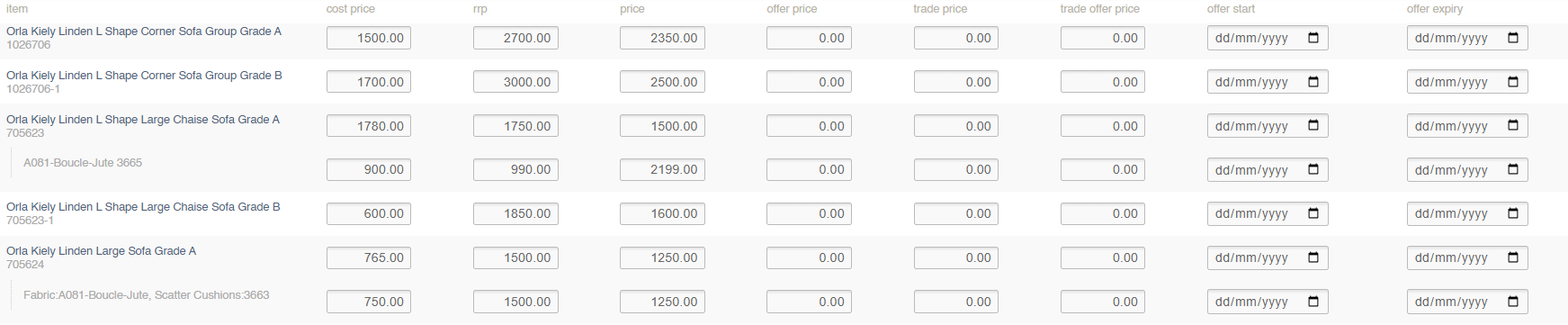
To export prices via a CSV, use the search and filters to locate the Products and Unique Stock Records that you need to edit. You can then export
Filters
This screen can be filtered by:
- Product Search (SKU Code/Name)
- Category
- Supplier
- Brand
- Collection
- Include Unique Stock Records (see below)
Unique Stock Records
If checked, Unique Stock Records will be shown, and pricing may be updated.
To be shown a Unique Stock Record must be enabled for POS or Web
Price Management File
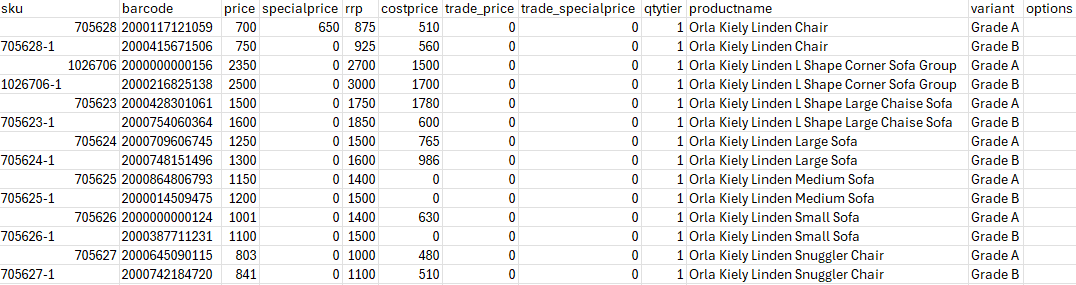
Use this file to adjust prices on your selected Products and Unique Stock Records.
| Field | Purpose |
| sku | SKU Code of the Product |
| barcode | Barcode of the Product/Unique Stock Record (for Unique Stock Records, this will take precedence on import) |
| price |
The selling price of the Variant
Defaults to 0 |
| specialprice |
A retail offer price for the Variant (this will supersede the Retail field), if enabled by the Offer Start/Expiry
Defaults to 0 |
| rrp |
The RRP of the Variant, to show on the website
Defaults to 0 |
| costprice |
The cost price of the Variant
Defaults to 0
May be set per Supplier enabled for this Product
This may only be used if the Product is linked to a single Supplier. If there are multiple Suppliers, you will need to use the Cost Price import. |
| trade_price |
The trade selling price of the Variant
Defaults to 0 |
| trade_specialprice |
A trade offer price for the Variant (this will supersede the Retail field), if enabled by the Offer Start/Expiry
Defaults to 0 |
| qtytier | Use to enter and control tiered pricing linked to quantity sold |
| productname |
Shows the Product Name
Not editable via in this import/export |
| variant |
Shows the Product Variant Options
Not editable via in this import/export |
| options |
Shows the Customisations linked to a specific Unique Atock Record
Not editable via in this import/export |
Price Manipulation
Use the 'Manipulate Prices' button to automatically update prices. This will take you through a wizard.
This will affect prices on all Products within the currently filtered view
This has process will alter prices in bulk and should be used with care
Step 1 - Confirm Source Price
Select the Source Price, which will be used as the basis of the calculation.
Please note that which type you select may affect function later in the process (see below for details)
Step 2 - Confirm Target Price
Select the Target Price, which is the price that will be updated following the calculation.
Please note that which type you select may affect function later in the process (see below for details)
Step 3 - Confirm Multiplier
You can either choose a multiplier or a percentage. If you choose a percentage, you will have to choose whether this is an increase or decrease.
These two fields are linked and will update if the other is edited.
It is not possible to have a multiplier of less than or equal to zero
Update Customisations
Toggling this will include Customisations in the price management, meaning that any prices associated with those Customisation will also be updated.
These prices will be updated exactly as per the rules you build in this wizard - please pay particular attention to rounding (below)
Offer start
Use this field to enter an offer start date
Offer expiry
Use this field to enter an offer expiry.
Only editable if the Target Price (Step 2) is either a Retail Offer Price or a Trade Offer Price.
Step 4 - Choose Rounding
Round to the nearest
Choose to round to the nearest Pound or Pence.
Optionally choose to deduct a figure after rounding.
Example 1
After calculation a Product price would be £57.17. If a user chose to round to the nearest £10, and deduct -5p, the final price would be £59.95.
Example 2
After calculation a Product price would be £1431.50. If a user chose to round to the nearest £1000, and deduct -£1, the final price would be £999.
Example 3 - Customisations
After calculation a Product price would be £2515. If a user chose to round to the nearest £200, and deduct -£5, the final price would be £2595.
That Product also has a Customisation, with the associated price of £101 after calculation. As the same rules are applied, that Customisation price will be £195.
Because Products and Customisations often have very different prices, and the same rounding rules are applied, unexpected results may occur; proceed with caution
Rounding method
Choose between
- Round normally
- Force round up
- Force round down
Example 4
After calculation a Product price would be £99.17. If a user chose to round to the nearest £50, but has selected 'force round down', the final price will be £50.
Minimum rounding price
Products whose final price will be equal to or less than this figure will not be rounded.
Example 5
After calculation a Product price would be £15, and the rounding rules are set to round up to the nearest £1000 with 'force round up'. A minimum rounding price is set at £500.
No rounding is applied to the Product in question.
Step 5 - Activation Date
Choose the date and time that these prices will be activated.
Please be aware that price changes will take into account all other price changes in place when they are created.
Example 6
Product A's Cost Price is being updated on the 1st May at 00:01.
A second price change is scheduled to update the Retail Price based on the Cost Price as the Source Price, and scheduled 31st May at 00:05.
This will use the new Cost Price, which will be live at the time.
Example 7
If a third change is scheduled, to set a Retail Offer Price based on the Retail Price, to take effect on 31st May at 00:02 it will use the previous Retail Price, as the update has not yet occurred.
Example 8
A new price increase has occurred, and Product A's cost price will now also be updated on the 15th May.
Because the updates to the Retail Price have already been calculated (see Example 6), these will not be altered by the change, and will have to be re-entered.
Step 6 - Optional Label
Use this to add a label which can be used to filter the Timed Pricing report and view your changes.
Manual Entry
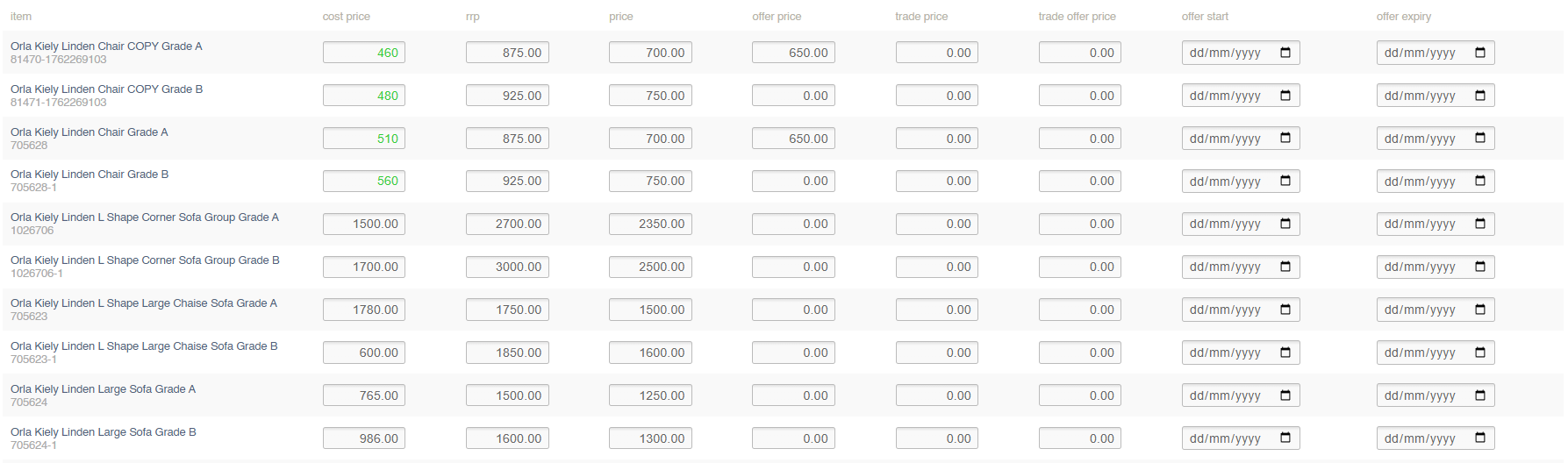
To manually adjust prices, use the search and filters to locate the Products and Unique Stock Records that you need to edit.
Then enter new prices in the relevant fields.
When fields have been updated, they will be highlighted in green; all changes will be stored automatically with no need to save
Filters
This screen can be filtered by:
- Product Search (SKU Code/Name)
- Category
- Supplier
- Brand
- Collection
- Include Unique Stock Records (see below)
Unique Stock Records
If checked, Unique Stock Records will be shown, and pricing may be updated.
To be shown a Unique Stock Record must be enabled for POS or Web