
Summary
This screen is used to assist in replenishment of stock within the business. it summarises a variety of information, then collates that to produce a recommended quantity to order/transfer.
It must be filtered by Store and Supplier in order to work, but may also be filtered to view suggested only, which will remove any Products which do need need to be ordered.
This is an automated process, and relies on general rules; it is important to review the recommendations manually.
Field Summary
It is possible to filter to an 'aggregated view' - for more information, click here.
| Field | Purpose |
| Dated figures (e.g. preceding and succeeding months, as well as last 12 months and month to date) |
These columns include the sum of all stock despatched from the selected Store, as well as all stock in locations in that Store which is currently reserved to Sales orders, no matter the selling Store.
That means:
|
| Available Stock | This shows the amount of stock currently available within the selected Store |
| Available for Replenishment |
This shows the amount of stock currently available for replenishment within the selected Store
To be eligible for replenishment, that stock must be available, and the Store must be marked as enabled for replenishment |
| Stock Pending Transit |
This shows stock currently in transit to this Store
This will include all units of stock be on a Stock Transfer which is 'in transit', and any outstanding units of stock on Stock Transfer which is 'Received (In Progress) |
| Stock on Order | This shows stock currently on a Purchase Order, which is being delivered to the selected Store |
| Required for Orders | This shows stock required for sales orders where the selling Store is the currently selected Store |
| Low Stock (order at) |
This shows the Low Stock figure
This is set against the Variant |
| High Stock (order to) |
This shows the High Stock figure
This is set against the Variant |
| Last Order | This shows the date of the most recent Purchase Order for each Variant, as received by the selected Store |
| Suggested qty to order |
This shows a recommended quantity to order, based on the data in this report; this may either be in the form of:
|
How does it work?
The page reviews recent sales against over the previous 12 months. This produces an average daily sales rate, and uses the days elapsed since the last Purchase Order for that SKU (or 12 months, whichever is longest) to produce a 'suggested quantity to order'.
This will also take into account the Order At and Order To figures, if they have been set on the Inventory tab when editing a Product.
Actioning a Recommendation
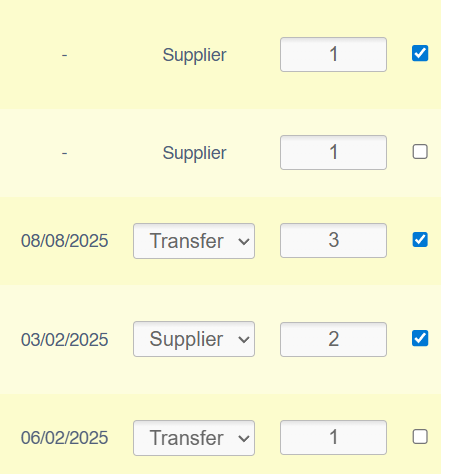
To action a line, select it using the tick box to the right of the screen. Once you have selected all which are required, use the 'order selected lines' button at the bottom of the page. This will then either create Stock Transfers or Purchase Orders as necessary.
Transfers
These will be created if 'Transfer' is selected. This will be prioritised if there is free stock elsewhere in the business.
This will not be available if no other stock exists within the business.
Purchase Orders
These will be created if 'Supplier' is selected.
Mark Lines as Not Required
This should be used to hide a line. Select Products that you do not wish to be recommended by ticking them, and then 'mark lines as not required'.
If you filter the screen to 'suggested only', these Products will be hidden.
This should be used for end of line items that are being retained for reporting purposes.
FAQs
My Product is not showing in this report - why?
There are two main reasons why a Product will not show in the Replenishment report:
- It has been marked as 'not required' (see above)
- It is a 'Made to Order' Product
What happens if I attempt to Transfer more stock than is On Hand?
In this instance, a Stock Transfer will be created for the maximum quantity of stock. For the remainder, a new Purchase Order will be created. E.g. there are 5 units on hand, and you Transfer 8. 5 will be added to a Stock Transfer, and a new Open Purchase Order will be created for the remaining 3.
What happens if I need to Transfer Stock, but it is coming from multiple locations in the same Store?
The system will draw draw units of stock from multiple items onto the same Stock Transfer, so long as they are coming from the same Store.