
Create a new RMA
1. Click "Add new return"

2. Search for a Sales Order

Tip: This can also be done directly from the Sales Oder Detail screen
3. Click "Create return"

4. Select the items to return

5. Optionally select reasons and requested actions, as well as adding notes

6. Click "Create return"

7. Your RMA is now created
To authorise the Customer's request, click Authorise. This will generate an email.
Alternatively, decline the customer. They will be informed by email.

8. To mark the items are received, mark the line appropriately.
If you are a furniture retailer, you may need to return the goods to a Location terms 'Customer House'.

Tip: You can also cancel individual lines by using the 'Cancel' column.
9. Click "Update items" to save your changes

10. To choose a Location to which the items will be received, click here.

11. You may optionally create a Supplier Return when receiving these goods.

12. Use this control to add a restocking fee; this will be deducted from the refund value.
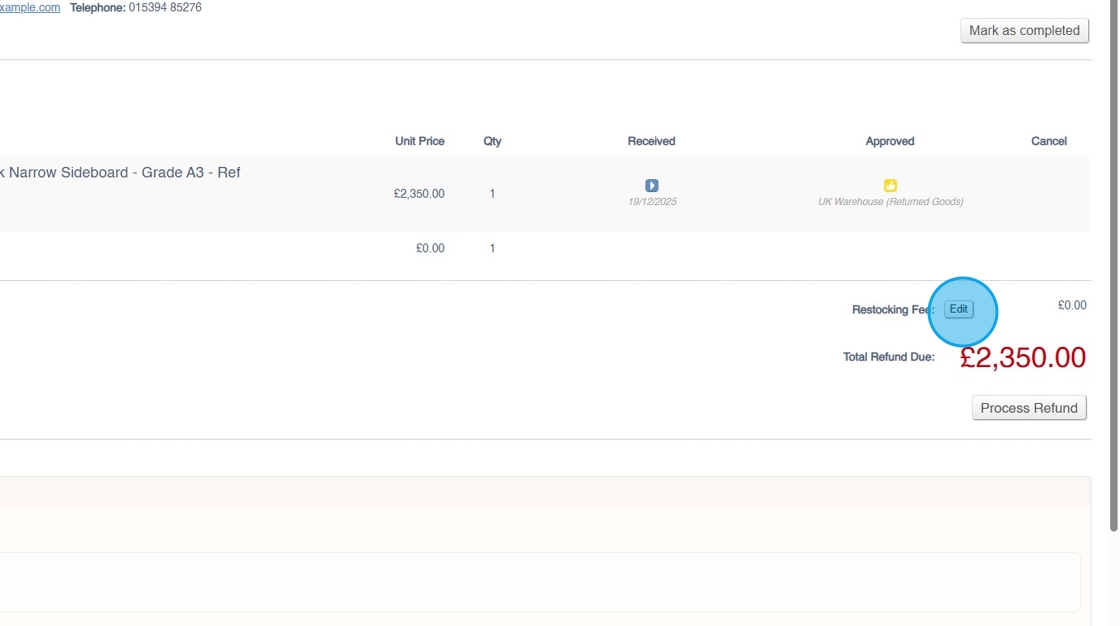
13. If required, click "Process Refund"

14. This will open the Sales Order Detail screen, which which you can process a refund as normal.
