
Setting up a Star Printer (via the app)
Step 1 - Install the app and install
Your printer will have come with a quick start guide - follow those steps to install the app and connect to your printer.
Ensure that it has access to the internet, either via a wired or wireless connection.
Wired connections are always more stable than wireless ones
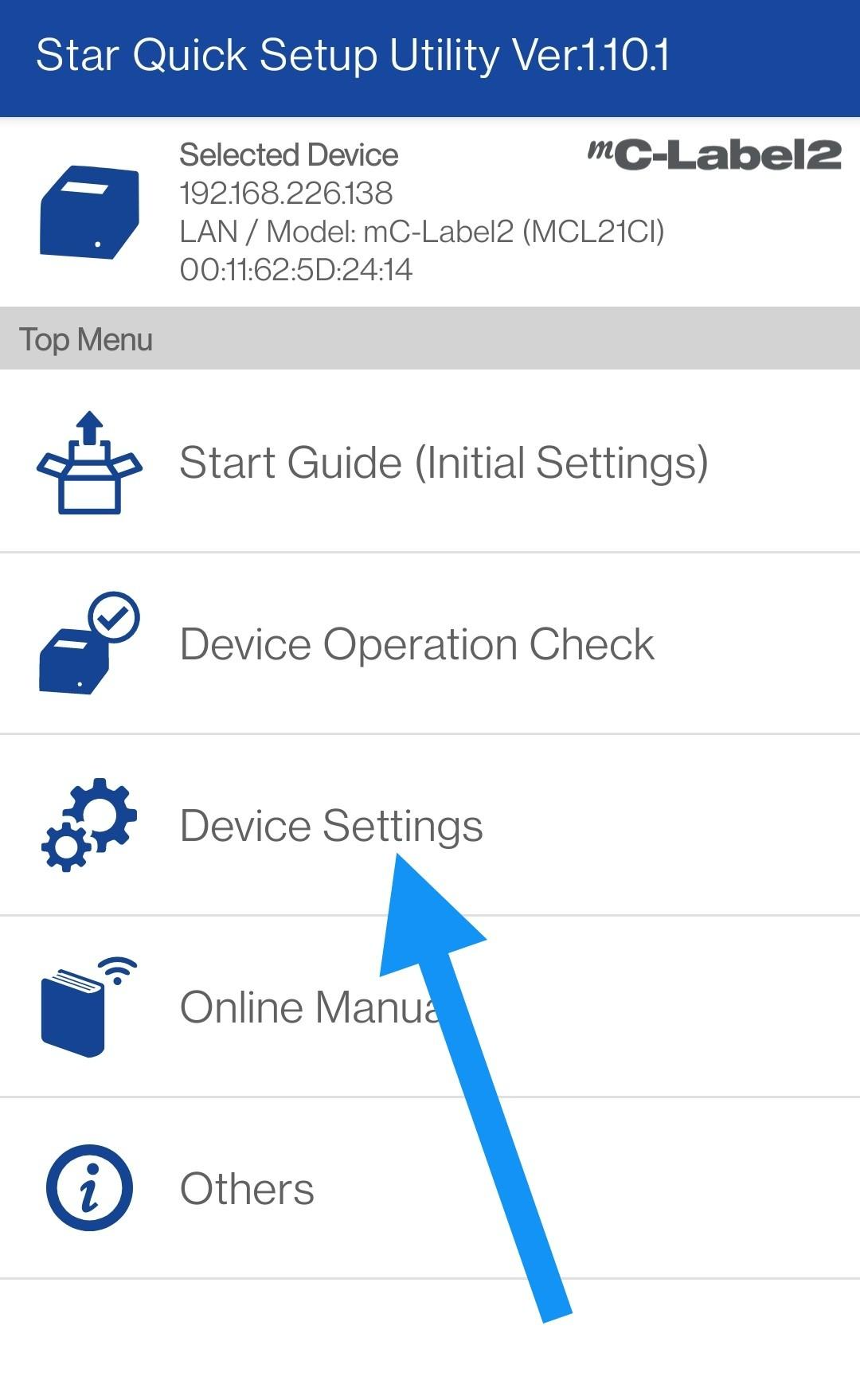
Step 2 - Open ClourPRNT Settings
Open Device Settings:
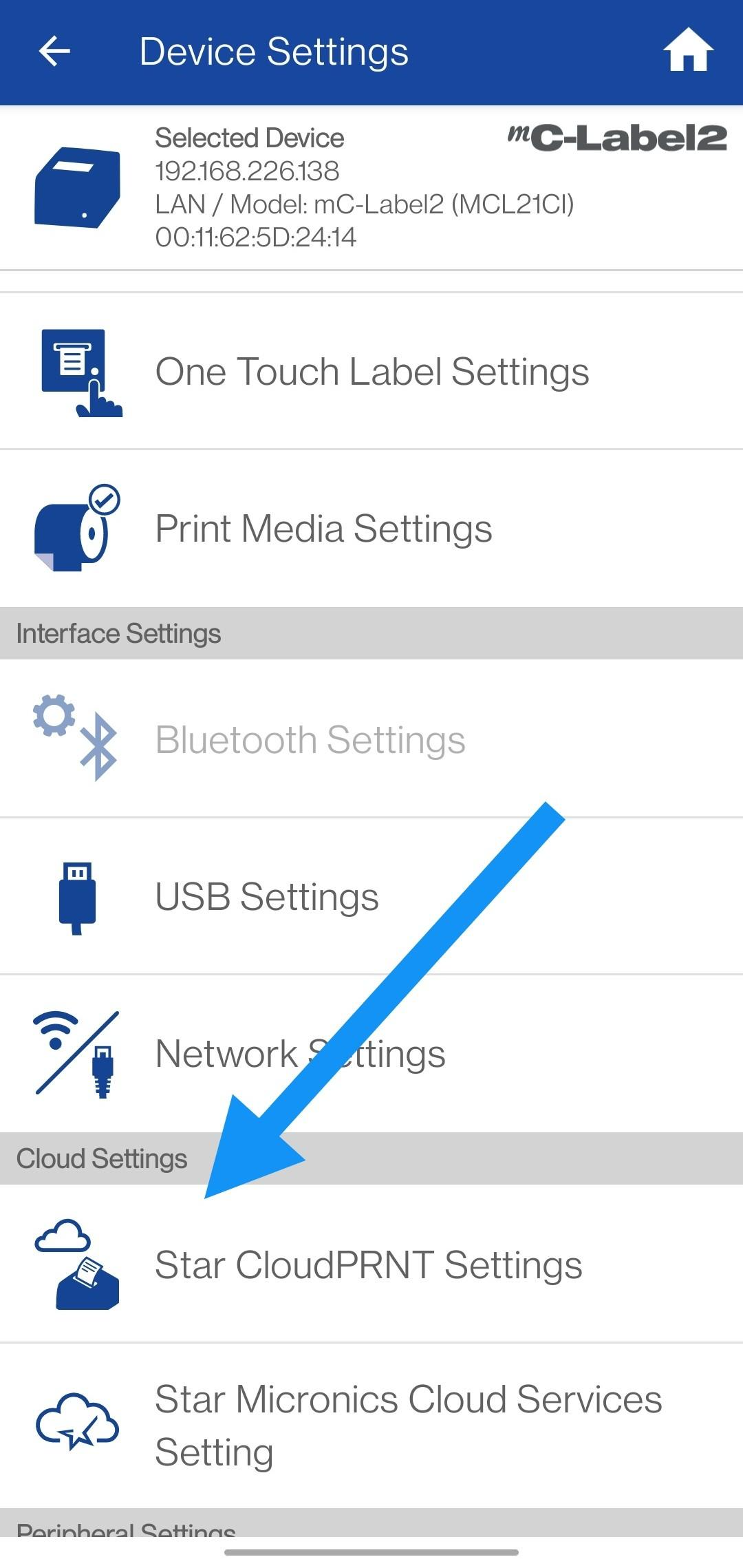
Navigate to this section:
Step 3 - Access the printer’s setup screen
Enter that IP into a web browser's address bar to access the configuration screen.
Step 4 - Enable CLOUDprnt
Toggle CLOUDprnt to enabled at the top of the screen.
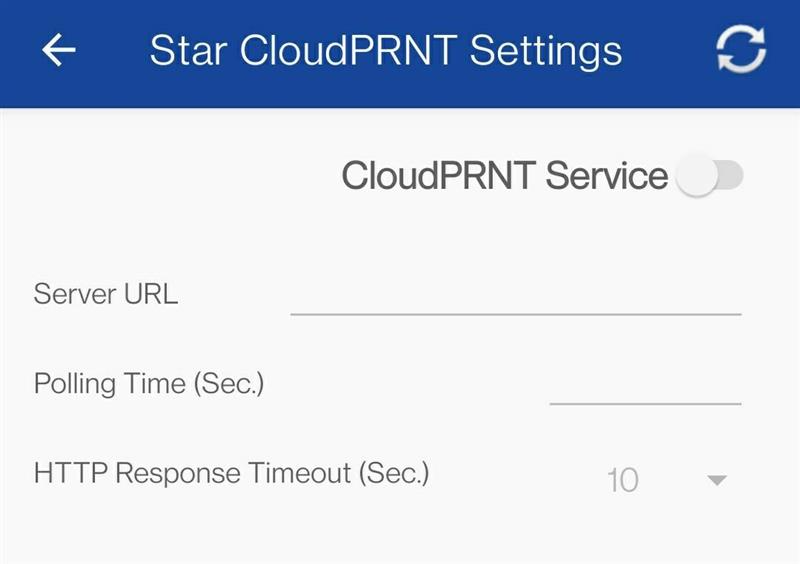
Then, enter the URL as prompted from your Device Setup screen. it will be in this format:
https://demo.iconography.co.uk/retailfusion/epos
If your site has not gone live, you will need to include the development password in that url. In that instance, use this format: https://demo.iconography.co.uk/retailfusion/epos?iconography=DEVPASSWORD
Set polling time to 2.Step 5 - Connect your printer to a device
Login to the CMS on your chosen device, then apply the appropriate settings in Device Setup.
It is recommended that you give each printer a unique label; also add a physical label with this identifier to your printer
To connect to a printer, simply tick the box and press 'update tills'.
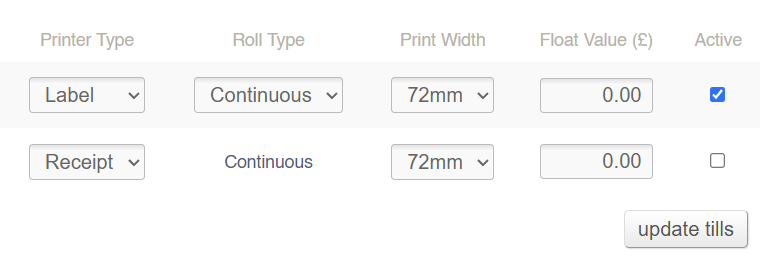
Each device can only connect to a single receipt printer and a single label printer at a time