
Receiving Goods via Barcode Scan
Best Practice
Filter the Goods In screen as normal, to the Store and Supplier of your choice. Additionally, filter to a particular Purchase Order or Stock Transfer as required.
Using a barcode scanner, scan each item individually; each successfully scanned item will increment the 'qty to receive' by one.
What do do if your items have no barcode
This is not uncommon; Suppliers do not always provide barcodes.
Using the Action buttons on the Goods In screen, you can pre-print labels for items that you are about to receive.
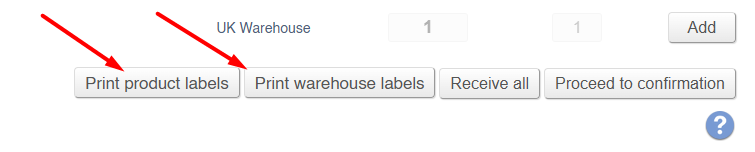
Apply these labels to your items, and then scan them to increment the count.
This will have the benefit of double checking your received goods; you have twenty items to receive, and print twenty labels. When you apply the labels to the products, you have one left over; it is immediately clear that you are missing an item.
What do do if your items have a different barcode
In IXO Commerce, it is possible for a single item to have multiple barcodes.
Manage this via the Inventory tab; these barcodes will need to be updated prior to doing Goods In.