
Receiving Goods without a Purchase Order
Best Practice
Sometimes, a product will be delivered unexpectedly; this may be alongside another delivery, or because a Purchase Order was not logged properly on your system.
Best practice is to contact someone with access to Purchase Orders to immediately create that Purchase Order.
Once this is done, you can receive goods as normal.
How to receive goods without a Purchase Order
This is possible via the Goods In screen; use the search dialogue at the bottom to add a new line.
Search for a Product by name or SKU code.

This will add a new line, which is 'unassigned'.

Set the quantity and cartons per item as normal, and then Proceed to Confirmation.
Doing this will add stock without reference to a Purchase Order; that stock will be added at the default Cost Price for that Variant, as Orphan Stock
If a submitted Purchase Order is being sent to your selected Store, but due to other filters, that Purchase Order is not visible on the Goods In screen, when you add a line, a prompt will appear to select that Purchase Order.
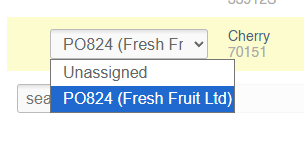
If a Purchase Order does exist, it will not be possible to receive that unexpected stock without selecting it.