
Summary
Use this screen to edit, view and add Popups.
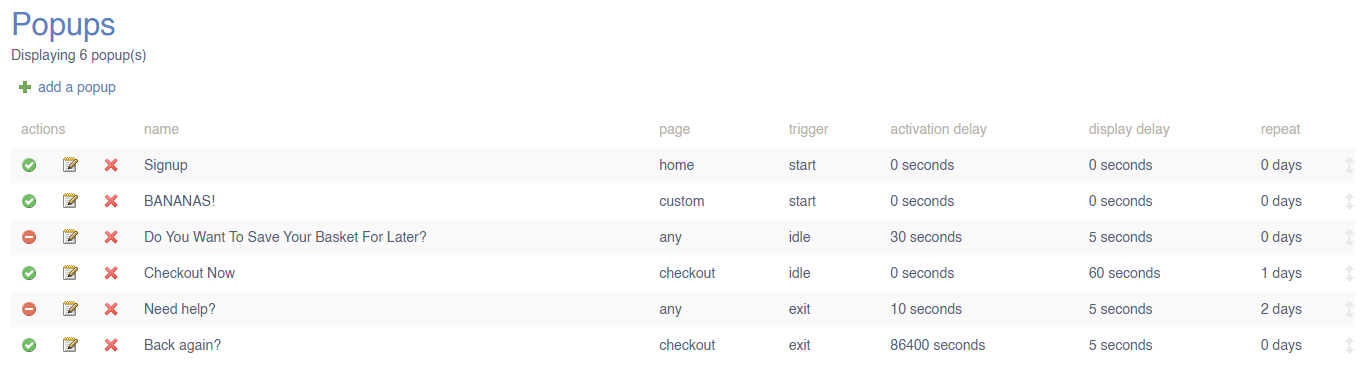
Key to icons
 = is live
 = is disabled
 = edit
 = delete
Adding/Editing a Pop Up
To do this, click the edit icon, or press the add a popup  button.
| Field | Purpose |
| Name |
Enter a Name for the Popup
This will display to the Customer
Mandatory |
| Content | Enter textual content for the Popup |
| Upload Banner |
Add an image to be displayed within the Popup
There are no dimension restrictions for this image |
| Promo Code |
Enter a Promo Code
This can be included in another field, e.g. Content, but if entered here, it will be styled separately to stand out |
| Include Form |
Select a Form to include in this Popup
You must have created at least one Form to use this function |
| Page |
Choose the Page on which this Popup will be shown:
|
| Trigger |
Choose from:
|
| Activation Delay |
Enter a figure (in seconds) as an Activation Delay; this affects when the Trigger occurs, e.g.
An Activation Delay of 30 seconds, coupled with the 'Idle' Trigger will mean that the Popup is triggered after 30 seconds of idleness
For no delay, set this value to zero |
| Display Delay |
Enter a figure (in seconds) for how long after the Popup is triggered it will display
For an immediate Popup, set this value to zero |
| Repeat After |
Enter a number of days until this is repeated to a Customer after they dismiss the Popup |
| Customer Targets |
Choose a Customer Group to target with this Popup |
| Active |
Toggle whether this Popup is set to live |
Preview a Popup
This option is available only for saved changes