
Summary
Use this screen to add, view and manage Tasks.
It contains a summary of all Tasks, and may be used to review your own Tasks, as well as those assigned to other Users.
Tasks may be added throughout the system, against Sales Orders, Purchase Orders, Stock Transfers and more; for a guide on adding Notes and Tasks, click here
Notes are simply Tasks without an actionable task
Key to Icons
 = open
 = in progress
 = awaiting reply
 = awaiting action
 = completed
Overdue Tasks are highlighted in red
For more information on Statuses click here.
Finding a Task
All Tasks are listed on this summary screen; use the filters to find or view Tasks. You can filter by:
- Store
- Store User
- Category
- Status
- Due Date
You can also choose to view overdue only.
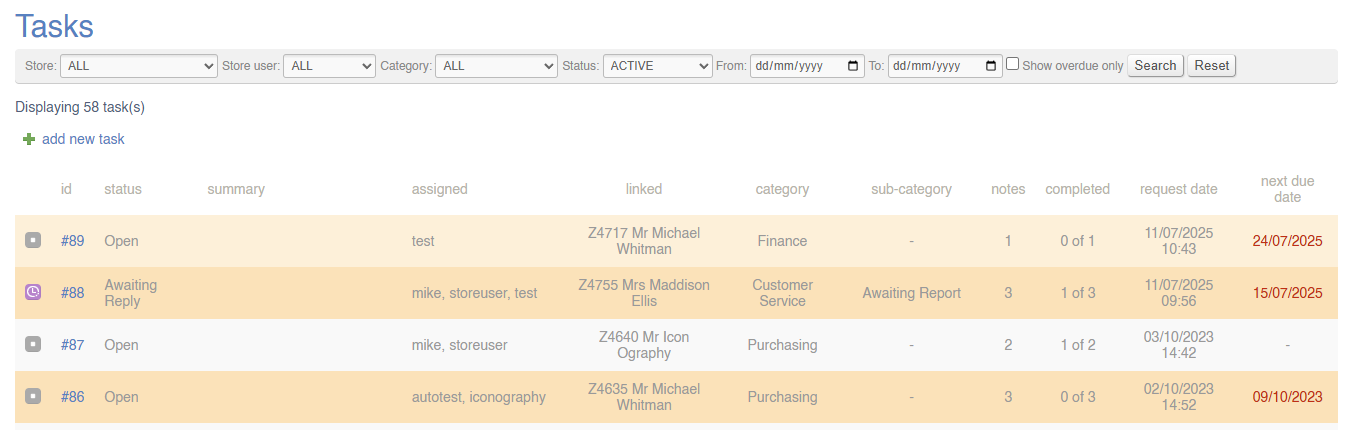
View by Category
Use the filters to view Tasks linked to a specific Category; these are set up in Site Settings.
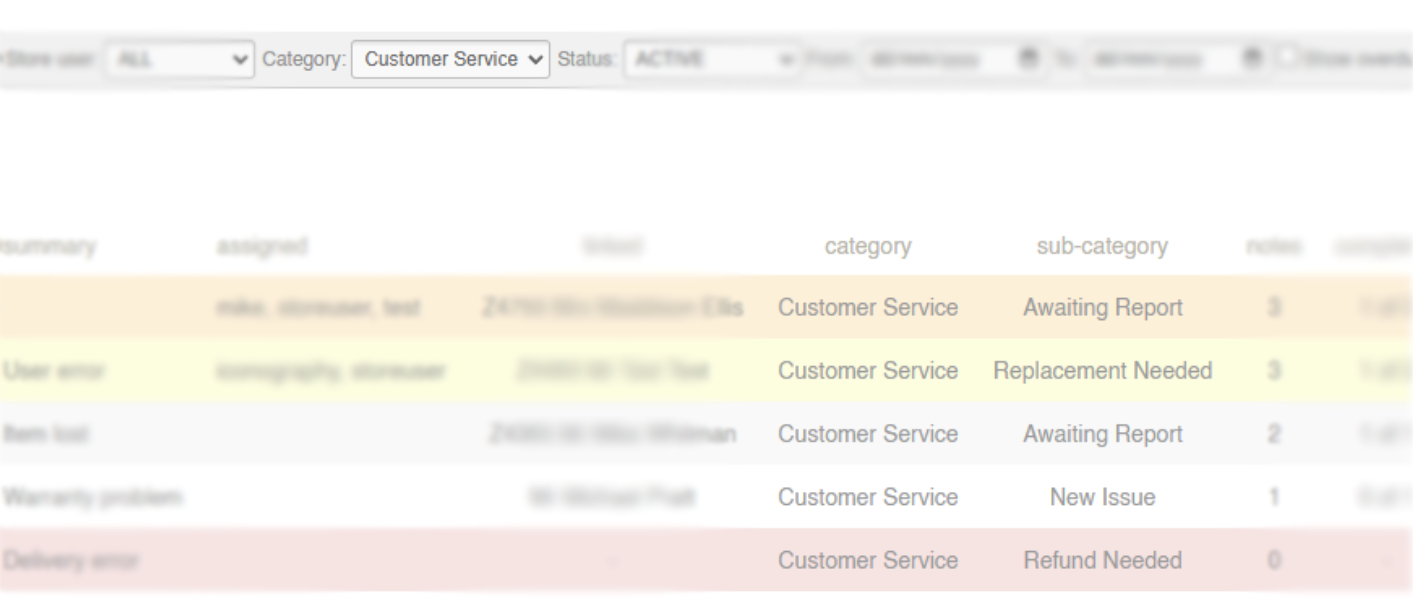
It is not possible to filter by sub-category
View by User
Use the filters to view tasks assigned to a specific User.
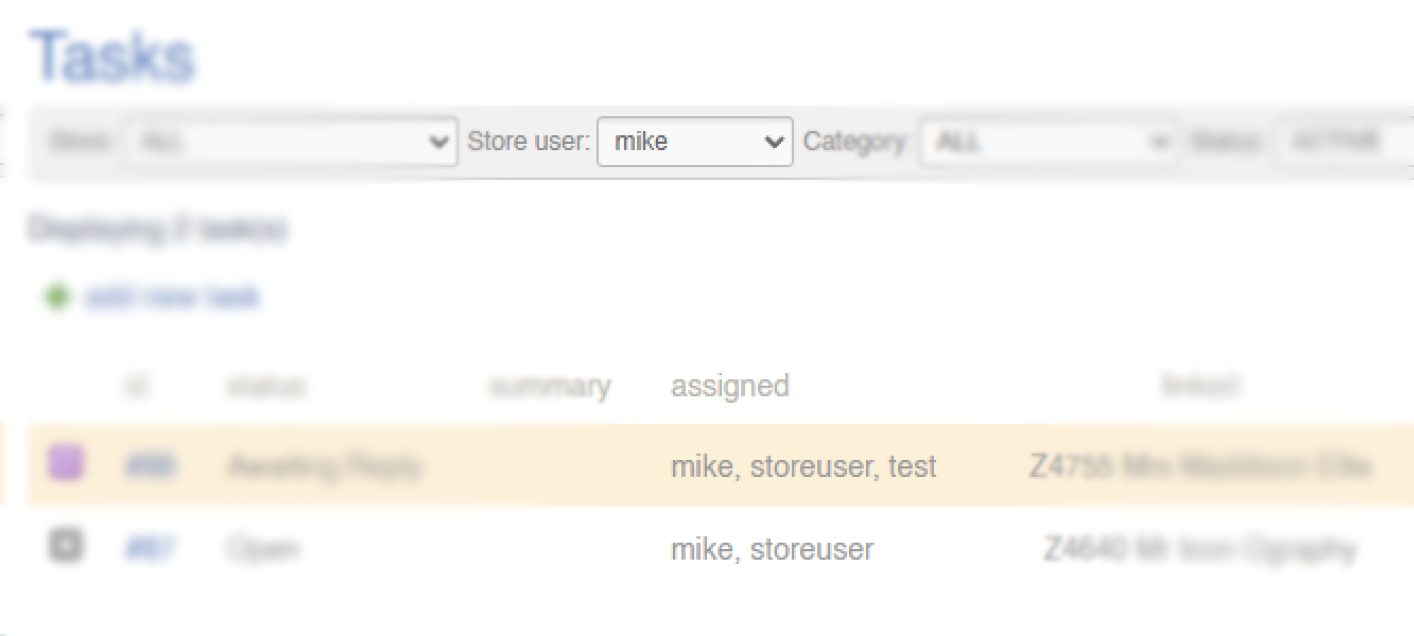
Some tasks may be linked to more than one User
Managing a Task
Click on the Task Id to manage that Task.
More information on managing tasks is available here.